Of course! Here is a comprehensive guide to the Selenium Python API, designed to be a complete resource for beginners and a quick reference for experienced users.
What is Selenium?
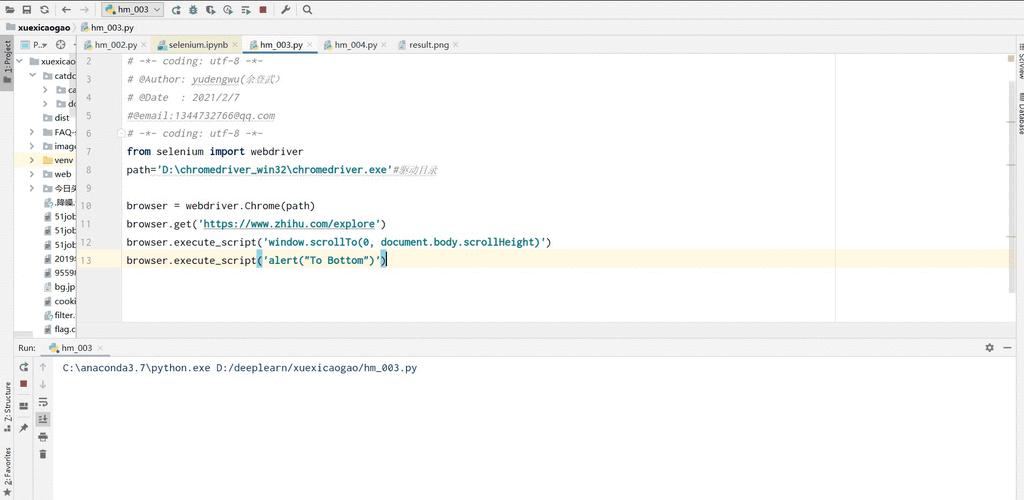
Selenium is a powerful open-source framework used for automating web browsers. With its Python bindings, you can write scripts to control a web browser, interact with web pages, and automate testing or web scraping tasks.
Installation and Setup
Before you can use the API, you need to install the necessary tools.
a. Install Selenium
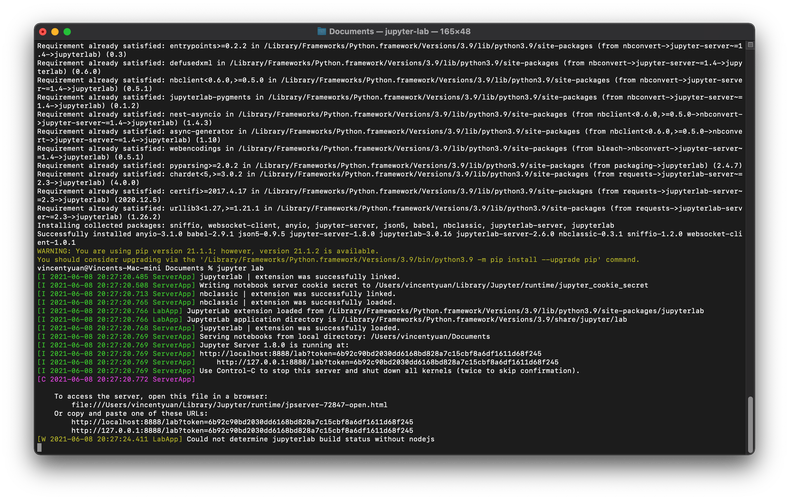
Open your terminal or command prompt and install the selenium package using pip:
pip install selenium
b. Install a WebDriver
Selenium controls a real browser (like Chrome, Firefox, etc.) by using a WebDriver. The WebDriver is a separate executable that acts as a bridge between your script and the browser.
For Google Chrome:
- Find your Chrome version: Go to
chrome://settings/helpin your Chrome browser. - Download the matching ChromeDriver: Go to the Chrome for Testing availability dashboard. Find the version that matches your browser and download the
chromedriverfor your operating system (e.g.,win64,mac-x64,linux64). - Add ChromeDriver to your PATH: Unzip the downloaded file and move the
chromedriver.exe(orchromedriveron Mac/Linux) to a directory that is already in your system's PATH environment variable. This is the easiest method.
Alternative: Use selenium-manager (Recommended for Selenium 4.6.0+)
Modern versions of Selenium have a built-in manager that can automatically download and manage the correct WebDriver for you. You often don't need to do anything manually!
Core Concepts: The WebDriver
The heart of the Selenium API is the WebDriver. It's an object that represents and controls a browser instance.
a. Import and Initialize the WebDriver
from selenium import webdriver
from selenium.webdriver.chrome.service import Service as ChromeService
from webdriver_manager.chrome import ChromeDriverManager # Optional, for automatic driver management
# Option 1: Using the built-in Selenium Manager (Recommended)
driver = webdriver.Chrome()
# Option 2: Using webdriver-manager (a popular alternative)
# driver = webdriver.Chrome(service=ChromeService(ChromeDriverManager().install()))
# Option 3: Manual path (if you added chromedriver to your PATH)
# driver = webdriver.Chrome()
b. Basic WebDriver Methods
| Method | Description |
|---|---|
driver.get(url) |
Navigates the browser to a specific URL. |
driver.title |
Gets the title of the current page. |
driver.current_url |
Gets the URL of the current page. |
driver.page_source |
Gets the HTML source of the current page. |
driver.close() |
Closes the current browser window. |
driver.quit() |
Closes the browser and ends the WebDriver session. (Always use this at the end!) |
Locating Web Elements
To interact with a page (e.g., click a button, type text), you must first find the HTML element. The find_element and find_elements methods are used for this.
a. Locators (Strategies)
| Locator | Method | Description | Example |
|---|---|---|---|
| ID | By.ID |
Finds an element by its id attribute. |
find_element(By.ID, 'username') |
| Name | By.NAME |
Finds an element by its name attribute. |
find_element(By.NAME, 'q') |
| XPath | By.XPATH |
Finds an element using a path expression in the XML structure of the HTML. Very powerful. | find_element(By.XPATH, '//input[@name="q"]') |
| CSS Selector | By.CSS_SELECTOR |
Finds an element using a CSS selector. Fast and concise. | find_element(By.CSS_SELECTOR, 'input[name="q"]') |
| Link Text | By.LINK_TEXT |
Finds a link (<a>) element by its exact visible text. |
find_element(By.LINK_TEXT, 'Sign In') |
| Partial Link Text | By.PARTIAL_LINK_TEXT |
Finds a link by a partial match of its visible text. | find_element(By.PARTIAL_LINK_TEXT, 'Sign') |
| Tag Name | By.TAG_NAME |
Finds an element by its HTML tag name. | find_element(By.TAG_NAME, 'h1') |
| Class Name | By.CLASS_NAME |
Finds an element by its class attribute. |
find_element(By.CLASS_NAME, 'btn-primary') |
Note: You must import By from selenium.webdriver.common.by.
from selenium.webdriver.common.by import By
# Find a single element
search_box = driver.find_element(By.NAME, 'q')
# Find a list of elements (all links on the page)
all_links = driver.find_elements(By.TAG_NAME, 'a')
Interacting with Elements
Once you have an element object, you can perform actions on it.
| Method | Description |
|---|---|
.send_keys(keys) |
Simulates typing text into an input field. |
.click() |
Simulates a mouse click on an element. |
.clear() |
Clears the text from an input field. |
.submit() |
Submits a form. Can be used on any element within a form. |
.get_attribute(name) |
Gets the value of an attribute (e.g., href, src, value). |
.text |
Gets the visible text of an element. |
.is_displayed() |
Returns True if the element is visible to the user. |
.is_enabled() |
Returns True if the element is enabled. |
.is_selected() |
Returns True if the element is selected (e.g., a checkbox). |
# Example: Interacting with a search engine
driver.get("https://www.google.com")
# Find the search box
search_box = driver.find_element(By.NAME, 'q')
# Type a query
search_box.send_keys("Selenium Python API")
# Submit the form (can also use search_box.submit() or find the button and click)
search_box.submit()
# Wait for results and get the page title
driver.implicitly_wait(5) # We'll cover waits later
print("Page Title is:", driver.title)
# Clear the search box for next time
search_box.clear()
Handling Waits
Modern websites are dynamic. Elements load at different times. If your script tries to interact with an element that isn't loaded yet, it will fail. Waits solve this problem.
a. Implicit Waits
An implicit wait tells WebDriver to poll the DOM for a certain amount of time when trying to find an element if it's not immediately available. It's set for the entire session.
# Set an implicit wait of 10 seconds
driver.implicitly_wait(10)
# Now, if an element is not found, Selenium will wait up to 10 seconds
# before raising a NoSuchElementException.
Warning: Implicit waits can hide problems and make tests flaky. It's often better to use explicit waits.
b. Explicit Waits (Recommended)
An explicit wait is a code block that waits for a specific condition to occur before proceeding. It's much more precise.
You need to import WebDriverWait and expected_conditions.
from selenium.webdriver.support.ui import WebDriverWait
from selenium.webdriver.support import expected_conditions as EC
# Wait up to 10 seconds until an element with ID 'myDynamicElement' is visible
try:
    element = WebDriverWait(driver, 10).until(
        EC.visibility_of_element_located((By.ID, "myDynamicElement"))
    )
    print("Element is visible!")
except Exception as e:
    print(f"Element not found after 10 seconds: {e}")
# Common Expected Conditions:
# EC.presence_of_element_located((By.ID, 'id')) -> Element is in the DOM
# EC.visibility_of_element_located((By.ID, 'id')) -> Element is visible
# EC.element_to_be_clickable((By.ID, 'id')) -> Element is visible and enabledcontains("Selenium") -> Page title contains the text
Advanced Interactions: The ActionChains API
For complex user interactions like drag-and-drop, hovering, or right-clicking, use the ActionChains class.
from selenium.webdriver.common.action_chains import ActionChains
# Example: Hover over an element
menu = driver.find_element(By.ID, 'menu_id')
submenu = driver.find_element(By.ID, 'submenu_id')
# Create an ActionChains object
actions = ActionChains(driver)
# Move the mouse to the menu, then click the submenu
actions.move_to_element(menu).click(submenu).perform()
# Example: Drag and Drop
source_element = driver.find_element(By.ID, 'draggable')
target_element = driver.find_element(By.ID, 'droppable')
actions.drag_and_drop(source_element, target_element).perform()
Handling Dropdowns
Use the Select class for handling <select> dropdowns.
from selenium.webdriver.support.ui import Select
dropdown = driver.find_element(By.ID, 'country-dropdown')
select = Select(dropdown)
# Select by visible text
select.select_by_visible_text('United States')
# Select by value
select.select_by_value('us')
# Select by index (0-based)
select.select_by_index(0)
# Deselect options (only for multi-select dropdowns)
# select.deselect_by_visible_text('United States')
Handling Alerts, Frames, and Windows
a. Alerts
# Trigger an alert (e.g., by clicking a button)
driver.find_element(By.ID, 'alert-button').click()
# Switch to the alert
alert = driver.switch_to.alert
# Get the alert text
print(alert.text)
# Accept the alert (clicks 'OK')
alert.accept()
# Dismiss the alert (clicks 'Cancel')
# alert.dismiss()
b. Frames
If an element is inside an <iframe>, you must switch to that frame first before you can interact with it.
# Switch to a frame by ID or name
driver.switch_to.frame('frame_name')
# ... interact with elements inside the frame ...
# Switch back to the main page
driver.switch_to.default_content()
c. Windows/Tabs
# Get the original window handle
original_window = driver.current_window_handle
# Open a new tab/window
driver.execute_script("window.open('');")
# Switch to the new window/tab
for window_handle in driver.window_handles:
    if window_handle != original_window:
        driver.switch_to.window(window_handle)
        break
# ... interact with the new window ...
# Close the new window/tab and switch back
driver.close()
driver.switch_to.window(original_window)
A Complete Example
Here is a full, runnable script that demonstrates many of the concepts above.
import time
from selenium import webdriver
from selenium.webdriver.common.by import By
from selenium.webdriver.support.ui import WebDriverWait
from selenium.webdriver.support import expected_conditions as EC
from selenium.webdriver.chrome.service import Service as ChromeService
from webdriver_manager.chrome import ChromeDriverManager
# 1. Setup
driver = webdriver.Chrome(service=ChromeService(ChromeDriverManager().install()))
driver.maximize_window()
# 2. Navigate
driver.get("https://www.selenium.dev/selenium/web/web-form.html")
# 3. Find and interact with elements using an explicit wait
try:
    # Wait for the text input to be visible and type into it
    text_input = WebDriverWait(driver, 10).until(
        EC.visibility_of_element_located((By.NAME, "my-text"))
    )
    text_input.send_keys("Selenium")
    # Wait for the submit button to be clickable and click it
    submit_button = WebDriverWait(driver, 10).until(
        EC.element_to_be_clickable((By.CSS_SELECTOR, "button"))
    )
    submit_button.click()
    # 4. Wait for the result message and verify
    message = WebDriverWait(driver, 10).until(
        EC.visibility_of_element_located((By.ID, "message"))
    )
    print("Message is:", message.text)
    assert message.text == "Received!"
except Exception as e:
    print(f"An error occurred: {e}")
# 5. Clean up
time.sleep(2) # Just to see the final state
driver.quit()
Further Resources
- Official Selenium Documentation: https://www.selenium.dev/documentation/ (The ultimate source of truth)
- Selenium with Python Cheat Sheet: A great quick reference for methods and locators.
- Browser Automation Tools: Tools like Playwright and Cypress are gaining popularity, but Selenium remains a widely used standard.