Of course! Here is a comprehensive guide to the Python Selenium API, designed to take you from the basics to more advanced concepts.
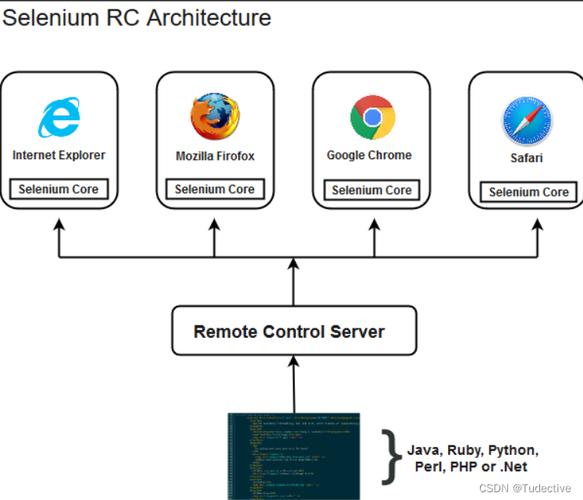
What is Selenium?
Selenium is a powerful, open-source automation framework used primarily for automating web browsers. With its Python bindings, you can write scripts to control a web browser, interact with web pages, and perform actions just like a human user would. It's widely used for:
- Web Scraping: Extracting data from websites that are difficult to scrape with simple
requestslibraries (e.g., sites that load content dynamically with JavaScript). - Automated Testing: The primary use case. Automating functional, regression, and end-to-end testing of web applications.
- Browser Automation: Automating repetitive tasks like filling out forms, logging into sites, or generating reports.
Setup and Installation
Before you can use the API, you need to set up your environment.
Install the Selenium Library: Open your terminal or command prompt and run:
pip install selenium
Install a WebDriver: Selenium needs a special program called a WebDriver to act as a bridge between your script and the web browser. You need one for each browser you want to automate.

- Chrome: Download ChromeDriver. Make sure the version of ChromeDriver matches your Google Chrome browser version.
- Firefox: Download GeckoDriver.
- Edge: Download EdgeDriver.
Pro Tip: Use a tool like webdriver-manager to automate driver management. It automatically downloads and manages the correct driver for you.
pip install webdriver-manager
Core Concepts and API Structure
The Selenium API revolves around a few key classes and objects.
WebDriver
This is the heart of Selenium. It represents an instance of a browser that you can control.
WebElement
Represents a single HTML element on a page (e.g., a button, a link, an input field). You get these objects by finding elements on the page and then perform actions on them (click, send keys, etc.).
By
A class containing locator strategies used to find elements on the page (e.g., By.ID, By.CSS_SELECTOR, By.XPATH).
WebDriverWait & expected_conditions
Used for implementing Explicit Waits, which are crucial for handling dynamic content. They pause the script until a certain condition is met (e.g., an element is visible, clickable).
A Complete Walkthrough: From Start to Finish
Let's build a simple script that automates a Google search.
Step 1: Import Libraries and Set Up the WebDriver
We'll use the webdriver-manager to handle the ChromeDriver automatically.
from selenium import webdriver
from selenium.webdriver.common.by import By
from selenium.webdriver.common.keys import Keys
from selenium.webdriver.chrome.service import Service as ChromeService
from webdriver_manager.chrome import ChromeDriverManager
from selenium.webdriver.support.ui import WebDriverWait
from selenium.webdriver.support import expected_conditions as EC
import time
# Set up the WebDriver
# ChromeDriverManager will automatically download and manage the driver
service = ChromeService(executable_path=ChromeDriverManager().install())
driver = webdriver.Chrome(service=service)
print("WebDriver setup complete.")
Step 2: Basic Navigation
# Open a URL
driver.get("https://www.google.com")
# Get the page title and print it
print(f"Page Title: {driver.title}")
# Maximize the browser window
driver.maximize_window()
Step 3: Finding and Interacting with Elements (The Core API)
This is the most important part. We'll find the search box, type a query, and press "Enter".
# --- Finding Elements ---
# There are two main methods:
# find_element() -> Returns a single WebElement (throws an exception if not found)
# find_elements() -> Returns a list of WebElements (returns an empty list if not found)
# Find the search box by its NAME attribute (often the easiest)
search_box = driver.find_element(By.NAME, "q")
# --- Interacting with Elements ---
# .send_keys() types text into an input field
search_box.send_keys("Selenium Python API")
# .send_keys() can also send special keys like Enter, Tab, etc.
search_box.send_keys(Keys.RETURN)
print("Search performed.")
Step 4: Waiting for Results and Extracting Data
Modern websites load content dynamically. Using a simple time.sleep() is bad practice. Explicit Waits are the correct solution.
# --- Using Explicit Waits ---
# Wait up to 10 seconds for the first search result link to be clickable
try:
    first_result = WebDriverWait(driver, 10).until(
        EC.element_to_be_clickable((By.CSS_SELECTOR, "div.g a h3"))
    )
    print("First search result found!")
    # .text gets the visible text of the element
    print(f"Result text: {first_result.text}")
    # .get_attribute() can get any attribute, like the href
    print(f"Result link: {first_result.get_attribute('href')}")
except Exception as e:
    print(f"An error occurred: {e}")
    print("Could not find the search result.")
Step 5: Cleaning Up
This is a critical step to ensure the browser process is closed.
# --- Closing the Browser ---
# .close() closes the current tab or window
# .quit() closes the entire browser session and ends the driver process
time.sleep(3) # Keep browser open for 3 seconds to see the result
driver.quit()
print("Browser closed. Script finished.")
Key API Methods and Properties
Here's a quick reference for the most commonly used parts of the API.
WebDriver Methods
| Method | Description |
|---|---|
get(url) |
Navigates the browser to a given URL. |
find_element(By, value) |
Finds the first element matching the locator. |
find_elements(By, value) |
Finds all elements matching the locator (returns a list). |
current_url |
Property to get the URL of the current page. |
page_source |
Property to get the page's HTML source code. |
back(), forward(), refresh() |
Navigates browser history or refreshes the page. |
maximize_window(), minimize_window() |
Resizes the browser window. |
close() |
Closes the current tab or window. |
quit() |
Closes the browser and terminates the WebDriver session. |
WebElement Methods
| Method | Description |
|---|---|
click() |
Simulates a mouse click on the element. |
send_keys(text) |
Simulates typing text into an input field. |
clear() |
Clears the text from an input field. |
text |
Property to get the visible text of the element. |
get_attribute(name) |
Gets the value of a given attribute (e.g., 'href', 'id', 'class'). |
is_displayed() |
Returns True if the element is visible to the user. |
is_enabled() |
Returns True if the element is enabled. |
is_selected() |
Returns True if the element (e.g., checkbox, radio button) is selected. |
screenshot(filename) |
Takes a screenshot of the element and saves it to a file. |
Locators (By Class)
| Locator Strategy | Description | Example |
|---|---|---|
By.ID |
Finds an element by its id attribute. |
driver.find_element(By.ID, "username") |
By.NAME |
Finds an element by its name attribute. |
driver.find_element(By.NAME, "q") |
By.CLASS_NAME |
Finds an element by its class attribute. |
driver.find_element(By.CLASS_NAME, "search-btn") |
By.TAG_NAME |
Finds an element by its HTML tag name. | driver.find_element(By.TAG_NAME, "h1") |
By.CSS_SELECTOR |
Finds an element using a CSS selector. (Most Powerful) | driver.find_element(By.CSS_SELECTOR, "div#content > p.intro") |
By.XPATH |
Finds an element using an XPath expression. (Very Powerful) | driver.find_element(By.XPATH, "//div[@id='header']//a[text()='Home']") |
Handling Common Scenarios
Handling Dropdowns (<select>)
Use the Select class from selenium.webdriver.support.ui.
from selenium.webdriver.support.ui import Select
# ... find the select element
select_element = driver.find_element(By.ID, "country-select")
select = Select(select_element)
# You can select by visible text, value, or index
select.select_by_visible_text("Canada")
# select.select_by_value("ca")
# select.select_by_index(0) # Selects the first option
Handling Alerts and Pop-ups
# Trigger an alert (e.g., by clicking a button)
driver.find_element(By.ID, "alert-button").click()
# Switch to the alert
alert = driver.switch_to.alert
# Get the alert text
print(alert.text)
# Accept the alert (clicks OK)
# alert.accept()
# Dismiss the alert (clicks Cancel)
# alert.dismiss()
Handling iFrames
iFrames are separate HTML documents embedded within a page. You must switch to the frame before you can interact with its elements.
# Find the iframe by its id, name, or WebElement
iframe = driver.find_element(By.ID, "my-iframe")
# Switch to the iframe
driver.switch_to.frame(iframe)
# Now you can find elements inside the iframe
button_in_frame = driver.find_element(By.ID, "frame-button")
button_in_frame.click()
# Switch back to the main page (important!)
driver.switch_to.default_content()
Handling Dynamic Content with Waits
-
Implicit Wait: Tells the WebDriver to poll the DOM for a certain amount of time when trying to find an element. It's set once and applies to all
find_elementcalls.driver.implicitly_wait(10) # Wait up to 10 seconds for any element to be found # Can lead to flaky tests if not used carefully
-
Explicit Wait: The recommended approach. Waits for a specific condition to be met before proceeding. It's more reliable and precise.
from selenium.webdriver.support.ui import WebDriverWait
from selenium.webdriver.support import expected_conditions as EC
# Wait up to 10 seconds until the element is clickable
element = WebDriverWait(driver, 10).until(
    EC.element_to_be_clickable((By.ID, "submit-button"))
)
element.click()
Best Practices
- Use Explicit Waits: Avoid
time.sleep(). It makes your tests slow and unreliable. UseWebDriverWaitfor dynamic content. - Use Unique Selectors: Prefer
IDandNamewhen available. If not, use robustCSS_SELECTORorXPATH. Avoid brittle selectors likenth-child(). - Structure Your Code: Use the Page Object Model (POM) design pattern to organize your locators and methods into separate classes, making your code cleaner and more maintainable.
- Clean Up: Always use a
try...finallyblock or ensure yourdriver.quit()is called to prevent zombie browser processes. - Headless Mode: For automated testing on a server, run the browser in "headless" mode (no GUI).
from selenium.webdriver.chrome.options import Options
chrome_options = Options()
chrome_options.add_argument("--headless")
driver = webdriver.Chrome(service=service, options=chrome_options)