Of course! Here's a comprehensive guide to using headers with Python's urllib library, from the basics to best practices.
Why Use Headers with urllib?
Headers are key-value pairs that are sent along with your HTTP request. They provide crucial information to the server about the client, the request, and the data being sent. Common reasons for setting custom headers include:
- User-Agent: To mimic a real web browser (e.g., Chrome, Firefox) and avoid being blocked by servers that dislike default Python
urllibuser agents. - Content-Type: To tell the server what format the data in your request body is in (e.g.,
application/json,application/x-www-form-urlencoded). - Authorization: To send authentication tokens (like Bearer tokens for OAuth2 or API keys).
- Accept: To specify the content types you are willing to receive from the server (e.g.,
application/json). - Referer: To tell the server which page linked to the resource you are requesting (sometimes used for anti-bot measures).
- Cookies: To maintain a session with a website.
Method 1: urllib.request (The Modern Standard)
Since Python 3, urllib.request is the primary way to make HTTP requests. The key is to create a Request object and pass your headers to its constructor.
Basic GET Request with Headers
Here’s how to make a GET request and set the User-Agent header.
import urllib.request
import json
# The URL you want to request
url = 'https://httpbin.org/user-agent' # This URL echoes back the User-Agent
# 1. Create a dictionary of your headers
headers = {
    'User-Agent': 'Mozilla/5.0 (Windows NT 10.0; Win64; x64) AppleWebKit/537.36 (KHTML, like Gecko) Chrome/91.0.4472.124 Safari/537.36',
    'Accept': 'application/json' # We want JSON back
}
# 2. Create a Request object, passing the URL and the headers
req = urllib.request.Request(url, headers=headers)
# 3. Open the request and read the response
try:
    with urllib.request.urlopen(req) as response:
        # The response is a bytes object, so we decode it to a string
        data = response.read().decode('utf-8')
        print("Status Code:", response.getcode())
        print("Response Headers:", response.headers)
        print("\nResponse Body:")
        # Pretty-print the JSON response
        print(json.dumps(json.loads(data), indent=2))
except urllib.error.HTTPError as e:
    print(f"Error: {e.code} {e.reason}")
    print(e.read().decode('utf-8'))
except urllib.error.URLError as e:
    print(f"Failed to reach the server. Reason: {e.reason}")
Output:
You'll see that the User-Agent in the response body matches the one you set.

Status Code: 200
Response Headers: Date: ..., Content-Type: application/json, Content-Length: 115, Connection: close, Server: gunicorn, ...
Response Body:
{
  "user-agent": "Mozilla/5.0 (Windows NT 10.0; Win64; x64) AppleWebKit/537.36 (KHTML, like Gecko) Chrome/91.0.4472.124 Safari/537.36"
}
POST Request with Headers and Body
For a POST request, you also need to specify the Content-Type header and provide the data.
import urllib.request
import urllib.parse
import json
url = 'https://httpbin.org/post'
# 1. Headers
headers = {
    'User-Agent': 'MyCoolApp/1.0',
    'Content-Type': 'application/json' # Important for POSTing JSON
}
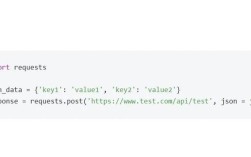
# 2. Data (must be bytes for the request body)
# We create a Python dictionary, then convert it to a JSON string, then encode to bytes
post_data = {
    'key1': 'value1',
    'key2': 'value2'
}
json_data = json.dumps(post_data).encode('utf-8')
# 3. Create the Request object
req = urllib.request.Request(url, data=json_data, headers=headers, method='POST')
# 4. Send the request and read the response
try:
    with urllib.request.urlopen(req) as response:
        data = response.read().decode('utf-8')
        print("Status Code:", response.getcode())
        print("\nResponse Body (JSON data sent):")
        parsed_response = json.loads(data)
        print(json.dumps(parsed_response['json'], indent=2))
except urllib.error.HTTPError as e:
    print(f"Error: {e.code} {e.reason}")
Method 2: urllib2 (Python 2)
This is for reference only. If you are working with Python 2, the syntax is slightly different.
# Python 2 Example
import urllib2
import json
url = 'https://httpbin.org/user-agent'
headers = {'User-Agent': 'Mozilla/5.0 (Python 2.7) App'}
req = urllib2.Request(url, headers=headers)
response = urllib2.urlopen(req)
data = response.read()
print(data)
response.close()
Common Headers and When to Use Them
| Header Name | Description | Example Value | When to Use |
|---|---|---|---|
User-Agent |
Identifies the client software making the request. | Mozilla/5.0 (Windows NT 10.0; Win64; x64) AppleWebKit/537.36 (KHTML, like Gecko) Chrome/91.0.4472.124 Safari/537.36 |
Almost always. Many websites block the default Python-urllib user agent. |
Accept |
Tells the server which content types the client can understand. | application/json, text/html, |
When you need a specific format, like JSON from an API. |
Content-Type |
Specifies the format of the data in the request body (for POST/PUT). | application/json, application/x-www-form-urlencoded, multipart/form-data |
Essential for POST/PUT requests. Must match the format of your data. |
Authorization |
Contains credentials for authentication. | Bearer YOUR_API_TOKEN, Basic base64_encoded_credentials |
When accessing protected resources, like APIs. |
Referer |
The address of the webpage that linked to the requested resource. | https://example.com/page-with-link |
Some websites use this to check if you are navigating normally. |
Cookie |
HTTP cookies sent from the client to the server. | session_id=abc123; user_pref=dark_mode |
To maintain a logged-in session with a website. |
Advanced: Managing Cookies with http.cookiejar
If you need to handle sessions (log in, stay logged in), urllib works seamlessly with http.cookiejar to manage cookies automatically.
import urllib.request
import urllib.parse
import http.cookiejar
import json
# 1. Create a CookieJar object to hold cookies
cookie_jar = http.cookielib.CookieJar()
# 2. Install an opener that will use the CookieJar
opener = urllib.request.build_opener(urllib.request.HTTPCookieProcessor(cookie_jar))
# --- 1. LOGIN ---
# The login page URL
login_url = 'https://httpbin.org/post' # Using httpbin as a proxy for a login form
# The data to send for the login
login_data = urllib.parse.urlencode({
    'username': 'testuser',
    'password': 'password123'
}).encode('utf-8')
# Create a request for the login page
login_req = urllib.request.Request(login_url, data=login_data, method='POST')
# Send the request using our opener. The cookies will be stored automatically.
opener.open(login_req)
# --- 2. ACCESS A PROTECTED PAGE ---
# Now, make a request to another page. The opener will automatically send the stored cookies.
protected_url = 'https://httpbin.org/cookies' # This page echoes back the cookies it received
# We can use the opener directly
response = opener.open(protected_url)
data = response.read().decode('utf-8')
print("Cookies received from server:")
print(json.dumps(json.loads(data), indent=2))
# You can also inspect the cookies directly
print("\nCookies in the jar:")
for cookie in cookie_jar:
    print(cookie)
Summary and Best Practices
- Use
urllib.request.Request: Always create aRequestobject to pass headers. Don't try to modify global headers. - Encode Data: Remember that for
POSTrequests, the data must bebytes. Use.encode('utf-8')on strings. - Set
Content-Type: When you send data in aPOSTorPUTrequest, you must set theContent-Typeheader to match the format of your data (e.g.,application/json). - Handle Errors: Always wrap your
urlopencalls in atry...exceptblock to catchHTTPError(for bad status codes like 404, 500) andURLError(for network issues). - Consider Alternatives: For more complex applications, consider using the
requestslibrary. It has a much simpler, more intuitive syntax for handling headers, cookies, sessions, and JSON data.
requests equivalent of the first GET example:
# The 'requests' way (for comparison)
import requests
import json
url = 'https://httpbin.org/user-agent'
headers = {
    'User-Agent': 'Mozilla/5.0 (Windows NT 10.0; Win64; x64) AppleWebKit/537.36 (KHTML, like Gecko) Chrome/91.0.4472.124 Safari/537.36',
    'Accept': 'application/json'
}
response = requests.get(url, headers=headers)
# The response object has built-in JSON parsing
print("Status Code:", response.status_code)
print("Response Body:")
print(response.json())