Of course! Installing Java on Ubuntu is a common task. There are two main ways to do it, and the best choice depends on your needs.
-
Using the APT Package Manager (Recommended for most users)
- Pros: Easy, automatic updates, integrates well with Ubuntu's system.
- Cons: You might get an older version of Java, depending on your Ubuntu version.
-
Using SDKMAN! (Recommended for developers)
- Pros: Easy to install and switch between multiple Java versions (e.g., Java 8, 11, 17, 21).
- Cons: It's a separate tool you install first.
Method 1: Using the APT Package Manager (Easiest)
This method is perfect for beginners or if you just need Java to run a specific application on your Ubuntu system.
Step 1: Update Your Package List
First, open your terminal (Ctrl+Alt+T) and update the list of available packages.
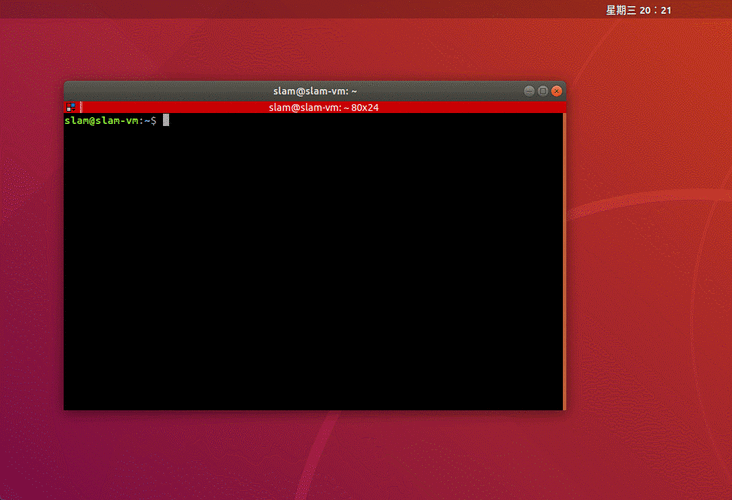
sudo apt update
Step 2: Install the Default JDK
The default-jdk package is a metapackage that will install the latest Java Development Kit (JDK) available in your Ubuntu repositories. This is all you need for most development work.
sudo apt install default-jdk
During the installation, you will be asked to confirm. Press Y and then Enter.
Step 3: Verify the Installation
After the installation is complete, verify that Java was installed correctly.
java -version
You should see output similar to this, showing the version of Java that was installed (e.g., OpenJDK 17):
openjdk version "17.0.10" 2025-01-16
OpenJDK Runtime Environment (build 17.0.10+7-Ubuntu-0ubuntu122.04)
OpenJDK 64-Bit Server VM (build 17.0.10+7-Ubuntu-0ubuntu122.04, mixed mode, sharing)
You can also check if the Java compiler (javac) is installed, which is part of the JDK:
javac -version
Output:
javac 17.0.10Method 2: Using SDKMAN! (Best for Developers)
If you are a developer who works on multiple projects requiring different Java versions, SDKMAN! is the superior tool. It manages parallel versions of SDKs on most Unix-based systems.
Step 1: Install SDKMAN!
Open your terminal and run the following command:
curl -s "https://get.sdkman.io" | bash
Step 2: Restart Your Shell
The installation script will ask you to restart your shell. You can either open a new terminal window or run the following command to source the script:
source "$HOME/.sdkman/bin/sdkman-init.sh"
Step 3: Install a Specific Java Version
Now you can easily install any Java version you want. For example, to install the latest LTS (Long-Term Support) version, Java 21:
sdk install java 21.0.2-tem
(Note: The exact version number might be different. You can see available versions with sdk list java)
To install an older, but still widely used, LTS version like Java 17:
sdk install java 17.0.10-tem
(The tem stands for Temurin, a popular build of OpenJDK provided by Eclipse Adoptium.)
Step 4: Switch Between Java Versions
This is where SDKMAN! shines. You can list all installed Java versions:
sdk list java | grep installed
And then set any of them as the default for your current shell:
# Set Java 21 as default
sdk use java 21.0.2-tem
# Set Java 17 as default
sdk use java 17.0.10-tem
You can also set a global default that will persist across new terminal sessions:
sdk default java 21.0.2-tem
Step 5: Verify with SDKMAN!
You can check the current default version managed by SDKMAN!:
sdk current java
And verify the java -version command as before to see it has changed.
Setting the JAVA_HOME Environment Variable
Some applications (like Maven, Tomcat, or Spring Boot) require the JAVA_HOME environment variable to be set.
For APT installations (Method 1):
The update-java-alternatives tool helps manage this. First, find the path to your Java installation:
sudo update-java-alternatives --list
You will see output like this:
java-1.17.0-openjdk-amd64 17 /usr/lib/jvm/java-1.17.0-openjdk-amd64Now, set the JAVA_HOME variable. Replace the path with the one from your output.
# Find the correct path from the command above
# Example for Ubuntu 22.04 with Java 17
export JAVA_HOME=/usr/lib/jvm/java-1.17.0-openjdk-amd64
To make this permanent, add the line above to your shell's configuration file (e.g., ~/.bashrc or ~/.zshrc):
echo "export JAVA_HOME=/usr/lib/jvm/java-1.17.0-openjdk-amd64" >> ~/.bashrc
source ~/.bashrc
For SDKMAN! installations (Method 2):
SDKMAN! automatically sets JAVA_HOME for you when you use sdk use or sdk default. It's one of the main advantages of using it.
Which Method Should I Choose?
| Scenario | Recommended Method |
|---|---|
| "I just need to run a Java program." | Method 1 (APT) |
| "I'm new to Linux/Ubuntu." | Method 1 (APT) |
| "I am a developer and need Java 8, 11, and 17." | Method 2 (SDKMAN!) |
| "I want to easily switch between Java versions." | Method 2 (SDKMAN!) |
| "I need the absolute latest Java release." | Method 2 (SDKMAN!) (APT repositories are often slower to update) |