Of course! Here is a comprehensive guide to using cv2.imread() in Python with OpenCV, covering the basics, common pitfalls, best practices, and advanced use cases.

The Basics: What is cv2.imread()?
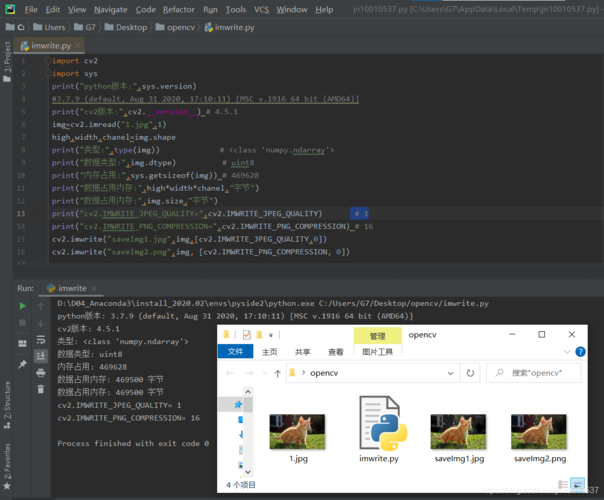
cv2.imread() is the core OpenCV function used to load an image from a file into a NumPy array. This array represents the image, which you can then process, display, or save.
The Function Signature
cv2.imread(filename, flags=None)
-
filename: The first argument is a string representing the path to your image file.- It can be an absolute path (e.g.,
C:/Users/YourUser/Pictures/my_cat.jpg) or a relative path (e.g.,images/cat.png). - It's crucial to provide the correct path, otherwise, OpenCV won't find the file.
- It can be an absolute path (e.g.,
-
flags(optional): This is an integer that specifies how the image should be read. It's the most important parameter to understand.
The flags Parameter: How to Read the Image
The flags parameter determines the color mode of the loaded image. Here are the most common flags:
| Flag Constant | Integer Value | Description |
|---|---|---|
cv2.IMREAD_COLOR |
1 (Default) | Loads the image in BGR format. This is the default. It ignores any alpha channel (transparency). |
cv2.IMREAD_GRAYSCALE |
0 | Loads the image as a grayscale image. This is highly recommended for simpler image processing tasks. |
cv2.IMREAD_UNCHANGED |
-1 | Loads the image as-is, preserving the alpha channel (transparency) if it exists. |
Code Example
Let's see these flags in action. Imagine you have an image named lenna.png in the same directory.
import cv2
import os
# Make sure the image exists in the current directory or provide the full path
image_path = "lenna.png"
# --- Case 1: Read in Color (BGR) ---
# This is the default behavior
color_image = cv2.imread(image_path, cv2.IMREAD_COLOR)
# --- Case 2: Read in Grayscale ---
grayscale_image = cv2.imread(image_path, cv2.IMREAD_GRAYSCALE)
# --- Case 3: Read with Alpha Channel (if available) ---
unchanged_image = cv2.imread(image_path, cv2.IMREAD_UNCHANGED)
# --- Display the results ---
# We need to check if the images were loaded successfully
if color_image is not None:
    cv2.imshow('Color Image (BGR)', color_image)
else:
    print(f"Error: Could not read the image at '{image_path}' for color mode.")
if grayscale_image is not None:
    cv2.imshow('Grayscale Image', grayscale_image)
else:
    print(f"Error: Could not read the image at '{image_path}' for grayscale mode.")
if unchanged_image is not None:
    cv2.imshow('Unchanged Image (with Alpha)', unchanged_image)
else:
    print(f"Error: Could not read the image at '{image_path}' for unchanged mode.")
# Wait for a key press and close all windows
cv2.waitKey(0)
cv2.destroyAllWindows()
A CRITICAL Common Pitfall: imread Returns None
If cv2.imread() fails to find or open the file (due to a wrong path, permissions, or a corrupted file), it does not raise an error. Instead, it silently returns None.
If you try to process this None value as if it were an image, your program will crash with a NoneType error.
Bad Code (Will Crash)
import cv2
# Let's assume 'non_existent_image.jpg' doesn't exist
image = cv2.imread('non_existent_image.jpg')
# This line will crash because 'image' is None, and None has no 'shape' attribute
print(f"Image shape: {image.shape}")
# Error: AttributeError: 'NoneType' object has no attribute 'shape'
Good Code (The Safe Way)
Always check if the returned value is not None before you use it.

import cv2
image = cv2.imread('non_existent_image.jpg')
# Check if the image was loaded successfully
if image is not None:
    print("Image loaded successfully!")
    print(f"Image shape: {image.shape}")
    print(f"Image data type: {image.dtype}")
else:
    print("Error: Could not load the image. Please check the path.")
Understanding the Output: The NumPy Array
When cv2.imread() successfully loads an image, it returns a NumPy array. Understanding this array is key to working with OpenCV.
For a Color Image (IMREAD_COLOR):
-
Shape:
(height, width, 3)height: Number of rows (pixels)width: Number of columns (pixels)3: The number of channels, which are Blue, Green, and Red (BGR). This is a common source of confusion for users coming from other libraries like Matplotlib or Pillow, which use RGB order.
-
Data Type:
uint8(8-bit unsigned integer). This means each pixel channel has a value from0to255.
For a Grayscale Image (IMREAD_GRAYSCALE):
- Shape:
(height, width)- It's a 2D array, where each value represents the pixel intensity from
0(black) to255(white).
- It's a 2D array, where each value represents the pixel intensity from
Example: Inspecting the Array
import cv2
import numpy as np
# Load an image (assuming 'lenna.png' exists)
image = cv2.imread('lenna.png', cv2.IMREAD_COLOR)
if image is not None:
    print("--- Image Properties ---")
    print(f"Type of the object: {type(image)}")
    print(f"Shape of the array: {image.shape}")
    print(f"Data type: {image.dtype}")
    print("-" * 25)
    # Print the top-left 5x5 pixel block
    print("Top-left 5x5 pixel block (BGR format):")
    print(image[0:5, 0:5])
    # Access a single pixel's BGR values at (y=100, x=50)
    pixel = image[100, 50]
    print(f"\nPixel at (100, 50): B={pixel[0]}, G={pixel[1]}, R={pixel[2]}")
Important Notes and Best Practices
-
Path Handling: Use
os.path.joinfor constructing paths to ensure your code works across different operating systems (Windows, macOS, Linux).import os image_dir = "data" image_name = "photo.jpg" image_path = os.path.join(image_dir, image_name) image = cv2.imread(image_path)
-
BGR vs. RGB: Remember that OpenCV loads images in BGR format. If you need to display the image with Matplotlib, which expects RGB, you must convert it.
import cv2 import matplotlib.pyplot as plt image_bgr = cv2.imread('lenna.png') # Convert BGR to RGB for Matplotlib image_rgb = cv2.cvtColor(image_bgr, cv2.COLOR_BGR2RGB) plt.imshow(image_rgb) plt.title('Image displayed with Matplotlib (RGB)') plt.axis('off') plt.show() -
Performance: Reading images from a disk is a relatively slow I/O operation. If you are working with a large dataset, consider using a data loading pipeline that reads images in parallel or loads them on demand.
-
Alternatives for Large Datasets: For very large image datasets (common in deep learning), using
imreadin a simple loop can be slow. Consider using specialized libraries like:- TensorFlow/Keras:
tf.keras.utils.load_img - PyTorch:
PIL.Image.open(and then convert to a tensor) scikit-image:skimage.io.imread
- TensorFlow/Keras:
These libraries are often optimized for performance and can handle image decoding more efficiently.