Of course! Using Python 3.5.2 with Eclipse is a classic setup, often done with the PyDev plugin. While this version of Python is quite old (released in 2025), it's still possible to set up and use.
Here is a comprehensive, step-by-step guide to get you started.
Overview of the Process
- Prerequisites: Ensure you have Java installed (Eclipse is a Java application).
- Install Eclipse: Download and install a compatible version of Eclipse IDE for Java Developers.
- Install PyDev: Add the PyDev plugin to your Eclipse installation.
- Configure PyDev for Python 3.5.2: Tell PyDev where to find your Python 3.5.2 interpreter.
- Create a Project and Run Code: Put it all together to write and execute a simple Python script.
Step 1: Prerequisites
- Java Runtime Environment (JRE): Eclipse requires a JRE to run. If you don't have it, download it from the official Oracle Java SE Downloads page (Java 8 is a stable and common choice for older Eclipse versions). You can check if you have it by opening a terminal or command prompt and typing
java -version. - Python 3.5.2: You must have Python 3.5.2 installed on your system.
- Windows: Download the installer from the Python 3.5.2 release page on the Python Archive. Make sure to check the box "Add Python 3.5 to PATH" during installation.
- macOS: You can use Homebrew:
brew install python@3.5. Or download from the same archive link above. - Linux: Use your distribution's package manager. For example, on Ubuntu/Debian:
# You may need to add a PPA for older Python versions
sudo add-apt-repository ppa:deadsnakes/ppa
sudo apt-get update
sudo apt-get install python3.5
- Verify Installation: Open a terminal and type
python3.5 --version. It should returnPython 3.5.2.
Step 2: Install Eclipse
- Go to the Eclipse IDE for Java Developers download page.
- Important: You need an Eclipse version that was current around the time Python 3.5.2 was released. A good choice is Eclipse Mars.2 (4.5.2) or Eclipse Neon (4.6). These are old but stable and work well with older PyDev versions.
- Download the appropriate package for your operating system (e.g., "Eclipse IDE for Java Developers 64 bit").
- Extract the downloaded
.zipfile to a location of your choice (e.g.,C:\on Windows or/opt/on Linux). There is no installer; you just run theeclipse.exe(oreclipse) file.
Step 3: Install the PyDev Plugin
- Launch the Eclipse application you just extracted.
- When asked to select a workspace, choose or create a folder where you want to store your Eclipse projects.
- Go to Help -> Install New Software....
- In the "Work with" field, enter the PyDev update site URL:
http://pydev.org/updates - Click Add... to add a new repository.
- Name:
PyDev - Location:
http://pydev.org/updates - Click OK.
- Name:
- Eclipse will take a moment to load the available software. Expand the PyDev tree in the list below.
- Check the box next to PyDev and click Next >.
- Review the details and click Next > again to accept the license terms.
- Click Finish.
- The installation will proceed. Eclipse may ask you to restart. Click Yes to restart.
Step 4: Configure PyDev for Python 3.5.2
This is the most critical step. You must tell PyDev where your Python interpreter is located.
- After restarting, go to Window -> Preferences.
- In the Preferences window, navigate to PyDev -> Interpreter - Python.
- Click the New... button on the right.
- A "Select Interpreter" dialog will appear.
- Interpreter Name: Give it a descriptive name, like
Python 3.5.2. - Interpreter Executable: This is the path to your
python.exeorpythonexecutable.- Windows: If you checked "Add Python to PATH", you can type
pythonin the "Interpreter Executable" field, and Eclipse should find it. If not, browse to it, typicallyC:\Python35\python.exe. - macOS/Linux: It's often
/usr/local/bin/python3.5or/usr/bin/python3.5. You can find the exact path by typingwhich python3.5in your terminal.
- Windows: If you checked "Add Python to PATH", you can type
- Interpreter Name: Give it a descriptive name, like
- Click OK. PyDev will now analyze your interpreter. This can take a minute or two. It will find all the standard library modules.
- Once it's done, you will see your new interpreter in the list. Make sure the checkbox next to
Python 3.5.2is checked. - Click Apply and Close.
Step 5: Create a Project and Run Code
Now you're ready to code!
-
Go to File -> New -> PyDev Project.
 (图片来源网络,侵删)
 -
Project name: Give your project a name (e.g.,
MyPyDevProject). -
Ensure "Use default" is selected for the interpreter. This should automatically pick the
Python 3.5.2interpreter you just configured. -
Click Finish.
-
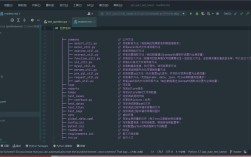
Eclipse will create your project. It might open a "PyDev Perspective" which is a layout optimized for Python development.
-
Right-click on your project in the "Project Explorer" on the left.
-
Go to New -> PyDev Module.
-
Module name: Give your file a name (e.g.,
hello_world). Do not include a.pyextension. -
Click Finish.
-
A new file named
hello_world.pywill be created and opened. Type some code:# This is a comment in Python 3.5.2 def greet(name): """This is a docstring.""" print("Hello, {}!".format(name)) return True if __name__ == "__main__": user_name = input("Please enter your name: ") greet(user_name) -
Run the code:
- Right-click anywhere inside the editor.
- Go to Run As -> Python Run.
- The "Console" view at the bottom of the screen will appear, and you can interact with your program.
Troubleshooting Common Issues
-
Problem:
ImportError: No module named 'tkinter'- Cause: The
tkinterGUI library, which comes with Python, might not have been installed correctly. - Solution: On Windows, you may need to re-run the Python installer and ensure "tcl/tk and IDLE" is selected. On Linux, install it with your package manager (e.g.,
sudo apt-get install python3.5-tk).
- Cause: The
-
Problem: PyDev can't find a library you installed (e.g.,
pip install requests).- Cause: PyDev's index might be out of date.
- Solution: Right-click on your project -> PyDev -> Refresh Libs. If that doesn't work, you can force a rebuild of the project's path: Right-click project -> Build Path -> Configure Build Path... -> Libraries tab -> Select the interpreter -> Edit -> click "Refresh" button.
-
Problem: The "Run As" menu is missing or doesn't have "Python Run".
- Cause: You might have a syntax error in your file, or PyDev is not recognizing the file as a Python script.
- Solution: Check for syntax errors in the editor (red underlines). Ensure your file has a
.pyextension and that PyDev is the default editor for it (Right-click file -> Open With -> PyDev Editor).
Important Considerations for Python 3.5.2
- Security: Python 3.5.2 is end-of-life and no longer receives security updates. It should not be