Of course! The statement import flask is the first step in using the Flask web framework in Python. Let's break down what it means, how to use it, and provide a complete guide to get you started.
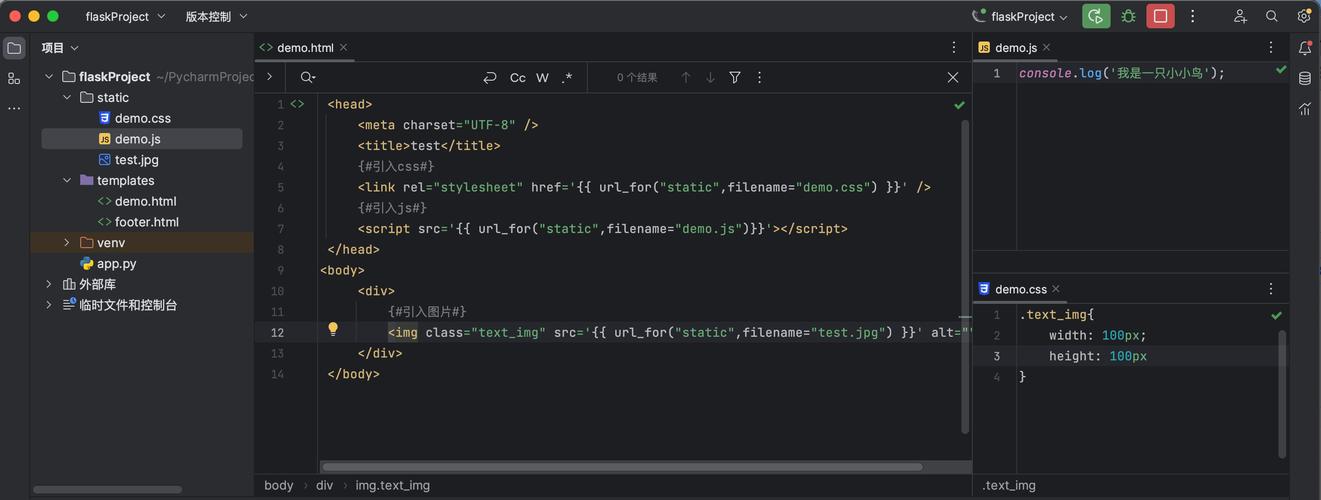
What is import flask?
This line of code does two things:
import: This is a Python keyword that tells the interpreter to load a module (a pre-written piece of code) into your current script so you can use it.flask: This is the name of the module you are importing. It refers to the Flask library, which is a lightweight and flexible web framework for Python. Flask helps you build web applications and APIs without having to handle all the low-level details of web protocols (like HTTP) yourself.
Think of it like this: If you wanted to build a car, you could start from scratch with raw metal and an engine. Or, you could use a car kit (the framework) that gives you the chassis, engine block, and wheels. Flask is that car kit for web development.
Prerequisites: Installing Flask
Before you can import flask, you must first install it. If you try to run import flask without installing it, you'll get a ModuleNotFoundError: No module named 'flask'.
Open your terminal or command prompt and run the following command:

pip install Flask
pipis Python's package installer.Flaskis the name of the package you want to install.
Your First Flask Application: "Hello, World!"
Let's create the most basic Flask application. This will demonstrate the core concepts.
Step 1: Create a file
Create a new file named app.py.
Step 2: Write the code
Copy and paste the following code into your app.py file.
# 1. Import the Flask class from the flask module
from flask import Flask
# 2. Create an instance of the Flask class
#    __name__ is a special Python variable that gets the name of the current module.
#    Flask uses this to know where to look for resources like templates and static files.
app = Flask(__name__)
# 3. Define a route using a decorator
#    @app.route('/') tells Flask which URL should trigger our function.
#    The '/' is the "root" URL, the main page of your website.
@app.route('/')
def hello_world():
    # 4. The function returns the message we want to display in the user's browser.
    return '<h1>Hello, World!</h1>'
# 5. Run the application
#    This line ensures that the development server only runs when the script is executed directly.
if __name__ == '__main__':
    # app.run() starts the Flask development server.
    # debug=True enables the debugger, which provides helpful error messages and auto-reloads the server when you save changes.
    app.run(debug=True)
Step 3: Run the application
Go back to your terminal (make sure you are in the same directory as app.py) and run:
python app.py
You should see output similar to this:
 * Serving Flask app 'app'
 * Running on http://127.0.0.1:5000
Press CTRL+C to quit
 * Restarting with stat
 * Debugger is active!
 * Debugger PIN: ...
Step 4: View your application
Open your web browser and navigate to http://127.0.0.1:5000.
You will see the text: Hello, World!
Congratulations, you've just built your first web application with Flask!
Breakdown of the Code
Let's break down the key components from the example above.
| Code Snippet | Explanation |
|---|---|
from flask import Flask |
Imports the main Flask class. We need this to create our web application instance. |
app = Flask(__name__) |
Creates an instance of the Flask class. We name our application instance app, which is a common convention. The __name__ argument is crucial for Flask to locate your project's files. |
@app.route('/') |
This is a decorator. It "decorates" the hello_world() function below it, telling Flask that the hello_world() function should be triggered when a web browser requests the root URL (). |
def hello_world(): |
This is a simple Python function. Whatever this function returns will be the content sent to the user's browser. |
return '<h1>Hello, World!</h1>' |
The response. Flask can automatically handle HTML, plain text, JSON, and more. |
if __name__ == '__main__': |
This is standard Python practice. The code inside this block will only run when the script is executed directly (e.g., python app.py), not when it's imported as a module into another script. |
app.run(debug=True) |
This starts the built-in development server. debug=True is very useful during development as it provides an interactive debugger and automatically reloads the server when you change your code. |
Going Further: Adding Another Page
Let's add a second page to our application to show how routes work.
Modify your app.py file like this:
from flask import Flask
app = Flask(__name__)
@app.route('/')
def home():
    return '<h1>Welcome to the Home Page!</h1><p><a href="/about">About Us</a></p>'
@app.route('/about')
def about():
    return '<h1>This is the About Page</h1><p><a href="/">Back to Home</a></p>'
if __name__ == '__main__':
    app.run(debug=True)
Now, run the application again (python app.py) and navigate to http://127.0.0.1:5000/about. You will see the "About Page". Notice the simple HTML links we added to navigate between the pages. This demonstrates how different URLs can be handled by different functions in your Python code.