Of course! Let's dive deep into using Python, Flask, and Celery together. This is a powerful and common combination for building modern web applications.

The Core Concept: The Problem Flask Solves Alone
Imagine a Flask web application that needs to perform a long-running task, like:
- Processing a large video file.
- Sending a batch of welcome emails to new users.
- Generating a complex report that takes 30 seconds to calculate.
If you handle this task directly in your Flask view, the user's browser will hang, waiting for the response. The web server can only handle one request at a time (by default), so your application becomes unresponsive. This is a terrible user experience.
The Solution: Introducing Celery
Celery is a distributed task queue. It's a separate worker process that sits alongside your Flask application and handles background jobs.
Here's the workflow:
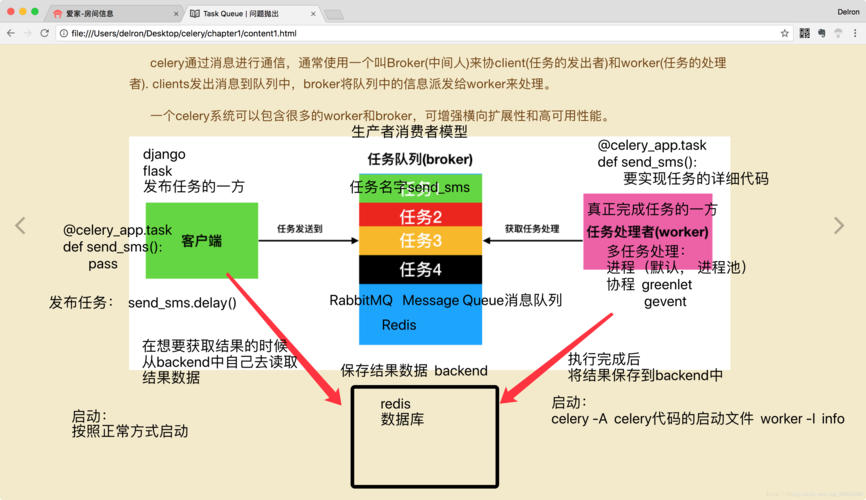
- Web Request (Flask): A user triggers a long task via a web form or API call.
- Queue the Task (Flask): Instead of doing the work, Flask quickly hands off the task to Celery. It sends a small message to a message broker (like RabbitMQ or Redis) saying, "Hey, please run
process_videowith these arguments." - Acknowledge User (Flask): Flask immediately sends a response back to the user, like "Your video is being processed. We'll notify you when it's done."
- Worker Picks Up Task (Celery): A separate Celery worker process is constantly listening to the message broker. It sees the new task, picks it up, and starts executing the
process_videofunction in the background. - Task Completion (Celery): Once the task is finished, the Celery worker can update the database, send another notification, or do whatever is needed.
This decouples your time-sensitive web requests from your long-running background tasks.
Step-by-Step Guide: Building a Flask + Celery App
Let's build a simple application where a user can request a "heavy calculation," and the app will tell them it's being processed.
Prerequisites
Make sure you have Python and pip installed.
Step 1: Project Setup and Installation
First, create a project directory and a virtual environment.
mkdir flask_celery_app
cd flask_celery_app
python -m venv venv
source venv/bin/activate  # On Windows: venv\Scripts\activate
Now, install the necessary libraries:
Flask: Our web framework.celery: The task queue library.redis: We'll use Redis as our message broker and result backend. (You can also use RabbitMQ).
pip install flask celery redis
Note on Redis: You need a Redis server running. The easiest way is with Docker:
docker run -d -p 6379:6379 redis
Step 2: Create the Flask Application
Create a file named app.py. This will contain our Flask app and the routes.
# app.py
from flask import Flask, render_template, request, jsonify
app = Flask(__name__)
# A simple in-memory "database" to store task status
task_status = {}
@app.route('/')
def index():
    return render_template('index.html')
@app.route('/start_task', methods=['POST'])
def start_task():
    # In a real app, you would get the data from the form
    task_data = request.form.get('data', 'default_data')
    # Import the task here to avoid circular imports
    from tasks import long_running_task
    # Queue the task and get an AsyncResult object
    # .apply_async() is preferred over .delay() for more options
    task = long_running_task.apply_async(args=[task_data])
    # Store the task ID and its initial status
    task_status[task.id] = {'status': 'PENDING', 'data': task_data}
    # Return the task ID to the client
    return jsonify({"task_id": task.id}), 202
@app.route('/check_status/<task_id>')
def check_status(task_id):
    if task_id not in task_status:
        return jsonify({"error": "Invalid task ID"}), 404
    status_info = task_status[task_id]
    # You can get the real status from Celery
    from tasks import celery
    result = celery.AsyncResult(task_id)
    status_info['status'] = result.state
    return jsonify(status_info)
if __name__ == '__main__':
    app.run(debug=True)
Step 3: Create the Celery Task
Create a new file named tasks.py. This is where we define our background functions.
# tasks.py
from celery import Celery
import time
# --- Celery Configuration ---
# This is the magic that connects Celery to Flask and Redis.
# The `__init__.py` in the same directory makes this a package.
# The 'app' object is imported from the 'app' module.
from app import app
# Create a Celery instance and configure it
# The broker_url tells Celery where to get tasks from.
# The result_backend tells Celery where to store the results.
celery = Celery(
    app.name,
    broker='redis://localhost:6379/0',
    backend='redis://localhost:6379/0'
)
# Update Celery config from Flask config
celery.conf.update(app.config)
# --- Task Definition ---
@celery.task
def long_running_task(data):
    """
    A sample task that simulates a long-running process.
    """
    print(f"Task started with data: {data}")
    for i in range(10):
        time.sleep(1)  # Simulate work
        print(f"Task progress: {i+1}/10")
    result = f"Task completed successfully for data: {data}"
    print(result)
    return result
Key Points in tasks.py:
from app import app: We import the Flaskappinstance to configure Celery with Flask's settings.celery = Celery(...): We create a Celery object and point it to our Redis broker and backend.@celery.task: This is the decorator that turns a regular Python function into a Celery task that can be queued and run by a worker.
Step 4: Create the Frontend (HTML Template)
Create a templates folder and inside it, a file named index.html.
<!-- templates/index.html -->
<!DOCTYPE html>
<html lang="en">
<head>
    <meta charset="UTF-8">Flask + Celery Demo</title>
    <style>
        body { font-family: sans-serif; margin: 2em; }
        button { padding: 10px 15px; font-size: 16px; }
        #status { margin-top: 20px; font-weight: bold; }
    </style>
</head>
<body>
    <h1>Flask + Celery Background Task Demo</h1>
    <p>Click the button to start a long-running task. The page will not freeze!</p>
    <button id="startTask">Start Task</button>
    <div id="status"></div>
    <script>
        document.getElementById('startTask').addEventListener('click', async () => {
            const statusDiv = document.getElementById('status');
            statusDiv.textContent = 'Requesting task...';
            try {
                // 1. Start the task
                const response = await fetch('/start_task', {
                    method: 'POST',
                    headers: { 'Content-Type': 'application/x-www-form-urlencoded' },
                    body: 'data=Hello from the frontend!'
                });
                const data = await response.json();
                const taskId = data.task_id;
                statusDiv.textContent = `Task started with ID: ${taskId}. Polling for status...`;
                // 2. Poll for the status
                const pollStatus = async () => {
                    const statusResponse = await fetch(`/check_status/${taskId}`);
                    const statusData = await statusResponse.json();
                    statusDiv.textContent = `Status: ${statusData.status} (Data: ${statusData.data})`;
                    if (statusData.status === 'SUCCESS') {
                        statusDiv.style.color = 'green';
                        // Optionally, display the result
                        // statusDiv.textContent += ` - Result: ${JSON.parse(statusData.result).value}`;
                    } else if (statusData.status === 'FAILURE') {
                        statusDiv.style.color = 'red';
                    } else {
                        // If still PENDING or STARTED, poll again
                        setTimeout(pollStatus, 1000);
                    }
                };
                pollStatus();
            } catch (error) {
                statusDiv.textContent = 'An error occurred.';
                console.error('Error:', error);
            }
        });
    </script>
</body>
</html>
Step 5: Run the Application
You need to run three things:
- The Redis Server (already running via Docker).
- The Celery Worker (to process tasks).
- The Flask Web Server (to handle web requests).
Open three separate terminal windows.
Terminal 1: Start the Celery Worker
Navigate to your project directory (flask_celery_app) and run:
celery -A tasks.celery worker --loglevel=info
-A tasks.celery: Tells Celery to look for the Celery instance in theceleryvariable inside thetasks.pymodule.worker: Specifies we want to start a worker process.--loglevel=info: Sets the logging level.
You should see output indicating the worker is online and waiting for tasks.
Terminal 2: Start the Flask Web Server In the same project directory, run:
flask run
Note: If you get an error about FLASK_APP, you might need to set it: export FLASK_APP=app.py (Linux/macOS) or $env:FLASK_APP="app.py" (Windows).
You should see output indicating the server is running, usually on http://127.0.0.1:5000.
Terminal 3: Test the Application
Open your web browser and go to http://127.0.0.1:5000.
Click the "Start Task" button. You will see the status update every second without the page freezing. In your Celery worker terminal, you will see the "Task started..." and "Task progress..." messages printed.
Advanced Topics & Best Practices
Production Deployment
- Broker and Backend: Don't use Redis in production for high-volume systems. RabbitMQ is generally more robust and feature-rich for a message broker. For the result backend, you can use a database like PostgreSQL or a dedicated store like Redis.
- Running Workers: Use a process manager like
systemdor Supervisor to keep your Celery workers running as background services, automatically restarting them if they crash. - Scaling: You can run multiple Celery worker processes on one machine or distribute them across multiple servers. Celery will automatically distribute the tasks among all available workers.
Periodic Tasks (Cron Jobs)
Celery can also run tasks on a schedule, just like a cron job. You do this with the celery beat scheduler.
First, install celery[redis] to get the beat scheduler components.
pip install celery[redis]
Then, create a file like celerybeat_schedule.py:
# celerybeat_schedule.py
from celery.schedules import crontab
# This would typically go in your Celery config
beat_schedule = {
    'every-30-seconds': {
        'task': 'tasks.send_reminder_email',
        'schedule': 30.0, # Run every 30 seconds
        'args': ('user@example.com',),
    },
    'every-monday-morning': {
        'task': 'tasks.generate_weekly_report',
        'schedule': crontab(hour=7, minute=0, day_of_week=1), # 7:00 AM every Monday
    },
}
You would then update your tasks.py to include these tasks and add the schedule to your Celery config. Finally, you'd run the beat scheduler in a separate terminal:
celery -A tasks.celery beat --loglevel=info
Task Results and Error Handling
AsyncResult: As shown in the example, you can useAsyncResult(task_id)to check the status of a task. Its.stateproperty can bePENDING,STARTED,SUCCESS,FAILURE, etc.- Retrying Tasks: Celery has built-in support for retrying tasks that fail. You can configure it with
autoretry_for,retry_kwargs,retry_backoff, etc. - Task Chaining and Groups: You can chain tasks so one runs after another (
task1 | task2) or run groups of tasks in parallel (group([task1, task2])). This is a very powerful feature for complex workflows.