核心概念:View 和 ViewGroup
理解布局,首先要理解两个核心类:
(图片来源网络,侵删)
-
View (视图):
- 代表屏幕上的一个单个 UI 控件。
TextView(文本)、Button(按钮)、ImageView(图片)、EditText(输入框)。- 它是所有 UI 掄件的基类,负责绘制自身和处理用户交互。
-
ViewGroup (视图组):
- 它本身也是一个
View,但它的主要作用是包含其他的 View 或 ViewGroup。 - 它充当一个容器,决定了其子元素如何排列和布局。
LinearLayout、RelativeLayout、ConstraintLayout等都是ViewGroup的子类。
- 它本身也是一个
一个简单的比喻:
View就像乐高积木中的单个积木块(红色的、长方形的)。ViewGroup就像一个积木板,它上面可以按照特定规则(排成一排、叠在一起等)粘上其他的积木块或积木板。
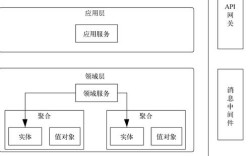
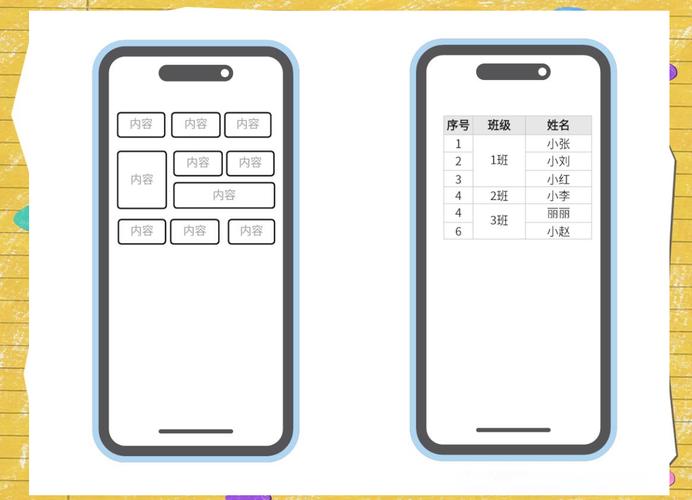
一个 Android UI 界面就是一棵由 View 和 ViewGroup 组成的视图树。
(图片来源网络,侵删)
常见的布局类型
在早期(现在也完全可用),Android 提供了多种布局方式,每种都有其特点和适用场景。
LinearLayout (线性布局)
这是最简单、最常用的布局,它将其子视图垂直或水平地排列。
-
核心属性:
android:orientation: 设置排列方向。"vertical": 垂直排列(从上到下)。"horizontal": 水平排列(从左到右)。
android:layout_gravity: 设置当前 View 在其父容器(LinearLayout)中的对齐方式。android:layout_weight: 权重,这是一个非常重要的属性,它允许子视图按比例分配父容器剩余的空间,两个按钮的layout_weight分别为1和2,那么第二个按钮会占据第一个按钮两倍的空间。
-
优点:
 (图片来源网络,侵删)
- 简单直观,易于使用。
- 适合简单的、线性的 UI 结构。
-
缺点:
- 嵌套过深会导致性能下降(布局层次过深)。
- 复杂的 UI 难以实现。
示例代码 (XML):
<LinearLayout
    xmlns:android="http://schemas.android.com/apk/res/android"
    android:layout_width="match_parent"
    android:layout_height="match_parent"
    android:orientation="vertical" <!-- 垂直排列 -->
    <TextView
        android:layout_width="wrap_content"
        android:layout_height="wrap_content"
        android:text="用户名" />
    <EditText
        android:layout_width="match_parent"
        android:layout_height="wrap_content" />
    <Button
        android:layout_width="match_parent"
        android:layout_height="wrap_content"
        android:text="登录" />
</LinearLayout>
RelativeLayout (相对布局)
相对布局允许子视图根据父容器的边界或其他子视图的位置来定位。
-
核心属性(这些属性通常以
layout_开头):- 相对于父容器:
android:layout_alignParentTop="true": 顶部对齐父容器。android:layout_centerInParent="true": 在父容器中居中。
- 相对于其他子视图(需要指定
id):android:layout_below="@+id/button1": 位于id为button1的视图下方。android:layout_toRightOf="@+id/textView1": 位于id为textView1的视图右侧。android:layout_alignTop="@+id/button1": 顶部与id为button1的视图对齐。
- 相对于父容器:
-
优点:
- 灵活性高,可以实现复杂的定位关系。
- 减少不必要的嵌套。
-
缺点:
- 如果视图之间的依赖关系复杂,布局计算可能会变慢。
- 在 XML 中阅读和维护可能比较困难。
示例代码 (XML):
<RelativeLayout
    xmlns:android="http://schemas.android.com/apk/res/android"
    android:layout_width="match_parent"
    android:layout_height="match_parent">
    <TextView
        android:id="@+id/username_label"
        android:layout_width="wrap_content"
        android:layout_height="wrap_content"
        android:text="用户名:"
        android:layout_alignParentTop="true"
        android:layout_alignParentLeft="true"
        android:layout_marginTop="16dp" />
    <EditText
        android:id="@+id/username_edit"
        android:layout_width="match_parent"
        android:layout_height="wrap_content"
        android:layout_below="@+id/username_label" <!-- 位于用户名标签下方 -->
        android:layout_alignParentLeft="true"
        android:layout_alignParentRight="true" />
    <Button
        android:id="@+id/login_button"
        android:layout_width="wrap_content"
        android:layout_height="wrap_content"
        android:text="登录"
        android:layout_below="@+id/username_edit" <!-- 位于输入框下方 -->
        android:layout_centerHorizontal="true"  <!-- 水平居中 -->
        android:layout_marginTop="16dp" />
</RelativeLayout>
FrameLayout (帧布局)
帧布局是所有布局中最简单的,它将所有的子视图都放在屏幕的左上角,后添加的子视图会覆盖在先添加的子视图之上。
-
核心属性:
android:layout_gravity: 用于控制子视图在左上角的基础上如何对齐(如居中、居右等)。
-
优点:
- 性能好,层次简单。
- 非常适合实现叠加效果,背景图 + 前景图、一个显示加载动画的覆盖层。
-
缺点:
不适合用于常规的、并排排列的 UI。
示例代码 (XML):
<FrameLayout
    xmlns:android="http://schemas.android.com/apk/res/android"
    android:layout_width="match_parent"
    android:layout_height="match_parent">
    <ImageView
        android:layout_width="match_parent"
        android:layout_height="match_parent"
        android:src="@drawable/background" />
    <ProgressBar
        android:layout_width="wrap_content"
        android:layout_height="wrap_content"
        android:layout_gravity="center" <!-- 在FrameLayout中居中 -->
        android:indeterminate="true" />
</FrameLayout>
TableLayout (表格布局)
将子视图排列成表格的形式,行由 TableRow 定义,列由子视图的数量自动决定。
-
核心属性:
android:stretchColumns: 指定哪些列可以被拉伸以填充可用空间(列索引从 0 开始)。android:shrinkColumns: 指定哪些列可以被收缩以适应屏幕。
-
优点:
适合展示类似电子表格的数据。
-
缺点:
- 现在已不常用,功能可以被
GridLayout或更灵活的布局替代。
- 现在已不常用,功能可以被
GridLayout (网格布局)
将子视图排列成网格,可以指定行数和列数,每个子视图可以放在特定的网格单元中。
- 优点:
- 比
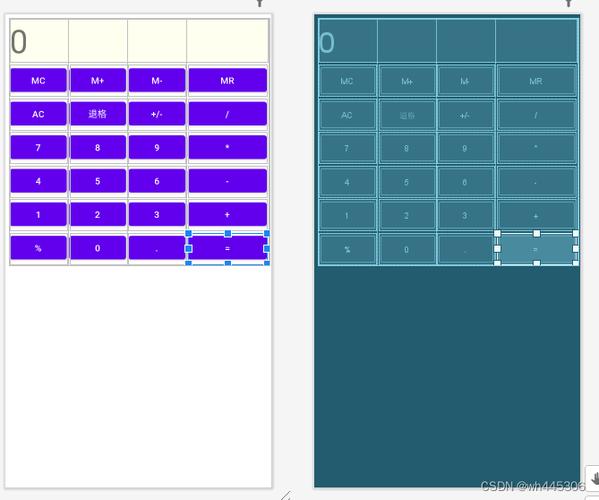
TableLayout更灵活,可以跨行跨列。 - 结构清晰,适合创建网格状 UI(如相册、计算器键盘)。
- 比
现代布局:ConstraintLayout (约束布局)
ConstraintLayout 是目前 Google 强烈推荐使用的布局方式,尤其是在复杂的 UI 场景中。
-
核心思想:
- 它允许你将所有控件直接放在一个 ConstraintLayout 容器内,而不需要多层嵌套。
- 每个子视图通过约束(Constraints)来定位,这些约束是相对于父容器或其他视图的。
-
优点:
- 扁平化结构:避免了布局的深层嵌套,极大地提升了布局性能和渲染速度。
- 强大的灵活性:可以轻松实现几乎所有复杂的 UI 布局,包括链式、辅助线、虚拟辅助线等高级功能。
- 所见即所得:配合 Android Studio 的可视化布局编辑器,拖拽即可完成复杂布局,非常直观。
- 响应式设计:更容易适配不同屏幕尺寸。
-
缺点:
- 对于非常简单的布局,可能有点“杀鸡用牛刀”。
- 约束关系如果设置不当,可能导致布局错乱,需要仔细检查。
示例代码 (XML):
<androidx.constraintlayout.widget.ConstraintLayout
    xmlns:android="http://schemas.android.com/apk/res/android"
    xmlns:app="http://schemas.android.com/apk/res-auto" <!-- 必须引入 app 命名空间 -->
    android:layout_width="match_parent"
    android:layout_height="match_parent">
    <TextView
        android:id="@+id/username_label"
        android:layout_width="wrap_content"
        android:layout_height="wrap_content"
        android:text="用户名:"
        app:layout_constraintTop_toTopOf="parent"
        app:layout_constraintStart_toStartOf="parent"
        app:layout_constraintEnd_toEndOf="parent"
        android:layout_marginTop="32dp" />
    <EditText
        android:id="@+id/username_edit"
        android:layout_width="0dp" <!-- 宽度设置为0,用约束来控制 -->
        android:layout_height="wrap_content"
        app:layout_constraintTop_toBottomOf="@+id/username_label"
        app:layout_constraintStart_toStartOf="@+id/username_label"
        app:layout_constraintEnd_toEndOf="parent"
        android:layout_marginTop="8dp" />
    <Button
        android:id="@+id/login_button"
        android:layout_width="wrap_content"
        android:layout_height="wrap_content"
        android:text="登录"
        app:layout_constraintTop_toBottomOf="@+id/username_edit"
        app:layout_constraintStart_toStartOf="parent"
        app:layout_constraintEnd_toEndOf="parent"
        app:layout_constraintBottom_toBottomOf="parent"
        android:layout_marginTop="32dp" />
</androidx.constraintlayout.widget.ConstraintLayout>
编程方式创建布局 (Java 代码)
虽然绝大多数 UI 都通过 XML 布局文件来定义,但在某些动态场景下,你可能需要用 Java 代码来创建和添加视图。
基本步骤:
- 获取父容器的引用(
setContentView中的根布局)。 - 创建 View 或 ViewGroup 对象。
- 设置视图的属性(宽度、高度、文本、背景色等)。
- 将子视图添加到父容器中。
示例代码 (Java):
import android.os.Bundle;
import android.view.ViewGroup;
import android.widget.Button;
import android.widget.LinearLayout;
import android.widget.TextView;
import androidx.appcompat.app.AppCompatActivity;
public class MainActivity extends AppCompatActivity {
    @Override
    protected void onCreate(Bundle savedInstanceState) {
        super.onCreate(savedInstanceState);
        // 1. 创建一个 LinearLayout 作为根布局
        LinearLayout linearLayout = new LinearLayout(this);
        linearLayout.setOrientation(LinearLayout.VERTICAL); // 设置为垂直排列
        linearLayout.setLayoutParams(new ViewGroup.LayoutParams(
                ViewGroup.LayoutParams.MATCH_PARENT,
                ViewGroup.LayoutParams.MATCH_PARENT
        ));
        // 2. 创建一个 TextView
        TextView textView = new TextView(this);
        textView.setText("Hello from Java!");
        textView.setTextSize(24);
        // 3. 创建一个 Button
        Button button = new Button(this);
        button.setText("Click Me");
        // 4. 将 TextView 和 Button 添加到 LinearLayout 中
        linearLayout.addView(textView);
        linearLayout.addView(button);
        // 5. 将 LinearLayout 设置为 Activity 的内容视图
        setContentView(linearLayout);
    }
}
使用场景:
- 动态加载数据并生成列表项。
- UI 需要根据用户操作或网络响应实时变化。
- 创建自定义的可重用组件。
布局最佳实践
- 优先使用 ConstraintLayout:对于复杂的界面,它能显著减少布局层级,提升性能。
- 避免过度嵌套:无论使用哪种布局,都应尽量保持布局的扁平化,过多的嵌套会增加测量和布局的时间。
- 使用
<include>和<merge>:<include>:用于重用布局文件,将一个布局文件嵌入到另一个布局中,将一个通用的header.xml包含到多个页面中。<merge>:用于优化布局,减少根布局的层级,通常与<include>配合使用,消除不必要的根ViewGroup。
- 考虑性能:对于频繁变化的列表(如
RecyclerView),不要使用复杂的ConstraintLayout或RelativeLayout作为列表项的根布局,LinearLayout或更简单的布局性能更好。 - 善用布局编辑器:充分利用 Android Studio 的可视化布局工具,它可以实时预览布局,并帮助你快速定位和调整约束。
总结对比
| 布局类型 | 核心特点 | 适用场景 | 备注 |
|---|---|---|---|
| LinearLayout | 简单的线性排列(垂直/水平) | 简单表单、列表项 | 基础,易用,但嵌套多了会卡 |
| RelativeLayout | 相对定位(相对于父容器或兄弟视图) | 中等复杂度的界面,需要精确定位 | 灵活,但依赖关系复杂时性能下降 |
| FrameLayout | 所有子视图重叠在左上角 | 叠加效果(如背景+加载动画) | 性能好,但布局能力有限 |
| ConstraintLayout | 扁平化布局,通过约束精确定位 | 强烈推荐,尤其适用于复杂界面 | 性能好,灵活,可视化编辑方便 |
| GridLayout | 网格状排列 | 计算器键盘、相册网格 | 结构清晰,但功能较单一 |
希望这份详细的指南能帮助你全面理解 Android Java 布局!