Of course! Using Python with WinForms for TCP/IP communication is a common task for creating desktop applications that need to send or receive data over a network (e.g., a chat client, a data logger, a remote control tool).
Here’s a comprehensive guide covering the concepts, a complete client-server example, and best practices.
Core Concepts
-
WinForms (
System.Windows.Forms): This is the library for creating graphical user interfaces (GUIs) in Windows. You'll use it to create windows, buttons, text boxes, and other controls. The crucial thing to remember is that GUI operations must happen on the main thread. -
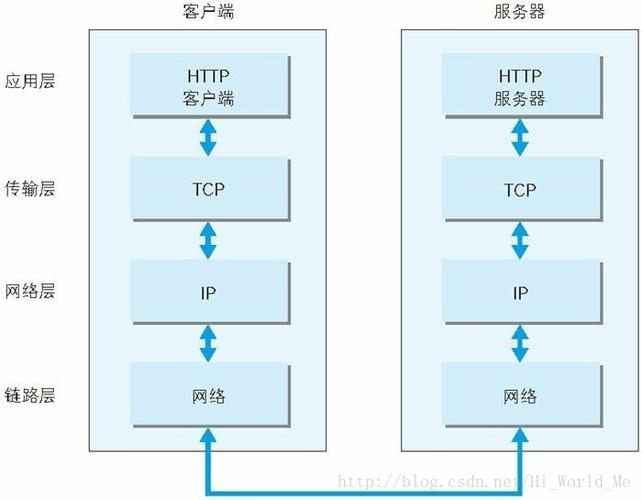
TCP/IP (Sockets): This is the standard for communication over networks.
- Socket: The endpoint for sending or receiving data across a computer network.
- Server Listens: A server application creates a socket, binds it to a specific IP address and port, and then "listens" for incoming connection requests from clients.
- Client Connects: A client application creates a socket and attempts to connect to the server's IP address and port.
- Stream: Once a connection is established, data is sent and received as a stream of bytes.
-
The Main Challenge: The GUI Thread Freeze
 (图片来源网络,侵删)
- Network operations like
socket.accept()(waiting for a connection) orsocket.recv()(waiting for data) are blocking. This means they pause the execution of your code until the operation is complete. - If you run these blocking operations directly on your main GUI thread, your entire application will freeze. The window will become unresponsive, and you won't be able to click buttons or type in text boxes.
- The Solution: You must perform all network operations on a separate background thread. This keeps the main thread free to handle user interface events.
- Network operations like
Project Setup
- Install Python: Make sure you have Python installed.
- Install PyWin32: This library is the bridge between Python and the Windows API, including WinForms.
- Open your command prompt or terminal and run:
pip install pywin32
- Open your command prompt or terminal and run:
Step-by-Step Example: A Simple Chat Application
We will create two separate scripts: one for the server and one for the client.
Part 1: The Server Application
The server will listen for a connection, receive a message from the client, display it, and then send a reply.
server.py
import socket
import threading
import sys
# --- GUI Setup ---
import win32gui
import win32con
from win32com.client import Dispatch
# --- Constants ---
HOST = '127.0.0.1'  # Standard loopback interface address (localhost)
PORT = 65432        # Port to listen on (non-privileged ports are > 1023)
# --- Global Variables for GUI ---
main_window = None
status_label = None
log_textbox = None
server_socket = None
def create_gui():
    """Creates the main server window."""
    global main_window, status_label, log_textbox
    # Create the main window
    main_window = win32gui.CreateWindowEx(
        0, 'Win32gui', 'TCP Server',
        win32con.WS_OVERLAPPED | win32con.WS_CAPTION | win32con.WS_SYSMENU | win32con.WS_VISIBLE,
        100, 100, 400, 300,
        0, 0, 0, None
    )
    # Create a status label
    status_label = win32gui.CreateWindowEx(
        0, 'Static', 'Status: Not listening',
        win32con.WS_CHILD | win32con.WS_VISIBLE,
        10, 10, 380, 20,
        main_window, 0, 0, None
    )
    # Create a text box for logging messages
    log_textbox = win32gui.CreateWindowEx(
        win32con.WS_EX_CLIENTEDGE, 'Edit', '',
        win32con.WS_CHILD | win32con.WS_VISIBLE | win32con.WS_VSCROLL | win32con.ES_MULTILINE | win32con.ES_AUTOVSCROLL,
        10, 40, 380, 220,
        main_window, 0, 0, None
    )
    # Create a button to start/stop the server
    start_button = win32gui.CreateWindowEx(
        0, 'Button', 'Start Server',
        win32con.WS_CHILD | win32con.WS_VISIBLE | win32con.BS_DEFPUSHBUTTON,
        150, 270, 100, 30,
        main_window, 101, 0, None # 101 is the button's control ID
    )
    # Show the window
    win32gui.UpdateWindow(main_window)
    win32gui.PumpMessages() # This starts the message loop
def update_status(text):
    """Updates the status label from any thread."""
    # GUI updates must be done on the main thread.
    # We use PostMessage to schedule the update.
    win32gui.PostMessage(main_window, win32con.WM_SETTEXT, 0, status_label)
    win32gui.SetWindowText(status_label, text)
def log_message(message):
    """Appends a message to the log textbox from any thread."""
    # We use PostMessage to schedule the update.
    win32gui.PostMessage(log_textbox, win32con.EM_SETSEL, -1, -1) # Select all
    win32gui.PostMessage(log_textbox, win32con.EM_REPLACESEL, 0, f"{message}\r\n") # Append text
def handle_client_connection(conn, addr):
    """This function runs in a separate thread to handle a client."""
    log_message(f"Connected by {addr}")
    update_status(f"Connected by {addr}")
    try:
        with conn:
            while True:
                # recv is a blocking call, but it's in a background thread, so the GUI is fine.
                data = conn.recv(1024)
                if not data:
                    break # Connection closed by client
                message = data.decode('utf-8')
                log_message(f"Received from {addr}: {message}")
                # Send a reply
                reply = f"Server got your message: {message}"
                conn.sendall(reply.encode('utf-8'))
                log_message(f"Sent to {addr}: {reply}")
    except ConnectionResetError:
        log_message(f"Client {addr} forcibly closed the connection.")
    finally:
        log_message(f"Connection with {addr} closed.")
        update_status("Status: Listening for new connections...")
def start_server():
    """Starts the server listening in a background thread."""
    global server_socket
    try:
        server_socket = socket.socket(socket.AF_INET, socket.SOCK_STREAM)
        server_socket.bind((HOST, PORT))
        server_socket.listen()
        update_status(f"Listening on {HOST}:{PORT}")
        log_message("Server started. Waiting for a connection...")
        # The main listening loop. It runs in a background thread.
        while True:
            # accept() is a blocking call, but it's in a background thread.
            conn, addr = server_socket.accept()
            # For each new connection, create a new thread to handle it.
            thread = threading.Thread(target=handle_client_connection, args=(conn, addr))
            thread.daemon = True # Allows main program to exit even if this thread is running
            thread.start()
    except OSError as e:
        if e.winerror == 10048: # Error: Address already in use
            log_message("Error: Port is already in use. Is another instance running?")
            update_status("Status: Error - Port in use")
        else:
            log_message(f"Server error: {e}")
    except Exception as e:
        log_message(f"An unexpected error occurred: {e}")
    finally:
        if server_socket:
            server_socket.close()
        log_message("Server has shut down.")
        update_status("Status: Server Stopped")
def on_button_click(hwnd, msg, wparam, lparam):
    """Handles button clicks."""
    button_id = win32gui.Loword(wparam)
    if button_id == 101: # Our Start/Stop button
        # Check if server is already running by trying to create a socket
        # This is a simple way to check. A more robust way would be to use a threading.Event.
        if server_socket and server_socket.fileno() != -1:
            # Server is running, so stop it
            log_message("Stopping server...")
            update_status("Status: Stopping...")
            # Closing the socket will unblock the accept() call
            server_socket.close()
            win32gui.SetWindowText(hwnd, 101, "Start Server")
        else:
            # Server is not running, so start it
            log_message("Starting server in background...")
            # Start the server in a new thread
            server_thread = threading.Thread(target=start_server)
            server_thread.daemon = True
            server_thread.start()
            win32gui.SetWindowText(hwnd, 101, "Stop Server")
    return True
# --- Main Execution ---
if __name__ == '__main__':
    # Set the window procedure to handle button clicks
    win32gui.PumpMessages = lambda: None # Override Pump