Of course! The %s operator is a fundamental part of Python's string formatting, often called "old-style" formatting. It's a way to insert variables or other data into a string.
Here’s a complete guide covering everything from the basics to more advanced use cases, all within the context of Sublime Text.
The Basics: %s as a Placeholder
Think of %s as a blank spot or a placeholder in a string. The operator that follows the string acts as a command to replace the placeholder with a value.
Simple Example:
# The string has a placeholder: %s
name = "Alice"
age = 30
# The % operator replaces the first %s with the 'name' variable
greeting = "Hello, my name is %s." % name
print(greeting)
# To insert multiple values, you use a tuple (values in parentheses)
info = "My name is %s and I am %d years old." % (name, age)
print(info)
Output in Sublime's Console (View > Show Console):
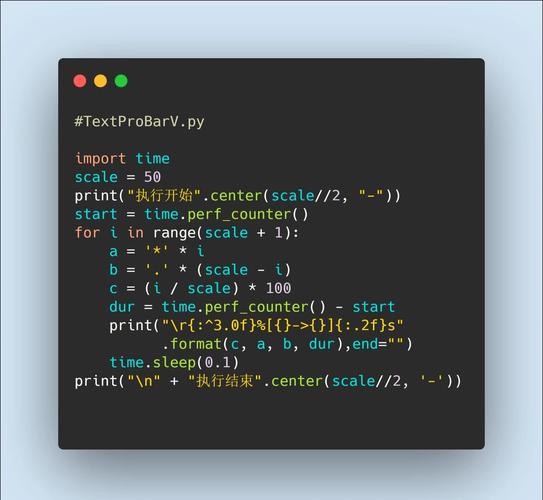
Hello, my name is Alice.
My name is Alice and I am 30 years old.
Key Points:
- The comes after the string.
- For a single value, you just put the variable name after the .
- For multiple values, you put them in a tuple, like
(value1, value2).
Different Placeholders for Different Data Types
While %s is versatile and can often convert other types to strings, it's best practice to use the correct placeholder for each data type. This is called "type conversion".
| Placeholder | Data Type | Example |
|---|---|---|
%s |
String | "%s" % "hello" -> "hello" |
%d or %i |
Integer (decimal) | "%d" % 123 -> "123" |
%f |
Floating-point number | "%f" % 99.5 -> "99.500000" |
%x |
Hexadecimal (lowercase) | "%x" % 255 -> "ff" |
%X |
Hexadecimal (uppercase) | "%X" % 255 -> "FF" |
| A literal percent sign | "100%%" % () -> "100%" |
Example in a Python file in Sublime:
product = "Laptop"
price = 1200.99
stock = 50
# Using different placeholders for formatting
invoice_line = "Product: %s | Price: $%.2f | Stock: %d" % (product, price, stock)
print(invoice_line)
Output:
Product: Laptop | Price: $120.99 | Stock: 50Notice %.2f in the example. This is a format specifier for floats: means "decimal point", 2 means "show 2 digits after the point", and f means "floating-point number".
Common Pitfalls and How to Fix Them
Pitfall 1: Mismatched Number of Placeholders and Values
If you have more %s placeholders than values, or vice-versa, you'll get a TypeError.
Error Code:
# This will cause an error
# info = "My name is %s and I am %d years old." % name # Not enough values
# print(info)
# This will also cause an error
# info = "My name is %s." % (name, age) # Too many values
# print(info)
Sublime's Console Output:
TypeError: not enough arguments for format stringFix: Make sure the number of placeholders matches the number of items in the tuple (or the single variable).
Pitfall 2: Forgetting the Tuple for Multiple Values
This is a very common mistake. If you have multiple placeholders but don't wrap your values in a tuple, Python will think you're trying to use multiple operators.
Error Code:
# This will cause an error
# info = "My name is %s and I am %d years old." % name, age
# print(info)
Sublime's Console Output:
TypeError: not all arguments converted during string formattingFix: Wrap the variables in parentheses to create a tuple.
Correct Code:
info = "My name is %s and I am %d years old." % (name, age)
print(info)
Modern Alternatives to %s
While %s is still valid and you'll see it in older code, Python has introduced more modern and often more readable ways to format strings.
a) The str.format() Method (Python 2.6+ and 3.x)
This method uses curly braces as placeholders and is generally more flexible.
name = "Bob"
age = 42
# Using positional arguments
info1 = "My name is {} and I am {} years old.".format(name, age)
print(info1)
# Using keyword arguments (more readable)
info2 = "My name is {n} and I am {a} years old.".format(n=name, a=age)
print(info2)
b) f-Strings (Formatted String Literals) (Python 3.6+)
This is the current recommended method in modern Python. It's the fastest and most readable. You prefix the string with an f and put variables directly inside the curly braces.
name = "Charlie"
age = 25
# Simply prefix the string with 'f'
info = f"My name is {name} and I am {age} years old."
print(info)
# You can also put expressions inside!
next_year_age = age + 1
info_next_year = f"Next year, I will be {next_year_age}."
print(info_next_year)
Recommendation: If you are writing new code in Sublime, use f-strings. They are cleaner and less error-prone. However, understanding %s is crucial for reading and maintaining older Python projects.
Practical Sublime Text Workflow
- Create a New File:
File > New File. - Save it as a Python file:
File > Save As...and name ittest_formatting.py. - Write the Code: Type the examples from this guide into the file.
- Run the Code:
- Quick Method (if you have the SublimeREPL package installed):
- Press
Ctrl+Shift+P(orCmd+Shift+Pon Mac) to open the Command Palette. - Type
SublimeREPL: Python - RUN current fileand press Enter.
- Press
- Terminal Method (more universal):
- Save your file.
- Open your system's terminal (or Sublime's built-in terminal:
View > Show ConsoleorView > Show Overlay > Terminal). - Navigate to the directory where you saved the file (e.g.,
cd /path/to/your/project). - Run the script with the command:
python test_formatting.py.
- Quick Method (if you have the SublimeREPL package installed):
You will see the output printed directly in the terminal or console.