Of course! Here is a comprehensive guide on using Tesseract 4.0 with Python, covering everything from installation to advanced techniques.
Overview
Tesseract 4.0 is a major leap forward from Tesseract 3. It introduced a new, powerful OCR engine called LSTM (Long Short-Term Memory), which is far more accurate, especially on modern, complex, and noisy documents. The legacy Tesseract 3 engine is still available but is no longer the default.
This guide will focus on using the modern LSTM engine, which is what you'll want for almost all new projects.
Prerequisites: Installing Tesseract
The Python Tesseract library (pytesseract) is just a wrapper. You must first install the Tesseract OCR engine on your system.
Installation by Operating System
A. Windows
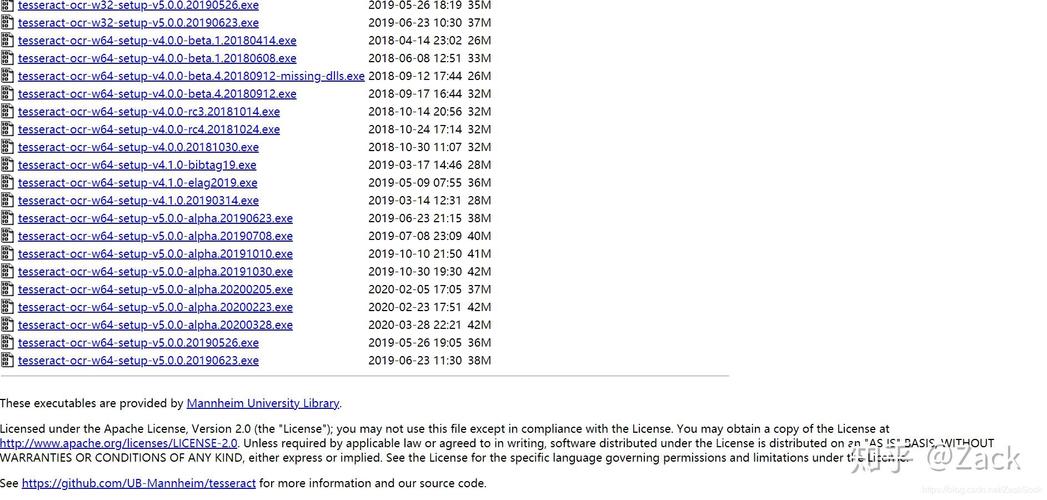
- Download the Installer: Go to the Tesseract at UB Mannheim page. This is the most up-to-date and recommended build for Windows.
- Run the Installer: Follow the installation wizard.
- CRITICAL: Add to PATH: During installation, make sure you check the box that says "Add installation directory to your system's PATH". This is the most common source of errors.
B. macOS
Using Homebrew is the easiest way.
# Install Tesseract and all popular language data
brew install tesseract tesseract-lang
C. Linux (Debian/Ubuntu)
# Update your package list
sudo apt-get update
# Install Tesseract and the English language package
sudo apt-get install tesseract-ocr tesseract-ocr-eng
# To install other languages (e.g., French, German)
# sudo apt-get install tesseract-ocr-fre tesseract-ocr-deu
D. Linux (Fedora/CentOS)
# Install Tesseract and the English language package
sudo dnf install tesseract tesseract-langpack-eng
# To install other languages
# sudo dnf install tesseract-langpack-fre tesseract-langpack-deu
Python Installation: pytesseract
Once Tesseract is installed on your system, install the Python wrapper library.
pip install pytesseract
You will also need a library for image processing. Pillow is the standard.
pip install Pillow
Basic Usage (Python Script)
Now you're ready to write some Python code. The core function is pytesseract.image_to_string().
First, let's create a simple script. Make sure you have a test image named test.png in the same directory.
import pytesseract
from PIL import Image
# If Tesseract is not in your system's PATH, you need to specify the path to the executable.
# Example for Windows:
# pytesseract.pytesseract.tesseract_cmd = r'C:\Program Files\Tesseract-OCR\tesseract.exe'
# Example for macOS (if installed via Homebrew):
# pytesseract.pytesseract.tesseract_cmd = '/opt/homebrew/bin/tesseract' # For Apple Silicon
# pytesseract.pytesseract.tesseract_cmd = '/usr/local/bin/tesseract'   # For Intel
# Open the image file
image_path = 'test.png'
img = Image.open(image_path)
# Use Tesseract to extract text
text = pytesseract.image_to_string(img)
# Print the extracted text
print("Extracted Text:")
print(text)
To run this script:
python your_script_name.py
Key Features and Configuration (Tesseract 4.0 Power)
Tesseract 4.0's power comes from its configuration options. You can pass them as parameters to pytesseract functions.
A. Specifying Languages
Tesseract supports over 130 languages. You need to install the language data packs (as shown in the installation steps) and then specify them.
# To use English and French
text = pytesseract.image_to_string(img, lang='eng+fra')
B. Page Segmentation Mode (PSM)
This is one of the most important parameters. It tells Tesseract how to analyze the image layout.
| PSM Value | Description | Use Case |
|---|---|---|
3 |
Fully automatic page segmentation, but no OSD. (Default) | General purpose, works well for most documents. |
6 |
Assume a single uniform block of text. | Single-column text, like a book page or article. |
11 |
Sparse text. Find as much text as possible in no particular order. | Captions, text in images, posters. |
12 |
Sparse text with OSD. | Same as 11, but also detects orientation. |
Example:
# Assume the image is a single block of text
text = pytesseract.image_to_string(img, config='--psm 6')
C. OEM (OCR Engine Mode)
This lets you choose between the LSTM engine and the legacy 3.00 engine.
| OEM Value | Description |
|---|---|
3 |
Default, use both LSTM and Legacy Tesseract. |
1 |
Use only the legacy Tesseract engine. |
2 |
Use only the LSTM engine. (Recommended for 4.0) |
0 |
Use both, but prefer the legacy engine. |
Example:
# Force the use of the modern LSTM engine
text = pytesseract.image_to_string(img, config='--oem 2')
D. Custom Configurations
You can combine PSM, OEM, and other Tesseract-specific options.
# Use the LSTM engine, assume a single block of text, and whitelist characters
custom_config = r'--oem 3 --psm 6 -c tessedit_char_whitelist=0123456789'
text = pytesseract.image_to_string(img, config=custom_config)
print(text) # This will only extract numbers
Extracting More Than Just Text
pytesseract can also extract structured data.
A. Bounding Box Data
Get the coordinates of each recognized word.
import pytesseract
from PIL import Image
import cv2 # OpenCV is great for drawing boxes
# ... (img loading code from before)
# Get bounding box data
# The 'output_type' parameter specifies the format of the output
boxes = pytesseract.image_to_boxes(img)
# The format is: character x y width height page_num
for b in boxes.splitlines():
    b = b.split(' ')
    print(b)
# To visualize with OpenCV (optional)
img_cv = cv2.imread(image_path)
h, w, _ = img_cv.shape
for b in boxes.splitlines():
    b = b.split(' ')
    char = b[0]
    x, y, w, h = int(b[1]), int(b[2]), int(b[3]), int(b[4])
    # OpenCV uses (x, y) for top-left, so we need to invert Tesseract's y
    cv2.rectangle(img_cv, (x, h-y), (w, h-(y+h)), (0, 255, 0), 2)
cv2.imshow('Image with Boxes', img_cv)
cv2.waitKey(0)
cv2.destroyAllWindows()
B. Detailed Data (JSON-like)
Get a dictionary containing all recognized words, their confidence levels, and bounding boxes.
# Get detailed data in a dictionary format
detailed_data = pytesseract.image_to_data(img)
# The output is a TSV (tab-separated values) string
# You can parse it yourself or use a library like pandas
import pandas as pd
# Convert TSV string to a pandas DataFrame
df = pd.read_csv(io.StringIO(detailed_data), sep='\t')
print(df.head())
# You can now easily filter for high-confidence words
high_confidence_words = df[df.conf > 60]
print("\nHigh Confidence Words:")
print(high_confidence_words[['text', 'conf']])
Pre-processing Images for Better Accuracy
Tesseract works best on clean, high-contrast images. For real-world use, you'll almost always need to pre-process.
Common Pre-processing Steps:
- Convert to Grayscale: Reduces complexity.
- Binarization (Thresholding): Converts to pure black and white.
- Noise Removal: Removes specks and artifacts.
- Deskewing: Corrects the image rotation.
Example Pre-processing Pipeline with OpenCV:
import cv2
import pytesseract
from PIL import Image
# Load image
img = cv2.imread('noisy_document.png')
# 1. Convert to Grayscale
gray = cv2.cvtColor(img, cv2.COLOR_BGR2GRAY)
# 2. Apply Gaussian Blur to reduce noise
blurred = cv2.GaussianBlur(gray, (5, 5), 0)
# 3. Apply Adaptive Thresholding for better binarization
#