
Of course! Here is a comprehensive guide on using the xlrd library in Python on Windows, covering installation, basic usage, and important considerations.
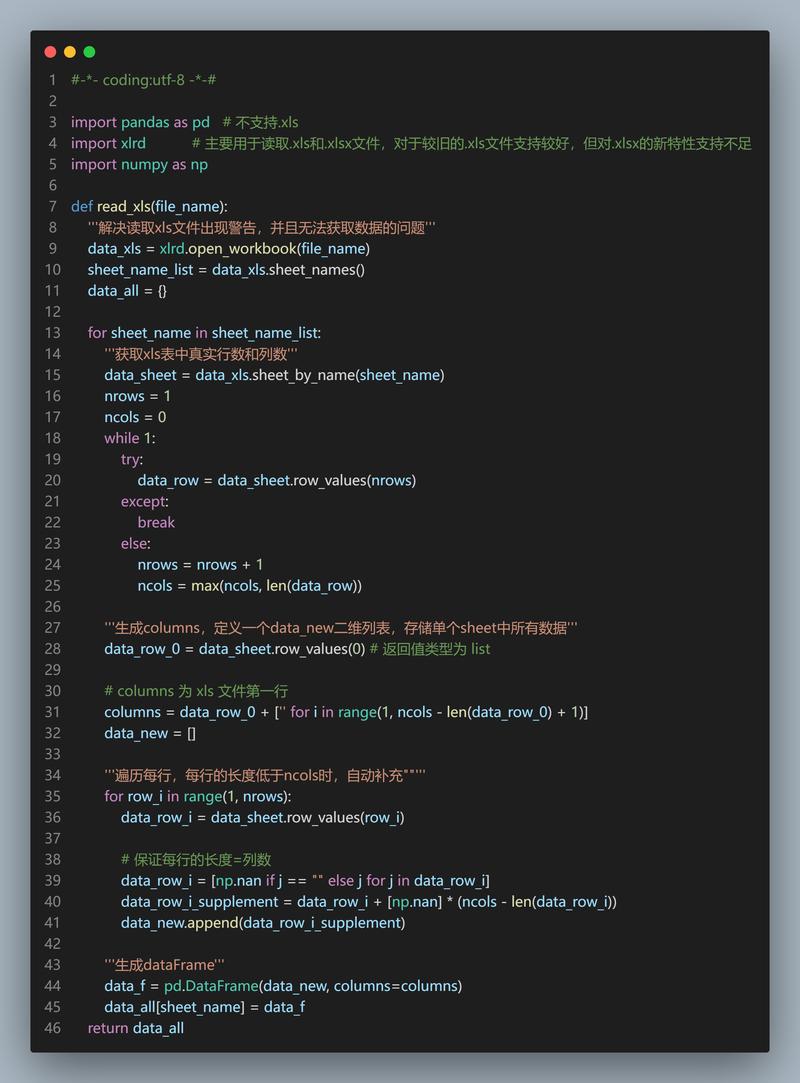
What is xlrd?
xlrd is a Python library for reading data and formatting information from Excel files (.xls and .xlsx). It's a very popular and lightweight library, but it's important to know its limitations, especially with newer Excel file formats.
Installation
First, you need to install the library. The easiest way to do this on Windows is using pip, Python's package installer.
Step 1: Open Command Prompt or PowerShell
You can find "Command Prompt" or "PowerShell" by searching in the Start Menu.
Step 2: Run the Installation Command
Type the following command and press Enter:
pip install xlrd
Important Note for .xlsx Files:
The standard xlrd library cannot read or write .xlsx files (the modern Excel format). It only works with the older .xls format.
If you need to work with .xlsx files, you should use the openpyxl library instead. However, xlrd can be used in conjunction with openpyxl for certain tasks. For now, let's focus on its primary use case: .xls files.

# If you need to read .xlsx files, install openpyxl
pip install openpyxl
Basic Usage: Reading an Excel File (.xls)
Let's assume you have an Excel file named data.xls in the same directory as your Python script. It looks like this:
| A | B | C | |
|---|---|---|---|
| 1 | Name | City | Age |
| 2 | Alice | New York | 30 |
| 3 | Bob | London | 25 |
| 4 | Charlie | Paris | 35 |
Here is the Python code to read this data:
import xlrd
# Define the path to your Excel file
# Make sure the file 'data.xls' is in the same folder as your script,
# or provide the full path, e.g., r'C:\Users\YourUser\Documents\data.xls'
file_path = 'data.xls'
try:
    # Open the workbook
    workbook = xlrd.open_workbook(file_path)
    # Get the first sheet (you can also use workbook.sheet_by_name('Sheet1'))
    sheet = workbook.sheet_by_index(0)
    # --- Example 1: Get the number of rows and columns ---
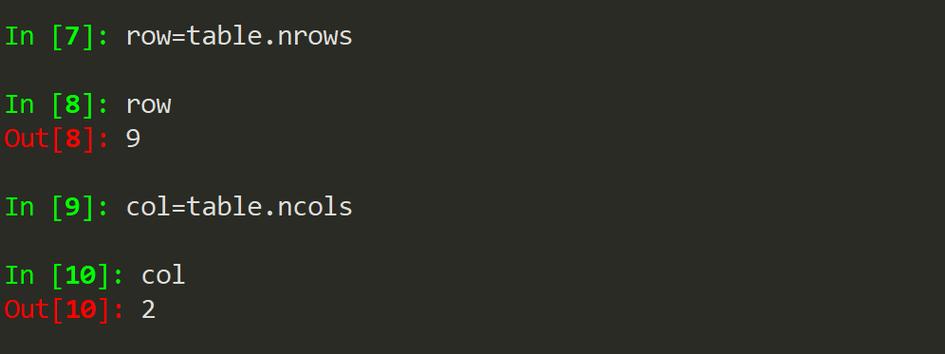
    num_rows = sheet.nrows
    num_cols = sheet.ncols
    print(f"Sheet has {num_rows} rows and {num_cols} columns.\n")
    # --- Example 2: Read data cell by cell ---
    print("--- Reading Cell by Cell ---")
    for row_idx in range(sheet.nrows):
        row_data = []
        for col_idx in range(sheet.ncols):
            # cell_value = sheet.cell(row_idx, col_idx).value
            # A more direct way:
            cell_value = sheet.cell_value(row_idx, col_idx)
            row_data.append(str(cell_value))
        print(" | ".join(row_data))
    # --- Example 3: Read a specific row or column ---
    print("\n--- Reading Specific Rows/Columns ---")
    # Get the first row (the header)
    headers = sheet.row_values(0)
    print(f"Headers: {headers}")
    # Get the second row (data for Alice)
    first_data_row = sheet.row_values(1)
    print(f"First data row: {first_data_row}")
    # Get the first column (all names)
    names_column = sheet.col_values(0)
    print(f"Names column: {names_column}")
    # --- Example 4: Get a single cell value ---
    print("\n--- Getting a Single Cell Value ---")
    # Get Bob's age (row 3, column 3, which is index 2, 2)
    # Remember: Python uses 0-based indexing
    bobs_age = sheet.cell_value(2, 2)
    print(f"Bob's age is: {bobs_age}")
except FileNotFoundError:
    print(f"Error: The file '{file_path}' was not found.")
except xlrd.XLRDError as e:
    print(f"An error occurred while reading the Excel file: {e}")
except Exception as e:
    print(f"An unexpected error occurred: {e}")
Code Breakdown:
import xlrd: Imports the library.xlrd.open_workbook(file_path): Opens the specified Excel file and returns aworkbookobject.workbook.sheet_by_index(0): Gets a sheet object by its position (0 is the first sheet). You can also usesheet_by_name('Sheet1').sheet.nrowsandsheet.ncols: These attributes give you the total number of rows and columns in the sheet.sheet.cell_value(row_idx, col_idx): This is the most common way to get the value of a specific cell.row_idxandcol_idxare zero-based (i.e., the first cell iscell_value(0, 0)).sheet.row_values(row_idx): Returns a list of all values in a specific row.sheet.col_values(col_idx): Returns a list of all values in a specific column.
Important Considerations & Common Pitfalls
A. Cell Types
Excel stores different types of data (text, numbers, dates). xlrd represents this with a ctype attribute. You should check the cell type before processing its value, especially for dates.
# Get a cell object
cell = sheet.cell(1, 2) # This is Alice's age, which is 30
print(f"Value: {cell.value}, Type: {cell.ctype}")
# ctype meanings:
# 0: empty
# 1: string (text)
# 2: number
# 3: date (a float, needs conversion)
# 4: boolean
# 5: error
# For dates, you need to convert the float to a usable format
if cell.ctype == 3: # Date type
    # Convert Excel date (a float) to a Python datetime object
    date_value = xlrd.xldate.xldate_as_datetime(cell.value, workbook.datemode)
    print(f"Parsed Date: {date_value.strftime('%Y-%m-%d')}")
B. Handling .xlsx Files (The Modern Way)
As mentioned, xlrd can't open .xlsx files. If you try, you'll get an XLRDError: Unsupported format, or corrupt file: expected 'OLE'.
Solution: Use openpyxl for .xlsx files.
The syntax is slightly different but very similar.
# You need to install it first: pip install openpyxl
from openpyxl import load_workbook
file_path_xlsx = 'data.xlsx'
try:
    # load_workbook is used for .xlsx files
    workbook = load_workbook(filename=file_path_xlsx, read_only=True) # read_only is more efficient
    # Get the active sheet
    sheet = workbook.active
    print(f"Sheet Title: {sheet.title}")
    # Iterate through rows
    print("\n--- Reading from .xlsx file ---")
    for row in sheet.iter_rows(values_only=True):
        # row will be a tuple of cell values, e.g., ('Alice', 'New York', 30)
        print(row)
    workbook.close() # Important to close the workbook in read-only mode
except FileNotFoundError:
    print(f"Error: The file '{file_path_xlsx}' was not found.")
except Exception as e:
    print(f"An error occurred: {e}")
Alternatives to xlrd
While xlrd is great for simple .xls reading, here are other powerful libraries:
| Library | Primary Use Case | Pros | Cons |
|---|---|---|---|
pandas |
Data Analysis | The industry standard. Can read both .xls and .xlsx directly into a powerful DataFrame object. Handles data cleaning, analysis, and export effortlessly. |
Overkill for just reading a few cells if you don't need data analysis. |
openpyxl |
.xlsx Files |
The go-to library for modern .xlsx files. Can also read and write. Good for manipulating cell styles, formulas, and charts. |
Slower than xlrd for read-only operations on .xls files. |
xlsxwriter |
Writing .xlsx Files |
The best library for creating new Excel files from scratch. Offers extensive formatting options. | Read-only. Cannot read existing files. |
Example with pandas (Recommended for most tasks)
pandas uses xlrd and openpyxl "under the hood" to read files, so you get the best of both worlds.
pip install pandas
import pandas as pd
# Pandas can read both .xls and .xlsx files automatically!
# It uses xlrd for .xls and openpyxl for .xlsx
# Read the first sheet into a DataFrame
df = pd.read_excel('data.xls', sheet_name=0, engine='xlrd')
print("--- DataFrame from Pandas ---")
print(df)
# You can now easily access data
print("\n--- Accessing Data with Pandas ---")
print("Names:", df['Name'].tolist())
print("Bob's Age:", df.loc[df['Name'] == 'Bob', 'Age'].values[0])
Summary
| Your Goal | Recommended Library on Windows |
|---|---|
Read only .xls files |
xlrd |
Read only .xlsx files |
openpyxl or pandas |
Read or write .xlsx files |
openpyxl |
| Data analysis & manipulation | pandas (uses xlrd/openpyxl internally) |
Create new .xlsx files |
xlsxwriter |
For most new projects involving Excel on Windows, starting with pandas is often the most productive choice. If you only need to quickly read an old .xls file, xlrd is a lightweight and effective tool.


