Of course! Here is a comprehensive guide to using the xlrd library in Python on Windows, covering installation, basic usage, common scenarios, and important limitations.
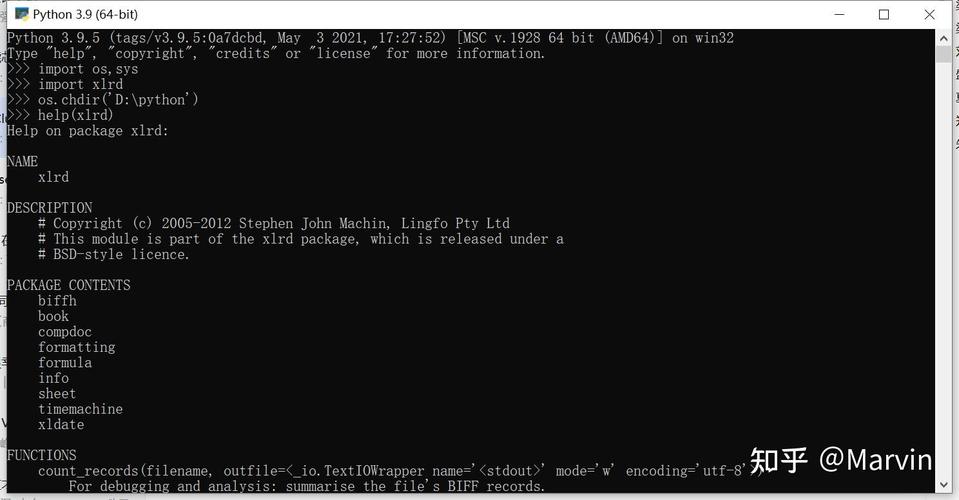
What is xlrd?
xlrd is a Python library for reading data and formatting information from Excel files (.xls and .xlsx). It's a fast and lightweight library, but it's important to know its main limitation:
xlrd can only read .xls files and can only read (not write) .xlsx files.
For modern Excel files (.xlsx), if you need to write data or use advanced features, openpyxl is a more common choice. However, for pure reading tasks, xlrd is still very popular and efficient.
Installation
First, you need to install the xlrd package. The easiest way to do this on Windows is using pip, Python's package installer.
Step 1: Open Command Prompt or PowerShell
- Press the Windows Key, type
cmdorpowershell, and press Enter.
Step 2: Run the Installation Command Type the following command and press Enter:
pip install xlrd
If you have multiple Python versions installed, you might need to specify which one to use, for example:
py -m pip install xlrd
or
python -m pip install xlrd
You should see a message indicating that the package was successfully installed.
Basic Usage
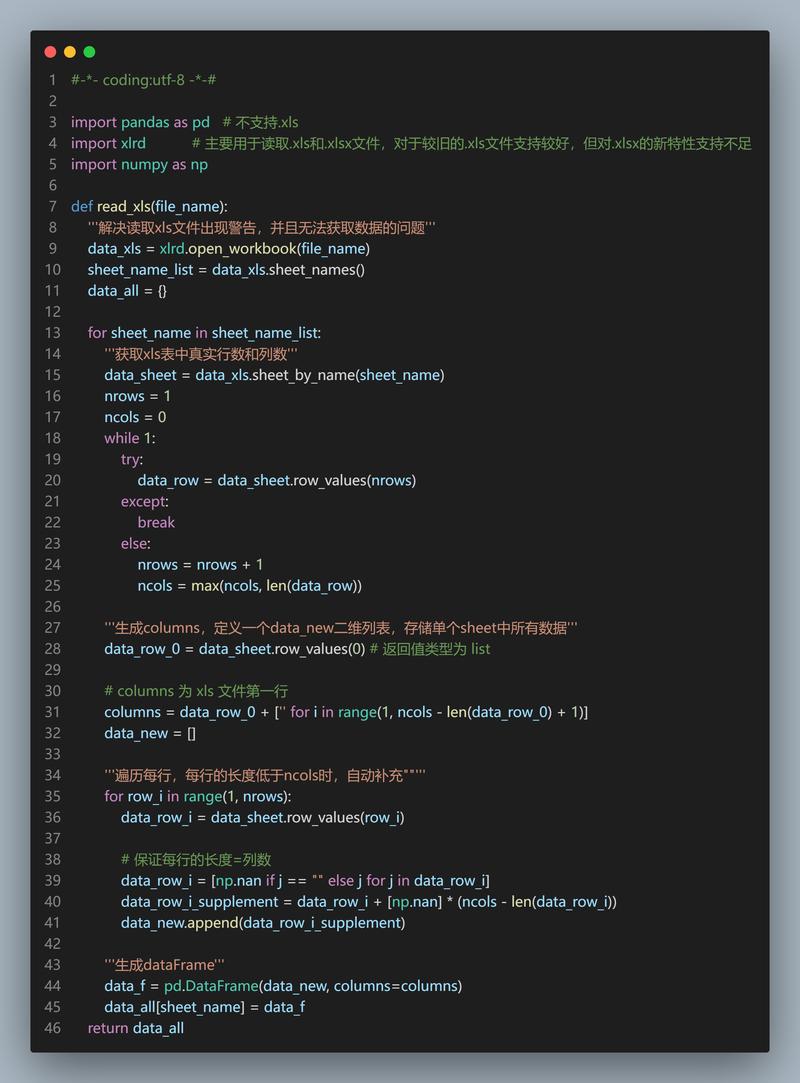
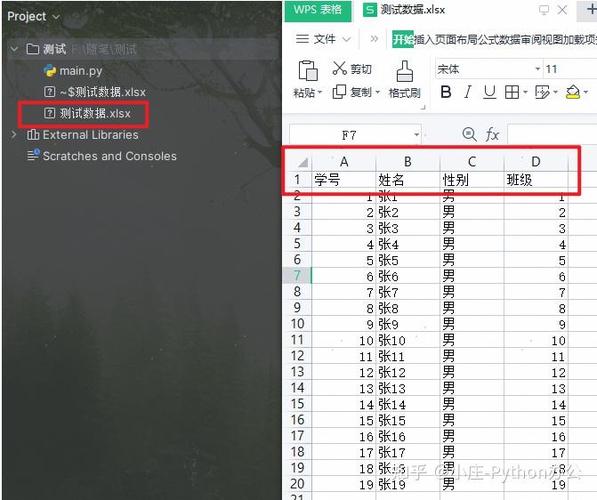
Let's start with a simple example. Imagine you have an Excel file named data.xlsx in the same directory as your Python script. The file looks like this:
data.xlsx
| | A | B | C |
|---|---|---|---|
| 1 | Name | Age | City |
| 2 | Alice | 30 | New York |
| 3 | Bob | 24 | London |
| 4 | Charlie| 35 | Paris |
Example Script: read_excel.py
import xlrd
# Define the path to your Excel file
# Use a raw string (r"...") to avoid issues with backslashes
file_path = r'C:\path\to\your\folder\data.xlsx'
try:
    # Open the workbook
    workbook = xlrd.open_workbook(file_path)
    # Get the first sheet by index (0)
    sheet = workbook.sheet_by_index(0)
    # --- Get General Information ---
    print(f"Sheet Name: {sheet.name}")
    print(f"Number of Rows: {sheet.nrows}")
    print(f"Number of Columns: {sheet.ncols}")
    print("-" * 20)
    # --- Read Cell Values ---
    # Read a specific cell (row, col). Note: indexing starts at 0.
    # cell_value(row_idx, col_idx)
    name_A2 = sheet.cell_value(1, 0) # Row 2, Column A
    age_B3 = sheet.cell_value(2, 1) # Row 3, Column B
    print(f"Name from cell A2: {name_A2}")
    print(f"Age from cell B3: {age_B3}")
    print("-" * 20)
    # --- Read a Row ---
    # Get all values from the header row (row index 0)
    header_row = sheet.row_values(0)
    print(f"Header Row: {header_row}")
    print("-" * 20)
    # --- Read a Column ---
    # Get all values from the 'Name' column (column index 0)
    name_column = sheet.col_values(0)
    print(f"Name Column: {name_column}")
    print("-" * 20)
    # --- Iterate Through All Rows ---
    print("Reading all data:")
    for row_idx in range(sheet.nrows):
        # Get all values in the current row
        row_data = sheet.row_values(row_idx)
        print(f"Row {row_idx + 1}: {row_data}")
except FileNotFoundError:
    print(f"Error: The file was not found at {file_path}")
except xlrd.XLRDError as e:
    print(f"An error occurred while reading the Excel file: {e}")
except Exception as e:
    print(f"An unexpected error occurred: {e}")
How to Run the Script:
- Save the code above as
read_excel.py. - Important: Change the
file_pathvariable in the script to the actual path of yourdata.xlsxfile. - Open Command Prompt or PowerShell, navigate to the directory where you saved the file.
- Run the script:
python read_excel.py
Handling Different Data Types
Excel stores data in different formats (dates, numbers, text). xlrd helps you handle this correctly.
import xlrd
import datetime
# Assume 'data.xlsx' has a date in cell D2 (e.g., 10/26/2025)
# and a number in cell E2 (e.g., 99.9)
file_path = r'C:\path\to\your\folder\data.xlsx'
workbook = xlrd.open_workbook(file_path)
sheet = workbook.sheet_by_index(0)
# Get the cell value as it appears in the file
# For cell D2 (row 1, col 3)
cell_value_date = sheet.cell_value(1, 3)
print(f"Raw cell value for date: {cell_value_date}") # This will be a number (e.g., 45242)
# Get the cell type (0=empty, 1=text, 2=number, 3=date, etc.)
cell_type = sheet.cell_type(1, 3)
print(f"Cell type for date: {cell_type}") # This will be 3
# Convert the Excel date number to a Python datetime object
if cell_type == xlrd.XL_CELL_DATE:
    # Convert the Excel serial date number to a datetime tuple
    date_tuple = xlrd.xldate.xldate_as_tuple(cell_value_date, workbook.datemode)
    python_date = datetime.datetime(*date_tuple)
    print(f"Converted Python date: {python_date.strftime('%Y-%m-%d')}")
# For cell E2 (row 1, col 4)
cell_value_number = sheet.cell_value(1, 4)
print(f"\nRaw cell value for number: {cell_value_number}") # This will be 99.9
cell_type_number = sheet.cell_type(1, 4)
print(f"Cell type for number: {cell_type_number}") # This will be 2
Common Pitfalls and Solutions
Problem: xlrd.biffh.XLRDError: Excel xlsx file; not supported
This is the most common error. It happens because you are trying to open a modern .xlsx file with an older version of xlrd (version 2.0+).
Solution:
-
Downgrade
xlrd: If you absolutely must usexlrdfor an.xlsxfile, you can install an older version that supports it.pip install xlrd==1.2.0
-
Use a Different Library (Recommended): The best long-term solution is to use a library that fully supports
.xlsxfiles.pandasis the industry standard for data manipulation and can easily read Excel files.Example using Pandas:
pip install pandas openpyxl
import pandas as pd
file_path = r'C:\path\to\your\folder\data.xlsx'
df = pd.read_excel(file_path, engine='openpyxl')
print(df)
# You can easily access columns and rows
print("\nNames:")
print(df['Name'])
Problem: FileNotFoundError
This means the path you provided to xlrd.open_workbook() is incorrect.
Solution:
-
Use Raw Strings: Always prefix your path string with
r(e.g.,r'C:\...') to treat backslashes as literal characters, not escape characters. -
Check Your Path: Double-check that the file exists at the exact location you specified.
-
Use
os.path(Best Practice): For better cross-platform compatibility, use theosmodule to construct your file paths.import xlrd import os # This works on Windows, macOS, and Linux file_name = 'data.xlsx' folder_path = r'C:\path\to\your\folder' file_path = os.path.join(folder_path, file_name) workbook = xlrd.open_workbook(file_path) # ... rest of your code
Summary: xlrd vs. Alternatives
| Feature | xlrd |
openpyxl |
pandas |
|---|---|---|---|
| Primary Use | Read .xls and .xlsx |
Read, Write, Modify .xlsx |
Read, Write, Analyze data |
Read .xlsx |
Read-only (in v1.x) | Full support | Full support (uses openpyxl or xlrd as engine) |
| Write Support | No | Yes | Yes |
| Ease of Use | Good for simple scripts | Good for detailed manipulation | Excellent for data analysis |
| Dependencies | None | None | openpyxl or xlrd needed for Excel |
Recommendation:
- For quickly reading an old
.xlsfile,xlrdis fine. - For reading any
.xlsxfile, especially if you might need to write data later, usepandas. It's the most powerful and flexible option for data-related tasks.