Of course! Here is a comprehensive guide to using ArcGIS Engine with Python, covering what it is, why you'd use it, how to set it up, and providing practical code examples.
What is ArcGIS Engine?
ArcGIS Engine is a developer toolkit that allows you to embed GIS functionality into your own standalone applications. It provides a rich set of components for building custom mapping, data management, and spatial analysis tools.
When you use ArcGIS Engine with Python, you are essentially using the arcpy library, which is Python's bridge to the ArcGIS Engine components. arcpy is part of the ArcGIS Desktop installation, but its core functionality relies on the underlying Engine libraries.
Key Concepts
arcpyModule: This is the primary Python interface to ArcGIS. It's a site-package that you import into your Python scripts.- ArcGIS Engine Runtime: To run a script that uses
arcpyon a machine that doesn't have ArcGIS Desktop installed, you need to install the ArcGIS Engine Runtime. This is a licensing component that provides the necessary GIS capabilities. - Licensing: Your script needs to "check out" a specific license (e.g., ArcView, ArcEditor, ArcInfo) to run certain tools. This is a critical step.
- Standalone Applications: You can wrap your Python scripts in a GUI framework (like PyQt, Tkinter, or wxPython) to create professional-looking desktop applications that don't require users to have ArcGIS Desktop.
Why Use ArcGIS Engine with Python?
- Automation: Automate repetitive GIS tasks (e.g., data conversion, map exports, report generation).
- Custom Tools: Create custom geoprocessing tools tailored to your organization's specific workflows.
- Standalone Applications: Build user-friendly desktop applications for users who are not GIS experts.
- Integration: Seamlessly integrate GIS capabilities into larger business or scientific applications written in Python.
- Cost-Effective: For many tasks, using Python with ArcGIS Engine is more efficient than building complex models in ArcGIS Pro or ModelBuilder.
Step-by-Step Setup
Step 1: Install ArcGIS Desktop (Pro or ArcMap)
arcpy is installed with ArcGIS Desktop. You need at least one of the following:
- ArcGIS Pro: The modern, recommended choice.
- ArcMap: The legacy desktop application.
Step 2: Set Up Your Python Environment
The easiest way to start is to use the Python environment that comes with ArcGIS Pro.
- Open ArcGIS Pro.
- Go to the Project tab.
- Click Python > Open Command Prompt or Open Notebook. This opens a terminal with the correct
arcpyand environment variables already configured.
You can now run Python scripts directly from this prompt.
Step 3: (Optional) Use a Different IDE (VS Code, PyCharm)
If you prefer to use a dedicated code editor like Visual Studio Code or PyCharm, you need to point it to the correct Python interpreter.
-
Find the Python Executable:
- ArcGIS Pro: The path is usually
C:\Program Files\ArcGIS\Pro\bin\Python\envs\arcgispro-py3\python.exe. - ArcMap: The path is usually
C:\Python27\ArcGIS10.x\python.exe(the version number varies).
- ArcGIS Pro: The path is usually
-
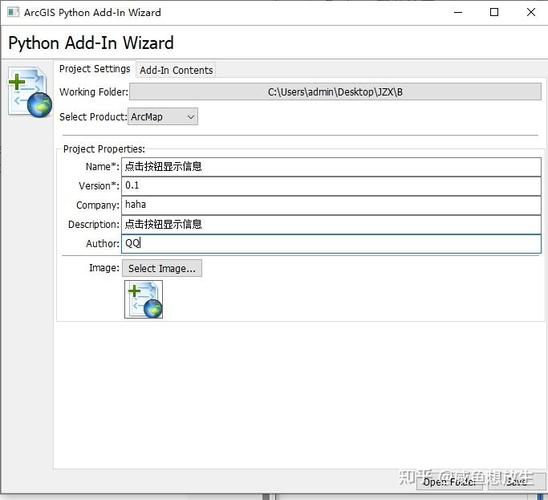
Configure Your IDE:
 (图片来源网络,侵删)
- In VS Code or PyCharm, go to the interpreter settings and select the executable you found above. This ensures your IDE has access to the
arcpymodule.
- In VS Code or PyCharm, go to the interpreter settings and select the executable you found above. This ensures your IDE has access to the
A Simple Python Script Example
Let's create a basic script that does the following:
- Checks out an ArcGIS license.
- Prints the version of ArcGIS being used.
- Lists all the layers in a specific map document (
.mxd). - Releases the license.
Save this code as a .py file (e.g., engine_test.py) and run it from your configured Python environment.
import arcpy
# --- 1. SET WORKSPACE AND INPUTS ---
# Path to an existing MXD file
mxd_path = r"C:\Data\MyMaps\CityMap.mxd" # IMPORTANT: Use a real path to your MXD
# --- 2. CHECK OUT A LICENSE ---
# This is a crucial step. If you don't check out a license, the script will fail.
# 'ArcView' is a common license level for basic mapping and analysis.
try:
    print("Checking out ArcView license...")
    arcpy.CheckOutExtension("Spatial") # Check out a specific extension if needed
    print("License checked out successfully.")
except arcpy.ExecuteError:
    print("Could not check out license. Exiting.")
    # Exit the script if license check fails
    exit()
# --- 3. PERFORM GIS OPERATIONS ---
try:
    # Open the map document
    print(f"Opening map document: {mxd_path}")
    mxd = arcpy.mapping.MapDocument(mxd_path)
    # Get the data frame (usually the first one)
    df = arcpy.mapping.ListDataFrames(mxd)[0]
    # List all layers in the data frame
    print("\n--- Layers in Map Document ---")
    layers = arcpy.mapping.ListLayers(mxd, "", df)
    if not layers:
        print("No layers found in the map document.")
    else:
        for layer in layers:
            # Check if the layer is valid (not a group layer or broken data source)
            if layer.isFeatureLayer or layer.isRasterLayer:
                print(f"- Layer Name: {layer.name}")
                print(f"  Data Source: {layer.dataSource}")
            else:
                print(f"- Group Layer or Broken Layer: {layer.name}")
    # Get the ArcGIS version
    print(f"\nArcGIS Version: {arcpy.GetInstallInfo()['Version']}")
except Exception as e:
    print(f"An error occurred during GIS operations: {e}")
finally:
    # --- 4. CLEAN UP AND RELEASE LICENSE ---
    # It's good practice to release the license and clean up objects.
    if 'mxd' in locals():
        del mxd
        print("\nMap document object released.")
    print("Releasing license...")
    arcpy.CheckInExtension("Spatial")
    print("License released. Script finished.")
Practical Example: Automating Map Export
This script takes an MXD, iterates through its data frames, and exports each one as a high-resolution PDF.
import arcpy
import os
# --- CONFIGURATION ---
mxd_path = r"C:\Data\MyMaps\CityMap.mxd"
output_folder = r"C:\Data\Exports"
# Ensure the output folder exists
if not os.path.exists(output_folder):
    os.makedirs(output_folder)
# --- MAIN SCRIPT ---
try:
    # Check out license
    arcpy.CheckOutExtension("Cartography") # Cartography extension is often needed for map export
    # Open the map document
    mxd = arcpy.mapping.MapDocument(mxd_path)
    # Iterate through each data frame in the map
    for df in arcpy.mapping.ListDataFrames(mxd):
        # Create a PDF file name based on the data frame's name
        pdf_name = f"{df.name}_Export.pdf"
        pdf_path = os.path.join(output_folder, pdf_name)
        print(f"Exporting data frame '{df.name}' to {pdf_path}...")
        # Export the data frame to PDF
        # The 'resolution' parameter is in DPI
        arcpy.mapping.ExportToPDF(mxd, pdf_path, df, resolution=300)
        print("Export complete.")
    print("\nAll data frames exported successfully.")
except arcpy.ExecuteError as e:
    print(f"ArcGIS Error: {e}")
except Exception as e:
    print(f"An unexpected error occurred: {e}")
finally:
    # Clean up
    if 'mxd' in locals():
        del mxd
    arcpy.CheckInExtension("Cartography")
    print("Script finished.")
Creating a Simple GUI with Tkinter
This example shows how you can wrap a script in a simple graphical user interface using Tkinter, which comes built-in with Python.
import arcpy
import tkinter as tk
from tkinter import filedialog, messagebox, ttk
class GISApp:
    def __init__(self, root):
        self.root = root
        self.root.title("Simple MXD Layer Lister")
        self.root.geometry("600x400")
        # Variables to store paths
        self.mxd_path = tk.StringVar()
        self.create_widgets()
    def create_widgets(self):
        # MXD Path selection
        path_frame = ttk.Frame(self.root, padding="10")
        path_frame.pack(fill=tk.X)
        ttk.Label(path_frame, text="Select Map Document (.mxd):").pack(side=tk.LEFT)
        ttk.Entry(path_frame, textvariable=self.mxd_path, width=50).pack(side=tk.LEFT, padx=5)
        ttk.Button(path_frame, text="Browse...", command=self.browse_mxd).pack(side=tk.LEFT)
        # Listbox to display layers
        list_frame = ttk.Frame(self.root, padding="10")
        list_frame.pack(fill=tk.BOTH, expand=True)
self.layer_listbox = tk.Listbox