Of course! Using chromedriver with Python is a common task, usually for web scraping, automated testing, or interacting with web applications. The modern and recommended way to do this is with the Selenium library.

Here's a comprehensive guide covering everything from setup to advanced usage.
The Modern Approach: Selenium Manager (Recommended)
Starting with Selenium 4.6.0, you no longer need to manually download or manage chromedriver. Selenium has a built-in Selenium Manager that automatically handles this for you. It detects your installed Chrome version and downloads the matching chromedriver version in the background.
This is the simplest and best method for most use cases.
Step 1: Install Selenium
pip install selenium
Step 2: Install Google Chrome
Make sure you have Google Chrome installed on your system. Selenium Manager will use this version as a reference.
Step 3: Write Your Python Script
That's it! No need for any webdriver.Chrome() path arguments. Selenium Manager takes care of everything.
from selenium import webdriver
from selenium.webdriver.common.by import By
from selenium.webdriver.common.keys import Keys
from selenium.webdriver.chrome.service import Service as ChromeService
from webdriver_manager.chrome import ChromeDriverManager # Optional, but good for fallback
# --- The Easy Way (Selenium Manager) ---
# Selenium 4.6+ automatically handles driver download.
# You just need to initialize the driver.
driver = webdriver.Chrome()
try:
    # 1. Navigate to a website
    driver.get("https://www.google.com")
    # 2. Find the search box element
    # We use the NAME attribute to find it
    search_box = driver.find_element(By.NAME, "q")
    # 3. Type a search query and press Enter
    search_box.send_keys("Python Selenium")
    search_box.send_keys(Keys.RETURN)
    # 4. Wait for a few seconds to see the results
    driver.implicitly_wait(5) # Wait up to 5 seconds for elements to appear
    # 5. Get the page title and print it
    print(f"Page title is: {driver.title}")
finally:
    # 6. Close the browser
    driver.quit()
Why this is better:
- No Manual Downloads: You never have to worry about downloading the correct
chromedriverversion again. - No Version Mismatches: Selenium Manager ensures your
chromedriveris always compatible with your Chrome browser. - Simpler Code: Your code is cleaner without file paths.
The Traditional Approach: Manual Setup
If you are using an older version of Selenium or need more control over the driver's location, you can set it up manually.
Step 1: Install Selenium
pip install selenium
Step 2: Download chromedriver
- Check your Chrome version: Open Chrome, go to
chrome://settings/help. Note the version number (e.g.,0.6422.112). - Download the matching
chromedriver: Go to the official Chrome for Testing availability dashboard. This is the official and safest source.- Find the row that matches your Chrome version.
- Download the
chromedriverfor your operating system (win64, mac-x64, mac-arm64, linux64). - It will be a
.zipfile.
Step 3: Place chromedriver in a Known Location
You have two main options:
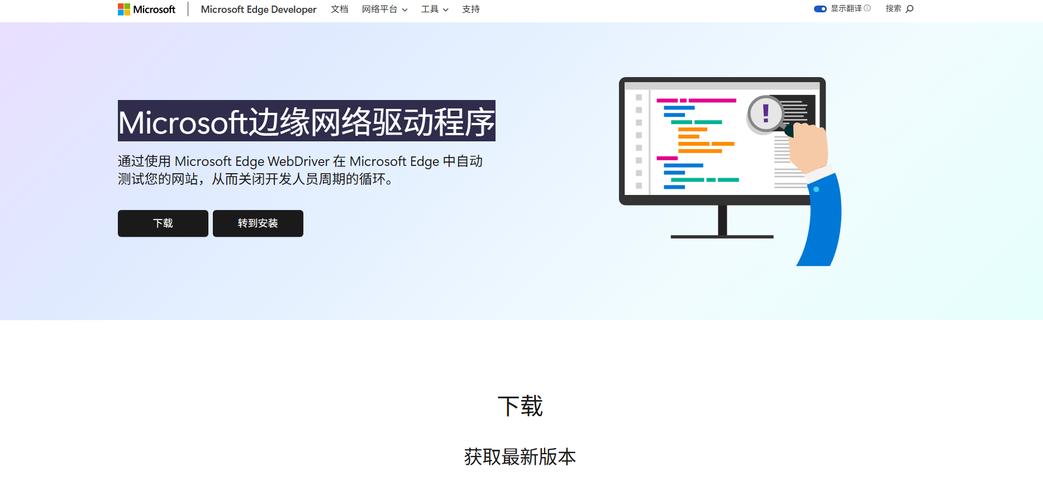
- A. In your Project Folder: Unzip the file and place the
chromedriverexecutable (e.g.,chromedriver.exeon Windows,chromedriveron macOS/Linux) in the same directory as your Python script. - B. In a System Path Location (Recommended for multiple projects): Place the
chromedriverin a folder that is in your system's PATH environment variable. A common choice is/usr/local/binon macOS/Linux orC:\Windows\System32on Windows.
Step 4: Write Your Python Script
Your script now needs to tell Selenium where to find the chromedriver executable.
Option A: If chromedriver is in your project folder
from selenium import webdriver
# No path needed if it's in the same folder and named 'chromedriver'
driver = webdriver.Chrome()
driver.get("https://www.python.org")
print(driver.title)
driver.quit()
Option B: Specifying the full path (More robust)
This is the most reliable method for manual setup, as it doesn't rely on the system PATH.
from selenium import webdriver
from selenium.webdriver.chrome.service import Service
# IMPORTANT: Replace this with the actual path to your chromedriver
# Example for Windows:
# service = Service(executable_path="C:/path/to/your/chromedriver.exe")
# Example for macOS/Linux:
# service = Service(executable_path="/usr/local/bin/chromedriver")
service = Service(executable_path="C:/Users/YourUser/Downloads/chromedriver-win64/chromedriver.exe")
driver = webdriver(service=service)
driver.get("https://www.python.org")
print(driver.title)
driver.quit()
Advanced: Using webdriver-manager (A Great Hybrid)
The webdriver-manager library is a fantastic middle-ground. It automates the download process like Selenium Manager but gives you more control, which is useful in CI/CD environments or if you need to use a specific driver version.
Step 1: Install the library
pip install webdriver-manager
Step 2: Use it in your script
from selenium import webdriver
from selenium.webdriver.chrome.service import Service
from webdriver_manager.chrome import ChromeDriverManager
# The webdriver_manager will automatically download the driver
# and return the path to it.
service = Service(ChromeDriverManager().install())
driver = webdriver.Chrome(service=service)
driver.get("https://www.wikipedia.org")
print(driver.title)
driver.quit()
Troubleshooting Common Issues
-
selenium.common.exceptions.SessionCreatedException: Message: session not created: This version of ChromeDriver only supports Chrome version X- Cause: Your
chromedriverversion does not match your Google Chrome browser version. - Solution:
- Best: Switch to the modern Selenium Manager approach.
- Manual: Download the correct
chromedriverversion from the Chrome for Testing dashboard.
- Cause: Your
-
selenium.common.exceptions.WebDriverException: Message: 'chromedriver' executable needs to be in PATH- Cause: Selenium cannot find the
chromedriverexecutable. - Solution:
- Make sure you have downloaded
chromedriver. - Ensure it's in a folder listed in your system's PATH environment variable.
- Or, specify the full path to the executable in your Python script using the
Serviceobject.
- Make sure you have downloaded
- Cause: Selenium cannot find the
-
selenium.common.exceptions.WebDriverException: Message: unknown error: Chrome failed to start: exited abnormally.- Cause: This is a generic error. Common reasons include:
- An incorrect path to
chromedriver. - Permissions issues on the
chromedriverfile (especially on macOS/Linux). Make sure it's executable:chmod +x /path/to/chromedriver. - Google Chrome is not installed on the system.
- An incorrect path to
- Cause: This is a generic error. Common reasons include:
Summary: Which Method to Use?
| Method | Pros | Cons | Best For |
|---|---|---|---|
| Selenium Manager | Easiest, no setup, automatic version matching, clean code. | Less control over driver location/version. | Almost all users, especially beginners and developers on modern Selenium versions (4.6+). |
| Manual Setup | Full control over driver version and location. | Tedious, prone to version mismatch errors. | Legacy projects, locked-down environments, or specific CI/CD pipelines. |
webdriver-manager |
Automates download, more control than Selenium Manager, good for CI/CD. | Adds an extra dependency. | Users who need automation but want more control than Selenium Manager offers. |