Of course! Here is a comprehensive guide on how to use HBase with Python via the Thrift API.
Overview
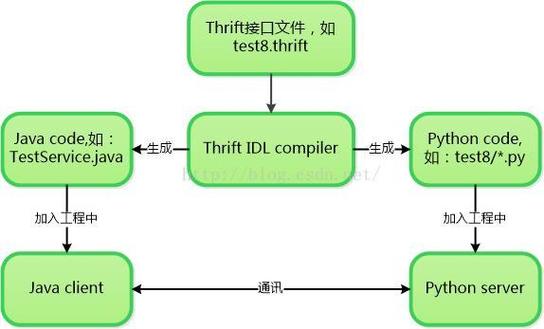
The Thrift API is a popular way to interact with HBase from non-JVM languages like Python. It works by running a Thrift server on your HBase cluster, which acts as a gateway. Your Python application then acts as a Thrift client, sending requests to this server, which are then translated into HBase operations.
This guide will cover:
- Prerequisites: What you need before you start.
- Setting up the HBase Thrift Server: How to start the server on your HBase cluster.
- Python Client Setup: How to install the necessary Python libraries.
- Python Code Examples: Step-by-step code for common HBase operations (Create, Read, Update, Delete).
- Best Practices: Important tips for production use.
Prerequisites
- HBase Cluster: A running HBase cluster (standalone or distributed).
- Python 3: A working Python 3 environment.
- HBase Thrift Server: Enabled and running on your cluster.
- Network Access: Your Python client machine must be able to connect to the Thrift server's port (default is 9090).
Setting up the HBase Thrift Server
The Thrift server is not enabled by default. You need to start it manually on your HBase master node.
Step 1: Start the Thrift Server
SSH into your HBase master node and run the following command:
# Navigate to your HBase home directory
cd /path/to/hbase
# Start the Thrift server
# The -threadpool option is good for production to manage connections
bin/hbase-daemon.sh start thrift --port 9090
--port 9090: Specifies the port the server will listen on. You can change this if needed.
Step 2: Verify the Server is Running
Check the process on the master node:
jps
You should see a ThriftServer process in the output.
You can also try connecting to it from your client machine using telnet or nc:
telnet <hbase-master-hostname> 9090
If it connects, the server is running.
Python Client Setup
You need two main Python libraries:
- thrift: The core Thrift framework for Python.
- hbase-thrift: The generated Python code that defines the HBase service and data structures.
The easiest way to install them is with pip.
pip install thrift
pip install hbase-thrift
Python Code Examples
Let's write a Python script to perform basic CRUD (Create, Read, Update, Delete) operations.
Step 1: Connect to the HBase Thrift Server
First, you need to establish a connection.
from thrift.transport import TSocket, TTransport
from thrift.protocol import TBinaryProtocol
from hbase import THBaseService
from hbase.ttypes import TTableName
# --- Configuration ---
HBASE_HOST = 'your-hbase-master-hostname'  # e.g., '192.168.1.100'
HBASE_PORT = 9090
TABLE_NAME = 'python_users'
# --- Establish Connection ---
try:
    # Create a socket
    transport = TSocket.TSocket(HBASE_HOST, HBASE_PORT)
    # Buffer the transport
    transport = TTransport.TBufferedTransport(transport)
    # Create a protocol
    protocol = TBinaryProtocol.TBinaryProtocol(transport)
    # Create a client
    client = THBaseService.Client(protocol)
    # Open the transport
    transport.open()
    print(f"Successfully connected to HBase Thrift server at {HBASE_HOST}:{HBASE_PORT}")
    # --- Your HBase operations will go here ---
except Exception as e:
    print(f"Error connecting to HBase: {e}")
finally:
    # It's good practice to close the transport
    if 'transport' in locals() and transport.isOpen():
        transport.close()
        print("Connection closed.")
Step 2: Create a Table
Before you can write data, you need a table. Let's create one with a column family info.
# (Assuming the connection from Step 1 is established)
def create_table(client, table_name, column_families):
    """Creates a new HBase table."""
    try:
        table = TTableName(table_name)
        # Column families are provided as a list of TColumnDescriptor
        cf_descriptors = [hbase.ttypes.TColumnDescriptor(name=cf) for cf in column_families]
        client.createTable(table, cf_descriptors)
        print(f"Table '{table_name}' created successfully with column families: {column_families}")
    except Exception as e:
        # TableAlreadyExistsException is common, so let's catch it specifically
        if "Table already in use" in str(e) or "Table already exists" in str(e):
            print(f"Table '{table_name}' already exists.")
        else:
            print(f"Error creating table: {e}")
# Create the table
create_table(client, TABLE_NAME, ['info'])
Step 3: Put (Insert/Update) Data
The put operation inserts a new row or updates an existing one.
# (Assuming the connection is established)
def put_data(client, table_name, row_key, column, value):
    """Inserts or updates a cell value in a table."""
    try:
        table = TTableName(table_name)
        # TColumnValue represents the value for a single column
        column_value = hbase.ttypes.TColumnValue(
            family=column.split(':')[0],
            qualifier=column.split(':')[1],
            value=str(value).encode('utf-8') # Value must be bytes
        )
        # TRowMutation represents a set of changes to a single row
        mutation = hbase.ttypes.TRowMutation(
            row=row_key,
            mutations=[hbase.ttypes.TMutation(columnValue=column_value)]
        )
        client.mutateRow(table, mutation)
        print(f"Put data: row='{row_key}', column='{column}', value='{value}'")
    except Exception as e:
        print(f"Error putting data: {e}")
# Insert some data
put_data(client, TABLE_NAME, 'user1', 'info:name', 'Alice')
put_data(client, TABLE_NAME, 'user1', 'info:email', 'alice@example.com')
put_data(client, TABLE_NAME, 'user1', 'info:age', '30')
put_data(client, TABLE_NAME, 'user2', 'info:name', 'Bob')
put_data(client, TABLE_NAME, 'user2', 'info:email', 'bob@example.com')
Step 4: Get (Read) Data
The get operation retrieves a single row.
# (Assuming the connection is established)
def get_data(client, table_name, row_key):
    """Retrieves a single row by its key."""
    try:
        table = TTableName(table_name)
        # Specify which columns to fetch. An empty list gets all columns.
        columns_to_get = []
        # The result is a list of TColumnValue
        result = client.get(table, row_key, columns_to_get)
        print(f"\n--- Getting row for key: '{row_key}' ---")
        if not result:
            print("Row not found.")
            return
        for col_val in result:
            # The value is bytes, so we decode it to a string
            qualifier = col_val.qualifier.decode('utf-8')
            value = col_val.value.decode('utf-8')
            print(f"  {col_val.family.decode('utf-8')}:{qualifier} -> {value}")
    except Exception as e:
        print(f"Error getting data: {e}")
# Get the data for user1
get_data(client, TABLE_NAME, 'user1')
Step 5: Scan (Read Multiple Rows)
A scanner allows you to iterate over multiple rows in a table.
# (Assuming the connection is established)
def scan_table(client, table_name):
    """Scans and prints all rows in a table."""
    try:
        table = TTableName(table_name)
        # Create a scanner. You can add filters and column selectors here.
        scanner_id = client.scannerOpen(table, None, None) # None for start/stop row and columns
        print(f"\n--- Scanning table: '{table_name}' ---")
        # scannerGetList returns a batch of rows
        batch = client.scannerGetList(scanner_id, 10) # Get up to 10 rows
        while batch:
            for row in batch:
                print(f"Row Key: {row.row}")
                for col_val in row.columns:
                    qualifier = col_val.qualifier.decode('utf-8')
                    value = col_val.value.decode('utf-8')
                    print(f"  {col_val.family.decode('utf-8')}:{qualifier} -> {value}")
            print("-" * 20)
            # Get the next batch
            batch = client.scannerGetList(scanner_id, 10)
        # Close the scanner to free resources
        client.scannerClose(scanner_id)
        print("Scan complete.")
    except Exception as e:
        print(f"Error scanning table: {e}")
# Scan the entire table
scan_table(client, TABLE_NAME)
Step 6: Delete Data
You can delete a specific cell or an entire row.
# (Assuming the connection is established)
def delete_cell(client, table_name, row_key, column):
    """Deletes a specific cell."""
    try:
        table = TTableName(table_name)
        mutation = hbase.ttypes.TMutation(
            row=row_key,
            # To delete a cell, specify the column and set the delete flag
            mutations=[hbase.ttypes.TMutation(deleteColumn=column)]
        )
        client.mutateRow(table, mutation)
        print(f"Deleted cell: row='{row_key}', column='{column}'")
    except Exception as e:
        print(f"Error deleting cell: {e}")
def delete_row(client, table_name, row_key):
    """Deletes an entire row."""
    try:
        table = TTableName(table_name)
        mutation = hbase.ttypes.TMutation(
            row=row_key,
            # To delete a row, just specify the row key
            mutations=[hbase.ttypes.TMutation(deleteRow=True)]
        )
        client.mutateRow(table, mutation)
        print(f"Deleted entire row with key: '{row_key}'")
    except Exception as e:
        print(f"Error deleting row: {e}")
# Delete Bob's email
delete_cell(client, TABLE_NAME, 'user2', 'info:email')
# Delete the entire user1 row
delete_row(client, TABLE_NAME, 'user1')
# Scan again to see the changes
scan_table(client, TABLE_NAME)
Best Practices
- Connection Pooling: Opening and closing Thrift connections for every operation is inefficient. In a real application, use a connection pool (e.g.,
thriftylibrary or a custom pool) to reuse connections. - Error Handling: Always wrap Thrift calls in
try...exceptblocks. Network issues, table not found, and other exceptions are common. - Resource Management: Crucially, always close your scanners and transport connections. Failing to close scanners can lead to memory leaks and performance degradation on the HBase server. The
finallyblock is your best friend. - Batch Operations: For inserting or updating many rows, use
mutateRowsinstead of callingmutateRowin a loop. This significantly reduces network overhead.# Example of batch mutation mutations = [] mutations.append(hbase.ttypes.TRowMutation(row='user3', mutations=[hbase.ttypes.TMutation(columnValue=hbase.ttypes.TColumnValue(family='info', qualifier='name', value='Charlie'.encode('utf-8')))])) mutations.append(hbase.ttypes.TRowMutation(row='user4', mutations=[hbase.ttypes.TMutation(columnValue=hbase.ttypes.TColumnValue(family='info', qualifier='name', value='David'.encode('utf-8')))])) client.mutateRows(TTableName(TABLE_NAME), mutations) - Use Filters: Scanning entire tables is expensive. Use filters (e.g.,
TColumnPrefixFilter,TSingleColumnValueFilter) on the scanner to fetch only the data you need. This is a massive performance win. - Data Types: HBase stores everything as byte arrays (
bytes). You are responsible for encoding (e.g.,str.encode('utf-8')) and decoding (e.g.,bytes.decode('utf-8')) your data. Be consistent with your encoding strategy.