Of course! Using Selenium with Python to work with PDFs is a common requirement for web scraping and automation tasks. However, it's important to understand a key concept first:
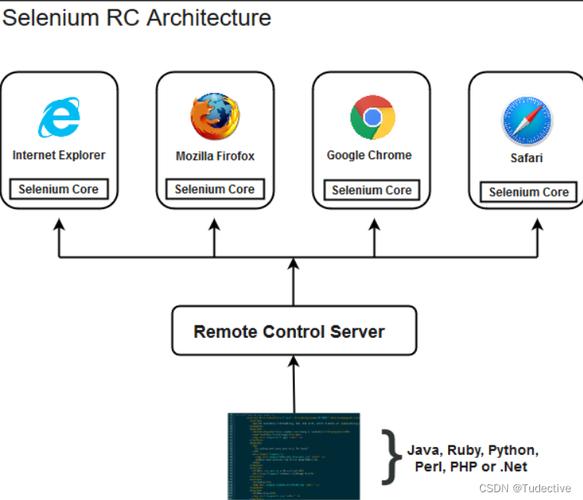
Selenium cannot directly "read" or "parse" the content of a PDF file. Selenium is a browser automation tool. Its job is to control a web browser. When you click a link, Selenium tells the browser to navigate to that URL. It's the browser that then decides what to do with that URL—render an HTML page, download a file, open a PDF in a new tab, etc.
Therefore, the process is always a two-step approach:
- Use Selenium to interact with the web page and get the URL of the PDF file.
- Use a Python library (like
requestsandPyPDF2/pdfplumber) to download the PDF from that URL and then extract its text or metadata.
Here’s a complete guide covering the most common scenarios.
Scenario 1: Downloading a PDF from a Link on a Web Page
This is the most straightforward case. The link (<a> tag) has an href attribute pointing directly to a .pdf file.

Step 1: Install Necessary Libraries
You'll need Selenium for browser control, requests for downloading the file, and PyPDF2 or pdfplumber for reading the PDF content.
pip install selenium requests
pip install PyPDF2  # Or pip install pdfplumber
You will also need the appropriate WebDriver for your browser (e.g., chromedriver for Chrome). Make sure it's in your system's PATH or specify its location in your script.
Step 2: The Python Script
This script will find a PDF link, get its URL, download the PDF, and then print its text content.
import requests
from selenium import webdriver
from selenium.webdriver.common.by import By
from selenium.webdriver.chrome.service import Service
from webdriver_manager.chrome import ChromeDriverManager
import PyPDF2
import io
# --- Part 1: Use Selenium to get the PDF URL ---
def get_pdf_url(driver, link_text):
    """
    Navigates to a page, finds a link by its text, and returns its href.
    """
    try:
        # Example: Find a link with the text "Annual Report 2025"
        link_element = driver.find_element(By.LINK_TEXT, link_text)
        pdf_url = link_element.get_attribute('href')
        print(f"Found PDF URL: {pdf_url}")
        return pdf_url
    except Exception as e:
        print(f"Error finding the PDF link: {e}")
        return None
# --- Part 2: Use requests and PyPDF2 to process the PDF ---
def process_pdf(pdf_url):
    """
    Downloads a PDF from a URL and extracts its text content.
    """
    if not pdf_url:
        return
    try:
        # Download the PDF content
        response = requests.get(pdf_url)
        response.raise_for_status()  # Raise an exception for bad status codes (4xx or 5xx)
        # Use io.BytesIO to treat the downloaded content as a file in memory
        pdf_file = io.BytesIO(response.content)
        # Read the PDF using PyPDF2
        pdf_reader = PyPDF2.PdfReader(pdf_file)
        print(f"PDF has {len(pdf_reader.pages)} pages.")
        text_content = ""
        for page_num in range(len(pdf_reader.pages)):
            page = pdf_reader.pages[page_num]
            text_content += page.extract_text() + "\n"
        # Print the first 500 characters of the extracted text
        print("\n--- Extracted Text (first 500 chars) ---")
        print(text_content[:500])
        return text_content
    except requests.exceptions.RequestException as e:
        print(f"Error downloading the PDF: {e}")
    except Exception as e:
        print(f"Error reading the PDF: {e}")
# --- Main Execution ---
if __name__ == "__main__":
    # Setup Selenium WebDriver
    service = Service(ChromeDriverManager().install())
    driver = webdriver.Chrome(service=service)
    # Example URL: A page with a link to a sample PDF
    url = "https://www.w3.org/WAI/ER/tests/xhtml/testfiles/resources/pdf/dummy.pdf"
    driver.get(url)
    # Get the URL of the PDF link (the page itself is the PDF in this case)
    # In a real scenario, you'd find a link first.
    # For this dummy.pdf, the URL is the same as the page URL.
    pdf_url_to_download = driver.current_url
    # Process the PDF
    process_pdf(pdf_url_to_download)
    # Close the browser
    driver.quit()
Scenario 2: Handling PDFs that Open in a New Browser Tab
Sometimes, clicking a link doesn't start a download but opens the PDF directly in a new browser tab. Selenium can handle this by switching to the new tab.
The Python Script
This script clicks a link, waits for a new tab to open, switches to it, gets the URL, and then processes the PDF as before.
import requests
from selenium import webdriver
from selenium.webdriver.common.by import By
from selenium.webdriver.chrome.service import Service
from webdriver_manager.chrome import ChromeDriverManager
from selenium.webdriver.support.ui import WebDriverWait
from selenium.webdriver.support import expected_conditions as EC
import PyPDF2
import io
def process_pdf_in_new_tab(driver, link_selector):
    """
    Clicks a link, switches to the new tab, and processes the PDF.
    """
    original_window = driver.current_window_handle
    try:
        # Find and click the link that opens the PDF in a new tab
        # Example: Using a CSS selector
        link = WebDriverWait(driver, 10).until(
            EC.element_to_be_clickable((By.CSS_SELECTOR, link_selector))
        )
        link.click()
        # Wait for the new tab to open
        WebDriverWait(driver, 10).until(EC.number_of_windows_to_be(2))
        # Switch to the new tab
        for window_handle in driver.window_handles:
            if window_handle != original_window:
                driver.switch_to.window(window_handle)
                break
        # Get the URL of the new tab (which should be the PDF)
        pdf_url = driver.current_url
        print(f"PDF opened in new tab with URL: {pdf_url}")
        # Now process this URL using requests and PyPDF2 (same as Scenario 1)
        response = requests.get(pdf_url)
        response.raise_for_status()
        pdf_file = io.BytesIO(response.content)
        pdf_reader = PyPDF2.PdfReader(pdf_file)
        print(f"PDF has {len(pdf_reader.pages)} pages.")
        # ... (add text extraction logic here)
    except Exception as e:
        print(f"An error occurred: {e}")
    finally:
        # Always go back to the original window and close it
        driver.switch_to.window(original_window)
        # driver.quit() # Or keep the browser open for other tests
# --- Main Execution ---
if __name__ == "__main__":
    service = Service(ChromeDriverManager().install())
    driver = webdriver.Chrome(service=service)
    # Example URL: A page with a link that opens a PDF in a new tab
    url = "https://www.learningcontainer.com/sample-pdf-files/" # A page with sample PDFs
    driver.get(url)
    # Let's assume we want to click the first link on the page
    # The selector might need to be adjusted based on the actual page structure
    link_selector = "a[href$='.pdf']" # CSS selector for any link ending with .pdf
    process_pdf_in_new_tab(driver, link_selector)
    driver.quit()
Scenario 3: Handling PDFs Behind a "Download" Button (JavaScript)
If the PDF is generated on the fly or requires a JavaScript action to trigger the download, you need to inspect the network traffic.
The Best Approach: Intercept the Network Request
- Open the Developer Tools in Chrome (F12).
- Go to the Network tab.
- Check the "Preserve log" box.
- Click the "Download" button on the webpage.
- Look for a new entry in the Network log. It will likely be a
documentorxhrrequest. Click on it and check the Headers tab to find the Request URL. This is the actual URL of the PDF file.
Once you have this URL, you can use the exact same method as Scenario 1 to download and process it.
The Python Script (Conceptual)
# This script assumes you have found the PDF URL using the network inspection method above.
# The Selenium part is just for context.
driver.get("https://the-website-with-the-download-button.com")
# You would first use Selenium to click the button that triggers the download
# download_button = driver.find_element(By.ID, "download-pdf-btn")
# download_button.click()
# PAUSE and manually get the PDF URL from the Network tab as described.
# Let's pretend the URL you found was:
pdf_url_from_network = "https://cdn.example.com/generated-report.pdf"
# Now, use the same processing function from Scenario 1
process_pdf(pdf_url_from_network)
Important Considerations
- Legality and Ethics: Always check a website's
robots.txtfile and Terms of Service before scraping. Do not download copyrighted material without permission. - Dynamic Content: If the PDF URL is generated by JavaScript, you might need to add a
time.sleep()or use anWebDriverWaitafter clicking an element to ensure the URL is available before trying to grab it. - PDF Security: Some PDFs are password-protected.
PyPDF2has limited support for this, butpdfplumberis generally more robust. If the PDF is encrypted, you'll need to handle decryption separately. - Alternative Libraries:
pdfplumberis often preferred overPyPDF2because it's better at extracting text from complex layouts and tables. You can easily swap it in theprocess_pdffunction.
Using pdfplumber instead of PyPDF2
Here's how you'd modify the process_pdf function to use pdfplumber:
import pdfplumber # pip install pdfplumber
def process_pdf_with_pdfplumber(pdf_url):
    # ... (download part is the same) ...
    response = requests.get(pdf_url)
    pdf_file = io.BytesIO(response.content)
    with pdfplumber.open(pdf_file) as pdf:
        print(f"PDF has {len(pdf.pages)} pages.")
        text_content = ""
        for i, page in enumerate(pdf.pages):
            print(f"--- Page {i+1} ---")
            # extract_text() is more reliable with pdfplumber
            text_content += page.extract_text() + "\n"
    print("\n--- Extracted Text (first 500 chars) ---")
print(text_content[:500])