Of course! Here is a comprehensive guide to importing and using Spark in Python, broken down into key sections.
The Main Entry Point: SparkSession
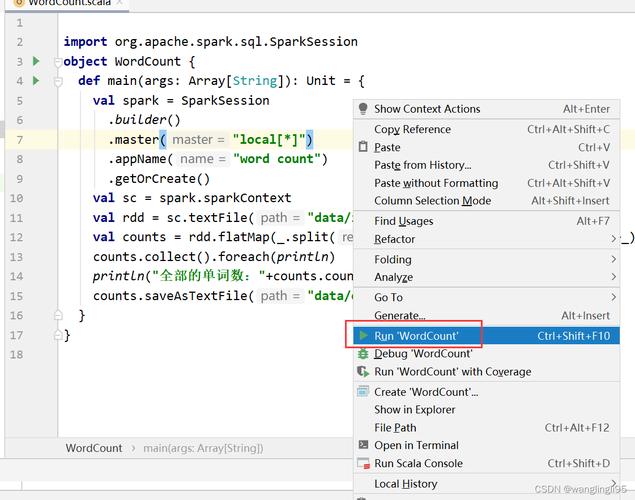
In modern Spark (versions 2.0 and later), the primary entry point for any Spark application is the SparkSession. It's a single object that combines the functionality of the older SparkContext, SQLContext, and HiveContext.
How to Import and Create It:
You don't just import SparkSession directly; you import it from the pyspark.sql module and then build an instance of it.
# Import the SparkSession class
from pyspark.sql import SparkSession
# Create a SparkSession
# This is the standard way to create a named Spark application.
# It will be available as 'spark' variable throughout your script/notebook.
spark = SparkSession.builder \
    .appName("MyPythonSparkApp") \
    .getOrCreate()
Explanation of the Builder Pattern:
.appName("MyPythonSparkApp"): Sets a name for your application, which will appear in the Spark UI..getOrCreate(): This is a key method.- If a
SparkSessionfor the same application (identified by the master and app name) already exists in your environment (e.g., a Jupyter notebook kernel), it will return that existing session. - If not, it will create a new one.
- This is crucial for notebooks to avoid creating multiple contexts.
- If a
Commonly Used Imports for DataFrames
Once you have a SparkSession, you'll typically work with DataFrames. Here are the most common imports for this.
a) For Core DataFrame Operations
This is the most common import for general data manipulation.
from pyspark.sql import SparkSession
from pyspark.sql.functions import col, count, when, avg
from pyspark.sql.types import IntegerType, StringType, StructType, StructField
# Create SparkSession
spark = SparkSession.builder.appName("DataFrameExample").getOrCreate()
# Example usage:
# df = spark.read.csv("path/to/file.csv", header=True, inferSchema=True)
# df.select(col("name"), avg(col("age")).alias("average_age")).show()
b) For SQL Queries
You can register your DataFrame as a temporary view and then run standard SQL queries on it.
from pyspark.sql import SparkSession
# Create SparkSession
spark = SparkSession.builder.appName("SQLExample").getOrCreate()
# Create a DataFrame
data = [("Alice", 34), ("Bob", 45), ("Cathy", 29)]
columns = ["name", "age"]
df = spark.createDataFrame(data, columns)
# Register the DataFrame as a temporary SQL view
df.createOrReplaceTempView("people")
# Now you can use spark.sql() to run queries
result_df = spark.sql("SELECT name, age FROM people WHERE age > 30")
result_df.show()
Full "Hello, World!" Example
This is a complete, runnable script that demonstrates the key imports and a simple DataFrame operation.

# 1. Import necessary modules
from pyspark.sql import SparkSession
from pyspark.sql.functions import col
# 2. Create a SparkSession
# If running locally, you can specify the master URL.
# "local[*]" uses all available cores on your machine.
spark = SparkSession.builder \
    .appName("HelloWorldSpark") \
    .master("local[*]") \
    .getOrCreate()
# 3. Create a DataFrame from a list of tuples
data = [("James", "Sales", 3000),
        ("Michael", "Sales", 4600),
        ("Robert", "Sales", 4100),
        ("Maria", "Finance", 3000),
        ("Raman", "Finance", 3300),
        ("Scott", "Finance", 3300),
        ("Jen", "Finance", 3900),
        ("Jeff", "Marketing", 3000),
        ("Kumar", "Marketing", 2000)]
columns = ["employee_name", "department", "salary"]
df = spark.createDataFrame(data, columns)
# 4. Perform a simple transformation
# Select employees from the 'Sales' department and give them a 10% raise
sales_df = df.filter(col("department") == "Sales") \
             .withColumn("new_salary", col("salary") * 1.10)
# 5. Show the results
print("Employees in Sales department with a 10% raise:")
sales_df.show()
# 6. Stop the SparkSession to free up resources
spark.stop()
Important Prerequisites
Before you can even run the import statements, you need to have the right environment set up.
a) Install PySpark
If you don't have it installed, you can install it using pip. It's highly recommended to specify a version.
# Install the latest version
pip install pyspark
# Or install a specific version
pip install pyspark==3.3.2
b) Environment Setup (CRITICAL)
This is the most common point of confusion for beginners. The Python environment where you run your script must have access to the PySpark library.
-
For Jupyter Notebooks / Google Colab: This is usually handled by the notebook environment itself. Just run
!pip install pysparkin a cell if needed. -
For Running
.pyScripts from the Terminal:-
Best Practice: Use a virtual environment.
# Create a virtual environment
python -m venv my_spark_env
# Activate it
# On macOS/Linux:
source my_spark_env/bin/activate
# On Windows:
.\my_spark_env\Scripts\activate
# Install pyspark inside the active environment
pip install pyspark
# Now run your Python script
python my_spark_script.py
-
Common Pitfall: If you installed PySpark in one environment (e.g., your global Python) but try to run your script from a terminal in another (e.g., an IDE's integrated terminal), Python won't find the
pysparkmodule and will raise anImportError.
-
Other Useful Imports
-
Machine Learning (MLlib):
from pyspark.ml import Pipeline
from pyspark.ml.classification import LogisticRegression
from pyspark.ml.feature import VectorAssembler, StringIndexer
-
Graph Processing (GraphX):
from pyspark.graphx import GraphLoader
-
Streaming (Structured Streaming):
from pyspark.sql.streaming import StreamingQuery
Summary Table
| What you want to do | Import Statement(s) | Module Location |
|---|---|---|
| Start a Spark Application | from pyspark.sql import SparkSession |
pyspark.sql |
| Manipulate DataFrame Columns | from pyspark.sql.functions import col, when, avg |
pyspark.sql.functions |
| Define Custom Data Types | from pyspark.sql.types import IntegerType, StructType |
pyspark.sql.types |
| Run SQL Queries | spark.sql("SELECT ...") (uses the SparkSession object) |
N/A (built-in method) |
| Use Machine Learning | from pyspark.ml.regression import LinearRegression |
pyspark.ml |