Of course! Here is a comprehensive guide to using CKEditor 5 for Java, covering the concepts, setup, and code examples.
What is CKEditor for Java?
It's crucial to understand that CKEditor 5 itself is a JavaScript-based WYSIWYG editor. It runs in the user's web browser.
When we talk about "CKEditor for Java," we are referring to the Java backend that serves the web page containing the editor. This Java backend is responsible for:
- Rendering the HTML page that includes the CKEditor component.
- Handling the data sent from the editor when the user saves their content (e.g., submitting a form).
- Providing configuration to the editor on the frontend (e.g., API keys for cloud services, user-specific settings).
- Storing and retrieving the content from a database.
There isn't a single "CKEditor for Java" library you download that is the editor. Instead, you integrate the JavaScript CKEditor 5 into your Java web application (like Spring Boot, Jakarta EE, Quarkus, etc.).
Key Concepts: Frontend vs. Backend
| Concept | Description | Technology |
|---|---|---|
| Frontend (Client-Side) | The editor interface the user sees and interacts with in the browser. It's responsible for formatting, styling, and creating the HTML content. | JavaScript, CKEditor 5, HTML, CSS |
| Backend (Server-Side) | Your Java application. It doesn't run the editor but provides the page and processes the data. | Java, Spring, Jakarta EE, etc. |
| The Bridge | The mechanism by which the frontend (editor) sends its content to the backend. This is almost always done via an HTML form. | HTML <form>, HTTP POST request |
Step-by-Step Integration Guide (Using Spring Boot)
Let's walk through a complete example using Spring Boot, one of the most popular Java frameworks.
Step 1: Set up your Spring Boot Project
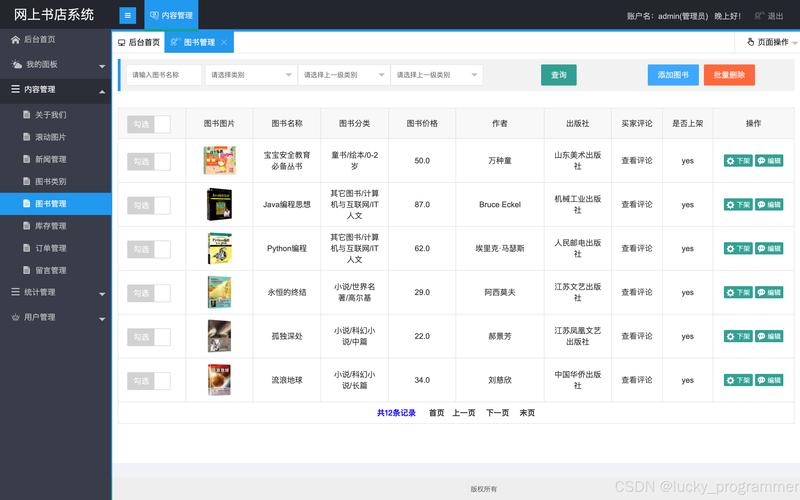
You can use the Spring Initializr (start.spring.io) to create a new project with the following dependencies:
- Spring Web: For building web applications, including REST controllers and serving HTML pages.
- Thymeleaf: A server-side templating engine to render HTML pages with dynamic content.
Step 2: Add the CKEditor 5 to your Frontend
You need to include the CKEditor 5 JavaScript and CSS files in your HTML page. The easiest way is to use a CDN.
-
Create the HTML Template
Create a
templatesdirectory in yoursrc/main/resourcesfolder and add a file namededitor.html. (图片来源网络,侵删)
<!-- src/main/resources/templates/editor.html --> <!DOCTYPE html> <html lang="en" xmlns:th="http://www.thymeleaf.org"> <head> <meta charset="UTF-8"> <meta name="viewport" content="width=device-width, initial-scale=1.0"> <title>CKEditor 5 in Java</title> <!-- Include CKEditor 5 from CDN --> <script src="https://cdn.ckeditor.com/ckeditor5/39.0.1/classic/ckeditor.js"></script> </head> <body> <h1>CKEditor 5 Demo</h1> <!-- This form will send the editor content to our Java backend --> <form action="/save" method="post"> <textarea name="editor-content" id="editor"></textarea> <button type="submit">Save Content</button> </form> <script> // Initialize the Classic Editor ClassicEditor .create(document.querySelector('#editor'), { // See https://ckeditor.com/docs/ckeditor5/latest/features/toolbar/toolbar.html // to configure the toolbar. toolbar: { items: [ 'heading', '|', 'bold', 'italic', 'link', 'bulletedList', 'numberedList', '|', 'outdent', 'indent', '|', 'blockQuote', 'insertTable', 'undo', 'redo' ] } }) .then(editor => { console.log('Editor was initialized', editor); }) .catch(error => { console.error(error.stack); }); </script> </body> </html>Key points:
<textarea id="editor">...</textarea>: This is the most important part. The editor will replace this standard HTML<textarea>with itself. Thenameattribute (editor-content) is crucial because it's the key that will be used to send the data in the form submission.<form action="/save" method="post">: This form will send the content to the/saveendpoint on our server using the HTTPPOSTmethod.
Step 3: Create the Java Backend Controller
This controller will handle two requests:
- A
GETrequest to show the editor page. - A
POSTrequest to receive and process the saved content.
Create a new Java class, for example, EditorController.java.
// src/main/java/com/example/demo/EditorController.java
package com.example.demo;
import org.springframework.stereotype.Controller;
import org.springframework.ui.Model;
import org.springframework.web.bind.annotation.GetMapping;
import org.springframework.web.bind.annotation.PostMapping;
import org.springframework.web.bind.annotation.RequestParam;
@Controller
public class EditorController {
    // This method serves the HTML page when the user navigates to "/"
    @GetMapping("/")
    public String showEditor() {
        return "editor"; // This resolves to "templates/editor.html"
    }
    // This method handles the form submission from the editor
    @PostMapping("/save")
    public String saveContent(@RequestParam("editor-content") String content, Model model) {
        // In a real application, you would save this 'content' to a database.
        System.out.println("Received content from editor:");
        System.out.println("---------------------------------");
        System.out.println(content);
        System.out.println("---------------------------------");
        // Add the content to the model to display it on the result page
        model.addAttribute("savedContent", content);
        // Return the name of another HTML template to show the result
        return "result";
    }
}
Step 4: Create a Result Page
Let's create a result.html page to confirm that the content was received correctly.
<!-- src/main/resources/templates/result.html -->
<!DOCTYPE html>
<html lang="en" xmlns:th="http://www.thymeleaf.org">
<head>
    <meta charset="UTF-8">Content Saved</title>
    <style>
        body { font-family: sans-serif; line-height: 1.6; padding: 20px; }
        .content { border: 1px solid #ccc; padding: 15px; margin-top: 20px; background-color: #f9f9f9; }
    </style>
</head>
<body>
    <h1>Content Saved Successfully!</h1>
    <p>The following HTML content was received by your Java backend:</p>
    <div class="content">
        <!-- Use th:utext to render raw HTML safely -->
        <div th:utext="${savedContent}"></div>
    </div>
    <a href="/">Go Back</a>
</body>
</html>
Security Note: We use
th:utext(unescaped text) here to display the HTML. Be extremely careful when displaying user-generated content on a page, as it can lead to Cross-Site Scripting (XSS) attacks. For a real application, you would need to implement proper sanitization.
Step 5: Run the Application
Run your Spring Boot application. You can now navigate to http://localhost:8080 in your browser. You will see the CKEditor 5 interface. Type some text, format it, and click "Save Content". You will be redirected to the result.html page, which will display the HTML that was sent to your Java backend.
Advanced Topics & Best Practices
File Upload (CKFinder or Custom Solution)
A rich text editor is useless without the ability to upload images. CKEditor 5 has no built-in file upload mechanism. You have two main options:
-
CKFinder: A commercial file manager from the same company as CKEditor. It's a polished, out-of-the-box solution that integrates seamlessly. It requires a license for non-open-source projects.
-
Custom Backend: The recommended approach for most applications. You create your own REST API endpoint in Java to handle file uploads.
Example Custom Upload Flow:
- In the CKEditor 5 configuration, you enable an image upload plugin.
- You point the editor to your Java upload endpoint (e.g.,
/api/upload). - When a user uploads an image, the editor sends the file as a
multipart/form-datarequest to your Java endpoint. - Your Java code receives the file, saves it to a storage location (e.g., local disk, AWS S3, Google Cloud Storage), and returns a JSON response with the URL of the uploaded image.
- CKEditor 5 receives the URL and inserts the image into the document.
Content Sanitization
Never trust content coming from a user. The HTML generated by CKEditor 5 can be safe, but a malicious user could try to submit a form with custom JavaScript (<script> tags, onerror attributes, etc.).
Use a library like OWASP Java HTML Sanitizer to clean the content before saving it to a database or displaying it on another page.
// Example of sanitizing content
import org.owasp.html.PolicyFactory;
import org.owasp.html.Sanitizers;
PolicyFactory policy = Sanitizers.FORMATTING.and(Sanitizers.LINKS);
String safeContent = policy.sanitize(userSubmittedHtml);
Choosing a CKEditor 5 Build
CKEditor 5 offers different "builds":
- Classic Editor: The traditional WYSIWYG editor with a toolbar, like Microsoft Word.
- Inline Editor: Turns a
<div>into an editable area on your page. - Balloon Toolbar: A toolbar that appears near the selected text.
- Balloon Block: A more complex editor for block-level content.
Choose the one that best fits your application's UI/UX design.
Summary
| Task | How to Do It in a Java App |
|---|---|
| Get the Editor | Add the CKEditor 5 JavaScript from a CDN or a build to your HTML page. |
| Initialize | Use ClassicEditor.create() in a <script> tag to replace a <textarea>. |
| Send Data | Put the <textarea> inside an HTML <form> and submit it to a Java endpoint. |
| Receive Data | Create a @PostMapping method in your controller to accept the form data using @RequestParam. |
| Handle Files | Implement a custom file upload REST endpoint in Java or use CKFinder. |
| Stay Secure | Always sanitize user-provided HTML before saving or displaying it. |