Of course! Downloading a URL in Python is a common task. The best method depends on your needs, such as whether you need to handle redirects, show progress, or download large files efficiently.
Here’s a comprehensive guide covering the most popular and effective methods, from the built-in urllib to the powerful requests library.
Summary of Methods
| Method | Best For | Pros | Cons |
|---|---|---|---|
requests.get() |
Most use cases. The standard, easy-to-use library. | Simple, clean syntax, handles redirects automatically, great for JSON APIs. | Requires an external library (pip install requests). |
urllib.request |
Simple scripts or environments where you can't install external libraries. | Built-in to Python, no installation needed. | Verbose, less intuitive API, manual handling of some things redirects. |
httpx |
Modern applications. The "future-proof" requests. |
Same great API as requests, but supports both synchronous and asynchronous code. |
Requires an external library (pip install httpx). |
wget (Command-Line) |
Quick, one-off downloads from the terminal. | Extremely fast and simple for basic downloads. | Not a Python library, requires wget to be installed on your system. |
Method 1: Using the requests Library (Recommended)
This is the most popular and user-friendly way to make HTTP requests in Python. It's not built-in, so you need to install it first.
Install the library:
pip install requests
Basic Download (to a file in memory): This method reads the entire file into your computer's memory before saving it. It's fine for small files but can cause problems with large files (e.g., > 500MB).
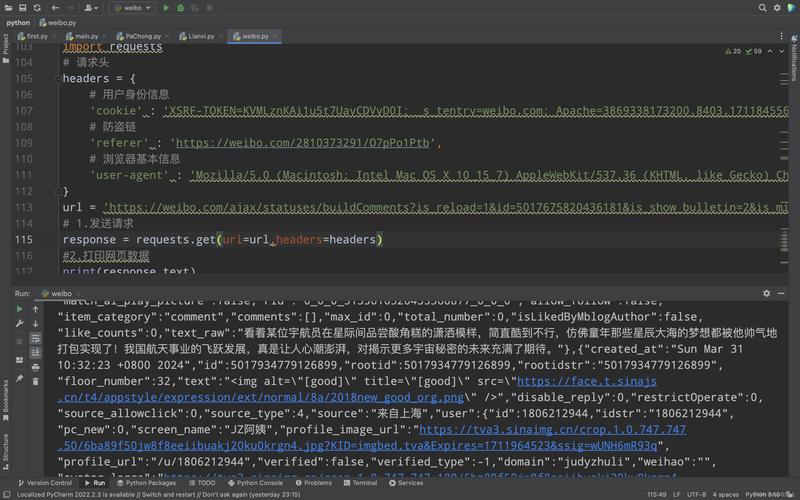
import requests
url = "https://www.python.org/static/community_logos/python-logo-master-v3-TM.png"
local_filename = "python_logo.png"
print(f"Downloading {url}...")
try:
    # Send a GET request to the URL
    # `stream=True` is crucial for large files to avoid loading the whole thing into memory at once.
    with requests.get(url, stream=True) as r:
        # Raise an exception for bad status codes (4xx or 5xx)
        r.raise_for_status()
        # Open the local file in binary write mode
        with open(local_filename, 'wb') as f:
            # Write the content in chunks
            for chunk in r.iter_content(chunk_size=8192):
                # If a chunk is empty, we're at the end of the content
                if chunk:
                    f.write(chunk)
    print(f"Successfully downloaded {local_filename}")
except requests.exceptions.RequestException as e:
    print(f"An error occurred: {e}")
Explanation:
requests.get(url, stream=True): Fetches the URL but doesn't download the content immediately.stream=Trueis essential for efficient downloads.r.raise_for_status(): This will check if the download was successful (status code 200). If not (e.g., 404 Not Found), it will raise anHTTPError.with open(...) as f:: Uses a context manager to ensure the file is properly closed after writing.r.iter_content(chunk_size=8192): This is the key to handling large files. It downloads the file in small, manageable chunks (8KB in this case), preventing your RAM from being overwhelmed.
Method 2: Using the Built-in urllib.request
This method doesn't require any external installations but is more verbose and less intuitive than requests.
import urllib.request
import shutil
url = "https://www.python.org/static/community_logos/python-logo-master-v3-TM.png"
local_filename = "python_logo_urllib.png"
print(f"Downloading {url}...")
try:
    # Use a context manager to handle the response
    with urllib.request.urlopen(url) as response, open(local_filename, 'wb') as out_file:
        # shutil.copyfileobj copies the file object from the response to the out_file
        # It's efficient and handles chunks automatically
        shutil.copyfileobj(response, out_file)
    print(f"Successfully downloaded {local_filename}")
except urllib.error.HTTPError as e:
    print(f"HTTP Error: {e.code} - {e.reason}")
except urllib.error.URLError as e:
    print(f"URL Error: {e.reason}")
except Exception as e:
    print(f"An error occurred: {e}")
Explanation:
urllib.request.urlopen(url): Opens the URL and returns a file-like object.shutil.copyfileobj(src, dst): A handy utility from the standard library that efficiently copies data from one file object to another, handling the chunking for you.
Method 3: Showing a Download Progress Bar
For large files, it's helpful to show a progress bar. The tqdm library is perfect for this.
Install the libraries:
pip install requests tqdm
Code with a progress bar:
This code combines requests for downloading and tqdm for the progress bar.
import requests
from tqdm import tqdm
url = "https://www.python.org/static/img/python-logo.png" # A smaller image for demo
local_filename = "python_logo_progress.png"
print(f"Downloading {url} with progress bar...")
try:
    # Get the total file size from headers
    response = requests.get(url, stream=True)
    total_size_in_bytes = int(response.headers.get('content-length', 0))
    block_size = 1024 # 1 Kibibyte
    progress_bar = tqdm(total=total_size_in_bytes, unit='iB', unit_scale=True)
    with open(local_filename, 'wb') as f:
        for data in response.iter_content(block_size):
            progress_bar.update(len(data))
            f.write(data)
    progress_bar.close()
    if total_size_in_bytes != 0 and progress_bar.n != total_size_in_bytes:
        print("ERROR, something went wrong with the download")
    else:
        print(f"\nSuccessfully downloaded {local_filename}")
except requests.exceptions.RequestException as e:
    print(f"An error occurred: {e}")
Explanation:
tqdm(total=...): We initialize the progress bar with the total file size, which we get from theContent-LengthHTTP header.progress_bar.update(len(data)): After writing each chunk of data, we update the progress bar by the size of that chunk.unit_scale=True: Makes the output human-readable (e.g., shows "KB" or "MB" instead of just "B").
Method 4: Using wget from the Command Line
If you just need to quickly download a file from a Python script and don't mind calling an external command, wget is your fastest friend.
Note: This requires that wget is installed on your system. On Linux/macOS, it's usually pre-installed. On Windows, you might need to install it from GNU Win32 or enable it via Windows Subsystem for Linux (WSL).
import subprocess
import os
url = "https://www.python.org/static/community_logos/python-logo-master-v3-TM.png"
local_filename = "python_logo_wget.png"
print(f"Downloading {url} using wget...")
try:
    # Use subprocess to run the wget command
    # -q makes it quiet (no output to console)
    # -O specifies the output filename
    subprocess.run(['wget', '-q', '-O', local_filename, url], check=True)
    print(f"Successfully downloaded {local_filename}")
except FileNotFoundError:
    print("Error: 'wget' command not found. Please install wget.")
except subprocess.CalledProcessError as e:
    print(f"An error occurred while running wget: {e}")
Final Recommendation
| Your Goal | Recommended Method |
|---|---|
| Downloading a file in a Python script | Method 1: requests.get() with stream=True. It's the standard, most readable, and robust solution. |
| Downloading a large file and showing progress | Method 3: requests + tqdm. This gives the best user experience. |
| A simple, one-off download from the terminal | Method 4: wget. It's the quickest and simplest command for the job. |
| Writing a script that can't have external dependencies | Method 2: urllib.request. It's built-in but more work to get right. |