Of course! Binding events to a Listbox in Python is a fundamental skill when using the tkinter library. It allows you to make your GUI applications interactive by responding to user actions like clicks, selections, and key presses.
Here's a comprehensive guide covering the most common bindings, from simple to more advanced.
The Core Concept: bind()
The Listbox widget, like all other tkinter widgets, has a bind() method. This method connects a specific event (like a mouse click or a key press) to a function (called an event handler or callback) that you define.
The basic syntax is:
listbox_widget.bind(event, callback_function)
event: A string describing the event (e.g.,"<Button-1>","<Double-Button-1>","<Return>").callback_function: The function that will be executed when the event occurs. This function automatically receives aneventobject as an argument.
The Most Common Binding: Single-Click Selection (<Button-1>)
This is the default behavior of a Listbox, but you might want to trigger a custom action after the selection has been made.
Event: "<Button-1>" - A single click with the left mouse button.
Example: Display the selected item in a label.
import tkinter as tk
from tkinter import ttk
def on_select(event):
    """Called when an item in the listbox is selected."""
    # Get the currently selected index
    selected_indices = listbox.curselection()
    if selected_indices: # Check if anything is selected
        index = selected_indices[0]
        selected_item = listbox.get(index)
        # Update the label with the selected item
        label.config(text=f"You selected: {selected_item}")
# --- Create the main window ---
root = tk.Tk()"Listbox Single-Click Binding")
root.geometry("300x250")
# --- Create Widgets ---
listbox = tk.Listbox(root, height=6)
listbox.pack(pady=10, padx=10, fill='both', expand=True)
# Add some items to the listbox
for item in ["Apple", "Banana", "Cherry", "Date", "Elderberry"]:
    listbox.insert(tk.END, item)
label = ttk.Label(root, text="Select an item from the list.")
label.pack(pady=5)
# --- Bind the event ---
# Bind the single left-click to our on_select function
listbox.bind('<<ListboxSelect>>', on_select)
# --- Run the application ---
root.mainloop()
Explanation:
- We define a function
on_select(event). Theeventargument is passed bytkinterbut we don't use it here. listbox.curselection()returns a tuple of indices of the selected items. Since we allow single selection, we take the first one ([0]).listbox.get(index)retrieves the text of the item at that index.listbox.bind('<<ListboxSelect>>', on_select)connects the<<ListboxSelect>>virtual event to our function. This event is specifically designed to fire after the selection in aListboxorTreeviewchanges. It's often more reliable than"<Button-1>"for this purpose.
Double-Click to Trigger an Action (<Double-Button-1>)
This is extremely useful for actions like opening a file, editing an item, or performing an action.
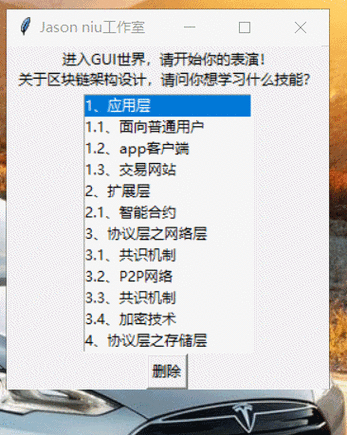
Event: "<Double-Button-1>" - A double-click with the left mouse button.
Example: Double-clicking an item will print it to the console and pop up a message.
import tkinter as tk
from tkinter import messagebox
def on_double_click(event):
    """Called when an item in the listbox is double-clicked."""
    selected_indices = listbox.curselection()
    if selected_indices:
        index = selected_indices[0]
        selected_item = listbox.get(index)
        print(f"Double-clicked item: {selected_item}")
        messagebox.showinfo("Double-Click", f"You double-clicked: {selected_item}")
# --- Create the main window ---
root = tk.Tk()"Listbox Double-Click Binding")
root.geometry("300x250")
# --- Create Widgets ---
listbox = tk.Listbox(root, height=6)
listbox.pack(pady=10, padx=10, fill='both', expand=True)
for item in ["Open File", "Edit Item", "Delete Item", "Refresh List"]:
    listbox.insert(tk.END, item)
# --- Bind the event ---
listbox.bind('<Double-Button-1>', on_double_click)
# --- Run the application ---
root.mainloop()
Binding Keyboard Events
You can also make your Listbox respond to key presses.
Common Events:
"<Return>": The Enter key."<space>": The spacebar."<Delete>": The Delete key.
Example: Pressing Enter on a selected item will show a confirmation.
import tkinter as tk
from tkinter import messagebox
def on_key_press(event):
    """Handles key presses in the listbox."""
    if event.keysym == 'Return':
        selected_indices = listbox.curselection()
        if selected_indices:
            index = selected_indices[0]
            selected_item = listbox.get(index)
            messagebox.showinfo("Enter Key", f"You pressed Enter on: {selected_item}")
    elif event.keysym == 'Delete':
        selected_indices = listbox.curselection()
        if selected_indices:
            index = selected_indices[0]
            listbox.delete(index)
            messagebox.showinfo("Delete Key", "Item deleted.")
# --- Create the main window ---
root = tk.Tk()"Listbox Key Binding")
root.geometry("300x250")
# --- Create Widgets ---
listbox = tk.Listbox(root, height=6)
listbox.pack(pady=10, padx=10, fill='both', expand=True)
for item in ["Task 1", "Task 2", "Task 3", "Task 4"]:
    listbox.insert(tk.END, item)
# --- Bind the event ---
listbox.bind('<Return>', on_key_press)
listbox.bind('<Delete>', on_key_press)
# --- Run the application ---
root.mainloop()
Explanation:
- The
eventobject passed to the callback is very useful here.event.keysymgives us the symbol of the key that was pressed (e.g., 'Return', 'Delete', 'a'). - We can check
event.keysyminside the function to perform different actions for different keys.
Advanced: Getting Click Coordinates (<Button-1>)
Sometimes you need to know where in the widget the user clicked. The event object contains this information.
Useful event Object Attributes:
x,y: The mouse coordinates relative to the widget's top-left corner.num: The mouse button number (1 for left, 2 for middle, 3 for right).keysym: The symbol of a pressed key.
Example: Clicking near the top of the listbox scrolls to the top, clicking near the bottom scrolls to the bottom.
import tkinter as tk
def on_click(event):
    """Handles clicks to scroll the listbox."""
    widget_height = listbox.winfo_height()
    click_y = event.y
    # If clicked in the top 20% of the widget
    if click_y < widget_height * 0.2:
        listbox.yview_moveto(0) # Scroll to top
    # If clicked in the bottom 20% of the widget
    elif click_y > widget_height * 0.8:
        listbox.yview_moveto(1) # Scroll to bottom
# --- Create the main window ---
root = tk.Tk()"Listbox Click Coordinate Binding")
root.geometry("300x400")
# --- Create Widgets ---
listbox = tk.Listbox(root, height=15)
listbox.pack(pady=10, padx=10, fill='both', expand=True)
# Add many items to demonstrate scrolling
for i in range(50):
    listbox.insert(tk.END, f"Item {i+1}")
# --- Bind the event ---
listbox.bind('<Button-1>', on_click)
# --- Run the application ---
root.mainloop()
Summary of Common Listbox Events
| Event String | Description | When It Fires |
|---|---|---|
<<ListboxSelect>> |
(Recommended) Selection changed | After selection is made (single or multi). |
<Button-1> |
Left mouse button click | When the mouse button is pressed down. |
<Double-Button-1> |
Left mouse button double-click | When the mouse button is double-clicked. |
<B1-Motion> |
Left mouse button drag | When the mouse is moved while the button is held down. |
<ButtonRelease-1> |
Left mouse button release | When the mouse button is released. |
<Return> |
Enter key pressed | When the Enter key is pressed. |
<space> |
Spacebar pressed | When the spacebar is pressed. |
<Delete> |
Delete key pressed | When the Delete key is pressed. |
<FocusIn> |
Widget gains focus | When the user clicks on the listbox or tabs into it. |
<FocusOut> |
Widget loses focus | When the user clicks elsewhere or tabs out. |
By mastering these bindings, you can create highly interactive and user-friendly tkinter applications.