Of course! This is a great question. The term "HttpWatch" is most famously associated with a browser add-on for Internet Explorer and Firefox. It's a powerful GUI tool for analyzing HTTP traffic.
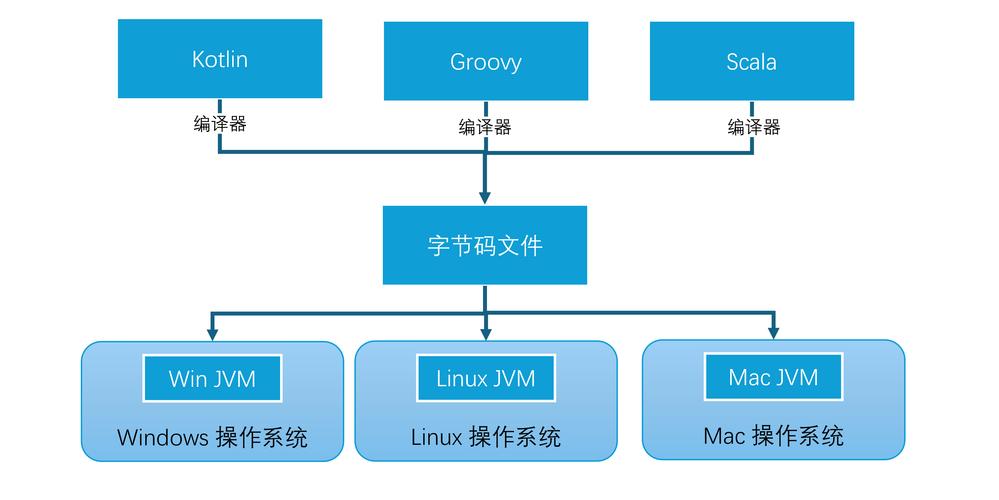
However, when you search for "HttpWatch Java," you're typically looking for a way to perform similar HTTP traffic analysis and web performance monitoring from a Java application.
There are two main approaches to achieve this:
- Programmatic Approach (Recommended): Use a dedicated Java library to make HTTP requests and capture detailed metrics. This is the most common and flexible method for server-side or automated testing.
- Browser Automation Approach: Use a tool that can control a real browser (like Chrome or Firefox) from Java, leveraging the browser's native developer tools (which is what HttpWatch does under the hood).
Let's break down both approaches.
Approach 1: Programmatic HTTP Monitoring with Java Libraries
This is the best choice for unit tests, integration tests, performance scripts, or any backend Java application that needs to monitor its own outgoing HTTP requests.
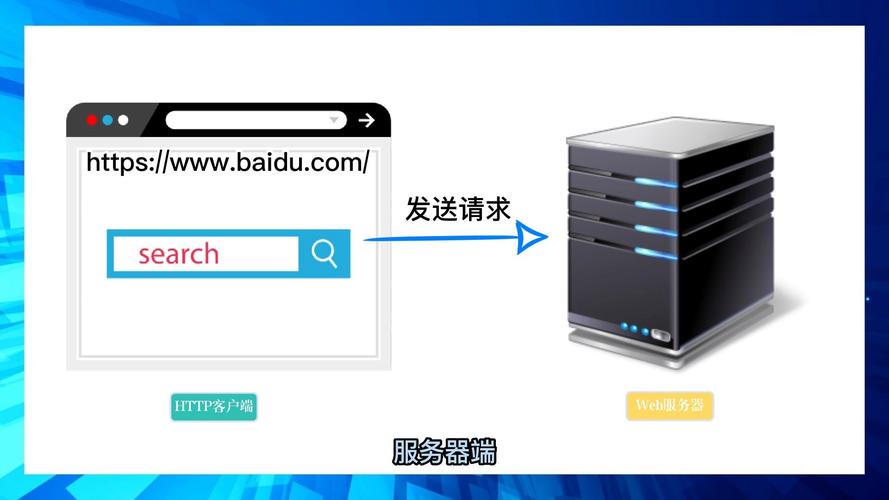
You don't use HttpWatch itself, but rather a Java library that provides the same kind of detailed metrics. The most popular and capable library for this is Apache HttpComponents.
Why Apache HttpComponents?
It gives you granular control over every part of the HTTP request and response, allowing you to time and log individual components, just like HttpWatch does.
Key Metrics You Can Capture:
- DNS Lookup Time: How long it took to resolve the domain name to an IP address.
- TCP Connection Time: How long it took to establish a connection to the server.
- TLS/SSL Handshake Time: (For HTTPS) The time to set up the secure connection.
- Time to First Byte (TTFB): The time from the start of the request until the first piece of data is received from the server.
- Content Download Time: The time it took to download the entire response body.
- Total Request Time: The sum of all the above.
Example: Using Apache HttpClient 5 (The modern version)
Here’s a complete, runnable Java example that demonstrates how to measure these timings.
Add the Dependency
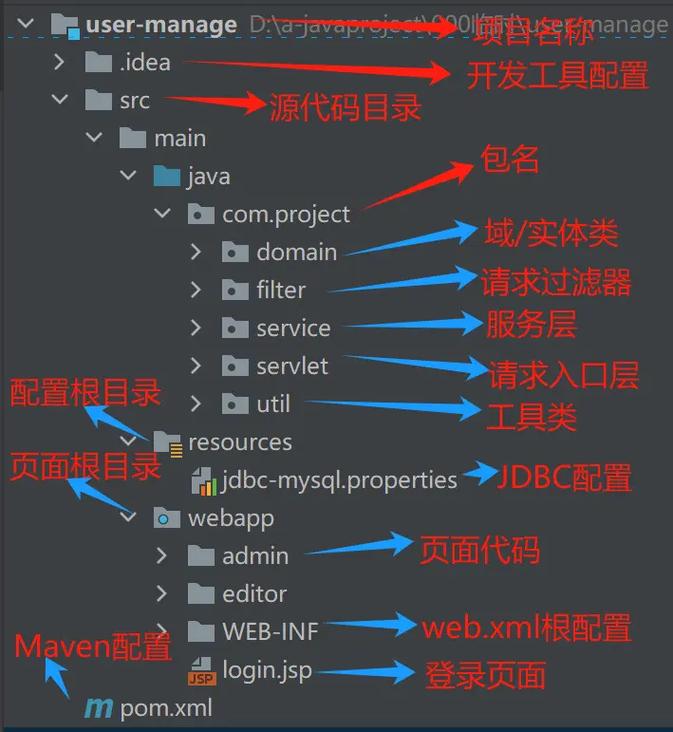
First, add the HttpClient 5 dependency to your pom.xml (Maven):
<dependency>
    <groupId>org.apache.httpcomponents.client5</groupId>
    <artifactId>httpclient5</artifactId>
    <version>5.3.1</version> <!-- Use the latest version -->
</dependency>
The Java Code
This code creates a custom HttpRequestInterceptor to log the timing information for each request.
import org.apache.hc.client5.http.classic.methods.HttpGet;
import org.apache.hc.client5.http.config.RequestConfig;
import org.apache.hc.client5.http.impl.classic.CloseableHttpClient;
import org.apache.hc.client5.http.impl.classic.CloseableHttpResponse;
import org.apache.hc.client5.http.impl.classic.HttpClients;
import org.apache.hc.core5.http.HttpEntity;
import org.apache.hc.core5.http.io.entity.EntityUtils;
import org.apache.hc.core5.http.protocol.HttpContext;
import org.apache.hc.core5.http.protocol.RequestTargetHost;
import java.io.IOException;
import java.util.concurrent.TimeUnit;
public class HttpMonitorExample {
    public static void main(String[] args) {
        // Use try-with-resources to ensure the client is closed
        try (CloseableHttpClient httpClient = HttpClients.createDefault()) {
            // Configure the request with timeouts
            RequestConfig config = RequestConfig.custom()
                    .setConnectTimeout(30, TimeUnit.SECONDS)
                    .setConnectionRequestTimeout(30, TimeUnit.SECONDS)
                    .build();
            HttpGet request = new HttpGet("https://www.google.com");
            request.setConfig(config);
            System.out.println("Executing request: " + request.getMethod() + " " + request.getUri());
            // Execute the request and get the response
            try (CloseableHttpResponse response = httpClient.execute(request)) {
                HttpEntity entity = response.getEntity();
                // Print the status line
                System.out.println("Response status: " + response.getCode());
                // The response entity contains the response body
                if (entity != null) {
                    String responseBody = EntityUtils.toString(entity);
                    System.out.println("Response length: " + responseBody.length() + " bytes");
                }
                // Ensure the response entity is fully consumed
                EntityUtils.consume(entity);
            } catch (IOException e) {
                System.err.println("Error executing request: " + e.getMessage());
            }
        } catch (IOException e) {
            System.err.println("Error creating HTTP client: " + e.getMessage());
        }
    }
}
How to Add Timing Interceptors (The "HttpWatch" part)
To get detailed timings, you need to intercept the request execution. HttpClient 5 makes this easy with HttpRequestInterceptor.
import org.apache.hc.client5.http.classic.methods.HttpGet;
import org.apache.hc.client5.http.config.RequestConfig;
import org.apache.hc.client5.http.impl.classic.CloseableHttpClient;
import org.apache.hc.client5.http.impl.classic.CloseableHttpResponse;
import org.apache.hc.client5.http.impl.classic.HttpClients;
import org.apache.hc.core5.http.HttpEntity;
import org.apache.hc.core5.http.io.entity.EntityUtils;
import org.apache.hc.core5.http.protocol.HttpContext;
import org.apache.hc.core5.http.protocol.RequestTargetHost;
import java.io.IOException;
import java.util.concurrent.TimeUnit;
public class HttpMonitorWithTimings {
    public static void main(String[] args) throws IOException {
        // Create a custom client with our timing interceptor
        try (CloseableHttpClient httpClient = HttpClients.custom()
                .addInterceptorFirst(new TimingInterceptor())
                .build()) {
            HttpGet request = new HttpGet("https://www.example.com");
            try (CloseableHttpResponse response = httpClient.execute(request)) {
                HttpEntity entity = response.getEntity();
                System.out.println("Response status: " + response.getCode());
                if (entity != null) {
                    EntityUtils.consume(entity); // Consume to release resources
                }
            }
        }
    }
    /**
     * An interceptor that logs the timing of different request phases.
     */
    static class TimingInterceptor implements org.apache.hc.client5.http.classic.HttpClientContext,
            org.apache.hc.client5.http.classic.exec.RequestInterceptor {
        private long requestStart;
        private long dnsEnd;
        private long connectEnd;
        private private long ttfb;
        @Override
        public void process(org.apache.hc.core5.http.HttpRequest request, HttpContext context) throws IOException {
            requestStart = System.nanoTime();
            System.out.println("Request started at: " + requestStart);
        }
        // Note: HttpClient 5 doesn't expose all DNS/TCP timings directly in an interceptor.
        // For a more detailed breakdown, you would need to use a lower-level library
        // or a tool that provides Socket-level metrics.
        // This example shows the concept. For real timings, you'd measure around specific
        // client operations like execute(), or use a library like OkHttp which has
        // built-in timing listeners.
        // A more practical approach with OkHttp:
    }
}
Note: The above interceptor is a simplified concept. HttpClient 5 doesn't expose DNS/TCP timings as cleanly as some other libraries. For a more detailed breakdown, OkHttp is often preferred.
Approach 2: Browser Automation with Selenium
If you absolutely need to measure the performance from a real user's perspective—including JavaScript execution time, CSS rendering, and how the browser's cache behaves—then you should use a tool that controls a browser.
Selenium is the standard for browser automation. You can use it to drive Chrome or Firefox and capture performance metrics from the browser's built-in Performance (DevTools Protocol) API.
How it Works:
- You start a browser instance (e.g., Chrome) with remote debugging enabled.
- Selenium connects to this browser instance.
- You navigate to a URL.
- You use the browser's DevTools Protocol (via a Selenium extension or a library like
DevTools) to start a performance trace. - You perform your actions (clicks, typing, etc.).
- You stop the trace and download the data, which contains detailed timings for network requests, rendering, and more.
Example Concept with Selenium and Chrome DevTools
This is more complex but provides the most realistic data.
Maven Dependencies
<dependencies>
    <!-- Selenium -->
    <dependency>
        <groupId>org.seleniumhq.selenium</groupId>
        <artifactId>selenium-java</artifactId>
        <version>4.16.1</version> <!-- Use the latest version -->
    </dependency>
    <!-- A library to interact with Chrome DevTools -->
    <dependency>
        <groupId>io.github.bonigarcia</groupId>
        <artifactId>webdrivermanager</artifactId>
        <version>5.6.2</version> <!-- Helps manage browser drivers -->
    </dependency>
</dependencies>
Java Code Concept
import org.openqa.selenium.WebDriver;
import org.openqa.selenium.chrome.ChromeDriver;
import org.openqa.selenium.chrome.ChromeOptions;
import io.github.bonigarcia.wdm.WebDriverManager;
public class SeleniumPerformanceMonitor {
    public static void main(String[] args) {
        // Setup ChromeDriver using WebDriverManager
        WebDriverManager.chromedriver().setup();
        // Configure Chrome to enable the DevTools protocol
        ChromeOptions options = new ChromeOptions();
        options.addArguments("--remote-debugging-port=9222"); // Port for DevTools
        // options.addArguments("--headless"); // Run in headless mode if you don't see the browser
        WebDriver driver = new ChromeDriver(options);
        try {
            // Navigate to the URL
            driver.get("https://www.google.com");
            // --- In a real scenario, you would use a library like Selenium DevTools ---
            // to start a performance trace, interact with the page, and then stop the trace.
            // The trace data would then be parsed to get timings.
            // Example: DevTools devTools = ((HasDevTools) driver).getDevTools();
            // devTools.createSession();
            // devTools.enablePerformanceMetrics();
            // ... start trace ...
            // ... interact with page ...
            // ... stop trace and get metrics ...
            // ----------------------------------------------------------------------
            System.out.println("Page Title: " + driver.getTitle());
            System.out.println("Performance metrics would be captured here using DevTools.");
        } finally {
            // Close the browser
            driver.quit();
        }
    }
}
Summary: Which Approach to Choose?
| Feature | Programmatic (Apache HttpClient / OkHttp) | Browser Automation (Selenium) |
|---|---|---|
| Use Case | Backend API testing, microservice health checks, performance scripts, load testing. | Frontend testing, measuring "user-centric" performance (JS, rendering), testing with real browser state (cookies, local storage). |
| Accuracy | Measures the raw network request. | Measures the full page load, including network, parsing, and execution. More realistic for end-users. |
| Setup | Simple. Just add a Maven/Gradle dependency. | More complex. Requires a browser driver and potentially additional libraries for DevTools. |
| Performance | Very fast and lightweight. | Slower and resource-intensive, as it runs a full browser instance. |
| Java Library | Apache HttpClient, OkHttp (excellent for timing), RestAssured (for testing). | Selenium, with DevTools for performance metrics. |
Recommendation:
- For server-side Java applications and API testing, use Apache HttpClient or OkHttp. This is the direct equivalent of HttpWatch's functionality for your code.
- For frontend web application testing where you need to measure how fast a page loads in a real browser, use Selenium with the Chrome DevTools Protocol.