Of course! Using MediaInfo in Java is a common requirement for applications that need to analyze video, audio, or other media files. The most reliable and feature-complete way to do this is by using the official MediaInfo library.
Here’s a comprehensive guide covering the different methods, with a strong focus on the recommended approach.
Summary of Methods
| Method | Pros | Cons | Best For |
|---|---|---|---|
| Official Java Library (JNI Wrapper) | Highly Recommended. Full-featured, performant, official support. Requires native libraries (.dll, .so, .dylib). |
Complex setup. You must bundle and load the native libraries for each target platform (Windows, Linux, macOS). | Production applications, desktop apps, or any situation where you need reliable, detailed, and fast metadata. |
Command-Line Execution (ProcessBuilder) |
Simple to implement. No external dependencies needed beyond the mediainfo executable. |
Slow. Spawns a new process for each file. Output parsing is fragile (can break with new MediaInfo versions). Less control. | Quick scripts, simple tools, or environments where you cannot bundle native libraries. |
| Third-Party Libraries (e.g., Apache Tika) | Very easy to use. "Just works" with a simple dependency. | Limited functionality. Relies on parsers for specific formats (like MP4), not MediaInfo's deep format analysis. May not be as accurate or detailed. | Applications that need basic metadata from common formats and want to avoid the complexity of native libraries. |
Method 1: Official Java Library (Recommended)
This is the best approach. The MediaInfo project provides a Java wrapper that uses the Java Native Interface (JNI) to talk directly to the powerful C++ core of MediaInfo.
Step 1: Download the Library
- Go to the MediaInfo downloads page: https://mediaarea.net/en/MediaInfo/Download/Java
- Download the latest
MediaInfoLibpackage. It will be a ZIP file containing the necessary JAR and native libraries.
Step 2: Set Up Your Project
You need to include the JAR file and the native libraries in your project's classpath.
Project Structure:
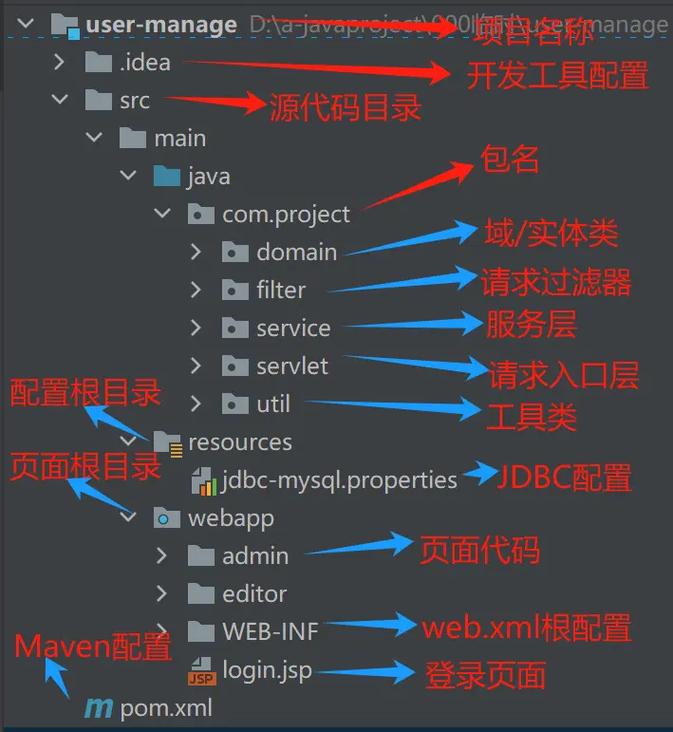
A good practice is to organize the native libraries by operating system.
my-media-app/
├── src/
│   └── com/
│       └── example/
│           └── MediaInfoExample.java
├── lib/
│   ├── mediainfo-core-24.12.jar  <-- The main JAR from the download
│   ├── win64/                    <-- Native libraries for Windows 64-bit
│   │   ├── mediainfo.dll
│   │   └── jni mediainfo.dll
│   ├── linux64/                  <-- Native libraries for Linux 64-bit
│   │   ├── libmediainfo.so.0
│   │   └── libmediainfo.so
│   └── macosx/                   <-- Native libraries for macOS (Intel/Apple Silicon)
│       ├── libmediainfo.0.dylib
│       └── libmediainfo.dylib
└── build/                        <-- Output directory for compiled classes
Step 3: Write the Java Code
The key is to tell the Java Virtual Machine (JVM) where to find the native libraries. You do this using the java.library.path system property.
Here is a complete, runnable example.
import MediaInfo.Hal;
import MediaInfo.Info;
public class MediaInfoExample {
    public static void main(String[] args) {
        // The path to the directory containing your native libraries
        // This path is relative to where you run the Java application.
        String libraryPath = "lib/win64"; // Change this to 'lib/linux64' or 'lib/macosx' as needed
        // Set the library path for the JVM
        System.setProperty("java.library.path", libraryPath);
        // IMPORTANT: The above property might not be picked up by the already-loaded
        // ClassLoader. A more robust way is to add the path to the library path.
        try {
            // Add the library path to the system path
            java.lang.reflect.Field field = ClassLoader.class.getDeclaredField("usr_paths");
            field.setAccessible(true);
            String[] paths = (String[]) field.get(null);
            String[] newPaths = new String[paths.length + 1];
            System.arraycopy(paths, 0, newPaths, 0, paths.length);
            newPaths[paths.length] = libraryPath;
            field.set(null, newPaths);
        } catch (Exception e) {
            System.err.println("Failed to set java.library.path: " + e.getMessage());
            e.printStackTrace();
        }
        // Now you can create MediaInfo objects
        Hal hal = new Hal();
        Info info = new Info(hal);
        // Path to the media file you want to analyze
        String mediaFilePath = "C:/path/to/your/video.mp4"; // <-- IMPORTANT: Change this path!
        if (mediaFilePath == null || mediaFilePath.isEmpty()) {
            System.err.println("Please provide a media file path.");
            return;
        }
        // Open the file
        if (info.Open(mediaFilePath)) {
            System.out.println("--- MediaInfo for: " + mediaFilePath + " ---");
            // Get general information in text format
            System.out.println("\n--- General Information ---");
            System.out.println(info.Get(Info.StreamKind.General, 0, "Format"));
            System.out.println(info.Get(Info.StreamKind.General, 0, "Duration/String3"));
            System.out.println(info.Get(Info.StreamKind.General, 0, "FileSize/String"));
            System.out.println(info.Get(Info.StreamKind.General, 0, "OverallBitRate/String"));
            // Get video track information
            System.out.println("\n--- Video Track ---");
            System.out.println(info.Get(Info.StreamKind.Video, 0, "Format"));
            System.out.println(info.Get(Info.StreamKind.Video, 0, "Width"));
            System.out.println(info.Get(Info.StreamKind.Video, 0, "Height"));
            System.out.println(info.Get(Info.StreamKind.Video, 0, "FrameRate/String"));
            System.out.println(info.Get(Info.StreamKind.Video, 0, "BitRate/String"));
            System.out.println(info.Get(Info.StreamKind.Video, 0, "EncodingSettings"));
            // Get audio track information
            System.out.println("\n--- Audio Track ---");
            System.out.println(info.Get(Info.StreamKind.Audio, 0, "Format"));
            System.out.println(info.Get(Info.StreamKind.Audio, 0, "Channel(s)"));
            System.out.println(info.Get(Info.StreamKind.Audio, 0, "SamplingRate/String"));
            System.out.println(info.Get(Info.StreamKind.Audio, 0, "BitRate/String"));
            // Close the file
            info.Close();
        } else {
            System.err.println("Error: Could not open file: " + mediaFilePath);
        }
    }
}
How to Compile and Run
-
Compile:
 (图片来源网络,侵删)
# Make sure you are in the 'my-media-app' directory # -cp specifies the classpath, including the JAR and the source directory javac -cp "lib/mediainfo-core-24.12.jar" src/com/example/MediaInfoExample.java -d build
-
Run:
# -cp must include the JAR, the build directory (for .class files), and the parent of the native lib folder
java -cp "lib/mediainfo-core-24.12.jar;build" -Djava.library.path="lib/win64" com.example.MediaInfoExample
Note: On Linux/macOS, use a colon () instead of a semicolon () in the classpath.
Method 2: Executing the Command-Line Tool
This method is simpler to set up but less robust. It involves running the mediainfo.exe (Windows) or mediainfo (Linux/macOS) command from your Java code.
import java.io.BufferedReader;
import java.io.InputStreamReader;
public class MediaInfoCLIExample {
    public static void main(String[] args) {
        String filePath = "C:/path/to/your/video.mp4"; // <-- IMPORTANT: Change this path!
        // Path to the mediainfo executable
        // On Windows: "C:/Program Files/MediaInfo/MediaInfo.exe"
        // On Linux/macOS: "/usr/bin/mediainfo"
        String command = "mediainfo \"" + filePath + "\"";
        try {
            Process process = Runtime.getRuntime().exec(command);
            // Read the output
            BufferedReader reader = new BufferedReader(new InputStreamReader(process.getInputStream()));
            String line;
            System.out.println("--- MediaInfo CLI Output ---");
            while ((line = reader.readLine()) != null) {
                System.out.println(line);
            }
            // Wait for the process to finish and check the exit code
            int exitCode = process.waitFor();
            if (exitCode != 0) {
                System.err.println("Error: MediaInfo process exited with code " + exitCode);
            }
        } catch (Exception e) {
            e.printStackTrace();
        }
    }
}
Pros:
- No need to manage native libraries in your Java project.
- Simple code.
Cons:
- Performance: Spawning a new process is very slow and resource-intensive.
- Fragility: The output format can change between MediaInfo versions, breaking your parsing logic.
- Dependency: Requires
mediainfoto be installed and accessible in the system's PATH.
Method 3: Using Apache Tika
Apache Tika is a content analysis toolkit that can extract metadata from hundreds of file types. It has built-in parsers for many media formats.
Add the Tika Dependency:
If you're using Maven, add this to your pom.xml:
<dependency>
    <groupId>org.apache.tika</groupId>
    <artifactId>tika-core</artifactId>
    <version>2.9.1</version> <!-- Use the latest version -->
</dependency>
Write the Code:
import org.apache.tika.metadata.Metadata;
import org.apache.tika.parser.ParseContext;
import org.apache.tika.parser.Parser;
import org.apache.tika.parser.mp4.Mp4Parser;
import org.apache.tika.sax.BodyContentHandler;
import java.io.FileInputStream;
import java.io.InputStream;
public class TikaExample {
    public static void main(String[] args) throws Exception {
        String filePath = "C:/path/to/your/video.mp4"; // <-- IMPORTANT: Change this path!
        // Create a parser for MP4 files
        Parser parser = new Mp4Parser();
        BodyContentHandler handler = new BodyContentHandler();
        Metadata metadata = new Metadata();
        ParseContext parseContext = new ParseContext();
        try (InputStream stream = new FileInputStream(filePath)) {
            parser.parse(stream, handler, metadata, parseContext);
        }
        System.out.println("--- Tika Metadata ---");
        // Print all metadata
        String[] names = metadata.names();
        for (String name : names) {
            System.out.println(name + ": " + metadata.get(name));
        }
    }
}
Pros:
- Extremely easy to set up with a single dependency.
- Handles many file types, not just media.
Cons:
- Less Detailed: It won't have the deep, low-level technical information that MediaInfo provides (e.g., specific encoder settings, packet structure details).
- Less Accurate: For complex or containerized formats, its parsers are generally not as good as MediaInfo's.
Final Recommendation
| Your Goal | Recommended Method |
|---|---|
| Build a robust, high-performance application (e.g., a video player, media server, or analysis tool). | Method 1: Official Java Library. The effort to set it up is worth it for the power and reliability. |
| Write a quick script or a simple utility. | Method 2: Command-Line Execution. It's fast to implement if you don't care about performance or output changes. |
| You just need basic metadata (e.g., title, duration, dimensions) and want to avoid native libraries. | Method 3: Apache Tika. It's the easiest path for simple, general-purpose metadata extraction. |