Of course! The term "Java HttpWatch" can refer to two main things:
- Using the actual HttpWatch automation tool with Java. This involves using HttpWatch's COM automation interface to control it from a Java application running on Windows.
- Using Java libraries to replicate HttpWatch's functionality. This means using powerful Java HTTP client libraries (like Selenium, HttpClient, or OkHttp) to perform web performance analysis, similar to what HttpWatch does.
Let's break down both approaches.
Approach 1: Using the Actual HttpWatch COM Component with Java
This is the most direct way to "use HttpWatch in Java". It requires that HttpWatch is installed on the Windows machine where your Java code is running. The process involves using a bridge library to call HttpWatch's COM interfaces from Java.
Prerequisites
- Install HttpWatch: You must have a licensed version of HttpWatch installed on your Windows machine.
- Install a Java-COM Bridge: The most common library for this is Jacob (Java COM Bridge). You can download it from the SourceForge project page.
Step-by-Step Guide
Step 1: Set up Jacob
- Download the
jacob.zipfile from the Jacob website. - Extract the ZIP file. You will find
jacob.jarandjacob-1.20-x64.dll(orjacob-1.20-x86.dllfor 32-bit). - Add
jacob.jarto your Java project's classpath. - Place the
.dllfile in a location where your Java application can find it. The easiest way is to put it in your project's root or in alibfolder and add that folder to yourjava.library.path. A common way to handle this is to pass it as a JVM argument:-Djava.library.path="C:\path\to\your\project\lib"
Step 2: Write the Java Code
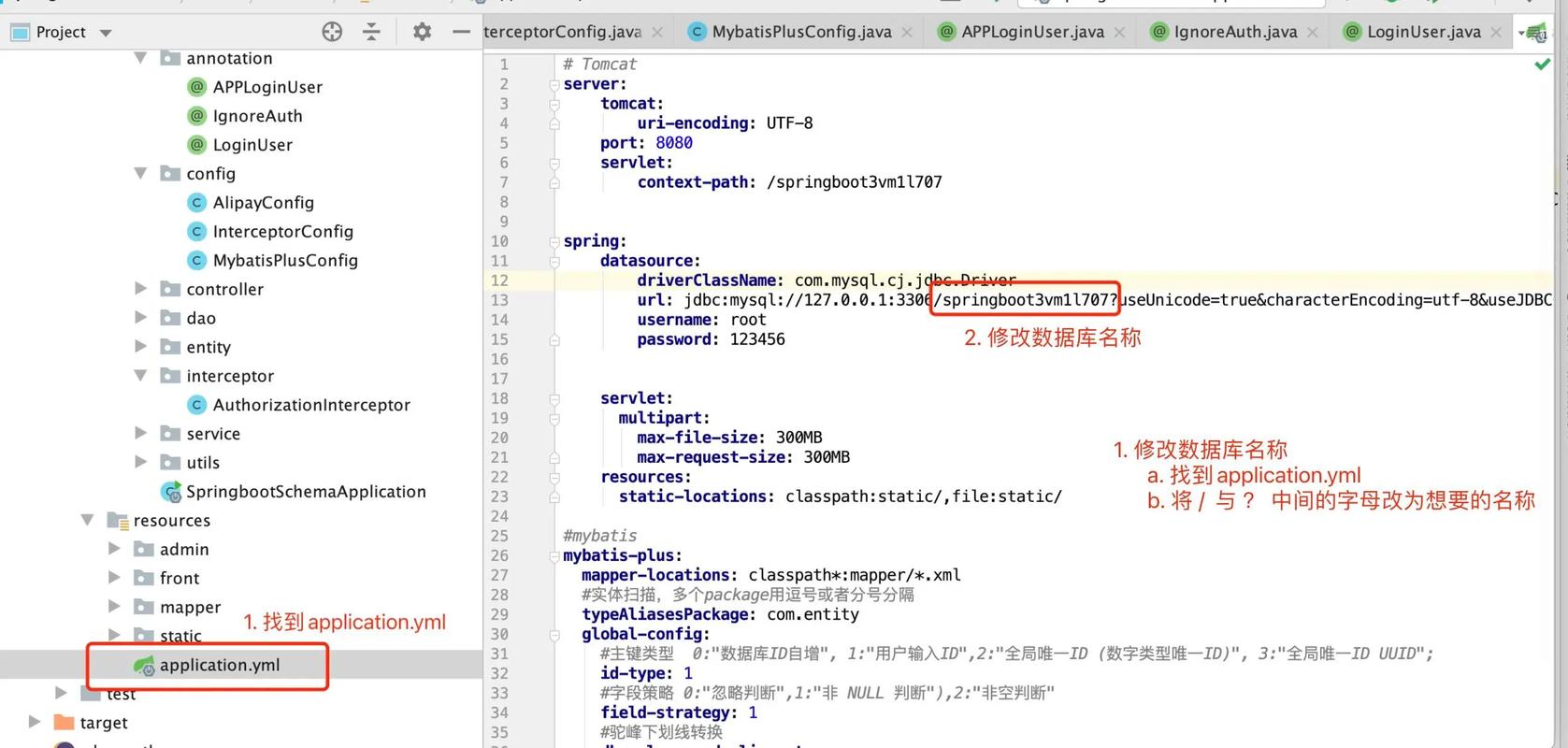
The code will use Jacob to create an HttpWatch controller, attach it to an instance of Internet Explorer, record a session, and then retrieve the results.
import com.jacob.activeX.ActiveXComponent;
import com.jacob.com.Dispatch;
import com.jacob.com.Variant;
public class HttpWatchJavaExample {
    public static void main(String[] args) {
        // 1. Create an instance of the HttpWatch Controller
        ActiveXController controller = new ActiveXController("HttpWatch.Controller");
        // 2. Create an instance of Internet Explorer
        ActiveXComponent ie = new ActiveXComponent("InternetExplorer.Application");
        // Make IE visible (optional)
        ie.setProperty("Visible", new Variant(true));
        // 3. Attach the controller to the IE instance
        // The 'new Variant()' is crucial here to pass a null pointer
        Dispatch controllerInstance = controller.getObject();
        Dispatch ieInstance = ie.getObject();
        Dispatch.call(controllerInstance, "Attach", ieInstance, new Variant());
        // 4. Create a new log
        Dispatch log = Dispatch.call(controllerInstance, "NewLog").toDispatch();
        // 5. Record the HTTP traffic for a specific URL
        String url = "https://www.google.com";
        System.out.println("Navigating to: " + url);
        Dispatch.call(ieInstance, "Navigate", url);
        // Wait for the page to load (a simple way, not robust)
        while (Dispatch.get(ieInstance, "Busy").toBoolean() ||
               Dispatch.get(ieInstance, "ReadyState").getInt() != 4) {
            try {
                Thread.sleep(500);
            } catch (InterruptedException e) {
                e.printStackTrace();
            }
        }
        System.out.println("Page loaded. Stopping log.");
        // 6. Stop the log and get the results
        Dispatch.call(log, "Stop");
        // 7. Get the total time of the request
        double totalTime = Dispatch.call(log, "TotalTime").getDouble();
        System.out.println("Total Page Time: " + totalTime + " ms");
        // 8. Get the number of entries in the log
        long entryCount = Dispatch.call(log, "EntryCount").getInt();
        System.out.println("HTTP Entries: " + entryCount);
        // 9. Loop through the log entries and print details
        for (int i = 0; i < entryCount; i++) {
            Dispatch entry = Dispatch.call(log, "Entry", i).toDispatch();
            String entryUrl = Dispatch.call(entry, "URL").getString();
            String entryStatus = Dispatch.call(entry, "Status").getString();
            double entryTime = Dispatch.call(entry, "Time").getDouble();
            System.out.println("  - Entry " + (i + 1) + ":");
            System.out.println("    URL: " + entryUrl);
            System.out.println("    Status: " + entryStatus);
            System.out.println("    Time: " + entryTime + " ms");
        }
        // 10. Clean up
        System.out.println("Closing IE and controller.");
        Dispatch.call(controllerInstance, "Close");
        Dispatch.call(ieInstance, "Quit");
        // Release COM objects
        if (log != null) Dispatch.release(log);
        if (controllerInstance != null) Dispatch.release(controllerInstance);
        if (ieInstance != null) Dispatch.release(ieInstance);
    }
}
Pros of this approach:
- You are using the exact same engine as the HttpWatch GUI, so the results are identical.
- Can control the full UI of Internet Explorer.
Cons:
- Windows-only: COM components do not exist on macOS or Linux.
- Requires IE: You are forced to automate Internet Explorer, which is outdated and not ideal for modern web testing.
- Brittle: The code can be complex and is dependent on the specific version of HttpWatch and Jacob.
- Licensing: Requires a valid HttpWatch license.
Approach 2: Replicating HttpWatch Functionality with Java Libraries (Recommended)
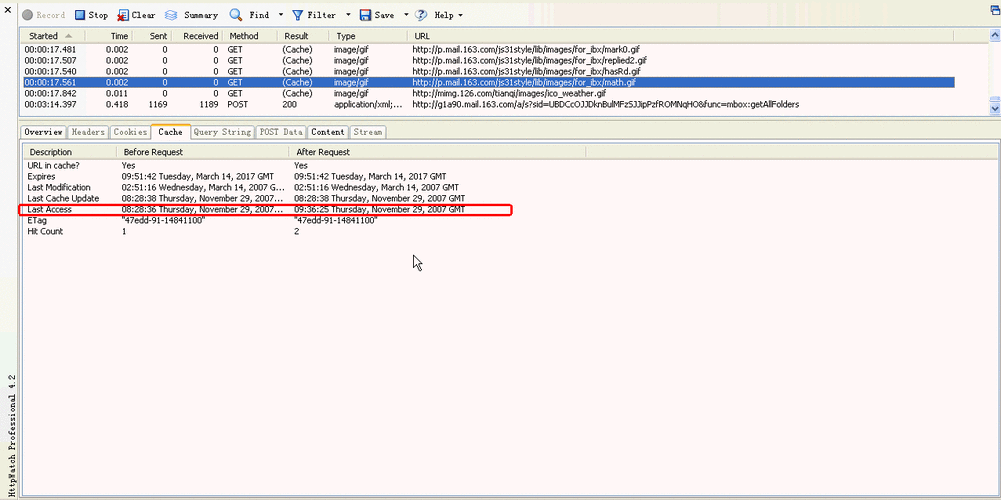
This is the modern, cross-platform, and more flexible approach. Instead of controlling a GUI tool, you use a Java HTTP client to make requests and measure performance. The Selenium WebDriver library is perfect for this because it can control a real browser (like Chrome or Firefox) and give you detailed timing information.
Prerequisites
- Java Development Kit (JDK): Ensure you have JDK 8 or newer.
- Maven or Gradle: To manage project dependencies.
- Browser Driver: You need a driver for the browser you want to automate (e.g.,
chromedriver.exefor Chrome).
Step-by-Step Guide
Step 1: Set up your Maven pom.xml
Add the necessary Selenium dependencies.
<dependencies>
    <!-- Selenium WebDriver -->
    <dependency>
        <groupId>org.seleniumhq.selenium</groupId>
        <artifactId>selenium-java</artifactId>
        <version>4.16.1</version> <!-- Use the latest version -->
    </dependency>
    <!-- WebDriver Manager (optional but highly recommended) -->
    <dependency>
        <groupId>io.github.bonigarcia</groupId>
        <artifactId>webdrivermanager</artifactId>
        <version>5.6.2</version> <!-- Use the latest version -->
    </dependency>
</dependencies>
Step 2: Write the Java Code
This script will use Selenium with Chrome to navigate to a URL and then parse the browser's Performance Log to get detailed timing information, just like HttpWatch.
import io.github.bonigarcia.wdm.WebDriverManager;
import org.openqa.selenium.WebDriver;
import org.openqa.selenium.chrome.ChromeDriver;
import org.openqa.selenium.chrome.ChromeOptions;
import org.openqa.selenium.devtools.DevTools;
import org.openqa.selenium.devtools.v118.network.Network;
import org.openqa.selenium.devtools.v118.performance.Performance;
import org.openqa.selenium.devtools.v118.performance.model.Metric;
import java.util.Collections;
import java.util.List;
import java.util.Optional;
import java.util.concurrent.TimeUnit;
public class JavaHttpWatchReplica {
    public static void main(String[] args) throws InterruptedException {
        // Use WebDriverManager to automatically handle chromedriver
        WebDriverManager.chromedriver().setup();
        // Enable Chrome's performance logging
        ChromeOptions options = new ChromeOptions();
        options.setExperimentalOption("perfLoggingPrefs", Collections.singletonMap(
                "traceCategories", "*,disabled:-v8.*,disabled:-disabled-by-default-devtools.timeline.*"
        ));
        WebDriver driver = new ChromeDriver(options);
        DevTools devTools = ((ChromeDriver) driver).getDevTools();
        devTools.createSession();
        // Enable the Performance domain
        devTools.send(Performance.enable(Optional.empty()));
        // Enable the Network domain to get timing info
        devTools.send(Network.enable(Optional.empty(), Optional.empty()));
        String url = "https://www.wikipedia.org";
        System.out.println("Navigating to: " + url);
        driver.get(url);
        // Wait for the page to be fully loaded
        driver.manage().timeouts().pageLoadTimeout(30, TimeUnit.SECONDS);
        Thread.sleep(3000); // Give it a moment after page load
        System.out.println("Page loaded. Collecting performance metrics...");
        // Get the performance metrics
        List<Metric> metrics = devTools.send(Performance.getMetrics());
        // Find and print relevant metrics
        for (Metric metric : metrics) {
            switch (metric.getName()) {
                case "NavigationStart":
                    System.out.println("Navigation Start: " + metric.getValue());
                    break;
                case "LoadEventEnd":
                    System.out.println("Load Event End: " + metric.getValue());
                    break;
                case "DomContentLoadedEventEnd":
                    System.out.println("DOM Content Loaded End: " + metric.getValue());
                    break;
                case "FirstContentfulPaint":
                    System.out.println("First Contentful Paint: " + metric.getValue());
                    break;
                case "LargestContentfulPaint":
                    System.out.println("Largest Contentful Paint: " + metric.getValue());
                    break;
                case "FirstPaint":
                    System.out.println("First Paint: " + metric.getValue());
                    break;
            }
        }
        // You can also get network timing info from the Network domain
        // This requires more complex event listeners but provides detailed request timings
        System.out.println("Closing browser.");
        driver.quit();
    }
}
Explanation of the Code:
- WebDriverManager: Automatically downloads and manages the correct
chromedriverfor your Chrome version, saving you a lot of hassle. - ChromeOptions: We configure Chrome to enable performance logging. This is the key to getting the detailed timing data.
- DevTools: Selenium's DevTools feature allows us to send commands directly to Chrome's internal debugging protocol (CDP), just like the Chrome DevTools.
- Performance & Network Domains: We enable these domains to access timing metrics.
Performance.getMetrics(): This command retrieves a list of all available performance metrics. We then filter for the ones that are most similar to what HttpWatch shows (e.g.,LoadEventEnd,FirstContentfulPaint).
Pros of this approach:
- Cross-Platform: Works on Windows, macOS, and Linux.
- Modern Browsers: Automates Chrome, Firefox, or Edge, which are standard for web development.
- Powerful & Flexible: Gives you programmatic access to a vast amount of browser performance data.
- Free & Open Source: No licensing costs.
Cons of this approach:
- Not identical to HttpWatch: The metrics might be named differently or calculated slightly differently than in HttpWatch, but they provide the same core information.
- More setup: Requires understanding of Selenium and browser drivers (though WebDriverManager simplifies this).
Summary: Which Approach to Choose?
| Feature | Approach 1: HttpWatch COM | Approach 2: Java Libraries (Selenium) |
|---|---|---|
| Use Case | When you need exact parity with the HttpWatch GUI, perhaps for an existing automation suite. | For new projects, web performance testing, and cross-platform needs. |
| Platform | Windows Only | Cross-Platform (Win, macOS, Linux) |
| Browser | Internet Explorer only | Chrome, Firefox, Edge, etc. |
| Complexity | High (COM interop is complex) | Medium (Standard Java/Selenium) |
| Cost | Requires HttpWatch License | Free |
| Recommendation | Not recommended for new work. | Highly recommended. This is the modern standard. |
For almost all modern development and testing scenarios, Approach 2 using Selenium and DevTools is the superior choice. It gives you the power of HttpWatch without the platform and browser limitations.