Of course! Here's a comprehensive guide on using FlexPaper with Java, covering what it is, how it works, and a step-by-step implementation example.
What is FlexPaper?
FlexPaper is an open-source (Apache 2.0 licensed) document viewer component. Its primary purpose is to display documents (like PDFs) in a web browser without requiring a native plugin like Adobe Acrobat Reader. It's highly customizable and integrates seamlessly with any server-side technology, including Java.
Key Features:
- Plugin-Free: Uses Flash or HTML5/JavaScript to render documents, eliminating the need for browser plugins.
- Lightweight: Fast loading and smooth rendering.
- Customizable: You can change the skin, colors, and disable features like printing or downloading.
- Easy Integration: Designed to work with any backend that can convert a document to the SWF (Flash) or HTML5 format.
- Open Source: Free to use for commercial and non-commercial projects.
How FlexPaper Works: The Core Concept
FlexPaper itself is a client-side component. It doesn't handle documents directly. It relies on a server-side process to prepare the documents for viewing.
The typical workflow is:
- User Action: A user clicks a link to view a document (e.g., "report.pdf").
- Server-Side Conversion (Java): Your Java application receives the request. It takes the source document (e.g.,
report.pdf) and converts it into a format that FlexPaper can understand.- For the Flash version: Convert
report.pdftoreport.swf(a Flash file) and generate areport.xmlfile that describes the document's pages. - For the HTML5 version: Convert
report.pdfinto a series of image files (e.g.,report_page1.png,report_page2.png, etc.) and generate a JSON file (report.json) describing the document structure.
- For the Flash version: Convert
- Client-Side Display: Your Java application then renders an HTML page. This page includes the FlexPaper viewer, which is pointed to the converted files (SWF/JSON) generated in the previous step.
- Viewing: The FlexPaper viewer loads these files and displays the document to the user in the browser.
Step-by-Step Implementation Guide (Java + FlexPaper)
This guide will walk you through setting up a simple Java web application to display a PDF using FlexPaper's HTML5 renderer. We'll use a standard Maven project structure.
Step 1: Project Setup (Maven)
Create a new Maven project and add the necessary dependencies. We'll use Spring Boot for simplicity, but any Java web framework (Servlets, Spring MVC, etc.) will work.
pom.xml
<project xmlns="http://maven.apache.org/POM/4.0.0" ...>
    <modelVersion>4.0.0</modelVersion>
    <parent>
        <groupId>org.springframework.boot</groupId>
        <artifactId>spring-boot-starter-parent</artifactId>
        <version>2.7.5</version> <!-- Or any recent version -->
    </parent>
    <groupId>com.example</groupId>
    <artifactId>flexpaper-demo</artifactId>
    <version>0.0.1-SNAPSHOT</version>
    <properties>
        <java.version>11</java.version>
    </properties>
    <dependencies>
        <!-- Spring Boot Web Starter -->
        <dependency>
            <groupId>org.springframework.boot</groupId>
            <artifactId>spring-boot-starter-web</artifactId>
        </dependency>
        <!-- PDFBox for PDF conversion to Images -->
        <dependency>
            <groupId>org.apache.pdfbox</groupId>
            <artifactId>pdfbox</artifactId>
            <version>2.0.27</version> <!-- Use a recent version -->
        </dependency>
    </dependencies>
    <build>
        <plugins>
            <plugin>
                <groupId>org.springframework.boot</groupId>
                <artifactId>spring-boot-maven-plugin</artifactId>
            </plugin>
        </plugins>
    </build>
</project>
Step 2: Add FlexPaper Files
- Download FlexPaper: Get the latest version from the official GitHub repository.
- Extract and Copy: From the downloaded zip, copy the following files into your project's
src/main/resources/staticdirectory:FlexPaperViewer.htmljs/(the entire JavaScript directory)css/(the entire CSS directory)
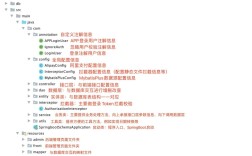
Your src/main/resources/static directory should now look like this:
src/main/resources/static/
├── css/
│   └── flexpaper.css
├── js/
│   └── flexpaper.js
└── FlexPaperViewer.html
Step 3: Create the PDF Conversion Service (Java)
This service will handle converting a PDF into a series of images and a JSON manifest file.
src/main/java/com/example/flexpaperdemo/PdfConverterService.java
package com.example.flexpaperdemo;
import org.apache.pdfbox.pdmodel.PDDocument;
import org.apache.pdfbox.rendering.PDFRenderer;
import org.springframework.stereotype.Service;
import javax.imageio.ImageIO;
import java.awt.image.BufferedImage;
import java.io.File;
import java.io.IOException;
import java.nio.file.Files;
import java.nio.file.Path;
import java.nio.file.Paths;
import java.util.ArrayList;
import java.util.HashMap;
import java.util.List;
import java.util.Map;
@Service
public class PdfConverterService {
    private static final String UPLOAD_DIR = "uploads/";
    private static final String CONVERSION_DIR = "converted/";
    public void convertPdfToHtml5(String pdfFileName) throws IOException {
        // Ensure directories exist
        Files.createDirectories(Paths.get(UPLOAD_DIR));
        Files.createDirectories(Paths.get(CONVERSION_DIR));
        Path pdfPath = Paths.get(UPLOAD_DIR, pdfFileName);
        if (!Files.exists(pdfPath)) {
            throw new IOException("PDF file not found: " + pdfPath);
        }
        try (PDDocument document = PDDocument.load(pdfPath.toFile())) {
            PDFRenderer renderer = new PDFRenderer(document);
            int pageCount = document.getNumberOfPages();
            List<Map<String, Object>> pages = new ArrayList<>();
            for (int i = 0; i < pageCount; i++) {
                // Render page as image
                BufferedImage image = renderer.renderImageWithDPI(i, 150); // 150 DPI
                String imageFileName = pdfFileName.replace(".pdf", "_page" + (i + 1) + ".png");
                Path imagePath = Paths.get(CONVERSION_DIR, imageFileName);
                ImageIO.write(image, "png", imagePath.toFile());
                // Add page info to the list
                Map<String, Object> page = new HashMap<>();
                page.put("name", imageFileName);
                page.put("type", "image");
                pages.add(page);
            }
            // Create the JSON manifest file
            Map<String, Object> manifest = new HashMap<>();
            manifest.put("document", pdfFileName.replace(".pdf", ".json"));
            manifest.put("type", "directory");
            manifest.put("pages", pages);
            Path jsonPath = Paths.get(CONVERSION_DIR, pdfFileName.replace(".pdf", ".json"));
            // A simple JSON writer. For production, use a library like Jackson or Gson.
            String jsonContent = "{\n  \"document\": \"" + manifest.get("document") + "\",\n  \"type\": \"" + manifest.get("type") + "\",\n  \"pages\": [\n";
            for (int i = 0; i < pages.size(); i++) {
                jsonContent += "    {\"name\": \"" + pages.get(i).get("name") + "\", \"type\": \"" + pages.get(i).get("type") + "\"}";
                if (i < pages.size() - 1) jsonContent += ",";
                jsonContent += "\n";
            }
            jsonContent += "  ]\n}";
            Files.write(jsonPath, jsonContent.getBytes());
        } catch (IOException e) {
            throw new IOException("Failed to convert PDF: " + e.getMessage(), e);
        }
    }
}
Step 4: Create the Web Controller
The controller will handle requests to view a document and trigger the conversion process.
src/main/java/com/example/flexpaperdemo/DocumentController.java
package com.example.flexpaperdemo;
import org.springframework.beans.factory.annotation.Autowired;
import org.springframework.stereotype.Controller;
import org.springframework.ui.Model;
import org.springframework.web.bind.annotation.GetMapping;
import org.springframework.web.bind.annotation.PathVariable;
import java.io.IOException;
@Controller
public class DocumentController {
    @Autowired
    private PdfConverterService pdfConverterService;
    @GetMapping("/")
    public String home() {
        return "index"; // Returns the name of the HTML template
    }
    @GetMapping("/view/{pdfName}")
    public String viewDocument(@PathVariable String pdfName, Model model) {
        try {
            // 1. Convert the PDF to the HTML5 format
            pdfConverterService.convertPdfToHtml5(pdfName);
            // 2. Prepare the data for the view
            String pdfPath = "/uploads/" + pdfName;
            String swfPath = "/converted/" + pdfName.replace(".pdf", ".json");
            model.addAttribute("pdfPath", pdfPath);
            model.addAttribute("swfPath", swfPath);
            return "viewer"; // Returns the name of the HTML template
        } catch (IOException e) {
            model.addAttribute("error", "Error processing document: " + e.getMessage());
            return "error";
        }
    }
}
Step 5: Create HTML Templates
You need Thymeleaf for this (it's included with spring-boot-starter-web).
src/main/resources/templates/index.html
<!DOCTYPE html>
<html lang="en">
<head>
    <meta charset="UTF-8">FlexPaper Demo</title>
    <style>
        body { font-family: sans-serif; text-align: center; margin-top: 50px; }
        a { display: inline-block; padding: 10px 20px; background-color: #007bff; color: white; text-decoration: none; border-radius: 5px; }
    </style>
</head>
<body>
    <h1>FlexPaper Document Viewer</h1>
    <a th:href="@{/view/sample.pdf}">View Sample Document</a>
</body>
</html>
src/main/resources/templates/viewer.html
<!DOCTYPE html>
<html lang="en">
<head>
    <meta charset="UTF-8">Document Viewer</title>
    <!-- FlexPaper CSS -->
    <link rel="stylesheet" th:href="@{/css/flexpaper.css}" type="text/css"/>
    <style>
        body { margin: 0; background-color: #f0f0f0; }
        #documentViewer { width: 100%; height: 100vh; }
    </style>
</head>
<body>
    <div id="documentViewer"></div>
    <!-- FlexPaper JS -->
    <script th:src="@{/js/flexpaper.js}" type="text/javascript"></script>
    <script type="text/javascript">
        var startDocument = function() {
            // Get paths from the model
            var pdfPath = /*[[${pdfPath}]]*/ '/uploads/sample.pdf';
            var swfPath = /*[[${swfPath}]]*/ '/converted/sample.json';
            // Configure and initialize FlexPaper
            $('#documentViewer').FlexPaperViewer(
                {
                    config : {
                        SWFFile: swfPath,
                        Scale : 1.0,
                        ZoomTransition : 'easeOut',
                        ZoomTime : 0.5,
                        ZoomInterval : 0.2,
                        FitPageOnLoad : true,
                        FitWidthOnLoad : false,
                        FullScreenAsMaxWindow : false,
                ProgressiveLoading : false,
                MinZoomSize : 0.2,
                MaxZoomSize : 5,
                SearchMatch : 'text',
                InitViewMode : 'Portrait',
                PrintPaperAsImage : true,
                ViewModeTools : 'visible',
                ZoomTools : 'visible',
                NavTools : 'visible',
                CursorTools : 'visible',
                SearchTools : 'visible',
                WMode : 'window',
                localeChain: 'en_US'
                    }
                });
        };
        $(document).ready(function() {
            startDocument();
        });
    </script>
</body>
</html>
src/main/resources/templates/error.html
<!DOCTYPE html>
<html lang="en">
<head>
    <meta charset="UTF-8">Error</title>
</head>
<body>
    <h1>Error</h1>
    <p th:text="${error}">An error occurred.</p>
    <a th:href="@{/}">Go Home</a>
</body>
</html>
Step 6: Add a Sample PDF
Create a directory src/main/resources/uploads and place a sample PDF file inside it, for example, sample.pdf.
Step 7: Run the Application
Run your Spring Boot application:
mvn spring-boot:run
Now, open your browser and navigate to http://localhost:8080. You will see a link to view the sample document. Clicking it will trigger the conversion and display the PDF in the FlexPaper viewer.
Important Considerations and Alternatives
Server Load
- Conversion is CPU-intensive: Converting PDFs, especially large ones, can consume significant server resources. For a production application, you should consider:
- Asynchronous Processing: Use a message queue (like RabbitMQ or Kafka) to offload the conversion task to a worker. The user gets a "Processing..." message, and is notified when the document is ready.
- Caching: Once a PDF is converted, cache the resulting images and JSON file. On subsequent requests for the same document, you can serve the cached version instantly without re-converting.
- Dedicated Conversion Service: Run the conversion on a separate, scalable server.
Modern Alternatives
While FlexPaper is a solid, lightweight solution, the web has evolved. For new projects, consider these modern alternatives:
-
PDF.js: A Mozilla project that renders PDFs using HTML5 Canvas and JavaScript. It's extremely powerful, has no server-side conversion requirement (it streams the PDF directly to the client), and is the standard for in-browser PDF viewing. You would integrate it by simply embedding the PDF.js library and pointing it to your PDF file's URL.
- Pros: No server load, open source, highly customizable.
- Cons: Can be slower for very large documents compared to pre-converted image formats.
-
Commercial Document Viewers: Services like OnlyOffice, DocuVieware, or GroupDocs.Viewer offer enterprise-grade features, better performance, security, and support. They often handle a wider range of document formats (DOCX, XLSX, PPTX) out of the box.
Summary
| Feature | FlexPaper (HTML5) | PDF.js |
|---|---|---|
| Server Load | High (requires conversion) | Low (streams PDF) |
| Setup Complexity | Medium (needs Java conversion logic) | Low (just embed JS) |
| Performance | Fast (pre-rendered images) | Slower for large docs (client-side rendering) |
| Customization | High (via config) | High (via JS) |
| Best For | Projects needing a self-contained viewer with a known set of documents. | Modern web apps where simplicity and low server load are key. |
For a simple, self-contained Java application, FlexPaper is a great choice. For a more modern, scalable, and less resource-intensive solution, PDF.js is often the better option.