Of course! Let's dive into the "Beauty" of the BeautyEye Look and Feel for Java.

BeautyEye (often stylized as BeautyEye LNF) is a famous and widely-used third-party Look and Feel library for Java Swing applications. It was created by a developer named "lazy" and became extremely popular, especially in China, for providing a modern, beautiful, and highly customizable user interface that was a huge step up from the default Java Swing look and feels.
What is BeautyEye?
In simple terms, BeautyEye is a skin package for Java Swing. When you develop a standard Swing application, the user interface components (buttons, text fields, windows, etc.) use the default "Metal", "Nimbus", or "Windows/Mac" look and feel. BeautyEye replaces these default visuals with its own set of beautifully styled, modern components.
Key Characteristics:
- Highly Customizable: You can easily change the theme, colors, and even the shapes of components (like rounded corners on buttons).
- Rich Component Set: It provides a polished look for almost all standard Swing components.
- Free and Open Source: It was released under the Apache 2.0 license, making it free for both personal and commercial use.
- Cross-Platform: Since it's a Java library, it works consistently across Windows, macOS, and Linux.
Why was it so popular? (The "Beauty")
Before BeautyEye and similar libraries ( like JGoodies Looks), Java Swing applications often looked dated and inconsistent with the native OS. BeautyEye solved this by offering:
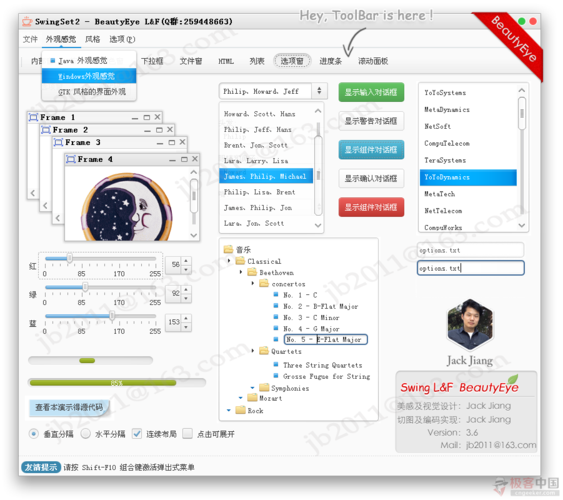
- Modern Aesthetics: It introduced gradients, shadows, and smooth curves that were in line with UI design trends of the late 2000s and early 2010s.
- Theming: You could switch between different color schemes (e.g., a dark theme, a light theme, an "olive" theme) with just a few lines of code.
- Consistency: It ensured your application looked the same regardless of the operating system it was running on.
How to Use BeautyEye (A Simple Code Example)
Using BeautyEye is straightforward. You just need to add its JAR file to your project's classpath and then initialize it in your main application class.
Step 1: Get the JAR File
You can download the BeautyEye JAR file from its official source or a Maven repository. The most common version was beautyeye-lnf-1.0.1.jar.
Step 2: Add to Your Project
If you're using a build tool like Maven, add this dependency to your pom.xml:
<dependency>
    <groupId>org.jwebtop</groupId>
    <artifactId>beautyeye-lnf</artifactId>
    <version>1.0.1</version>
</dependency>
If you're not using Maven, simply download the JAR and add it to your project's libraries.
Step 3: Initialize the Look and Feel
In your application's main method, you need to set the BeautyEye Look and Feel before creating any Swing components.
Here is a complete, runnable example:
import javax.swing.*;
import java.awt.*;
public class BeautyEyeDemo {
    public static void main(String[] args) {
        // 1. Set the BeautyEye Look and Feel
        // This must be done BEFORE creating any Swing components.
        try {
            // Use the BeautyEye Look and Feel
            UIManager.setLookAndFeel("org.jb2011.lnf.beautyeye.BeautyEyeLookAndFeel");
            // Optional: Set a specific theme
            // UIManager.put("RootPane.setupButtonVisible", Boolean.FALSE); // Hide the setup button
            // BeautyEyeLNFHelper.frameBorderStyle = BeautyEyeLNFHelper.FrameBorderStyle.osLookAndFeelDecorated; // Use native window decoration
        } catch (Exception e) {
            e.printStackTrace();
            // If BeautyEye fails, fall back to the system default look and feel
            try {
                UIManager.setLookAndFeel(UIManager.getSystemLookAndFeelClassName());
            } catch (Exception ex) {
                ex.printStackTrace();
            }
        }
        // 2. Create and show the GUI on the Event Dispatch Thread (EDT)
        SwingUtilities.invokeLater(() -> {
            // Create the main window
            JFrame frame = new JFrame("BeautyEye Demo");
            frame.setDefaultCloseOperation(JFrame.EXIT_ON_CLOSE);
            frame.setSize(400, 300);
            frame.setLocationRelativeTo(null); // Center the window
            // Create a panel to hold components
            JPanel panel = new JPanel(new FlowLayout(FlowLayout.CENTER, 20, 20));
            // Add some standard Swing components to see the BeautyEye skin
            JButton button = new JButton("BeautyEye Button");
            JTextField textField = new JTextField("Enter text here", 15);
            JLabel label = new JLabel("This is a label");
            panel.add(label);
            panel.add(button);
            panel.add(textField);
            // Add a JComboBox
            String[] items = {"Option 1", "Option 2", "Option 3"};
            JComboBox<String> comboBox = new JComboBox<>(items);
            panel.add(comboBox);
            frame.add(panel);
            frame.setVisible(true);
        });
    }
}
When you run this code, instead of the default buttons and text fields, you'll see them styled with the BeautyEye theme.
Customization and Theming
One of the best features of BeautyEye is its ability to be customized. You can change the theme by setting specific UI properties before initializing the LNF.
Here are some common customizations:
// In your main method, before setting the LNF
// 1. Choose a color theme
// The theme name is usually the color name (e.g., "purple", "green", "olive")
// This sets the main accent color for components.
UIManager.put("Theme", "purple");
// 2. Set the window decoration style
// You can use the native OS window border or a custom one.
BeautyEyeLNFHelper.frameBorderStyle = BeautyEyeLNFHelper.FrameBorderStyle.generalBorder; // Custom border
// BeautyEyeLNFHelper.frameBorderStyle = BeautyEyeLNFHelper.FrameBorderStyle.osLookAndFeelDecorated; // Native border
// 3. Hide the "setup" button (the small 'i' button in the corner)
UIManager.put("RootPane.setupButtonVisible", Boolean.FALSE);
// 4. Make buttons have rounded corners
UIManager.put("ButtonUI", "org.jb2011.lnf.beautyeye.ch3_button.BEButtonUI");
The Modern Context: Is BeautyEye Still Relevant?
This is the most important question today.
The short answer is: No, BeautyEye is not the recommended choice for new projects in 2025.
Here's why:
- Age and Maintenance: The BeautyEye project has not been actively updated for many years. It was primarily designed for Java 6 and 7. While it mostly works on newer Java versions, it may have compatibility issues or bugs that will never be fixed.
- JavaFX is the Future: Since Java 8, Oracle has pushed JavaFX as the official successor to Swing for rich client applications. JavaFX is a modern, scene-graph-based toolkit with built-in support for CSS styling, FXML for declarative UIs, and hardware-accelerated graphics. It is far more powerful and flexible.
- Modern Swing Alternatives: If you must stick with Swing, there are newer, more actively maintained Look and Feel libraries like:
- FlatLaf: A modern, cross-platform Look and Feel for Swing. It's lightweight, actively developed, and has a clean, flat design that is very popular today. This is probably the best Swing-only alternative to BeautyEye today.
- Substance: Another long-standing and highly customizable LNF for Swing.
Summary
| Feature | Description |
|---|---|
| What it is | A popular, third-party Look and Feel library for Java Swing. |
| Pros | Highly customizable, beautiful modern look, free, cross-platform. |
| Cons | No longer maintained, designed for older Java versions, not compatible with JavaFX. |
| Best For | Legacy projects or learning about Swing customization. |
| Modern Alternatives | JavaFX (for new projects), FlatLaf (if you must use Swing). |
In conclusion, BeautyEye was a fantastic library that brought a lot of "beauty" to the Java world. It solved a real problem and inspired many developers. However, for any new development, you should strongly consider using JavaFX or, if tied to Swing, a modern LNF like FlatLaf.