Of course! Here is a comprehensive guide to using Java with LoadRunner, covering the "why," "how," and best practices.
What is LoadRunner's Java Protocol?
In LoadRunner, the Java Protocol allows you to create performance tests using Java code. This is essential when:
- Testing Java Applications: You are testing a Java-based web application, a backend service (like a Spring Boot app), or a thick-client Java application.
- Implementing Complex Logic: The built-in web (HTTP/HTML) protocols are not sufficient. You need to use custom Java classes, complex algorithms, or interact with a third-party Java library.
- Accessing Java APIs: You need to make direct calls to a Java API (e.g., a REST API built with JAX-RS or a SOAP API with JAX-WS) that might be more efficiently handled by a native Java client than by an HTTP-level simulation.
- Legacy Systems: You are testing a legacy system that has a Java-based communication protocol (e.g., RMI, EJB, or a custom socket-based protocol).
How to Create a Java Vuser Script in LoadRunner
Let's walk through the process of creating a basic Java Vuser script.
Step 1: Create a New Script
- Open LoadRunner Controller or VuGen.
- Go to File > New Script and Solution.
- In the "Create New Script" dialog, select the Java protocol and click Create.
This will generate a basic Java project structure in your VuGen workspace.
Step 2: Understand the Generated Files
When you create a Java script, LoadRunner generates a standard Maven project structure with the following key files:
src/java/main/java/com/mercury/sample/Action.java: This is the main script file where you will write your core business logic. It contains three methods:init(),action(), andend().init(): Runs once at the beginning of each Vuser iteration. Use it for setup tasks like opening connections, reading configuration files, or initializing objects.action(): This is the main part of your script. It contains the transactions you want to measure. It runs repeatedly for the duration of the test.end(): Runs once at the end of each Vuser iteration. Use it for cleanup tasks like closing connections, releasing resources, or writing a summary log.
pom.xml: This is the Maven configuration file. This is the most important file for managing dependencies.src/main/resources/: A directory for your resource files, such as configuration properties (.properties), CSV data files, or input data.bin/: This directory will contain your compiled Java classes and any necessary JAR files after you build the project.
Step 3: Add Dependencies (The pom.xml file)
This is the most critical step for using Java effectively. If your application needs external libraries (like a JSON parser, a database driver, or a client for a specific protocol), you must add them here.
Example: Adding a JSON Library (Jackson)
Let's say you need to parse JSON responses. You would add the Jackson dependency to your pom.xml:
<project ...>
    ...
    <dependencies>
        <!-- LoadRunner's own Java support -->
        <dependency>
            <groupId>com.mercury</groupId>
            <artifactId>lrjava</artifactId>
            <version>1.0</version>
        </dependency>
        <!-- Add Jackson for JSON processing -->
        <dependency>
            <groupId>com.fasterxml.jackson.core</groupId>
            <artifactId>jackson-databind</artifactId>
            <version>2.15.2</version> <!-- Use a recent version -->
        </dependency>
    </dependencies>
</project>
How to add dependencies in VuGen:
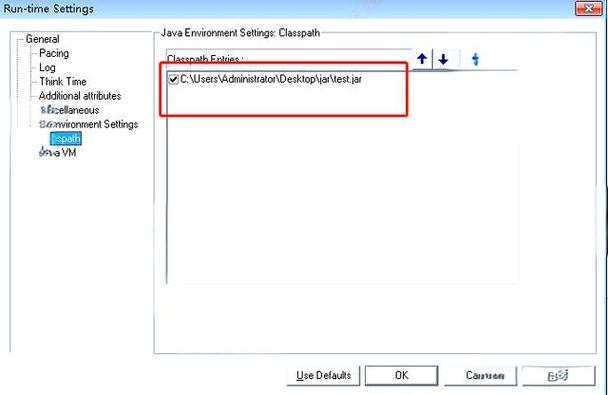
- Right-click on the
pom.xmlfile in the "Solution Explorer". - Select Maven > Update Project....
- LoadRunner will download the specified JAR files and add them to your project's classpath.
Step 4: Write the Java Code in Action.java
Now you can write your Java code. Here’s a simple example that makes an HTTP request using the standard Java HttpURLConnection class and measures the transaction time.
package com.mercury.sample;
import java.io.BufferedReader;
import java.io.InputStreamReader;
import java.net.HttpURLConnection;
import java.net.URL;
import lrapi.lr;
public class Action {
    // lr.eval_string is a function to evaluate a string and return its value.
    // We can use it to get the base URL from a parameter.
    private String baseUrl = lr.eval_string("{baseUrl}");
    public int init() throws Throwable {
        // Initialization code goes here
        lr.log_message("Initializing Java Vuser...");
        return 0;
    }
    public int action() throws Throwable {
        // --- Transaction: GetUserInfo ---
        lr.start_transaction("GetUserInfo"); // Start the transaction timer
        try {
            String userId = "testuser123"; // In a real test, this would come from a data file or parameter
            // Construct the URL
            String urlString = baseUrl + "/api/users/" + userId;
            URL url = new URL(urlString);
            HttpURLConnection connection = (HttpURLConnection) url.openConnection();
            // Set request method
            connection.setRequestMethod("GET");
            connection.setRequestProperty("Accept", "application/json");
            // Get the response code
            int responseCode = connection.getResponseCode();
            lr.log_message("Response Code for GetUserInfo: " + responseCode);
            if (responseCode == HttpURLConnection.HTTP_OK) { // 200 OK
                BufferedReader in = new BufferedReader(
                        new InputStreamReader(connection.getInputStream()));
                String inputLine;
                StringBuilder response = new StringBuilder();
                while ((inputLine = in.readLine()) != null) {
                    response.append(inputLine);
                }
                in.close();
                // Log the response (be careful with large responses in logs)
                lr.log_message("Response Body: " + response.toString());
                // You can parse the JSON here if you added a library like Jackson
                // e.g., User user = objectMapper.readValue(response.toString(), User.class);
            } else {
                lr.log_message("GET request failed for GetUserInfo");
            }
        } catch (Exception e) {
            lr.log_message("Error in GetUserInfo transaction: " + e.getMessage());
            lr.think(100); // Pause for a moment if there's an error
        } finally {
            lr.end_transaction("GetUserInfo", lr.AUTO); // End the transaction
        }
        lr.think(5); // Think time (in seconds)
        return 0;
    }
    public int end() throws Throwable {
        // Cleanup code goes here
        lr.log_message("Ending Java Vuser...");
        return 0;
    }
}
Step 5: Compile the Script
Before running the script, you must compile it to ensure all dependencies are correctly resolved.
- Right-click on the
Action.javafile (or any file in the project). - Select Compile "Action.java".
- Check the "Output" pane at the bottom of VuGen for any compilation errors. If it's successful, you'll see a "Compilation successful" message.
Key Java Functions in LoadRunner
LoadRunner provides a set of lrapi.lr functions to integrate your Java code with the LoadRunner runtime environment. You must import lrapi.lr to use them.
| Function | Description | Example |
|---|---|---|
lr.log_message(String message) |
Writes a message to the Vuser log and output window. | lr.log_message("Starting login process..."); |
lr.start_transaction(String name) |
Starts a transaction timer. | lr.start_transaction("HomePageLoad"); |
lr.end_transaction(String name, int status) |
Ends a transaction timer. lr.PASS or lr.FAIL. |
lr.end_transaction("HomePageLoad", lr.PASS); |
lr.think(int seconds) |
Pauses the script for the specified number of seconds. | lr.think(2); |
lr.save_string(String value, String param_name) |
Saves a string value to a parameter. | lr.save_string("user123", "loggedInUser"); |
lr.eval_string(String param_name) |
Retrieves the value of a parameter. | String user = lr.eval_string("{loggedInUser}"); |
lr.vuser_status_message(String message) |
Sets the status message for the Vuser in the Controller. | lr.vuser_status_message("Processing payment..."); |
lr.output_message(String message) |
Similar to lr.log_message but can be used with different log levels. |
lr.output_message(lr.DEBUG, "Debug info"); |
Best Practices for LoadRunner Java Scripting
- Use Data-Driven Testing: Store test data (usernames, passwords, product IDs) in external files like CSVs or properties files. LoadRunner's
lr.save_stringandlr.eval_stringcan be used to read this data. - Manage Resources: Always close connections (database, HTTP, files) in the
finallyblock or in theend()method to prevent resource leaks during long-running tests. - Error Handling: Wrap your code in
try-catchblocks. Uselr.log_messageto log errors and decide how to handle them (e.g., mark a transaction as failed, retry, or exit the script). - Modularize Your Code: Don't put all your logic in the
action()method. Create separate Java classes for different functionalities (e.g., aDatabaseHelperclass, anApiClientclass). This makes your script cleaner and more reusable. - Parameterize Everything: Hardcoding values is a bad practice. Use LoadRunner parameters for URLs, ports, file paths, and any other values that might change between environments (Dev, QA, Staging).
- Use Think Times: Real users don't act instantly. Use
lr.think()to simulate realistic user behavior and to avoid overwhelming the server. - Keep Transactions Focused: Each
lr.start_transactionandlr.end_transactionpair should measure a specific, logical business process (e.g., "UserLogin", "AddToCart", "Checkout").
Alternatives: Java over Web (HTTP/HTML)
Sometimes, you might be tempted to use the Java protocol to call a standard REST API. However, LoadRunner has a dedicated Web (HTTP/HTML) protocol that is highly optimized for web testing.
When to use Java Protocol over Web Protocol:
- Complex Logic: You need to perform complex calculations, data manipulation, or state management in Java before making a request.
- Custom Libraries: You must use a specific Java client library (e.g., for OAuth 2.0, a specific messaging protocol, etc.).
- Performance: For very simple HTTP calls, the Web protocol is often slightly more performant because it's a more direct, lower-level simulation. If your test is purely HTTP-based, start with the Web protocol.
By following these guidelines, you can leverage the power and flexibility of Java to create robust and realistic performance tests for your Java applications in LoadRunner.