Of course! Let's break down how to set up a Python development environment on a Mac using Eclipse. This is a common request, especially from developers coming from a Java background who are used to the Eclipse IDE.
Here's a complete guide covering the "why," the "what," and the "how."
The Big Picture: Why Use Eclipse for Python on a Mac?
While there are other popular Python IDEs (like PyCharm, VS Code, or Sublime Text), Eclipse is a powerful, free, and open-source option. The main reasons to choose it are:
- Familiarity: If you've used Eclipse for Java development, the layout, perspective system, and general workflow will feel very comfortable.
- Extensibility: The Eclipse Platform is highly extensible. You can install plugins for different languages, databases, and tools, keeping everything within one IDE.
- All-in-One: You can manage multiple projects in different languages (Python, Java, C++, etc.) within the same workspace.
- Free and Open Source: It costs nothing to use, and the community is large and active.
The key to using Python in Eclipse is a plugin called PyDev.
Prerequisites: What You Need First
Before you start, make sure you have these two things installed on your Mac.
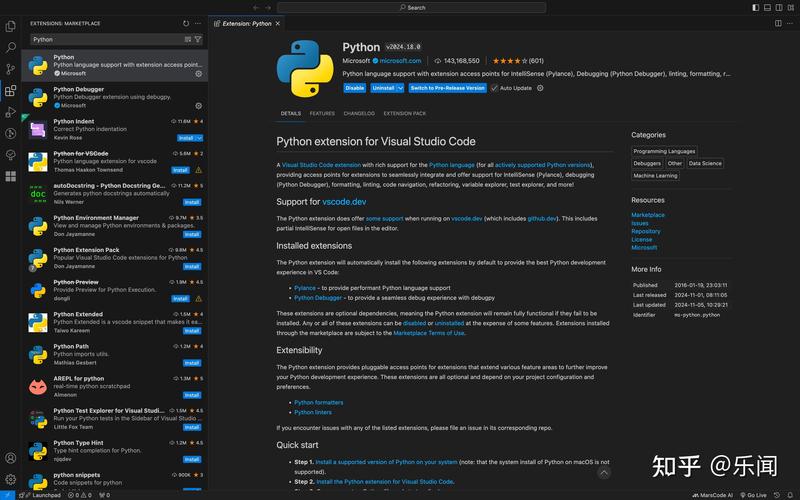
A. Python
macOS comes with Python 2.7 pre-installed, but it's ancient and you should not use it for new projects. You need to install a modern version of Python 3.
The best way to manage Python versions on a Mac is using Homebrew.
- Install Homebrew (if you don't have it): Open your Terminal (you can find it in
Applications/Utilitiesor search with Spotlight) and paste the following command:/bin/bash -c "$(curl -fsSL https://raw.githubusercontent.com/Homebrew/install/HEAD/install.sh)"
- Install Python 3 using Homebrew:
brew install python
This will install the latest stable version of Python 3 and
pip(Python's package installer) for you.
B. Java Development Kit (JDK)
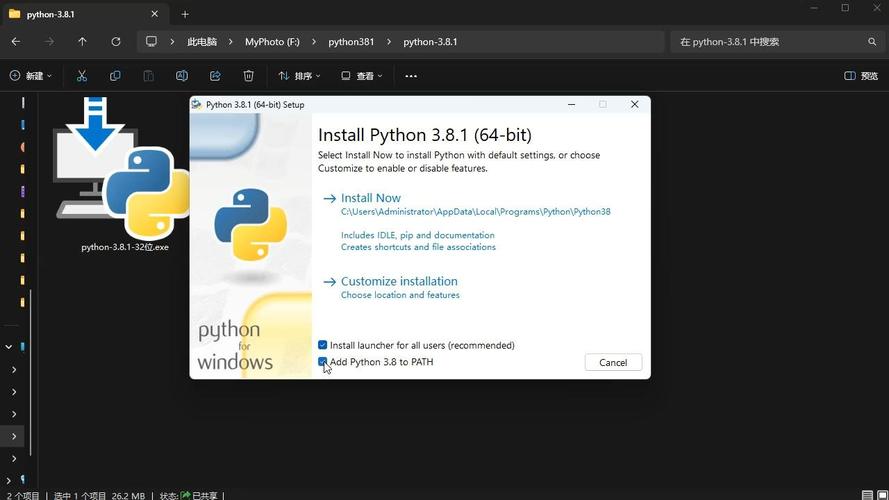
Eclipse itself is a Java application, so it requires a JDK to run.
-
Install the JDK: The easiest way is with Homebrew.
brew install openjdk@17
(Using JDK 17 is a good choice as it's a Long-Term Support version).
-
Set the
JAVA_HOMEEnvironment Variable: This tells your system where to find the JDK.- Find the path to your JDK installation. It will be something like
/opt/homebrew/opt/openjdk@17(for Apple Silicon Macs) or/usr/local/opt/openjdk@17(for Intel Macs). - Open your shell profile file. If you use Zsh (the default on modern macOS), it's
~/.zshrc. If you use Bash, it's~/.bash_profile.open -e ~/.zshrc
- Add the following line to the end of the file. Replace the path with the one from your installation.
export JAVA_HOME=/opt/homebrew/opt/openjdk@17
export PATH="$JAVA_HOME/bin:$PATH"
- Save the file and close the editor.
- Apply the changes to your current terminal session:
source ~/.zshrc
- Verify: Run
echo $JAVA_HOME. It should print the path you just set.
- Find the path to your JDK installation. It will be something like
Step-by-Step Installation and Setup
Now you're ready to install Eclipse and set up the Python development environment.
Step 1: Download and Install Eclipse IDE for Java Developers
- Go to the Eclipse Downloads page.
- Under "Eclipse IDE for Enterprise Java and Web Developers," click the link for your Mac (macOS Cocoa 64-bit). This package includes tools that are useful even for Python development.
- You will get a
.dmgfile. Open it, drag the Eclipse.app icon into yourApplicationsfolder.
Step 2: Install the PyDev Plugin
- Launch Eclipse: Open the
Eclipse.appfrom your Applications folder. - Select a Workspace: Eclipse will ask you for a "workspace." This is the folder where your projects will be stored. You can create a new folder, for example, on your Desktop or in your Documents, and select it.
- Install PyDev:
- Go to the menu: Help -> Install New Software...
- In the "Work with" field, paste the URL for the PyDev update site:
http://pydev.org/updates - Eclipse will take a moment to load the available software. You should see "PyDev" appear in the list.
- Check the box next to "PyDev" and click Next >.
- Review the installation details and click Next > again.
- Accept the license agreements and click Finish.
- The installation will proceed. When it's done, Eclipse will ask you to restart. Click Yes.
Step 3: Configure the Python Interpreter
This is the most critical step. You need to tell PyDev which Python installation to use.
- Go to the menu: Eclipse -> Preferences... (or PyDev -> Interpreter - Python on some versions).
- In the Preferences window, navigate to PyDev -> Interpreter - Python.
- Click the New... button on the right.
- A "Select Interpreter" dialog will appear.
- In the "Interpreter Name" field, give it a name like
Python 3 (Homebrew). - Click the Browse... button. Navigate to your Python executable. The standard locations are:
- Apple Silicon Macs (M1/M2/M3):
/opt/homebrew/bin/python3 - Intel Macs:
/usr/local/bin/python3 - You can also find the exact path by running
which python3in your Terminal.
- Apple Silicon Macs (M1/M2/M3):
- Select the
python3executable and click Open. - PyDev will now analyze your Python installation. This can take a minute. It will find all the installed libraries. Click OK when it's done.
- Back in the "Preferences" window, you should now see your new interpreter in the list. Make sure it's checked and click Apply and Close.
Creating Your First Python Project in Eclipse
You're all set! Let's create a simple "Hello, World" project.
- Go to the menu: File -> New -> Project...
- In the "New Project" wizard, expand the PyDev folder and select PyDev Project. Click Next >.
- Project Name: Enter
hello_python. - Interpreter: Select the Python interpreter you configured earlier (e.g.,
Python 3 (Homebrew)). - Grammar Version: Select
8(or the version you installed). - Click Finish.
Eclipse will create your project. You'll see a src folder in the Project Explorer. This is where your Python code goes.
- Right-click on the
srcfolder. - Go to New -> PyDev Module.
- In the "PyDev Module" dialog, enter
mainas the module name. Make sure "Create__init__.pyfile" is checked. Click Finish.
Eclipse will create a file named main.py. It will be open and ready for you to code.
Add the following code:
def greet(name):
    """This function greets the person passed in as a parameter."""
    print(f"Hello, {name}! Welcome to Python on Eclipse.")
if __name__ == "__main__":
    greet("Mac User")
To run your code, right-click anywhere in the main.py editor and select Run As -> Python Run.
You should see the output "Hello, Mac User! Welcome to Python on Eclipse." in the "Console" view at the bottom of the screen.
Essential PyDev Features
- Code Completion: As you type, PyDev suggests methods, variables, and keywords.
- Syntax Highlighting: Python keywords and structures are color-coded.
- Integrated Debugger: Set breakpoints by double-clicking in the margin. Right-click and select "Debug As" to step through your code line by line, inspect variables, and see the call stack.
- Code Analysis: PyDev can find potential bugs and style issues (Pylint integration).
- Run/Debug Configurations: You can easily configure different ways to run your script (e.g., with different command-line arguments).
Troubleshooting Common Issues
- Problem: "The import org.python.pydev could not be resolved."
- Solution: This means the PyDev plugin didn't install correctly. Go to Help -> About Eclipse IDE -> Installation Details, find PyDev in the list, and uninstall it. Then try reinstalling it from the update site (
http://pydev.org/updates).
- Solution: This means the PyDev plugin didn't install correctly. Go to Help -> About Eclipse IDE -> Installation Details, find PyDev in the list, and uninstall it. Then try reinstalling it from the update site (
- Problem: I get an error when trying to run my script, like "Python path in interpreter is invalid."
- Solution: Your Python interpreter configuration is wrong. Go back to Preferences -> PyDev -> Interpreter - Python and make sure you selected the correct
python3executable from/usr/local/binor/opt/homebrew/bin.
- Solution: Your Python interpreter configuration is wrong. Go back to Preferences -> PyDev -> Interpreter - Python and make sure you selected the correct
- Problem: The console shows an error about
JAVA_HOME.- Solution: You likely didn't set the
JAVA_HOMEenvironment variable correctly. Double-check your shell profile file (~/.zshrcor~/.bash_profile) and make sure you ransourceto apply the changes. Restarting your computer can also help if you're unsure.
- Solution: You likely didn't set the