Of course! The readline module in Python is a powerful tool for creating command-line interfaces (CLIs) that are more interactive and user-friendly. It's a wrapper around the GNU readline library, which is available on most Unix-like systems (Linux, macOS). On Windows, the pyreadline library provides a compatible implementation.
Let's break down what it does and how to use it.
What is readline and Why Use It?
By default, when you use the input() function in Python, you get a very basic prompt. You type something and press Enter. The readline module enhances this experience by providing features common in modern shells (like bash or zsh):
- Command History: Use the up and down arrow keys to scroll through previous commands.
- Line Editing: Use left and right arrow keys to move the cursor, and Home/End to jump to the beginning or end of the line.
- Tab Completion: Press the Tab key to auto-complete words (you have to implement this logic yourself, but the module provides the hooks).
- Emacs/Vi-style Keybindings: Supports familiar editing shortcuts like
Ctrl+A(go to start of line),Ctrl+E(go to end),Ctrl+K(delete to end of line), etc.
Quick Start: Enabling readline for input()
The simplest use case is to make your input() prompts have all these nice features automatically.
import readline
# Now, when you call input(), you get the full readline experience!
# Try using the arrow keys, Home, End, etc.
name = input("What is your name? ")
print(f"Hello, {name}!")
# The history is saved for the duration of the script.
# You can press up-arrow to see "What is your name?" again.
color = input("What is your favorite color? ")
print(f"Ah, {color}, a fine choice.")
# Try typing "pri" and then pressing Tab. It won't complete anything yet,
# but it won't crash. We'll fix that in the advanced section.
Core Functionality and Examples
Here are the key functions and features of the readline module.

Manipulating the History
The readline module keeps a history of all lines you've entered. You can access and modify this list.
import readline
# Get the current history as a list of strings
history_list = readline.get_current_history_length()
print(f"Current history length: {history_list}")
# Let's add a few lines to the history manually
readline.add_history("echo 'Hello from history'")
readline.add_history("ls -l")
# Now get the history list again
full_history = readline.get_history_item(readline.get_current_history_length())
print(f"Last item in history: '{full_history}'")
# You can also clear the history
# readline.clear_history()
# The history is automatically saved when the script exits (if configured)
Customizing the Completion Function (Tab Completion)
This is one of the most powerful features. You define a function that takes the current text being completed and returns a list of possible completions. Then you tell readline to use your function.
Let's create a simple auto-completer for a list of commands.
import readline
# A list of words we want to be able to complete
COMMANDS = ["start", "stop", "status", "restart", "configure", "quit"]
# This is our custom completer function
def completer(text, state):
    """
    This function is called by readline for each possible completion.
    'text' is the string the user has typed so far.
    'state' is an integer index for the current suggestion.
    """
    # Create a list of matches that start with the user's text
    options = [cmd for cmd in COMMANDS if cmd.startswith(text)]
    # Return the option at the current state index, or None if we're done
    if state < len(options):
        return options[state]
    else:
        return None
# Set the completer function
# readline.set_completer(completer) # This is the old way
readline.parse_and_bind("tab: complete") # Bind the Tab key to the completer
# The new, preferred way to set the completer
readline.set_completer_delims(' \t\n') # Set delimiters (what separates words)
readline.set_completer(completer)
print("--- Simple CLI with Tab Completion ---")
print("Available commands: " + ", ".join(COMMANDS))
print("Type a command and press Tab to see suggestions.")
while True:
    try:
        user_input = input("my-cli> ").strip()
        if user_input == "quit":
            print("Exiting...")
            break
        elif user_input:
            print(f"You entered: {user_input}")
    except EOFError: # Handle Ctrl+D
        print("\nExiting...")
        break
How it works:
- You define a function
completer(text, state). readlinecalls your function repeatedly. Each time, it incrementsstate.- Your function generates a list of possible matches.
- On the first call (
state=0), you return the first match. On the second (state=1), the second match, and so on. - When there are no more matches, you return
None, andreadlinestops calling your function.
Reading a Single Keystroke (Advanced)
Sometimes you don't want to wait for the user to press Enter. You want to read a single key press. This is a bit more advanced and involves putting the terminal into a special "raw" mode.
import sys
import tty
import termios
def get_single_keypress():
    """
    Waits for a single keypress and returns it.
    Does not echo the key to the terminal.
    """
    fd = sys.stdin.fileno()
    old_settings = termios.tcgetattr(fd)
    try:
        tty.setraw(sys.stdin.fileno())
        ch = sys.stdin.read(1)
    finally:
        termios.tcsetattr(fd, termios.TCSADRAIN, old_settings)
    return ch
print("--- Single Keypress Demo ---")
print("Press any key (ESC to quit). The key will not be shown.")
while True:
    key = get_single_keypress()
    # The ESC key is represented by a single character
    if key == '\x1b': # \x1b is the escape character
        print("\nYou pressed ESC. Exiting.")
        break
    else:
        # Use repr() to see non-printable characters like \x1b
        print(f"You pressed: {repr(key)}")
Important Considerations
Windows Compatibility
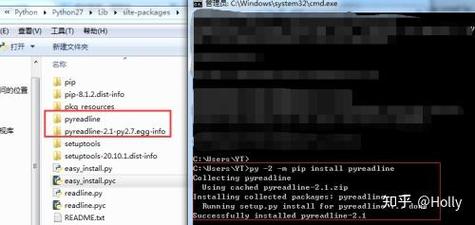
The built-in readline module does not work on Windows. To get this functionality, you need to install a third-party library:
pip install pyreadline
Once installed, you can use import readline in your code, and pyreadline will provide the compatible implementation.
Security and readline History
By default, readline saves a history file (usually ~/.python_history) when the Python interpreter exits. This is convenient but can be a security risk if your script deals with passwords, API keys, or other sensitive information. These secrets could be stored in plain text in the history file.
To mitigate this risk:
-
Disable History: You can clear the history and prevent it from being saved at the end of your script.
import atexit
import readline
# Disable history saving for this script
atexit.register(readline.clear_history)
-
Use a Different Input Method: For sensitive input, use the
getpassmodule, which is designed to hide user input.from getpass import getpass password = getpass("Enter your password: ") # The user's typing will not be visible
Summary
| Feature | How to Use It | Best For |
|---|---|---|
| Basic Enhancement | import readline |
Making any input() prompt more user-friendly. |
| History | readline.add_history(), readline.get_history_item() |
CLI tools where users repeat commands. |
| Tab Completion | Define a completer(text, state) function and bind it with readline.parse_and_bind("tab: complete"). |
Powerful CLIs (like Git, pip, etc.). |
| Single Keypress | Use tty and termios modules to put the terminal into raw mode. |
Games, interactive menus, "press any key". |
| Windows | Install pyreadline: pip install pyreadline. |
Cross-platform CLI development. |
| Security | Be aware of history files. Use atexit.register(readline.clear_history) or getpass for sensitive data. |
Keeping secrets out of shell history. |