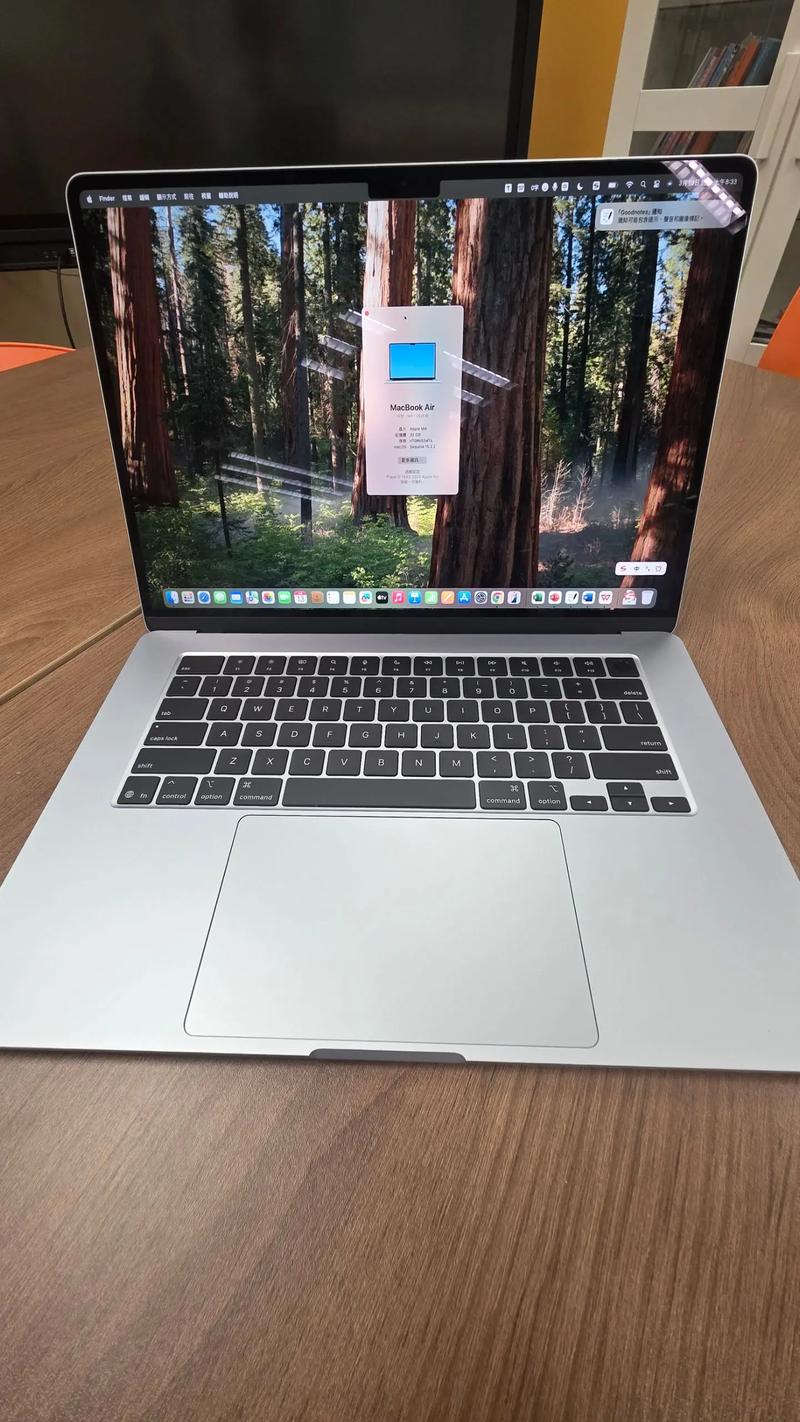
Of course! Using Python on a MacBook Air is an excellent choice. The combination of a powerful, energy-efficient M1/M2/M3 chip and Python's simplicity makes it a fantastic machine for development, data analysis, automation, and more.
Here is a comprehensive guide covering everything from installation to setting up a professional workflow.
Part 1: Installation
The good news is that Python is already on your MacBook Air! However, it's the "system Python," which is best left alone to avoid conflicts with macOS. The standard practice is to install a separate version of Python for your own use.
Method 1: The Easiest & Recommended Way (Using pyenv)
pyenv is a tool that lets you install and switch between multiple Python versions on your machine. This is the most flexible and professional approach.
Step 1: Install Xcode Command Line Tools
This is a prerequisite for installing many programming tools. Open your Terminal (you can find it in Applications/Utilities or search with Spotlight) and run:
xcode-select --install
Click "Install" and agree to the terms.
Step 2: Install Homebrew
Homebrew is the most popular package manager for macOS. It makes installing pyenv and other tools incredibly easy.
Copy and paste this command into your Terminal:
/bin/bash -c "$(curl -fsSL https://raw.githubusercontent.com/Homebrew/install/HEAD/install.sh)"
After it finishes, it will give you two commands to add Homebrew to your PATH. Copy and run those commands.
Step 3: Install pyenv
Now, use Homebrew to install pyenv:
brew install pyenv
Step 4: Configure Your Shell
You need to tell your Terminal how to find pyenv. Run the command pyenv init and it will give you the exact command to add to your shell's configuration file.
# Run this command and copy the output
pyenv init
The output will look something like this:
# Example output - COPY THIS
eval "$(pyenv init -)"
Now, open your shell's configuration file. If you're using the default Zsh shell (on newer macOS), run:
nano ~/.zshrc
Paste the copied command at the very end of the file, save it (press Ctrl+O, then Enter), and exit (press Ctrl+X).
Step 5: Install Python Close and reopen your Terminal. Now you can install any Python version you want. Let's install the latest stable version (e.g., 3.11).
pyenv install 3.11.7
This might take a few minutes as it compiles Python from source.
Step 6: Set Your Global Python Version
This makes pyenv's Python the default one your system uses for python, pip, etc.
pyenv global 3.11.7
Now, verify your installation:
python --version
# Should print: Python 3.11.7
pip --version
# Should also point to the pyenv version
Part 2: Setting Up a Project (The "Virtual Environment")
A virtual environment is an isolated space for your project's dependencies. This is critical to avoid package conflicts between different projects.
-
Create a project folder:
mkdir my_python_project
cd my_python_project
-
Create the virtual environment: It's common to name it
venv.python -m venv venv
This creates a
venvfolder inside your project. -
Activate the environment: You must do this every time you work on this project.
source venv/bin/activate
Your terminal prompt will change to show
(venv), indicating the environment is active. -
Install packages: Now,
pipwill install packages only into this environment.# Example: Install a web framework and a data analysis library pip install flask pandas
-
Deactivate the environment when you're done:
deactivate
Part 3: Choosing an Editor / IDE
You need a place to write your Python code. Here are the best options for a MacBook Air, from simple to professional.
Option A: VS Code (Free & Most Popular)
Visual Studio Code is a lightweight, powerful, and free editor that is the industry standard for many developers.
- Installation: Download it from the official VS Code website.
- Why it's great on a MacBook Air:
- Extensions: The Python extension by Microsoft provides excellent features like linting, debugging, and auto-completion.
- Integrated Terminal: You can run your Terminal directly inside VS Code, making it easy to activate your
venv. - Jupyter Notebooks: Great for data analysis.
- Git Integration: Built-in version control.
Option B: PyCharm Community Edition (Free & Powerful)
PyCharm is a full-fledged IDE (Integrated Development Environment) built specifically for Python. The Community Edition is free and fantastic.
- Installation: Download it from the official JetBrains website.
- Why it's great on a MacBook Air:
- Smart Code Editor: Unbeatable code completion, analysis, and refactoring tools.
- Integrated Database Tools: Excellent if you work with databases.
- Scientific Tools: Great support for Jupyter, Matplotlib, and NumPy.
- Django Support: Best-in-class tools for web development with Django.
Option C: Jupyter Notebooks (For Data Science)
If your primary goal is data analysis, visualization, or machine learning, Jupyter Notebooks are the way to go.
- Installation: If you used the
pyenvmethod, it's easy:pip install jupyterlab
- To run it:
jupyter lab
This will open JupyterLab in your web browser, where you can create and run notebooks interactively.
Part 4: A Typical Workflow on Your MacBook Air
Let's put it all together.
-
Open Terminal.
-
Create and navigate to a new project:
cd ~
mkdir my_app
cd my_app
-
Create and activate a virtual environment:
python -m venv venv
source venv/bin/activate
-
Open VS Code (or PyCharm) from the terminal:
code .
(This command opens the current directory in VS Code).
-
Write your code: Create a
main.pyfile in VS Code and add this:import pandas as pd # Create a simple DataFrame data = {'Name': ['Alice', 'Bob', 'Charlie'], 'Age': [25, 30, 35]} df = pd.DataFrame(data) print("Hello from MacBook Air!") print(df) -
Install the library:
# In the integrated terminal inside VS Code (make sure (venv) is visible)
pip install pandas
-
Run your script:
- In VS Code, you can right-click the
main.pyfile and select "Run Python File in Terminal". - Or, in the terminal, simply type:
python main.py
- In VS Code, you can right-click the
-
Deactivate when done:
deactivate
Part 5: Important Tips for MacBook Air (Apple Silicon)
-
Native Performance: The M1/M2/M3 chips have a special feature called ARM64 architecture. Python packages built for this architecture run incredibly fast and use very little power.
pyenvwill automatically install the correct version. For packages that don't have an Apple Silicon version yet,pyenvmight use a translation layer called Rosetta 2, which is very efficient. -
Managing Python Versions: Use
pyenvto switch versions easily.# See all installed versions pyenv versions # Set a local version for this project only pyenv local 3.10.13 # Set your global version back to default pyenv global 3.11.7
-
Battery Life: Because Python code runs so efficiently on Apple Silicon, you'll get excellent battery life, even when running complex scripts or data analysis tasks.
Summary: Your Best Setup
- Install
pyenvvia Homebrew for clean Python version management. - Always use a
venvfor every project to keep dependencies isolated. - Use VS Code for a lightweight, flexible experience or PyCharm for a more robust, all-in-one IDE.
- Leverage the power of Apple Silicon by ensuring your packages are installed for the correct architecture (
arm64).pyenvhandles this for you.
You now have a professional, robust, and efficient Python development environment on your MacBook Air. Happy coding