Of course! Automating the Windows login process with Python is a common task for system administrators, developers, and anyone looking to automate repetitive tasks. However, it's important to approach this with an understanding of security implications.
Here’s a comprehensive guide covering different methods, their use cases, and security considerations.
⚠️ Important Security Warning
Automating a login by storing or typing a password is inherently risky. If an attacker gains access to your script, they can steal the credentials.
- Never hardcode passwords in your script. This is a major security risk.
- Consider using environment variables or a secure credential manager like the Windows Credential Manager for storing passwords.
- Be aware of antivirus software. Scripts that simulate keyboard input or interact with the login screen are often flagged as suspicious or malicious (e.g., by Windows Defender, CrowdStrike, etc.). You may need to add an exception for your script.
Method 1: Using pywinauto (Recommended for GUI Automation)
This is the most powerful and reliable method for interacting with the Windows login screen after the system has booted and is waiting for credentials. It works by finding the login UI elements and sending keys to them.
Best for: Automating login on a machine that is already at the login screen (e.g., after a reboot).
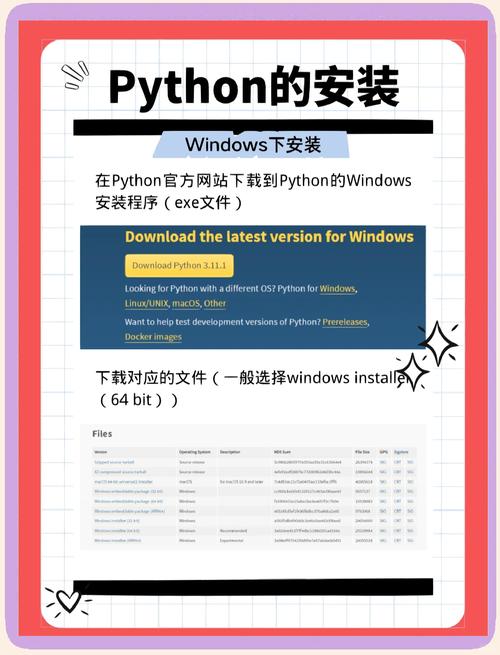
Step 1: Install pywinauto
pip install pywinauto
Step 2: The Python Script
This script will find the login window, enter the username, press Tab, enter the password, and press Enter.
import time
from pywinauto.application import Application
from pywinauto.keyboard import send_keys
def auto_login(username, password):
    """
    Automates the Windows login process using pywinauto.
    Args:
        username (str): The Windows username.
        password (str): The Windows password.
    """
    try:
        # Connect to the Windows Explorer process that hosts the login UI
        # The title might vary slightly depending on Windows version (e.g., "Sign In", "Lock", "Windows Security")
        app = Application(backend="uia").connect(title_re=".*Sign In.*", timeout=10)
        # Get the main dialog of the login window
        # The control type might be 'WindowControl' or 'Pane'
        login_window = app.window(title_re=".*Sign In.*")
        # --- Find the username field ---
        # You might need to inspect the UI to find the correct control.
        # 'AutoIt v3' is a common class name for the username field.
        # The best way is to use 'inspect.exe' (from pywin32 tools) to find the control's properties.
        username_control = login_window.child_window(auto_id="userName", control_type="Edit")
        username_control.set_focus()
        send_keys(username)
        # --- Find the password field ---
        # Press Tab to navigate to the password field
        send_keys("{TAB}")
        time.sleep(0.5) # Small delay to ensure focus has moved
        # Type the password
        send_keys(password)
        # Press Enter to log in
        send_keys("{ENTER}")
        print("Login command sent successfully.")
    except Exception as e:
        print(f"An error occurred: {e}")
        print("This could be due to the login window not being found or antivirus interference.")
# --- Usage ---
# Replace with your actual credentials.
# In a real application, load these securely (e.g., from environment variables).
my_username = "your_username"
my_password = "your_password"
print("Starting auto-login script...")
# You might need a delay here to ensure the system has fully reached the login screen
time.sleep(15)
auto_login(my_username, my_password)
How to make it more robust:
- Inspect Controls: Use the
inspect.exetool (usually found inC:\Python39\Lib\site-packages\pywin32\PyWinTools) to click on the username and password fields and see their exactauto_id,control_type, and other properties. This helps you write more reliable selectors. - Handle Different Windows Versions: The window title and control names can change between Windows 10 and Windows 11. You may need to add conditional logic.
Method 2: Using subprocess and netplwiz (For Automatically Logging In at Boot)
This method doesn't use a GUI automation library. Instead, it configures Windows to automatically log in a specific user when the system starts up. This is a system-level change, not a script that runs at the login screen.
Best for: Setting up a "kiosk" mode or a dedicated workstation that always boots to a specific user's desktop.
Step 1: The Python Script
This script uses the netplwiz command-line utility to enable automatic logon.
import subprocess
import sys
def enable_auto_login(username, password):
    """
    Enables automatic login for a user at system startup using netplwiz.
    WARNING: This reduces the security of your computer.
    """
    try:
        # The command `netplwiz` opens the User Accounts control panel.
        # We pipe the necessary inputs to it.
        # 1. Press 'Enter' to select the user account (the first one listed).
        # 2. Press 'Space' to check the "Users must enter a username..." box.
        # 3. Press 'Enter' to open the Advanced Settings dialog.
        # 4. Type the username and password.
        # 5. Press 'Enter' to confirm.
        process = subprocess.Popen(
            'netplwiz',
            stdin=subprocess.PIPE,
            stdout=subprocess.PIPE,
            stderr=subprocess.PIPE,
            shell=True,
            text=True
        )
        # The sequence of inputs for the netplwiz wizard
        inputs = "\n \n" + username + "\n" + password + "\n"
        stdout, stderr = process.communicate(input=inputs)
        if process.returncode == 0:
            print(f"Successfully enabled auto-login for user: {username}")
            print("You may need to restart your computer for the changes to take effect.")
        else:
            print(f"An error occurred: {stderr}")
    except Exception as e:
        print(f"Failed to enable auto-login: {e}")
# --- Usage ---
my_username = "your_username"
my_password = "your_password"
# You might need to run this script as an Administrator
if __name__ == "__main__":
    enable_auto_login(my_username, my_password)
Security Note: This method stores the password in the Windows registry in plain text, which is a significant security risk. Only use it on a secure, private network.
Method 3: Using the Windows Credential Manager (For Secure Storage)
This is not a direct login automation method, but it's the correct way to handle credentials in a Python script for use with pywinauto or other tools. You store the password securely in the Windows Credential Manager, and your script retrieves it at runtime.
Best for: Securely storing and retrieving passwords for use in an automation script.
Step 1: Install the Library
pip install pywin32
Step 2: The Python Script to Save and Retrieve Credentials
import win32cred
def save_credential(target, username, password):
    """Saves a credential to the Windows Credential Manager."""
    credential = {
        'Type': win32cred.CRED_TYPE_GENERIC,
        'TargetName': target,
        'UserName': username,
        'CredentialBlob': password.encode('utf-16'), # Password must be a bytes-like object
        'Persist': win32cred.CRED_PERSIST_LOCAL_MACHINE
    }
    win32cred.CredWrite(credential, 0)
    print(f"Credential for '{target}' saved successfully.")
def get_credential(target):
    """Retrieves a credential from the Windows Credential Manager."""
    try:
        credential = win32cred.CredRead(Type=win32cred.CRED_TYPE_GENERIC, TargetName=target)
        # The blob is stored as utf-16 encoded bytes
        password = credential['CredentialBlob'].decode('utf-16')
        return credential['UserName'], password
    except Exception as e:
        print(f"Error retrieving credential: {e}")
        return None, None
# --- Usage ---
TARGET_NAME = "MyPythonScriptLogin"
# 1. Save the credential (run this once)
# save_credential(TARGET_NAME, "your_username", "your_password")
# 2. Retrieve the credential to use in your script
username, password = get_credential(TARGET_NAME)
if username and password:
    print(f"Retrieved Username: {username}")
    print(f"Password: {'*' * len(password)}") # Don't print the actual password
    # Now you can use these variables in your pywinauto script
    # auto_login(username, password)
else:
    print("Could not retrieve credentials.")
Summary and Recommendation
| Method | Pros | Cons | Best For |
|---|---|---|---|
pywinauto |
- Highly flexible and powerful. - Doesn't change system settings. - Works on existing login screen. |
- Can be complex to get right (UI inspection). - Often flagged by |