Of course! Converting images using the Python Imaging Library (PIL), which is now maintained under the package name Pillow, is a fundamental task in image processing.
Here’s a comprehensive guide covering the most common conversions, from simple format changes to advanced color and mode conversions.
First, Make Sure Pillow is Installed
If you don't have Pillow installed, open your terminal or command prompt and run:
pip install Pillow
Basic Format Conversion (e.g., PNG to JPEG)
This is the simplest conversion. You load an image and save it in a different format. Pillow handles the encoding/decoding automatically based on the file extension.
Key Function: Image.save()

from PIL import Image
try:
    # Open the original image (e.g., a PNG with transparency)
    original_image = Image.open("my_image.png")
    # Convert and save as a JPEG
    # Note: JPEG does not support transparency, so the alpha channel is lost.
    original_image.save("converted_image.jpg", "JPEG")
    print("Successfully converted PNG to JPEG.")
    # You can also convert to other formats like WebP
    original_image.save("converted_image.webp", "WEBP")
    print("Successfully converted PNG to WebP.")
except FileNotFoundError:
    print("Error: 'my_image.png' not found. Please make sure the file exists.")
except Exception as e:
    print(f"An error occurred: {e}")
Color Mode Conversion (e.g., RGBA to RGB)
This is a very common and important conversion. Many image formats (like JPEG) don't support transparency (the "A" in RGBA). To save an RGBA image as an RGB image, you must first remove the alpha channel.
Key Function: Image.convert()
from PIL import Image
try:
    # Open an image with an alpha channel (transparency)
    rgba_image = Image.open("transparent_image.png")
    print(f"Original image mode: {rgba_image.mode}") # Likely 'RGBA'
    # Convert RGBA to RGB by compositing it onto a solid background
    # This removes the transparency.
    rgb_image = rgba_image.convert("RGB")
    print(f"Converted image mode: {rgb_image.mode}") # Will be 'RGB'
    # Now you can save it as a format that doesn't support transparency
    rgb_image.save("no_transparency.jpg", "JPEG")
    print("Successfully converted RGBA to RGB and saved as JPEG.")
except FileNotFoundError:
    print("Error: 'transparent_image.png' not found.")
except Exception as e:
    print(f"An error occurred: {e}")
Common Color Modes:
"L": 8-bit grayscale (black and white)."RGB": 3x8-bit pixels, true color."RGBA": 4x8-bit pixels, true color with transparency mask."CMYK": 4x8-bit pixels, color separation used in professional printing."P": 8-bit pixels, mapped to a color palette.
Resizing and Converting in One Step
You can combine resizing and converting into a single, efficient operation.
from PIL import Image
try:
    with Image.open("large_image.png") as img:
        # Resize the image to a thumbnail (e.g., 300x300 pixels)
        # and convert it to RGB mode in one go.
        # The thumbnail method modifies the image in-place and maintains aspect ratio.
        img.thumbnail((300, 300))
        # Since thumbnail() works in-place, we can save the result directly.
        # If the original was RGBA, this will fail for JPEG.
        # So, we specify the conversion.
        img_rgb = img.convert("RGB")
        img_rgb.save("thumbnail.jpg", "JPEG")
    print("Successfully created a thumbnail and converted to JPEG.")
except FileNotFoundError:
    print("Error: 'large_image.png' not found.")
except Exception as e:
    print(f"An error occurred: {e}")
Advanced Conversion: RGBA to RGB with a Custom Background
When converting an RGBA image to RGB, you might want to place it on a specific background color (e.g., white) instead of just discarding the transparency.
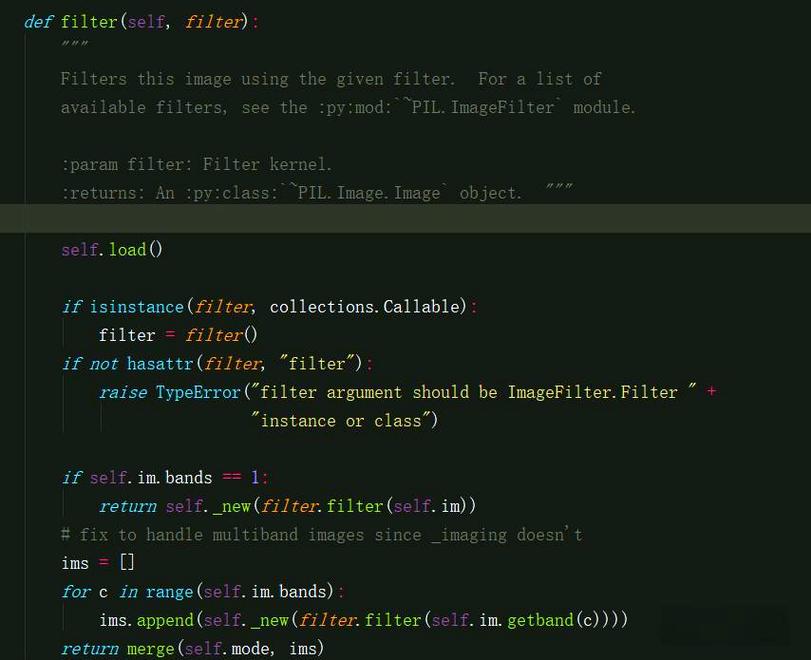
This requires using the alpha_composite function.
from PIL import Image
def rgba_to_rgb_with_background(image_path, background_color=(255, 255, 255), output_path="output.jpg"):
    """
    Converts an RGBA image to RGB, placing it on a solid background.
    """
    try:
        with Image.open(image_path) as rgba_img:
            # Ensure the image is in RGBA mode
            if rgba_img.mode != 'RGBA':
                rgba_img = rgba_img.convert('RGBA')
            # Create a new RGB image with the specified background color
            # The size must match the original image
            background = Image.new('RGB', rgba_img.size, background_color)
            # Paste the RGBA image onto the background.
            # The fourth argument (rgba_img) is the transparency mask.
            background.paste(rgba_img, mask=rgba_img)
            # Save the result
            background.save(output_path, "JPEG")
            print(f"Successfully converted '{image_path}' to RGB with a custom background and saved as '{output_path}'.")
    except FileNotFoundError:
        print(f"Error: '{image_path}' not found.")
    except Exception as e:
        print(f"An error occurred: {e}")
# --- Example Usage ---
# Create a dummy RGBA image for demonstration
try:
    img = Image.new('RGBA', (200, 100), color=(0, 0, 255, 128)) # Semi-transparent blue
    img.save("semi_blue.png")
    print("Created a dummy image 'semi_blue.png' for the example.")
except Exception as e:
    print(f"Could not create dummy image: {e}")
# Now use the function to convert it
rgba_to_rgb_with_background("semi_blue.png", background_color=(255, 255, 255), output_path="white_background.jpg")
rgba_to_rgb_with_background("semi_blue.png", background_color=(0, 0, 0), output_path="black_background.jpg")
Summary of Key Functions
| Task | Method/Function | Example |
|---|---|---|
| Load Image | Image.open() |
img = Image.open("input.png") |
| Save Image (Convert Format) | image.save(new_path, format) |
img.save("output.jpg", "JPEG") |
| Convert Color Mode | image.convert("mode") |
rgb_img = rgba_img.convert("RGB") |
| Resize (Maintain Aspect Ratio) | image.thumbnail(size) |
img.thumbnail((300, 300)) |
| Resize (Stretch) | image.resize(size) |
img_resized = img.resize((300, 200)) |
| Convert RGBA to RGB w/ Background | Image.new(), image.paste(), alpha_composite() |
See example #4 above. |
| Get Image Info | image.mode, image.size, image.format |
print(img.size, img.mode) |