Of course! Using Python to interact with Windows Management Instrumentation (WMI) on Windows is a powerful way to automate system administration, gather hardware/software information, and monitor local or remote machines.
Here's a comprehensive guide covering everything from setup to practical examples.
What is WMI?
WMI is the Microsoft implementation of Web-Based Enterprise Management (WBEM), a set of industry standards for accessing management information in an enterprise environment. Think of it as a comprehensive and standardized API for all things Windows.
- What can you do with it?
- Get hardware information (CPU, RAM, disks, network cards).
- List installed software.
- Monitor system performance (CPU usage, memory, disk space).
- Manage services, processes, and event logs.
- Query the Windows Registry.
- Execute commands on remote machines (with proper permissions).
Prerequisites: Installing the Python Library
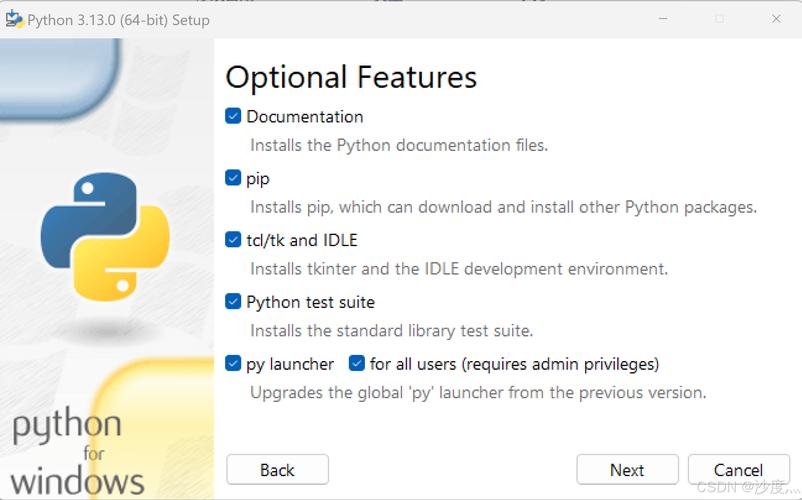
The most popular and well-maintained library for WMI in Python is WMI. You can install it easily using pip.
Open a Command Prompt or PowerShell and run:
pip install WMI
This will install the wmi package, which is a lightweight Python wrapper around the pywin32 library, providing access to the Windows COM objects for WMI.
Basic Concepts
- Namespace: A container for classes. The most common namespace is
root\cimv2, which contains the core classes for system information (likeWin32_Processor,Win32_LogicalDisk). - Class: A blueprint for a managed object. For example, the
Win32_Processorclass represents a CPU in the system. Each class has properties (attributes) and methods (actions). - Instance: A specific object created from a class. Your computer might have one
Win32_Processorclass, but an instance of it represents the actual CPU chip.
Basic Examples (Local Machine)
Here are some common tasks you can perform. The basic pattern is:
- Import the
wmilibrary. - Create a
WMI()object. This connects to the local machine by default. - Query for specific WMI classes.
- Iterate through the results and access the properties.
Example 1: Get CPU Information
import wmi
# Create a WMI client object
c = wmi.WMI()
# Query for all CPU instances
for processor in c.Win32_Processor():
    print(f"Name: {processor.Name}")
    print(f"Number of Cores: {processor.NumberOfCores}")
    print(f"Max Clock Speed: {processor.MaxClockSpeed} MHz")
    print("-" * 20)
Example 2: Get Total Physical Memory
import wmi
c = wmi.WMI()
# Query for the ComputerSystem class, which has total physical memory info
for os in c.Win32_ComputerSystem():
    print(f"Total Physical Memory: {os.TotalPhysicalMemory / (1024**3):.2f} GB")
Example 3: Get Disk Information (Free Space)
This is extremely useful for monitoring disk space.
import wmi
c = wmi.WMI()
print("Logical Disk Information:")
for disk in c.Win32_LogicalDisk(DriveType=3): # DriveType=3 means fixed disk
    print(f"Drive: {disk.DeviceID}")
    print(f"  File System: {disk.FileSystem}")
    print(f"  Size: {round(float(disk.Size) / (1024**3), 2)} GB")
    print(f"  Free Space: {round(float(disk.FreeSpace) / (1024**3), 2)} GB")
    print(f"  Percent Free: {round(float(disk.FreeSpace) / disk.Size * 100, 2)}%")
    print("-" * 20)
Example 4: List Installed Software
import wmi
c = wmi.WMI()
print("Installed Software:")
# This query can be slow as it checks a large registry key
for software in c.Win32_Product():
    # Be careful printing all properties, as there can be many!
    # We'll just print the name and version.
    print(f"- {software.Name} (Version: {software.Version})")
Example 5: Monitor CPU Usage in Real-Time
This example uses an "event query" to get continuous updates.
import wmi
import time
c = wmi.WMI()
print("Monitoring CPU usage for 10 seconds...")
# This is an event query that fires every second
watcher = c.Win32_PerfFormattedData_PerfProc_Process(
    Notify={},
    Timeout=1000
)
# Initial population
processes = watcher.watch_for()
try:
    for i in range(10):
        # Get the next process event (which is just an update)
        process = processes.next()
        # We'll just track the Idle process to see the total CPU usage
        if process.Name == "_Total":
            print(f"CPU Usage: {process.PercentProcessorTime}%")
        time.sleep(1)
except KeyboardInterrupt:
    print("\nMonitoring stopped.")
Working with Remote Machines
To query a remote machine, you need to provide the computer name and, usually, credentials.
Requirements:
- Permissions: The user account you're using must have administrative rights on the remote machine.
- WMI Service: The WMI service (
winmgmt) must be running on the remote machine. - Firewall: The Windows Firewall on the remote machine must allow WMI traffic (usually on port 135).
Example: Get Remote Computer's OS Information
import wmi
# Replace with the remote computer name or IP address
computer_name = "remote-pc-01"
# Replace with a username that has admin rights on the remote machine
username = "domain\\administrator" # or "remote-pc-01\\administrator"
password = "your_password"
try:
    # Create the WMI connection object for the remote machine
    # The 'properties' dictionary handles authentication
    c = wmi.WMI(
        computer_name,
        user=username,
        password=password
    )
    print(f"Successfully connected to {computer_name}")
    print("-" * 20)
    for os_info in c.Win32_OperatingSystem():
        print(f"Caption: {os_info.Caption}")
        print(f"Version: {os_info.Version}")
        print(f"Manufacturer: {os_info.Manufacturer}")
        print(f"Last Boot Time: {os_info.LastBootUpTime}")
except wmi.x_wmi as e:
    print(f"WMI Error: {e}")
except Exception as e:
    print(f"Failed to connect to {computer_name}. Error: {e}")
Common Pitfalls and Troubleshooting
-
Access is denied: This is the most common error. It means your Python script's user (or the credentials you provided) does not have sufficient permissions on the target machine. Ensure you are using an account with local admin rights. -
RPC server is unavailable: This usually indicates a network issue, a firewall blocking port 135, or the remote machine is off or not reachable. -
The RPC server is too busy: The remote machine might be under heavy load. Try again later. -
Finding the right Class Name: It can be hard to remember the exact class names (e.g.,
Win32_NetworkAdapterConfigurationvs.Win32_NetworkAdapter). You can use PowerShell to explore WMI classes:# Get all classes containing "disk" Get-WmiObject -List | Where-Object {$_.Name -like "*disk*"} # Get properties for a specific class Get-WmiObject -Class Win32_LogicalDisk | Get-Member -MemberType Property -
64-bit vs 32-bit: If you are running a 32-bit Python script on a 64-bit Windows machine, you might encounter issues. By default, WMI redirects 32-bit processes to the 32-bit WMI namespace. This is usually fine, but if you have problems, ensure you are using a 64-bit version of Python.
Summary
| Task | WMI Class Example |
|---|---|
| General System Info | Win32_ComputerSystem |
| CPU Information | Win32_Processor |
| RAM Information | Win32_ComputerSystem |
| Disk Information | Win32_LogicalDisk |
| Network Adapter Info | Win32_NetworkAdapter |
| Network Configuration (IP, DNS) | Win32_NetworkAdapterConfiguration |
| Installed Software | Win32_Product |
| Running Processes | Win32_Process |
| Services | Win32_Service |
| Event Logs | Win32_NTEventlogFile |
WMI is an incredibly deep and powerful tool. This guide should give you a solid foundation to start automating your Windows systems with Python.