Of course! Let's dive deep into Bitmap in Android development using Java. It's a fundamental and powerful class, but it also comes with important considerations for memory management.
What is a Bitmap?
In simple terms, a Bitmap is a representation of an image. It's a grid of pixels, where each pixel has a color defined by its ARGB (Alpha, Red, Green, Blue) values.
Think of it like a digital painting. The Bitmap object holds the entire painting in memory. In Android, Bitmap is the primary way to work with images programmatically.
Key Concepts & Why They Matter
a) In-Memory vs. On-Disk
- On-Disk: Your image files (
.jpg,.png) are stored in the device's storage (e.g.,res/drawable, internal/external storage). They are just data on the file system. - In-Memory: When you create a
Bitmapfrom a file (or any source), Android loads the pixel data into RAM. This is where you can manipulate it, draw on it, or display it.
The Problem: High-resolution images can be very large in memory. A 12-megapixel photo can easily consume 30-50 MB of RAM. Loading several of these can quickly lead to an OutOfMemoryError, crashing your app.
b) Configuration (Bitmap.Config)
This is the most important factor affecting memory usage. It defines how many bits are used to store each pixel's color.
ARGB_8888(Default): 4 bytes per pixel (8 bits for each of Alpha, Red, Green, Blue). Highest quality, but uses the most memory.RGB_565: 2 bytes per pixel. No alpha channel. Uses half the memory ofARGB_8888. A great choice for photos where transparency isn't needed.ALPHA_8: 1 byte per pixel. Only stores the alpha (transparency) channel. Useful for masks.ARGB_4444: 2 bytes per pixel. Lower quality thanRGB_565. Deprecated since API 13 due to poor quality and performance. Avoid it.
Rule of Thumb: If you don't need transparency, always prefer RGB_565 to save memory.
Common Operations with Code Examples
a) Loading a Bitmap from Resources
This is the most common way to load an image bundled with your app.
// In your Activity or Fragment
ImageView myImageView = findViewById(R.id.my_image_view);
// 1. Get the image resource ID
int resourceId = R.drawable.my_image;
// 2. Decode the resource into a Bitmap
// Use BitmapFactory.decodeResource()
Bitmap bitmap = BitmapFactory.decodeResource(getResources(), resourceId);
// 3. Display it in the ImageView
myImageView.setImageBitmap(bitmap);
b) Loading a Bitmap from a File (e.g., from the camera or storage)
This is more complex because you need to handle the possibility of large files causing memory issues.
// Path to the image file on external storage
String imagePath = Environment.getExternalStoragePublicDirectory(Environment.DIRECTORY_PICTURES).toString() + "/my_photo.jpg";
// Basic decoding (can cause OOM for large images)
// Bitmap bitmap = BitmapFactory.decodeFile(imagePath);
// Better: Get dimensions first to scale down
BitmapFactory.Options options = new BitmapFactory.Options();
// 1. Just decode the bounds, don't load pixel data yet
options.inJustDecodeBounds = true;
BitmapFactory.decodeFile(imagePath, options);
// 2. Calculate the inSampleSize to scale down the image
options.inSampleSize = calculateInSampleSize(options, 500, 500); // Target width/height
// 3. Decode for real with the sample size
options.inJustDecodeBounds = false;
Bitmap scaledBitmap = BitmapFactory.decodeFile(imagePath, options);
// Display the scaled bitmap
ImageView myImageView = findViewById(R.id.my_image_view);
myImageView.setImageBitmap(scaledBitmap);
Helper Method: calculateInSampleSize
This is a crucial utility to prevent OutOfMemoryError.
public static int calculateInSampleSize(BitmapFactory.Options options, int reqWidth, int reqHeight) {
    // Raw height and width of image
    final int height = options.outHeight;
    final int width = options.outWidth;
    int inSampleSize = 1;
    if (height > reqHeight || width > reqWidth) {
        final int halfHeight = height / 2;
        final int halfWidth = width / 2;
        // Calculate the largest inSampleSize value that is a power of 2 and keeps both
        // height and width larger than the requested height and width.
        while ((halfHeight / inSampleSize) >= reqHeight
                && (halfWidth / inSampleSize) >= reqWidth) {
            inSampleSize *= 2;
        }
    }
    return inSampleSize;
}
c) Scaling a Bitmap
Sometimes you need to resize a bitmap after loading it.
// originalBitmap is the Bitmap you want to scale
int newWidth = 200;
int newHeight = 200;
// Create a new bitmap with the desired dimensions
Bitmap scaledBitmap = Bitmap.createScaledBitmap(originalBitmap, newWidth, newHeight, true);
// 'true' means the scaling will use bilinear filtering for better quality.
// Note: This creates a NEW bitmap in memory. Be mindful of memory usage.
d) Modifying Bitmap Pixels (Drawing)
You can get a Canvas associated with a bitmap to draw on it.
// 1. Create a mutable bitmap (can't draw on an immutable one)
Bitmap mutableBitmap = bitmap.copy(Bitmap.Config.ARGB_8888, true);
// 2. Create a Canvas to draw on the bitmap
Canvas canvas = new Canvas(mutableBitmap);
// 3. Draw on the canvas
Paint paint = new Paint();
paint.setColor(Color.RED);
paint.setTextSize(50);
// Draw text
canvas.drawText("Hello, World!", 50, 50, paint);
// Draw a rectangle
canvas.drawRect(100, 100, 200, 200, paint);
// 4. Now mutableBitmap has been modified. You can display it.
ImageView myImageView = findViewById(R.id.my_image_view);
myImageView.setImageBitmap(mutableBitmap);
Critical: Memory Management & Best Practices
a) The OutOfMemoryError is Your Enemy
As mentioned, loading large bitmaps is the #1 cause of app crashes. Always be mindful of memory.
b) Recycle Unused Bitmaps
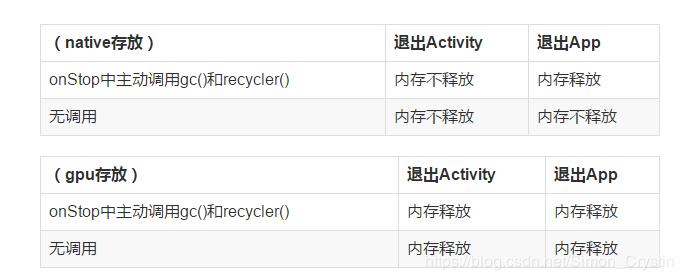
When you are done with a bitmap and it's no longer needed (e.g., in onDestroy() of an Activity or when a RecyclerView item is recycled), call bitmap.recycle(). This frees the underlying native memory associated with the pixel data.
WARNING: Once you call recycle(), the Bitmap object becomes "dead." Any attempt to call a method on it (like getWidth(), getHeight(), or draw()) will result in a NullPointerException.
if (bitmap != null && !bitmap.isRecycled()) {
    bitmap.recycle();
    bitmap = null; // Set to null to prevent accidental use
}
c) Use inBitmap for Reuse (Advanced)
For performance-critical apps (like image galleries), you can reuse the memory of a previously decoded bitmap. This avoids expensive memory allocations and deallocations. This is done using the inBitmap option in BitmapFactory.Options.
The rule: The new bitmap must be the same size or smaller than the inBitmap and have the same Bitmap.Config.
This is complex to implement correctly and is usually handled by libraries like Glide or Picasso.
Modern Alternatives: Libraries
For most applications, manually managing bitmaps is tedious and error-prone. Image loading libraries are highly recommended as they handle all the complexities for you.
a) Glide
Google's recommended image loading library. It's fast, efficient, and incredibly easy to use.
Add to build.gradle:
implementation 'com.github.bumptech.glide:glide:4.16.0'
annotationProcessor 'com.github.bumptech.glide:compiler:4.16.0'
Usage:
ImageView imageView = findViewById(R.id.my_image_view);
// Glide automatically handles:
// - Loading from URL, File, Resource
// - Memory and disk caching
// - Scaling and downsampling
// - Recycling
Glide.with(this) // 'this' is a Context or Activity/Fragment
     .load("https://example.com/image.jpg") // URL, File, or Resource
     .into(imageView);
b) Picasso
Another very popular and robust library from Square.
Add to build.gradle:
implementation 'com.squareup.picasso:picasso:2.8'
Usage:
ImageView imageView = findViewById(R.id.my_image_view);
Picasso.get().load("https://example.com/image.jpg").into(imageView);
Summary
| Topic | Key Takeaway |
|---|---|
| What it is | A Bitmap is an in-memory representation of an image, a grid of pixels. |
| Memory is Key |