Of course! Using sshtunnel on a Mac with Python is a very common and powerful way to access resources on a remote network securely. This guide will walk you through the entire process, from installation to practical examples.

What is sshtunnel and Why Use It?
sshtunnel is a Python library that creates an SSH connection to a remote server and then "tunnels" your local traffic through that connection. This is extremely useful for:
- Accessing Databases: Connecting to a database server (like PostgreSQL, MySQL, or MongoDB) that is only accessible from within a private network (e.g., a cloud server's VPC).
- Bypassing Firewalls: Accessing a service or machine that is blocked by a firewall but allows SSH connections.
- Securely Forwarding Ports: Exposing a local service to the internet via a remote server, securely.
The setup looks like this:
Your Mac <--> Remote SSH Server <--> Target Resource (Database, etc.)
Step 1: Prerequisites on Your Mac
Before you start, you need two things on your Mac:
-
Python 3: It's highly recommended to use a version of Python 3. You can check if you have it by opening the Terminal app and typing:
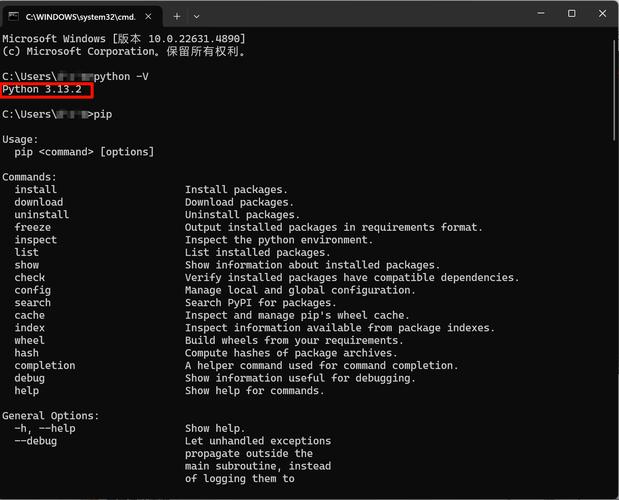 (图片来源网络,侵删)
python3 --version
If you don't have it, the easiest way to install it is using Homebrew:
brew install python
-
SSH Client: Your Mac comes with a command-line SSH client by default. You can verify this with:
ssh -V
-
SSH Access to a Remote Server: You need the hostname (or IP address) and your login credentials for the remote server you'll use as the "bridge." For this guide, we'll assume:
- SSH Host:
your.server.com - SSH Username:
myuser - Authentication Method: We'll cover both password and SSH key-based authentication.
- SSH Host:
Step 2: Install the sshtunnel Library
Open your Terminal and use pip (Python's package installer) to install the library.

# It's best practice to use pip3 to ensure you're installing for Python 3
pip3 install sshtunnel
Step 3: Create a Python Script to Connect
Let's create a simple Python script to demonstrate the tunnel. We'll start with a basic example and then build up to a more realistic scenario.
Basic Example: Tunneling a Port
This example creates a tunnel from your Mac's local port localhost:9999 to the remote server's localhost:22 (its own SSH port). It's a simple "ping" to see if the tunnel works.
Create a file named tunnel_test.py:
# tunnel_test.py
from sshtunnel import SSHTunnelTransport
import paramiko
# --- Configuration ---
# SSH server details
SSH_HOST = "your.server.com"
SSH_PORT = 22
SSH_USER = "myuser"
# The local port on your Mac that will be forwarded
LOCAL_PORT = 9999
# The remote port on the SSH server to connect to
# In this case, we're connecting to the server's own SSH port as a test
REMOTE_PORT = 22
try:
    # Create the SSH Transport
    transport = SSHTunnelTransport(
        (SSH_HOST, SSH_PORT),
        ssh_username=SSH_USER,
        # For password authentication (less secure, not recommended for automation)
        # ssh_password="your_password_here",
        # For key-based authentication (more secure)
        # ssh_pkey="/Users/your_user/.ssh/id_rsa"
    )
    # Start the transport (this will prompt for your password or use your key)
    print(f"Connecting to {SSH_HOST}...")
    transport.start()
    print("Tunnel established successfully!")
    # You can now use the transport object for other things,
    # or just close it to end the session.
    print(f"Tunnel is active. Local port {LOCAL_PORT} is forwarded.")
    input("Press Enter to close the tunnel...")
except Exception as e:
    print(f"An error occurred: {e}")
finally:
    if 'transport' in locals() and transport.is_active:
        transport.close()
        print("Tunnel closed.")
To run this script:
python3 tunnel_test.py
If you're using a password, it will prompt you. If you're using an SSH key, it should connect automatically (assuming your key is set up correctly with ssh-agent).
Step 4: Practical Example - Connecting to a Remote Database
This is the most common use case. Let's say you have a PostgreSQL database running on your.server.com on port 5432, but it's only accessible from within the server's network.
We'll use the sshtunnel library as a context manager, which is the recommended and safest way to handle connections. It automatically closes the tunnel when you're done.
Scenario:
- SSH Server:
your.server.com(port 22) - Database Server:
localhost(as seen from the SSH server) - Database Port:
5432 - Local Port:
54321(we'll forward the database to this port on our Mac)
First, make sure you have a database driver installed, like psycopg2 for PostgreSQL:
pip3 install psycopg2-binary
Now, create a new file named db_tunnel.py:
# db_tunnel.py
import psycopg2
from sshtunnel import SSHTunnelForwarder
import os
# --- Configuration ---
# SSH server details
SSH_HOST = "your.server.com"
SSH_USER = "myuser"
SSH_PKEY = os.path.expanduser("~/.ssh/id_rsa") # Path to your private SSH key
# Database details (as seen from the remote SSH server)
DB_USER = "dbuser"
DB_HOST = "localhost"  # Database is on the same machine as the SSH server
DB_NAME = "mydatabase"
DB_PORT = 5432
# The local port on your Mac that the database will be available on
LOCAL_DB_PORT = 54321
try:
    # Use the SSHTunnelForwarder as a context manager
    # This ensures the tunnel is properly set up and torn down
    with SSHTunnelForwarder(
        (SSH_HOST, 22),
        ssh_username=SSH_USER,
        ssh_pkey=SSH_PKEY,
        # Forward the local port to the remote database port
        remote_bind_address=(DB_HOST, DB_PORT)
    ) as server:
        print(f"SSH Tunnel established on local port {server.local_bind_port}")
        # Now, connect to the database using the LOCAL port
        # The database host is now 'localhost' and the port is our local forwarded port
        conn = psycopg2.connect(
            host="localhost",
            database=DB_NAME,
            user=DB_USER,
            password="db_password", # The password for the database user
            port=server.local_bind_port # This is the dynamically assigned local port
        )
        print("Successfully connected to the database!")
        # --- Do something with the database ---
        cur = conn.cursor()
        cur.execute("SELECT version();")
        db_version = cur.fetchone()
        print(f"PostgreSQL database version: {db_version[0]}")
        # --- End database operations ---
        # The connection will be closed automatically when exiting the 'with' block
        # for the database connection.
except Exception as e:
    print(f"An error occurred: {e}")
To run this script:
python3 db_tunnel.py
If successful, you will see the tunnel being established, the database connection being made, and the PostgreSQL version being printed. When the script finishes, the tunnel will be automatically closed.
Step 5: Authentication - SSH Key vs. Password
Using SSH keys is more secure and convenient, especially for automation.
A) Key-Based Authentication (Recommended)
-
Generate an SSH Key (if you don't have one):
ssh-keygen -t rsa -b 4096
Just press Enter to accept the default location (
~/.ssh/id_rsa). You can optionally add a passphrase for extra security. -
Copy the Public Key to the Remote Server:
ssh-copy-id myuser@your.server.com
This will prompt for your SSH password and append your public key (
~/.ssh/id_rsa.pub) to the~/.ssh/authorized_keysfile on the server. -
Use in Python: As shown in the examples above, you provide the path to your private key (
ssh_pkey).ssh_pkey="/Users/your_user/.ssh/id_rsa"
B) Password-Based Authentication
This is simpler to set up but less secure and not suitable for automated scripts.
- In your Python script, simply add the
ssh_passwordargument.# For the SSHTunnelForwarder with SSHTunnelForwarder( (SSH_HOST