Of course! The Text widget in Python's Tkinter is one of the most versatile and powerful widgets. It's designed to handle multi-line text input, display, and editing. You can use it for everything from simple text boxes to complex text editors with formatting.
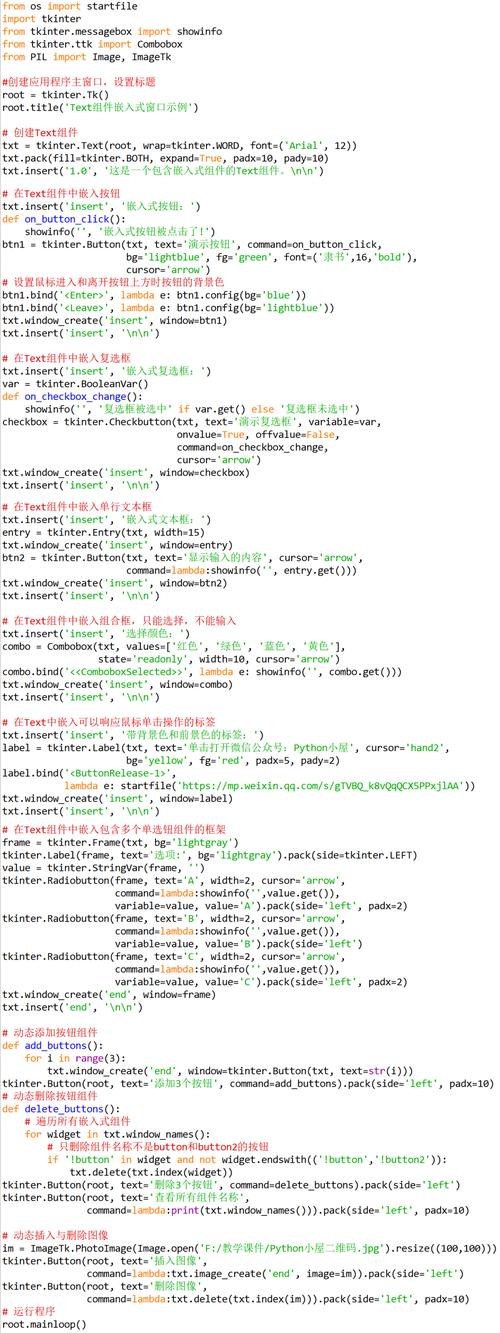
Here’s a comprehensive guide covering everything from basic usage to advanced features.
Basic Text Widget Creation
To start, you need to import tkinter and create a Text widget. You'll almost always want to place it inside a Frame or Tk window and add a Scrollbar for navigating long documents.
import tkinter as tk
from tkinter import ttk
# --- Create the main window ---
root = tk.Tk()"Basic Text Widget")
root.geometry("400x300")
# --- Create a Frame to hold the Text widget and Scrollbar ---
frame = ttk.Frame(root)
frame.pack(pady=10, padx=10, fill=tk.BOTH, expand=True)
# --- Create a Scrollbar ---
scrollbar = ttk.Scrollbar(frame)
scrollbar.pack(side=tk.RIGHT, fill=tk.Y)
# --- Create the Text widget ---
# - yscrollcommand links the text widget's vertical scrolling to the scrollbar
# - wrap=tk.WORD ensures text wraps at word boundaries, not character boundaries
text_widget = tk.Text(
    frame,
    yscrollcommand=scrollbar.set,
    wrap=tk.WORD,
    font=("Arial", 12) # Optional: set a default font
)
text_widget.pack(side=tk.LEFT, fill=tk.BOTH, expand=True)
# --- Configure the scrollbar to work with the text widget ---
scrollbar.config(command=text_widget.yview)
# --- Add some initial text ---
text_widget.insert(tk.END, "Hello, Tkinter!\nThis is a multi-line text widget.\nYou can type here, and the scrollbar will help you navigate.")
# --- Start the Tkinter event loop ---
root.mainloop()
Key Points:
yview: The text widget's method for scrolling vertically.scrollbar.set: The scrollbar's method to set its position.scrollbar.config(command=text_widget.yview): This connects the scrollbar to the text widget's scrolling function.wrap=tk.WORD: Highly recommended. It prevents words from being split across lines.
Core Methods for Managing Content
These are the most essential methods for working with the text inside the widget.
insert(index, text)
Inserts text at the specified index.
tk.END: Inserts at the end of the content.tk.INSERT(or"insert"): Inserts at the current cursor position.0: A "line.column" index, meaning line 1, column 0 (the very beginning).
text_widget.insert(tk.END, "\n\nThis text was added programmatically.")
text_widget.insert("1.5", "INSERTED ") # Inserts "INSERTED " at the start of the second line
delete(start_index, end_index)
Deletes text from start_index to end_index (the end_index is exclusive).
tk.END: Deletes from the start index to the very end.0: Deletes from the beginning to the end of the first line.
# Delete the first line
text_widget.delete("1.0", "2.0")
# Delete all content
text_widget.delete("1.0", tk.END)
get(start_index, end_index)
Returns the text content between the two indices.
# Get the first line of text
first_line = text_widget.get("1.0", "2.0")
print(f"The first line is: '{first_line.strip()}'")
Working with the Cursor and Selection
index(index_string)
Converts various formats into a "line.column" string. This is very useful for getting the current cursor position.
# Get the current cursor position
cursor_pos = text_widget.index(tk.INSERT)
print(f"Cursor is at: {cursor_pos}") # e.g., "3.10"
# Get the start and end of the current selection
if text_widget.tag_ranges(tk.SEL): # Check if there is an active selection
    selection_start = text_widget.index(tk.SEL_FIRST)
    selection_end = text_widget.index(tk.SEL_LAST)
    print(f"Selection is from {selection_start} to {selection_end}")
see(index)
Ensures the character at the given index is visible by scrolling the widget if necessary.
# Scroll to the end of the document
text_widget.see(tk.END)
The Power of Tags: Formatting and Styling
Tags are the key to formatting text in a Text widget. You define a tag with one or more styling options and then apply that tag to a range of text.
tag_add(tag_name, start_index, end_index)
Applies a tag to a range of text.
tag_config(tag_name, **options)
Defines the appearance of a tag. Common options:
foreground: Text color.background: Background color.font: Font family, size, and style (e.g.,("Helvetica", 14, "bold")).underline,overstrike,strikethrough: Boolean values.lmargin1,lmargin2: Left margin.rmargin: Right margin.spacing1,spacing2,spacing3: Spacing around paragraphs.
tag_remove(tag_name, start_index, end_index)
Removes a tag from a range of text.
tag_delete(tag_name)
Deletes a tag definition entirely.
tag_bind(tag_name, event, callback)
Binds an event (like a button click) to all text with that tag.
Complete Example: A Simple Text Editor
This example demonstrates a practical use case with a menu bar for common formatting actions.
import tkinter as tk
from tkinter import font, colorchooser
def change_font():
    """Changes the font of the selected text or the default font."""
    # For simplicity, we'll change the default font of the widget
    new_font = font.Font(family="Helvetica", size=14, weight="bold")
    text_widget.tag_config("bold_font", font=new_font)
    # Apply to selection if one exists
    if text_widget.tag_ranges(tk.SEL):
        text_widget.tag_add("bold_font", tk.SEL_FIRST, tk.SEL_LAST)
def change_color():
    """Changes the color of the selected text."""
    color = colorchooser.askcolor()[1]
    if color:
        text_widget.tag_config("colored_text", foreground=color)
        # Apply to selection if one exists
        if text_widget.tag_ranges(tk.SEL):
            text_widget.tag_add("colored_text", tk.SEL_FIRST, tk.SEL_LAST)
# --- Main Application ---
root = tk.Tk()"Simple Text Editor")
root.geometry("600x400")
# --- Menu Bar ---
menubar = tk.Menu(root)
root.config(menu=menubar)
# File Menu
file_menu = tk.Menu(menubar, tearoff=0)
menubar.add_cascade(label="File", menu=file_menu)
file_menu.add_command(label="Exit", command=root.quit)
# Edit Menu
edit_menu = tk.Menu(menubar, tearoff=0)
menubar.add_cascade(label="Edit", menu=edit_menu)
edit_menu.add_command(label="Change Font", command=change_font)
edit_menu.add_command(label="Change Color", command=change_color)
# --- Text Widget and Scrollbar ---
frame = ttk.Frame(root)
frame.pack(pady=5, padx=5, fill=tk.BOTH, expand=True)
scrollbar = ttk.Scrollbar(frame)
scrollbar.pack(side=tk.RIGHT, fill=tk.Y)
text_widget = tk.Text(
    frame,
    yscrollcommand=scrollbar.set,
    wrap=tk.WORD,
    font=("Arial", 12),
    undo=True # Enable undo/redo functionality
)
text_widget.pack(side=tk.LEFT, fill=tk.BOTH, expand=True)
scrollbar.config(command=text_widget.yview)
# --- Add some instructions ---
text_widget.insert(tk.END, "Welcome to the Simple Text Editor!\n\n")
text_widget.insert(tk.END, "Select some text and use the 'Edit' menu to change its font or color.\n")
text_widget.insert(tk.END, "You can also use standard keyboard shortcuts like Ctrl+C, Ctrl+V, and Ctrl+Z.")
root.mainloop()
Advanced Features
Reading from and Writing to a File
def save_file():
    """Saves the content of the text widget to a file."""
    try:
        with open("my_document.txt", "w") as f:
            # Get all text from 1.0 to the end
            content = text_widget.get("1.0", tk.END)
            f.write(content)
        print("File saved successfully!")
    except Exception as e:
        print(f"Error saving file: {e}")
def open_file():
    """Reads content from a file and inserts it into the text widget."""
    try:
        with open("my_document.txt", "r") as f:
            # Clear the current content
            text_widget.delete("1.0", tk.END)
            # Insert the new content
            text_widget.insert(tk.END, f.read())
        print("File opened successfully!")
    except FileNotFoundError:
        print("File not found.")
    except Exception as e:
        print(f"Error opening file: {e}")
Disabling and Enabling the Widget
# Disable the widget for editing
text_widget.config(state=tk.DISABLED)
# Re-enable it
text_widget.config(state=tk.NORMAL)
Note: When state=tk.DISABLED, you cannot modify the content, but you can still read it with get() and see it with see().
Text Widget as a Display (Log Viewer)
You can use the Text widget to display logs or status messages. To prevent it from growing infinitely and consuming all memory, you can delete old lines.
def add_log_message(message):
    text_widget.insert(tk.END, message + "\n")
    # Keep only the last 100 lines
    lines = int(text_widget.index('end-1c').split('.')[0])
    if lines > 100:
        text_widget.delete("1.0", "2.0")
    # Auto-scroll to the end
    text_widget.see(tk.END)
This guide should give you a solid foundation for using the powerful Text widget in Tkinter. Experiment with the different methods and tags to unlock its full potential