Of course! Using Sublime Text for Python development on Linux is a fantastic and popular choice. It's lightweight, fast, and highly customizable.
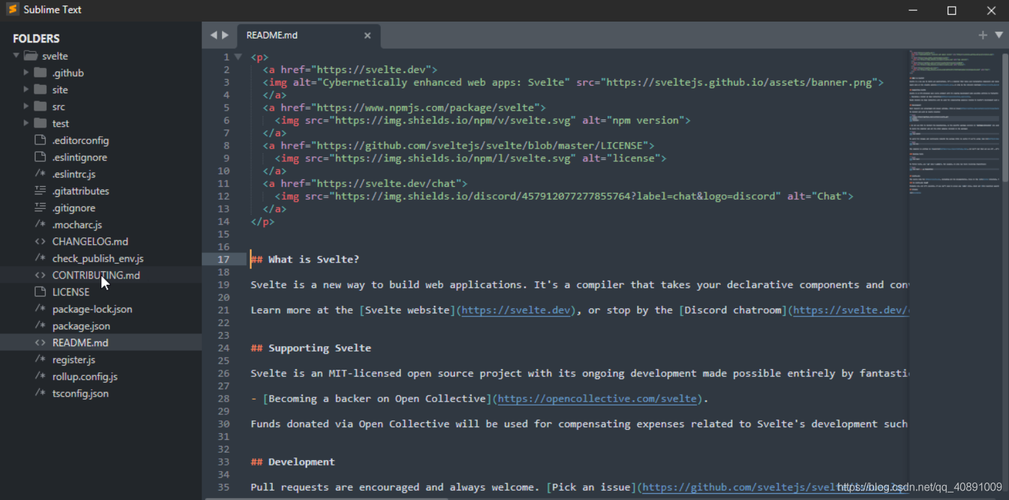
This guide will walk you through the entire process, from installation to setting up a powerful development environment.
Installation of Sublime Text on Linux
There are a few ways to install Sublime Text, but the recommended method is using the official .deb or .rpm package repository. This makes updates easy and manageable through your system's package manager.
For Debian/Ubuntu/Mint and other Debian-based distributions:
-
Add the GPG Key: This ensures the packages are authentic.
wget -qO - https://download.sublimetext.com/sublimehq-pub.gpg | sudo gpg --dearmor -o /usr/share/keyrings/sublime-text-archive-keyring.gpg
-
Select the Channel: Choose the stable channel. You can also choose
devfor the latest development build. (图片来源网络,侵删)
echo "deb [signed-by=/usr/share/keyrings/sublime-text-archive-keyring.gpg] https://download.sublimetext.com/ apt/stable/" | sudo tee /etc/apt/sources.list.d/sublime-text.list
-
Update and Install:
sudo apt update
sudo apt install sublime-text
For Fedora/CentOS/RHEL and other RPM-based distributions:
-
Add the Yum Repository:
sudo rpm -v --import https://download.sublimetext.com/sublimehq-pub.gpg
sudo dnf config-manager --add-repo https://download.sublimetext.com/rpm/stable/x86_64/sublime-text.repo
-
Install:
sudo dnf install sublime-text
For Arch Linux:
Sublime Text is available in the AUR (Arch User Repository). The easiest way to install it is with an AUR helper like yay or paru.

# Using yay
yay -S sublime-text-4
# Or using paru
paru -S sublime-text-4
Verifying the Installation
Once installed, you can open Sublime Text from your application menu or from the terminal:
subl
You should see the Sublime Text editor window.
Setting Up for Python Development (The Fun Part!)
Sublime Text is just a text editor out of the box. To make it a powerful Python IDE, we'll add a few essential packages.
Step 1: Install Package Control
Package Control is the package manager for Sublime Text. It's the first thing you should install.
-
Open the Sublime Text console. You can do this by going to the menu:
View > Show Console -
Copy the code for your version of Sublime Text from the official Package Control installation page. As of Sublime Text 4, the code is:
import urllib.request,os,hashlib; h = '6f4c264a24d9b3284af63bae854ce068' + 'bc765cf0c7558bfef65651811879806c'; pf = 'Package Control.sublime-package'; ipp = sublime.installed_packages_path(); urllib.request.install_opener( urllib.request.build_opener( urllib.request.ProxyHandler()) ); by = urllib.request.urlopen( 'http://packagecontrol.io/' + pf.replace(' ', '%20')).read(); dh = hashlib.sha256(by).hexdigest(); print('Error validating download (got %s instead of %s), please try manual install' % (dh, h)) if dh != h else open(os.path.join( ipp, pf), 'wb' ).write(by) -
Paste the code into the console and press Enter. After a moment, you will see a message saying "Package Control installed successfully."
Step 2: Install Essential Python Packages
Now that Package Control is installed, you can easily add packages.
- Open the Command Palette by pressing
Ctrl+Shift+P. - Type
Install Packageand select it. - Type the name of the package you want to install and select it from the list.
Here are the must-have packages for Python development:
| Package Name | Why You Need It |
|---|---|
| LSP (Language Server Protocol) | The most important one. This package provides a foundation for other language-specific servers. It enables features like code completion, go-to-definition, and real-time error checking. |
| LSP-pyright | A fast, feature-rich, and modern Python language server. It provides excellent type checking, autocompletion, and refactoring. |
| Anaconda | A fantastic all-in-one package. It provides code linting, code completion, a Python interpreter selector, and more. It's a great alternative to LSP if you want a simpler setup. |
| SublimeREPL | Allows you to run Python code (or other languages) directly inside Sublime Text. You can open an interactive Python console, execute the current file, or run selected code. |
| GitGutter | Shows git diff markers in the gutter of your editor. You can see which lines have been added, modified, or deleted at a glance. |
| DocBlockr | Helps you write documentation strings (docstrings) for your functions and classes quickly and correctly. |
Configuring Your Environment
A. LSP Configuration (Recommended Modern Approach)
If you installed LSP and LSP-pyright, the setup is mostly automatic.
- Verify Pyright is running: Open a
.pyfile. You should see a small "LSP: pyright" indicator in the status bar at the bottom right. If it's red, it might not be running. - Check for errors: If you have a syntax error or a missing import, you should see a red underline. Hovering over it will show the error message.
- (Optional) Configure the Python Interpreter: If you are using a virtual environment, you should tell LSP which Python interpreter to use.
- Open the Command Palette (
Ctrl+Shift+P). - Type
LSP: Select Interpreter. - A list of available Python interpreters will appear (including your system's Python and any virtual environments you've activated).
- Select the one you want to use for your project.
- Open the Command Palette (
B. Anaconda Configuration
If you chose Anaconda, it's also quite simple.
- Select a Python Interpreter: Anaconda can automatically detect virtual environments. If it doesn't, you can set it manually.
- Open the Command Palette (
Ctrl+Shift+P). - Type
Anaconda: Select Interpreter. - Choose the correct Python executable from the list.
- Open the Command Palette (
C. Running Python Code
There are two main ways to run your Python scripts:
-
From the Terminal (Simple & Direct):
-
Save your file (e.g.,
hello.py). -
Open a terminal in the same directory (
cd /path/to/your/project). -
Run the script:
python3 hello.py -
Pro Tip: In Sublime Text, you can run a command in the terminal from within the editor. Go to
Tools > Build System > New Build System...and paste this:{ "cmd": ["gnome-terminal", "--", "python3", "$file"], "selector": "source.python" }Save this file as
Python3.sublime-build. Now you can pressCtrl+Bto run your script in a new terminal window.
-
-
Using SublimeREPL (Interactive & Powerful):
- Open your Python file.
- Open the Command Palette (
Ctrl+Shift+P). - Type
SublimeREPL: Python - RUN current file. - This will open a new tab with an interactive Python shell and execute your script in it.
A Quick Workflow Example
-
Create a Project:
File > Open Folder...and select your project directory. -
Write Code: Create a new file (
File > New File), save it asmain.py, and write some Python code.def greet(name): """This function greets the person passed in as a parameter.""" print(f"Hello, {name}! Welcome to Sublime Text.") if __name__ == "__main__": user_name = input("Enter your name: ") greet(user_name) -
Check for Errors: If you have LSP or Anaconda enabled, any syntax errors or missing imports will be highlighted in real-time.
-
Run the Code:
- Press
Ctrl+Bto run it with the terminal build system. - Or use
SublimeREPLto run it interactively.
- Press
-
Debug (Optional): For more advanced