Of course! Let's dive deep into JPanel in Java Swing. It's one of the most fundamental and widely used components.
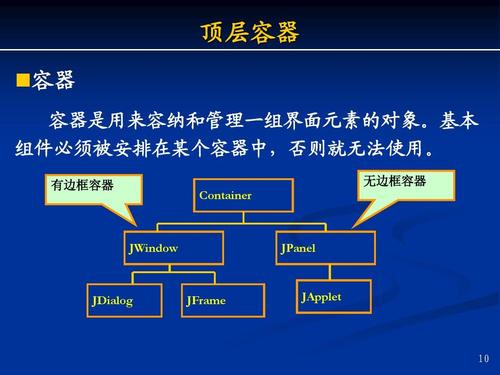
What is a JPanel?
A JPanel is a generic, lightweight container in Swing. Think of it as a blank canvas or a simple box. Its primary purposes are:
- Grouping Components: You can place other components (like buttons, labels, text fields) inside a
JPanelto organize them logically. - Layering Components:
JPanels can be layered on top of each other using aJLayeredPane, which is useful for creating complex UIs like maps with overlays. - Custom Painting: The most common use for a
JPanelis to create a custom drawing area by overriding itspaintComponent(Graphics g)method. This is how you create games, graphs, charts, or any custom graphics.
Key Characteristics of JPanel
- Lightweight: Unlike its AWT counterpart (
java.awt.Panel),JPanelis written entirely in Java and doesn't rely on the underlying operating system's native peer components. This makes it faster and more portable. - Opaque by Default: A
JPanelis opaque, meaning it paints its background color by default and completely covers what's behind it. You can change this withsetOpaque(false). - Double Buffering Enabled: By default,
JPaneluses double buffering to reduce flickering when you paint on it. This is a huge advantage for smooth animations and graphics. - No Title Bar or Borders: Unlike
JFrameorJDialog, aJPanelhas no built-in title bar, window controls, or border. You can add a border usingsetBorder(Border border).
Core Use Cases
Let's explore the two main ways you'll use JPanel.
As a Container for Layout Management
This is the most common use. You create JPanels to hold groups of components, which helps in managing complex layouts.
Example: A simple login form.
Instead of placing all components directly on the JFrame, we'll use panels to organize them.
import javax.swing.*;
import java.awt.*;
public class JPanelLayoutExample {
    public static void main(String[] args) {
        // 1. Create the main window (JFrame)
        JFrame frame = new JFrame("JPanel Layout Example");
        frame.setDefaultCloseOperation(JFrame.EXIT_ON_CLOSE);
        frame.setSize(350, 200);
        frame.setLocationRelativeTo(null); // Center the window
        // 2. Use a main panel with a BorderLayout to arrange sub-panels
        JPanel mainPanel = new JPanel(new BorderLayout(10, 10));
        mainPanel.setBorder(BorderFactory.createEmptyBorder(10, 10, 10, 10)); // Add padding
        // 3. Create a panel for the input fields (using FlowLayout for simplicity)
        JPanel inputPanel = new JPanel(new FlowLayout(FlowLayout.CENTER, 10, 10));
        JLabel userLabel = new JLabel("Username:");
        JTextField userField = new JTextField(15);
        JLabel passLabel = new JLabel("Password:");
        JPasswordField passField = new JPasswordField(15);
        inputPanel.add(userLabel);
        inputPanel.add(userField);
        inputPanel.add(passLabel);
        inputPanel.add(passField);
        // 4. Create a panel for the button (using FlowLayout)
        JPanel buttonPanel = new JPanel(new FlowLayout(FlowLayout.CENTER));
        JButton loginButton = new JButton("Login");
        buttonPanel.add(loginButton);
        // 5. Add the sub-panels to the main panel
        mainPanel.add(inputPanel, BorderLayout.CENTER);
        mainPanel.add(buttonPanel, BorderLayout.SOUTH);
        // 6. Add the main panel to the frame
        frame.add(mainPanel);
        // 7. Make the frame visible
        frame.setVisible(true);
    }
}
Explanation:
- We have a
mainPanelusingBorderLayoutto hold two other panels. - The
inputPanelusesFlowLayoutto neatly arrange the labels and text fields in a row. - The
buttonPanelalso usesFlowLayoutto center the login button. - This hierarchical structure makes the UI much cleaner and easier to manage than placing everything on the frame.
For Custom Painting (The paintComponent Method)
This is where JPanel's power for graphics shines. You create a new class that extends JPanel and override the paintComponent method.
Important Rule: Always call the super.paintComponent(g) method as the first line of your overridden method. This ensures that the panel is properly cleared and painted by the Swing framework before you add your custom graphics.

Example: A simple drawing panel.
import javax.swing.*;
import java.awt.*;
// 1. Create a custom JPanel class
class DrawingPanel extends JPanel {
    public DrawingPanel() {
        // Set a preferred size for the panel
        setPreferredSize(new Dimension(400, 300));
        // Set a background color
        setBackground(Color.WHITE);
    }
    @Override
    protected void paintComponent(Graphics g) {
        // 2. CRUCIAL: Call the superclass's paintComponent method
        super.paintComponent(g);
        // 3. Cast Graphics to Graphics2D for more advanced drawing options
        Graphics2D g2d = (Graphics2D) g;
        // Enable anti-aliasing for smoother lines
        g2d.setRenderingHint(RenderingHints.KEY_ANTIALIASING, RenderingHints.VALUE_ANTIALIAS_ON);
        // 4. Draw your custom graphics here
        // Draw a red rectangle
        g2d.setColor(Color.RED);
        g2d.drawRect(50, 50, 100, 80);
        // Draw a blue filled oval
        g2d.setColor(Color.BLUE);
        g2d.fillOval(200, 100, 120, 70);
        // Draw a green line
        g2d.setColor(Color.GREEN);
        g2d.setStroke(new BasicStroke(3)); // Make the line thicker
        g2d.drawLine(50, 200, 350, 250);
    }
}
public class JPanelPaintingExample {
    public static void main(String[] args) {
        // Create the main window
        JFrame frame = new JFrame("JPanel Painting Example");
        frame.setDefaultCloseOperation(JFrame.EXIT_ON_CLOSE);
        frame.setSize(450, 400);
        frame.setLocationRelativeTo(null);
        // Create an instance of our custom drawing panel
        DrawingPanel drawingPanel = new DrawingPanel();
        // Add the panel to the frame
        frame.add(drawingPanel);
        // Make the frame visible
        frame.setVisible(true);
    }
}
Important Methods of JPanel
| Method | Description |
|---|---|
add(Component c) |
Adds a component to the panel. The panel uses its layout manager to position the component. |
setLayout(LayoutManager m) |
Sets the layout manager for the panel. Common ones are FlowLayout, BorderLayout, GridLayout, GridBagLayout. |
setBackground(Color c) |
Sets the background color of the panel. |
setOpaque(boolean isOpaque) |
Determines if the panel paints its background. Set to false if you want to see components behind it. |
setBorder(Border b) |
Sets a border around the panel. Use BorderFactory to create common borders. |
paintComponent(Graphics g) |
(Override) The method you override to perform custom painting. Always call super.paintComponent(g) first. |
getPreferredSize() |
(Override) Defines the ideal size for the panel. Useful for layout managers. |
Best Practices
- Composition over Inheritance: While creating a custom class that extends
JPanelis common for painting, for simple grouping, it's often easier to just create anew JPanel()directly in your main class. - Use Layout Managers: Always use layout managers (
FlowLayout,BorderLayout, etc.) to arrange components within aJPanel. Avoid using absolute positioning (setBounds()) as it makes your UI non-resizable and brittle. paintComponentFirst: When overridingpaintComponent,super.paintComponent(g)must be the very first line.- Keep Painting Logic Separate: If your custom painting logic is complex, try to keep it separate from your UI event handling code (e.g., button clicks) for better organization. You can trigger a repaint by calling
repaint()on the panel.