Of course! QGraphicsView and its partner QGraphicsScene are two of the most powerful and flexible widgets in the Qt framework for Python (using PySide6 or PyQt6). They are designed for creating complex, interactive 2D graphics scenes, far beyond what a standard QWidget can offer.
Let's break down what they are, how they work, and why you'd use them.
The Core Concept: A Scene and a View
Think of it like a theatrical play:
QGraphicsScene: This is the stage. It's a container that manages all the 2D graphical items (actors, props, scenery). It's an invisible space that holds all your objects. You add items to the scene, and the scene handles their spatial relationships, collisions, and selection.QGraphicsItem: These are the actors on the stage. Everything you see in the scene is aQGraphicsItemor a subclass of it. Qt provides several standard items (rectangles, ellipses, text, images), and you can also create your own custom items by subclassingQGraphicsItem. Each item has its own position, rotation, scale, and brush/pen settings.QGraphicsView: This is the audience's viewport. It's the visible widget that you place in your window. Its job is to display a portion of theQGraphicsSceneon the screen. It handles all user interaction (panning, zooming, selecting items) and provides the camera-like view onto your scene.
Key Advantages of this Architecture:
- Extremely High Performance:
QGraphicsViewuses a scene graph and bounding rect hierarchy. This means it only redraws the parts of the scene that are actually visible or have changed, making it incredibly fast even with thousands of items. - Built-in Interactivity: Panning, zooming, and item selection are handled automatically with minimal code.
- Rich Item Model: Each item is an independent object with its own state (position, rotation, visibility, etc.) and can respond to events (mouse clicks, hovers, keyboard input).
- Coordinate System Independence: You can work in a "scene coordinate system" that is independent of the "view coordinate system," making transformations like zooming and panning very intuitive.
A Basic "Hello World" Example
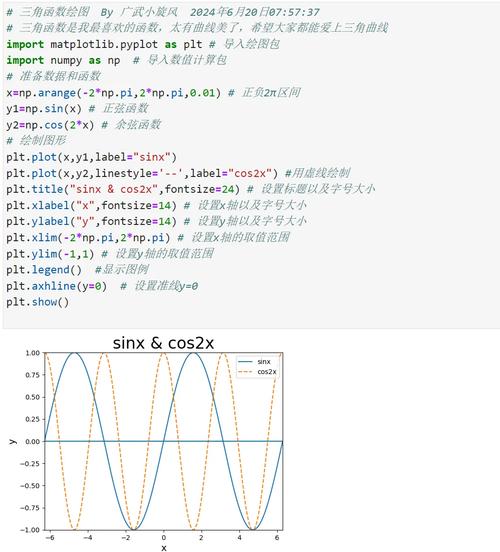
Here is a simple example that demonstrates the basic setup: creating a scene, adding an item, and displaying it in a view.
import sys
from PySide6.QtWidgets import QApplication, QMainWindow, QGraphicsView, QGraphicsScene, QGraphicsRectItem
from PySide6.QtCore import Qt
from PySide6.QtGui import QBrush, QColor, QPen
# 1. Create a custom item by subclassing QGraphicsItem
class ColoredRectItem(QGraphicsRectItem):
    def __init__(self, color, parent=None):
        # The rectangle is 100x100 pixels
        super().__init__(0, 0, 100, 100, parent)
        # Set the item's appearance
        self.setBrush(QBrush(color))
        self.setPen(QPen(Qt.black, 2))
        # Enable item to accept hover events
        self.setAcceptHoverEvents(True)
    def hoverEnterEvent(self, event):
        # This method is called when the mouse hovers over the item
        self.setPen(QPen(Qt.red, 4))
        super().hoverEnterEvent(event)
    def hoverLeaveEvent(self, event):
        # This method is called when the mouse leaves the item
        self.setPen(QPen(Qt.black, 2))
        super().hoverLeaveEvent(event)
class MainWindow(QMainWindow):
    def __init__(self):
        super().__init__()
        self.setWindowTitle("QGraphicsView Example")
        self.setGeometry(100, 100, 800, 600)
        # 2. Create the Scene (the stage)
        self.scene = QGraphicsScene(self)
        # Set the scene's background color
        self.scene.setBackgroundBrush(QBrush(QColor("#2b2b2b")))
        # 3. Create the View (the viewport)
        self.view = QGraphicsView(self.scene, self)
        # Optional: Enable antialiasing for smoother graphics
        self.view.setRenderHint(self.view.renderHints().Antialiasing)
        # Optional: Set the view to be interactive by default (panning/zooming)
        self.view.setDragMode(QGraphicsView.RubberBandDrag) # For selecting items
        # self.view.setDragMode(QGraphicsView.ScrollHandDrag) # For panning
        self.setCentralWidget(self.view)
        # 4. Add items to the scene
        self.add_items()
    def add_items(self):
        # Add a blue rectangle
        blue_rect = ColoredRectItem(QColor("#3498db"))
        blue_rect.setPos(50, 50)
        self.scene.addItem(blue_rect)
        # Add a green rectangle
        green_rect = ColoredRectItem(QColor("#2ecc71"))
        green_rect.setPos(200, 100)
        self.scene.addItem(green_rect)
        # Add some text
        text_item = self.scene.addText("Hello, Graphics View!")
        text_item.setDefaultTextColor(QColor("#ecf0f1"))
        text_item.setPos(350, 50)
        # Add an ellipse
        ellipse_item = self.scene.addEllipse(50, 250, 150, 100,
                                             QPen(QColor("#e74c3c"), 3),
                                             QBrush(QColor("#e74c3c").lighter(150)))
        self.scene.addItem(ellipse_item)
if __name__ == "__main__":
    app = QApplication(sys.argv)
    window = MainWindow()
    window.show()
    sys.exit(app.exec())
Key Features in Detail
Coordinate Systems
Understanding the different coordinate systems is crucial:
- Scene Coordinates: The coordinate system of the
QGraphicsScene. It's an infinite, floating-point coordinate system. When you add an item withitem.setPos(x, y), you're using scene coordinates. - View Coordinates: The pixel-based coordinate system of the
QGraphicsViewwidget itself.(0, 0)is the top-left corner of the view widget. - Item Coordinates: The local coordinate system of a
QGraphicsItem. By default, an item's origin(0, 0)is its top-left corner. You can transform an item's coordinate system withsetTransform().
You can easily convert between these:
# Get the position of a scene point in view coordinates
view_pos = self.view.mapFromScene(scene_point)
# Get the position of a view point in scene coordinates
scene_pos = self.view.mapToScene(view_point)
Transformations (Panning and Zooming)
QGraphicsView makes transformations simple.
-
Panning: The user can drag the view around to see different parts of the scene. You can control this with
setDragMode(). (图片来源网络,侵删)
QGraphicsView.NoDrag: Default, no panning.QGraphicsView.ScrollHandDrag: The view acts like a hand, and dragging the mouse pans the scene.QGraphicsView.RubberBandDrag: The user can draw a rubber band to select items.
-
Zooming: You can programmatically zoom the view. A scale of
0is 100%.# Zoom in by 10% self.view.scale(1.1, 1.1) # Zoom out by 10% self.view.scale(0.9, 0.9) # Reset zoom self.view.resetTransform()
Event Handling on Items
Each QGraphicsItem can receive its own events, allowing for highly interactive applications. Common events include:
mousePressEvent,mouseReleaseEvent,mouseMoveEventhoverEnterEvent,hoverMoveEvent,hoverLeaveEventkeyPressEvent
This is what makes the ColoredRectItem in the example change its border color when you hover over it.
Item Groups
You can group items together to treat them as a single object. When you move or transform a group, all items within it are transformed accordingly.
# Create a group
group = self.scene.createItemGroup([item1, item2, item3])
# Move the entire group
group.setPos(100, 100)
# Remove the group, items remain in the scene
self.scene.destroyItemGroup(group)
Common Use Cases
QGraphicsView is the perfect choice for:
- Diagramming and Flowcharting Tools: (e.g., creating UML diagrams, network topologies). Items can be dragged and dropped, connected with lines, and selected.
- Data Visualization: Plotting complex graphs, charts, and scientific visualizations where performance is key.
- Image and Photo Viewers: Building advanced image viewers with features like zooming, panning, and annotations.
- 2D Games: For games with a top-down or isometric perspective, especially those with many sprites or UI elements.
- Custom UIs: Creating non-standard, animated,