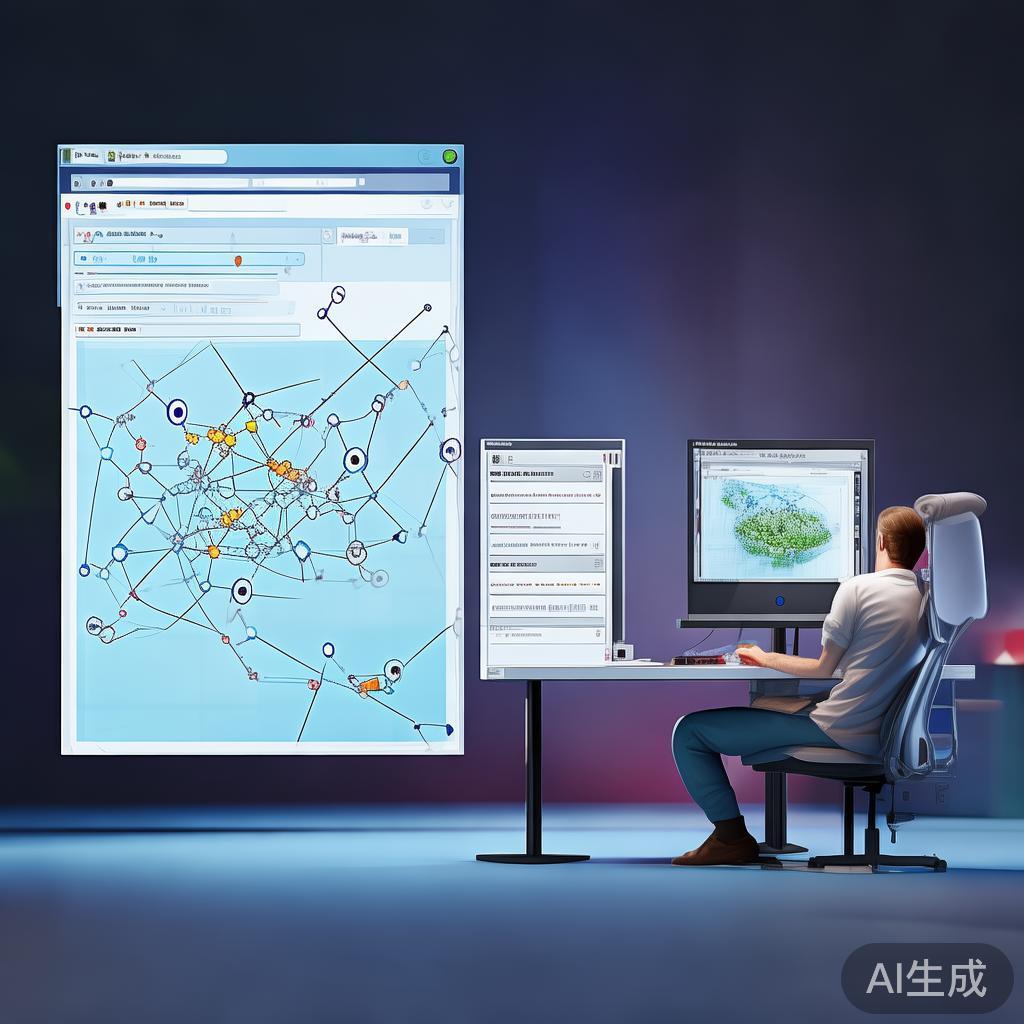
Of course! This is a powerful combination for creating interactive desktop applications that visualize data. Let's break down how to use Python, Graphviz, and PyQt5 together.
The Big Picture: What's the Role of Each?
- Python: The "glue" language. It's the brain of the operation, handling logic, data processing, and orchestrating the other two libraries.
- Graphviz: The "artist." It's a specialized tool for creating graph diagrams (nodes and edges). You describe the graph's structure in a simple text-based language (the DOT language), and Graphviz's layout engines (
dot,neato, etc.) figure out the best way to position the nodes and render it into an image file (like PNG, SVG, or PDF). - PyQt5 (or PySide6): The "stage and window manager." It's a comprehensive toolkit for building graphical user interfaces (GUIs). It provides windows, buttons, layouts, and, most importantly for this task, a widget to display images and handle user interaction.
The typical workflow is:
- PyQt creates a window and a button.
- When the button is clicked, Python code generates a graph description in DOT format.
- Python calls the Graphviz library to process this DOT string and render it into an image file.
- Python tells PyQt to load this image file and display it inside a widget in the window.
Step 1: Installation
First, you need to install the necessary Python libraries and the Graphviz engine itself.
A. Install the Graphviz Executable
This is a crucial and often missed step. The graphviz Python library is just a wrapper; you need to have the actual Graphviz command-line tools installed on your system.
- On macOS (using Homebrew):
brew install graphviz
- On Ubuntu/Debian (using apt):
sudo apt-get update
sudo apt-get install graphviz graphviz-dev
- On Windows (using Chocolatey):
choco install graphviz
Or download the installer directly from the Graphviz download page and make sure to add the
bindirectory to your system's PATH during installation.
B. Install the Python Libraries
Use pip to install the Python bindings.
pip install pyqt5 graphviz
Step 2: A Simple PyQt Window with a Graph
Let's create a basic application. We'll have a window with a button. Clicking the button will generate a simple graph and display it.
The Code (simple_app.py)
import sys
import os
from PyQt5.QtWidgets import (QApplication, QMainWindow, QWidget, QVBoxLayout,
                             QPushButton, QLabel)
from PyQt5.QtGui import QPixmap
from graphviz import Digraph
# --- Graph Generation Function ---
def create_graph():
    """
    Creates a simple directed graph using Graphviz.
    Returns the path to the generated PNG file.
    """
    # Create a directed graph
    dot = Digraph(comment='The Round Table')
    # Add nodes
    dot.node('A', 'King Arthur')
    dot.node('B', 'Sir Bedevere')
    dot.node('L', 'Sir Lancelot')
    dot.node('G', 'Sir Galahad')
    # Add edges
    dot.edges(['AB', 'AL', 'BL', 'GL'])
    # Render the graph to a PNG file
    # The 'engine' parameter specifies the layout algorithm ('dot' for directed graphs)
    # 'format' specifies the output file type
    # 'filename' is the name of the output file
    output_path = 'round_table.png'
    dot.render(filename='round_table', format='png', cleanup=True, engine='dot')
    return output_path
# --- Main Application Window ---
class GraphApp(QMainWindow):
    def __init__(self):
        super().__init__()
        self.setWindowTitle('PyQt + Graphviz Demo')
        self.setGeometry(100, 100, 800, 600) # x, y, width, height
        # Create central widget and layout
        central_widget = QWidget()
        self.setCentralWidget(central_widget)
        layout = QVBoxLayout(central_widget)
        # Create a label to display the graph image
        self.image_label = QLabel()
        self.image_label.setAlignment(1) # 1 = Qt.AlignCenter
        self.image_label.setText("Click the button to generate a graph.")
        layout.addWidget(self.image_label)
        # Create a button to trigger graph generation
        self.generate_button = QPushButton('Generate Graph')
        self.generate_button.clicked.connect(self.display_graph)
        layout.addWidget(self.generate_button)
    def display_graph(self):
        """Generates the graph and displays it in the label."""
        try:
            # 1. Generate the graph and get the image path
            image_path = create_graph()
            # 2. Load the image into a QPixmap
            pixmap = QPixmap(image_path)
            # 3. Scale the pixmap to fit the label while maintaining aspect ratio
            scaled_pixmap = pixmap.scaled(self.image_label.size(),
                                          aspectRatioMode=1, # Qt.KeepAspectRatio
                                          transformMode=0)   # Qt.SmoothTransformation
            # 4. Set the pixmap to the label
            self.image_label.setPixmap(scaled_pixmap)
            # Optional: Clean up the generated source file (.gv)
            if os.path.exists('round_table.gv'):
                os.remove('round_table.gv')
        except Exception as e:
            self.image_label.setText(f"An error occurred: {e}")
# --- Main Execution ---
if __name__ == '__main__':
    app = QApplication(sys.argv)
    window = GraphApp()
    window.show()
    sys.exit(app.exec_())
How to Run It
- Save the code as
simple_app.py. - Make sure you've installed Graphviz and the Python libraries.
- Run from your terminal:
python simple_app.py
You should see a window. Click the "Generate Graph" button, and the graph will appear.
Step 3: A More Interactive Example (Dynamic Graph)
Let's make it more dynamic. This example will let you input nodes and edges through text fields and build the graph interactively.
The Code (interactive_app.py)
import sys
from PyQt5.QtWidgets import (QApplication, QMainWindow, QWidget, QVBoxLayout,
                             QHBoxLayout, QPushButton, QLabel, QLineEdit, QTextEdit)
from PyQt5.QtGui import QPixmap
from graphviz import Digraph
class InteractiveGraphApp(QMainWindow):
    def __init__(self):
        super().__init__()
        self.setWindowTitle('Interactive Graph Builder')
        self.setGeometry(100, 100, 900, 700)
        self.dot = Digraph(engine='dot')
        self.graph_image_path = 'dynamic_graph.png'
        self.initUI()
    def initUI(self):
        central_widget = QWidget()
        self.setCentralWidget(central_widget)
        main_layout = QHBoxLayout(central_widget)
        # --- Left Panel: Controls ---
        control_panel = QWidget()
        control_layout = QVBoxLayout(control_panel)
        # Node input
        node_layout = QHBoxLayout()
        node_layout.addWidget(QLabel("Node ID:"))
        self.node_input = QLineEdit()
        node_layout.addWidget(self.node_input)
        self.add_node_btn = QPushButton("Add Node")
        self.add_node_btn.clicked.connect(self.add_node)
        node_layout.addWidget(self.add_node_btn)
        control_layout.addLayout(node_layout)
        # Edge input
        edge_layout = QHBoxLayout()
        edge_layout.addWidget(QLabel("Edge (from->to):"))
        self.edge_input = QLineEdit()
        self.edge_input.setPlaceholderText("e.g., A B")
        edge_layout.addWidget(self.edge_input)
        self.add_edge_btn = QPushButton("Add Edge")
        self.add_edge_btn.clicked.connect(self.add_edge)
        edge_layout.addWidget(self.add_edge_btn)
        control_layout.addLayout(edge_layout)
        control_layout.addWidget(QLabel("Graph DOT Source:"))
        self.dot_source_display = QTextEdit()
        self.dot_source_display.setReadOnly(True)
        control_layout.addWidget(self.dot_source_display)
        self.generate_btn = QPushButton("Render Graph")
        self.generate_btn.clicked.connect(self.render_and_display)
        control_layout.addWidget(self.generate_btn)
        control_layout.addStretch() # Push everything up
        # --- Right Panel: Graph Display ---
        self.image_label = QLabel()
        self.image_label.setAlignment(1) # Center
        self.image_label.setText("Graph will appear here.")
        # Add panels to main layout
        main_layout.addWidget(control_panel, stretch=1) # 1/3 of the width
        main_layout.addWidget(self.image_label, stretch=2) # 2/3 of the width
    def add_node(self):
        node_id = self.node_input.text().strip()
        if node_id:
            self.dot.node(node_id)
            self.update_dot_source()
            self.node_input.clear()
    def add_edge(self):
        parts = self.edge_input.text().strip().split()
        if len(parts) == 2:
            src, dest = parts
            self.dot.edge(src, dest)
            self.update_dot_source()
            self.edge_input.clear()
    def update_dot_source(self):