
Of course! Let's break down how to use Python with Matplotlib on a Linux system. This is a very common and powerful combination for data analysis, scientific computing, and system monitoring.
This guide will cover:
- Prerequisites: What you need on your Linux system.
- Installation: How to install Python and Matplotlib.
- A Simple Plot: Your first "Hello, World!" of plotting.
- Common Plot Types: Line plots, scatter plots, bar charts, histograms.
- Customization: Adding titles, labels, legends, and styling.
- Saving Plots: Exporting your visualizations to files.
- Advanced Tip: Plotting real-time data (like system stats).
Prerequisites: A Linux System with Python
Most modern Linux distributions come with Python pre-installed. You can check by opening a terminal and typing:
python3 --version
or
python --version
You'll likely see something like Python 3.8.10 or similar. If not, you'll need to install it. On Debian/Ubuntu-based systems, use:
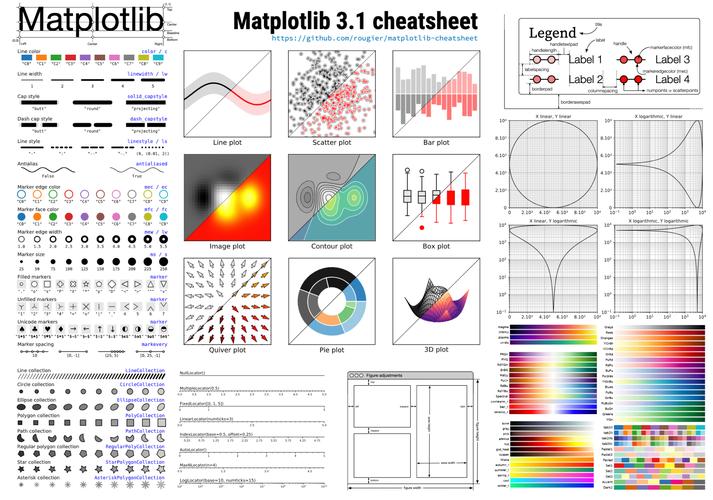
sudo apt update
sudo apt install python3 python3-pip
python3: The Python interpreter.python3-pip: The package installer for Python, which we'll use to get Matplotlib.
Installation: Getting Matplotlib
Matplotlib is not part of the standard Python library, so you need to install it separately. The easiest way is using pip.
# It's best practice to use pip3 to ensure you're installing for Python 3
pip3 install matplotlib
If you run into permission issues, you can use sudo:
sudo pip3 install matplotlib
To verify the installation, you can run a quick Python command:
python3 -c "import matplotlib; print(matplotlib.__version__)"
This should print the installed version of Matplotlib without any errors.
A Simple Plot: Your First Matplotlib Script
Let's create a basic line plot. This is the foundation for almost everything else.
-
Create a file named
simple_plot.py:nano simple_plot.py
-
Add the following code:
# 1. Import the necessary library import matplotlib.pyplot as plt import numpy as np # We'll use numpy for data generation # 2. Create some data # Generate 100 numbers from 0 to 10 x = np.linspace(0, 10, 100) # Calculate the sine of those numbers y = np.sin(x) # 3. Create the plot plt.plot(x, y) # 4. Add labels and a title plt.xlabel("X-axis (Time)") plt.ylabel("Y-axis (Value)") plt.title("Simple Sine Wave") # 5. Display the plot plt.show() -
Run the script from your terminal:
python3 simple_plot.py
You should see a window pop up displaying a smooth sine wave.
Common Plot Types
Matplotlib supports a huge variety of plots. Here are a few essential ones.
a) Scatter Plot
Use plt.scatter() for individual data points.
import matplotlib.pyplot as plt
import numpy as np
# Generate random data
np.random.seed(0) # for reproducibility
x = np.random.rand(50)
y = np.random.rand(50)
plt.scatter(x, y, color='red', label='Random Points')
plt.xlabel("Random X")
plt.ylabel("Random Y")"Scatter Plot Example")
plt.legend()
plt.show()
b) Bar Chart
Use plt.bar() for categorical data.
import matplotlib.pyplot as plt
categories = ['Apples', 'Bananas', 'Cherries', 'Dates']
values = [25, 40, 30, 20]
plt.bar(categories, values, color=['green', 'yellow', 'red', 'brown'])
plt.xlabel("Fruit")
plt.ylabel("Quantity")"Fruit Inventory")
plt.show()
c) Histogram
Use plt.hist() to show the distribution of a dataset.
import matplotlib.pyplot as plt
import numpy as np
# Generate data from a normal distribution
data = np.random.randn(1000)
plt.hist(data, bins=30, color='purple', alpha=0.7) # bins=30 creates 30 bars
plt.xlabel("Value")
plt.ylabel("Frequency")"Distribution of Random Data")
plt.show()
Customization: Making Plots Clear and Professional
Good plots are self-explanatory. Matplotlib gives you full control.
- Styling: You can change line styles, colors, and markers.
- Legends: Use
plt.legend()to label different plot elements. - Grids:
plt.grid(True)adds a background grid. - Text Annotations: Use
plt.text()to add specific notes.
import matplotlib.pyplot as plt
import numpy as np
x = np.linspace(0, 10, 100)
y1 = np.sin(x)
y2 = np.cos(x)
# Plot multiple lines on the same figure
plt.plot(x, y1, label='Sine', color='blue', linestyle='--')
plt.plot(x, y2, label='Cosine', color='red', marker='o', markersize=3)
# Add titles and labels"Sine and Cosine Waves")
plt.xlabel("X-axis")
plt.ylabel("Y-axis")
plt.legend() # Show the legend
plt.grid(True) # Show the grid
# Add an annotation
plt.annotate('Peak of Sine', xy=(np.pi/2, 1), xytext=(2, 0.8),
             arrowprops=dict(facecolor='black', shrink=0.05))
plt.show()
Saving Plots to a File
Often, you'll want to save your plot as an image (PNG, PDF, SVG, etc.) instead of just displaying it. Use plt.savefig().
import matplotlib.pyplot as plt
import numpy as np
x = np.linspace(0, 10, 100)
y = np.sin(x)
plt.plot(x, y)"Sine Wave to be Saved")
plt.xlabel("X-axis")
plt.ylabel("Y-axis")
# Save the plot before plt.show()
plt.savefig("sine_wave.png", dpi=300, bbox_inches='tight')
# dpi: dots per inch (resolution)
# bbox_inches='tight' prevents labels from being cut off
print("Plot saved as sine_wave.png")
# Now display it
plt.show()
This will create a sine_wave.png file in your current directory.
Advanced Tip: Plotting Real-Time Data (e.g., System Stats)
This is a powerful use case on Linux. We can monitor CPU usage and plot it in real-time. We'll use the psutil library to get system data.
Step 1: Install psutil
pip3 install psutil
Step 2: Create the real-time plot script
Save this as live_cpu_plot.py:
import matplotlib.pyplot as plt
import psutil
import time
from collections import deque
# --- Setup ---
# Use a deque for efficient appending from the left
max_points = 100 # Keep the last 100 data points
cpu_history = deque([0] * max_points, maxlen=max_points)
time_history = deque([0] * max_points, maxlen=max_points)
# Set up the plot
plt.style.use('seaborn-v0_8-darkgrid') # A nice style
fig, ax = plt.subplots()
line, = ax.plot(time_history, cpu_history, 'r-', linewidth=2)
ax.set_ylim(0, 100) # CPU usage is 0-100%
ax.set_xlim(0, max_points)
ax.set_title('Live CPU Usage')
ax.set_xlabel('Time (seconds ago)')
ax.set_ylabel('CPU Usage (%)')
ax.set_xticks(range(0, max_points, 10)) # Set x-ticks every 10 points
# --- Animation Loop ---
try:
    start_time = time.time()
    while True:
        # Get current CPU usage
        cpu_percent = psutil.cpu_percent(interval=1) # Get usage over 1 second
        # Update data
        current_time = time.time() - start_time
        cpu_history.append(cpu_percent)
        time_history.append(current_time)
        # Update the plot data
        line.set_ylist(cpu_history)
        line.set_xlist(list(time_history)) # Deque to list for plotting
        # Adjust x-axis to show a sliding window
        if current_time > max_points:
            ax.set_xlim(current_time - max_points, current_time)
        plt.pause(0.1) # Pause to allow the plot to update
except KeyboardInterrupt:
    print("\nPlotting stopped by user.")
    plt.close(fig)
Step 3: Run the script


