Of course! The term "Windows mod Python" can mean a few different things, but it most commonly refers to using Python to modify or interact with Windows in some way. This is a powerful and popular use case for Python.
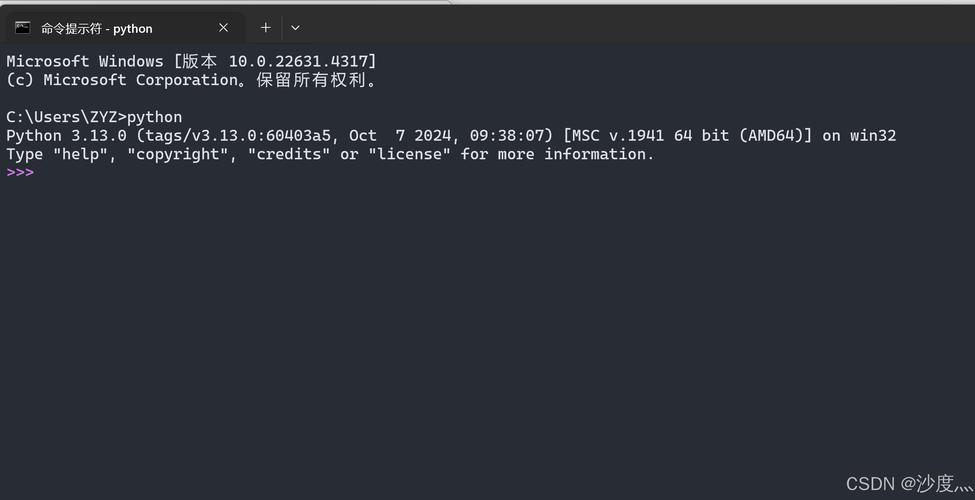
Let's break down the most common interpretations, from beginner-friendly to more advanced.
Interpretation 1: The Most Common Meaning - Python for Windows Automation & Scripting
This is likely what you're looking for. It's about using Python to write scripts that automate tasks on a Windows machine. Think of it as giving your computer a set of instructions to follow automatically.
What Can You Do?
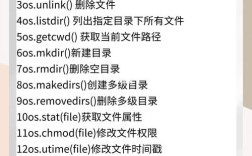
- File Management: Automatically organize files (e.g., sort all downloads by file type), rename hundreds of photos, find and delete duplicate files.
- System Administration: Check disk space, monitor running processes, start/stop services, read system logs.
- Web Automation: Log into websites, fill out forms, scrape data from web pages (e.g., check prices on an e-commerce site).
- GUI Automation: Automate repetitive desktop tasks, like clicking buttons in an application or copying data between Excel spreadsheets.
Key Libraries for This
You don't need to reinvent the wheel. Python has excellent libraries for interacting with Windows.
| Library | Purpose | Example Use Case |
|---|---|---|
os & shutil |
Built-in file and folder operations. | Copying, moving, deleting files; getting file paths. |
subprocess |
Run external command-line programs (like ping, dir, or PowerShell). |
Running a system backup script or pinging a server. |
pyautogui |
Control the mouse and keyboard. | Automating clicks and keystrokes in any application. |
pywin32 |
Directly interact with the Windows API. The "heavy hitter". | Reading/writing Windows Registry, managing services, manipulating windows. |
psutil |
Cross-platform library for system and process utilities. | Checking CPU usage, memory usage, and network connections. |
selenium |
Automate web browsers. | Automating web interactions like filling forms or testing websites. |
Interpretation 2: Modifying a Python Application's Look and Feel on Windows
This refers to changing the appearance of a graphical user interface (GUI) built with Python. This is sometimes called "skinning" or "theming."
What Can You Do?
- Change the color of buttons, text boxes, and windows.
- Use custom icons and images for your application.
- Create a dark mode or a custom theme for your app.
- Make your app look more like a native Windows application (using frameworks like Dear PyGui or CustomTkinter).
Key Libraries for This
| Library | Purpose | Notes |
|---|---|---|
| Tkinter | Python's built-in GUI toolkit. | Can be styled, but it's basic. ttk (themed Tkinter) offers more options. |
| PyQt / PySide | Powerful, feature-rich toolkits. | Highly customizable. Can create applications that look almost identical to native ones. |
| Kivy | A modern, cross-platform framework. | Great for creating unique, custom UIs that don't look like standard Windows apps. |
| Dear PyGui | A powerful, immediate-mode GUI framework. | Excellent for creating tools, dashboards, and debuggers with a modern, custom look. |
| CustomTkinter | A modern-looking theme for Tkinter. | The easiest way to give a standard Tkinter app a modern, native look. |
Interpretation 3: Creating a "Mod" for a Windows Game (The Gaming Sense)
This is the original meaning of "mod" (modification). It involves changing the behavior or content of a video game.
What Can You Do?
- Add new items, characters, or locations to a game.
- Change game mechanics (e.g., run speed, damage).
- Create entirely new game modes.
- Automate repetitive tasks within the game (like farming or crafting).
How Python Fits In
Python is rarely used to directly modify a game's compiled code. Instead, it's used to:
- Write Scripting Mods: Some games (like World of Warcraft with its "Lua" API, or Civilization VI with its Python API) allow scripts to be written to change game behavior. Python is perfect for this.
- Create Automation Tools/Bots: Use libraries like
pyautoguiandopencv-pythonto create bots that play the game for you (e.g., for grinding resources). - Parse Game Data: Use Python to read and edit game data files (like save files or configuration files) if they are in a readable format (e.g., JSON, XML, plain text).
Getting Started: A Simple Example (File Automation)
Let's do a classic task: Find all .txt files in a folder and move them to a new subfolder called text_files.
This is a great "first mod" for your Windows machine.
Step 1: Create a folder for your script.
Let's say you create a folder at C:\Users\YourName\Documents\PythonScripts.
Step 2: Open that folder in VS Code or your favorite code editor.
Step 3: Create a file named organizer.py and paste this code:
import os
import shutil
# --- Configuration ---
# The folder you want to organize. Use '.' for the current script directory.
source_folder = 'C:/Users/YourName/Desktop/MyTestFolder'
# The name of the folder where .txt files will be moved.
destination_folder_name = 'text_files'
# --- Script Logic ---
# Create the full path for the destination folder
destination_path = os.path.join(source_folder, destination_folder_name)
# 1. Create the destination folder if it doesn't already exist
if not os.path.exists(destination_path):
    os.makedirs(destination_path)
    print(f"Created folder: {destination_path}")
# 2. Loop through all files in the source folder
for filename in os.listdir(source_folder):
    # Check if the file ends with .txt
    if filename.endswith(".txt"):
        # Get the full source file path
        source_file_path = os.path.join(source_folder, filename)
        # Get the full destination file path
        destination_file_path = os.path.join(destination_path, filename)
        # 3. Move the file
        try:
            shutil.move(source_file_path, destination_file_path)
            print(f"Moved: {filename}")
        except Exception as e:
            print(f"Could not move {filename}. Reason: {e}")
print("\nOrganization complete!")
Step 4: Customize and Run.
- Change
source_folderto point to a folder on your computer that has some.txtfiles in it. - Open a terminal or command prompt in your script's folder (
C:\Users\YourName\Documents\PythonScripts). - Run the script with the command:
python organizer.py
You will see it create the text_files subfolder and move all your .txt files into it. Congratulations, you just "modded" Windows with Python!
Summary
| "Mod" Meaning | What It Is | Key Python Libraries |
|---|---|---|
| Windows Automation | Writing scripts to automate tasks on your PC. | os, shutil, pywin32, psutil, pyautogui, selenium |
| GUI Theming | Changing the look and feel of a Python app. | Tkinter, PyQt/PySide, Dear PyGui, CustomTkinter |
| Game Modding | Changing a video game's content or behavior. | Game-specific APIs, pyautogui, opencv |
For most people starting out, Interpretation 1 (Windows Automation) is the most rewarding and practical place to begin.