Of course! Converting a Python notebook (.ipynb) to an HTML file is a very common and useful task. It's perfect for sharing your analysis, creating reports, or publishing a static version of your work online.

Here’s a comprehensive guide covering the best methods, from the simplest command-line tools to more advanced techniques.
Method 1: The Command-Line Tool (Recommended & Most Common)
This is the fastest and most straightforward way. The Jupyter project includes a command-line utility called nbconvert specifically for this purpose.
Step 1: Ensure nbconvert is Installed
If you have Jupyter or Anaconda installed, you likely already have it. If not, open your terminal or command prompt and install it:
pip install nbconvert
Step 2: Run the Conversion Command
Navigate to the directory containing your notebook in your terminal. Then, use the following command:
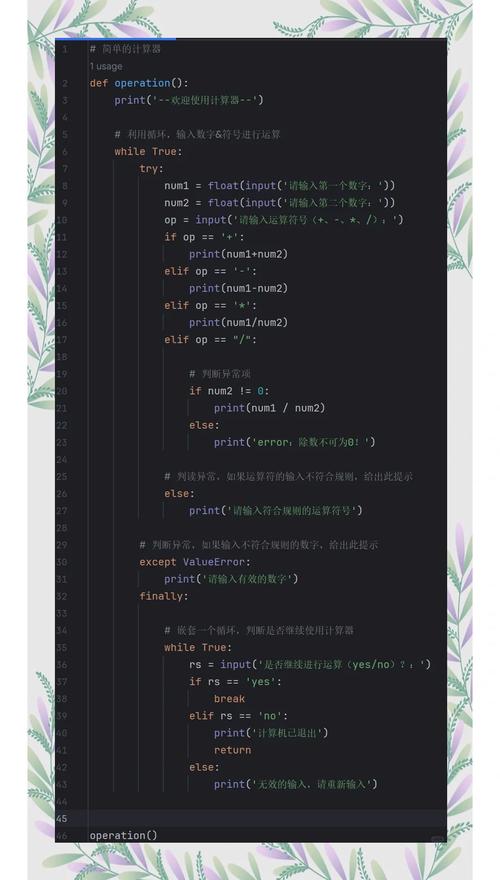
jupyter nbconvert --to html YOUR_NOTEBOOK.ipynb
Example:
If your notebook is named Sales_Analysis.ipynb and is in your Documents folder, you would run:
# First, navigate to the folder
cd path/to/your/documents
# Then run the conversion
jupyter nbconvert --to html Sales_Analysis.ipynb
This will create a new file named Sales_Analysis.html in the same directory.
Useful Command-Line Flags
You can customize the output with several flags:
-
--output: Specify a custom name for the output HTML file. (图片来源网络,侵删)
jupyter nbconvert --to html --output my_report.html notebook.ipynb
-
--template: Use a different HTML template. This is great for creating reports with a specific style. Jupyter comes with a few built-in templates likebasicandclassic.# Use the 'basic' template for a cleaner look jupyter nbconvert --to html --template basic notebook.ipynb
-
--no-prompt: Hide the input prompts (e.g.,In [1]:) from the final HTML. This makes the report look cleaner and more like a final document.jupyter nbconvert --to html --no-prompt notebook.ipynb
-
--execute: (Use with caution!) This will execute all the code cells in the notebook before converting it. This ensures that all outputs (plots, print statements, etc.) are up-to-date in the final HTML.jupyter nbconvert --to html --execute notebook.ipynb
Method 2: Using the Jupyter Notebook / JupyterLab Interface
If you're working directly in the Jupyter environment, you can do this without ever touching the terminal.
In the Classic Jupyter Notebook Interface:
- Open your
.ipynbfile in the browser. - Go to the top menu and click File -> Download as -> HTML (.html).
This will download the HTML file directly to your computer. The options here are more limited, but it's very quick for one-off conversions.
In JupyterLab:
- Open your
.ipynbfile in a JupyterLab tab. - Right-click on the file in the file browser on the left-hand side.
- A menu will pop up. Select "Export" -> "Export as HTML".
This will also download the HTML file.
Method 3: Using Python Code (Programmatic Conversion)
If you need to automate the conversion process as part of a script or a pipeline, you can do it directly from Python. This method uses the nbconvert library under the hood.
import nbformat
from nbconvert import HTMLExporter
import os
# --- Configuration ---
input_notebook_path = 'path/to/your/notebook.ipynb'
output_html_path = 'path/to/your/output_report.html'
# --- Conversion ---
# 1. Read the notebook file
with open(input_notebook_path, 'r', encoding='utf-8') as f:
    notebook_content = nbformat.read(f, as_version=4)
# 2. Create an HTML exporter instance
#    You can configure templates and other options here
html_exporter = HTMLExporter()
# Optional: Configure the exporter
# html_exporter.template_name = 'basic' # Use a different template
# html_exporter.exclude_prompt = True  # Hide input prompts
# 3. Convert the notebook content to HTML
#    The exporter returns a tuple: (html_string, resources_dict)
body, resources = html_exporter.from_notebook_node(notebook_content)
# 4. Write the HTML to a file
with open(output_html_path, 'w', encoding='utf-8') as f:
    f.write(body)
print(f"Successfully converted '{input_notebook_path}' to '{output_html_path}'")
Method 4: Using Online Converters
For a quick, one-time conversion without installing any software, you can use online tools.
Example: GitPitch or nbviewer (though nbviewer is for viewing, not direct download).
How to use (e.g., GitPitch):
- Upload your
.ipynbfile to the website. - The site will process it and provide a link to view or download the HTML version.
⚠️ Warning: Be cautious with online converters, especially if your notebook contains sensitive data, private API keys, or confidential information. Never upload notebooks with secrets.
Comparison of Methods
| Method | Best For | Pros | Cons |
|---|---|---|---|
Command-Line (nbconvert) |
Most users, automation, CI/CD pipelines | Powerful, flexible, scriptable, no extra GUI needed. | Requires basic terminal knowledge. |
| Jupyter Interface | Quick, one-off conversions from the UI. | Extremely easy, no setup required. | Limited options, requires opening the notebook. |
| Python Script | Programmatic workflows, complex pipelines | Full control over the process, can be integrated into larger scripts. | Requires writing and maintaining Python code. |
| Online Converters | Quick, non-sensitive, no-install conversions. | Very easy, accessible from anywhere. | Security risk for sensitive data, less reliable. |
Final Recommendation
For most users, Method 1 (Command-Line Tool) is the best choice. It's fast, powerful, and the standard way to handle this task in data science and development workflows. Start with the basic command and explore the flags as you need more customization.