
Of course! Generating Java code from a WSDL (Web Services Description Language) file in Eclipse is a very common task, especially when you need to create a client for an existing web service.
Here is a comprehensive, step-by-step guide covering the most popular methods.
Prerequisites
- Eclipse IDE: You'll need an Eclipse IDE that supports Java EE development. The Eclipse IDE for Enterprise Java and Web Developers is the best choice as it comes with all the necessary tools pre-installed.
- Java Development Kit (JDK): Ensure you have a JDK installed and configured in your Eclipse project (
Window->Preferences->Java->Installed JREs). - WSDL File: You need the WSDL file for the web service. This can be a local file (
.wsdl) or a URL pointing to the service.
Method 1: Using the Built-in Eclipse Web Services Tools (Recommended)
This is the most straightforward method if you have the "Enterprise" version of Eclipse. It uses the Web Services Explorer and the Web Service Client wizard.
Step 1: Create a New Java Project
- Go to
File->New->Java Project. - Give your project a name (e.g.,
WsdlClientProject) and clickFinish.
Step 2: Import or Locate Your WSDL File
You can either place the WSDL file directly in your project or use a URL.
- If using a local file: Copy your
.wsdlfile into the project's root folder or a dedicatedwsdlfolder. - If using a URL: You just need the URL string.
Step 3: Use the Web Service Client Wizard
-
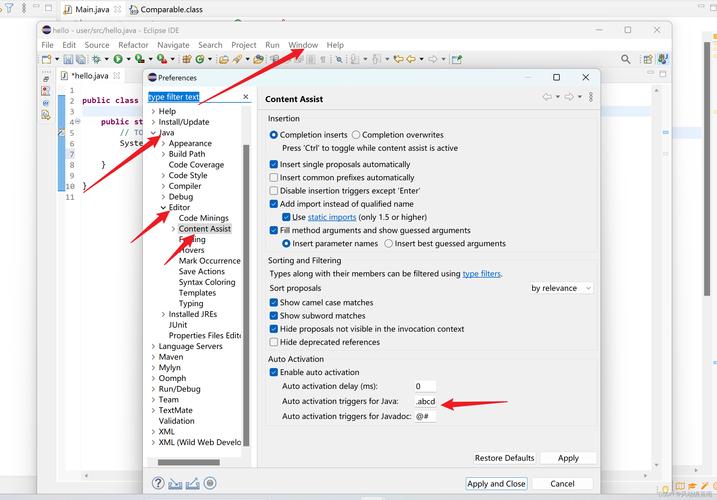
Right-click on your project in the "Project Explorer" view.
 (图片来源网络,侵删)
 -
Navigate to
New->Other.... -
In the wizard, expand the
Webfolder and select Web Service Client. ClickNext. -
Service Definition:
- Select Browse... next to the
Service definitionfield. - A dialog box will appear. You can either:
- Select the WSDL file from your workspace if you imported it.
- Paste the WSDL URL directly into the field and click
OK.
- Click
Next.
- Select Browse... next to the
-
Client Configuration:
 (图片来源网络,侵删)
- Client project: Ensure your project is selected.
- Client Configuration: The default settings are usually fine. The wizard will generate the client code and add the necessary JAR dependencies (like Apache CXF or JAX-WS RI) to your project's build path.
- You can change the
Client packageif you want to specify where the generated classes will be placed. - Click
Finish.
Step 4: Review the Generated Code and Dependencies
Eclipse will now generate the Java source files based on the WSDL. You will see:
- Service Interface: A Java interface (e.g.,
YourServiceName) that represents the web service. This is what you'll use to interact with the service. - Service Implementation: A class (e.g.,
YourServiceNameService) that implements theServiceinterface and provides a method to get a proxy for the service. - Data Objects (POJOs): Plain Old Java Objects (POJOs) that represent the complex data types defined in the WSDL. These are used as request and response parameters.
The required JAR files (like jaxws-api.jar, cxf-core.jar, etc.) will be automatically downloaded and added to your project's Referenced Libraries.
Step 5: Write the Client Code to Use the Service
Now you can write a simple Java class to use the generated client.
- Right-click your project ->
New->Class. - Name it
WebServiceClientand clickFinish. - Paste the following code, modifying it to match your service's methods and parameters.
package com.example.client; // Use the package you generated or a new one
// Import the generated classes
import your.generated.package.YourServiceName;
import your.generated.package.YourServiceNameService;
import your.generated.package.YourRequestType; // Example request object
import your.generated.package.YourResponseType; // Example response object
public class WebServiceClient {
    public static void main(String[] args) {
        try {
            // 1. Create an instance of the Service class
            // The WSDL location is often configured in this service class.
            YourServiceNameService service = new YourServiceNameService();
            // 2. Get a proxy for the service interface
            YourServiceName port = service.getYourServiceNamePort(); // Method name might vary
            // 3. Create a request object
            YourRequestType request = new YourRequestType();
            // Set properties on the request object
            request.setParam1("value1");
            request.setParam2(123);
            // 4. Invoke the web service operation
            System.out.println("Invoking web service...");
            YourResponseType response = port.yourWebServiceMethod(request);
            // 5. Process the response
            System.out.println("Web service invoked successfully!");
            System.out.println("Response: " + response.getResult());
        } catch (Exception e) {
            e.printStackTrace();
        }
    }
}
Note: The exact class names (YourServiceName, YourServiceNameService, etc.) and method names will depend entirely on your WSDL file. You can find them by expanding the generated packages in the Project Explorer.
Method 2: Using Maven and the jaxws-maven-plugin
If your project uses Maven for dependency management, this is a more robust and automated approach. It's great for continuous integration and build servers.
Step 1: Create a Maven Project
- Go to
File->New->Other...->Maven->Maven Project. - Select a Maven archetype (e.g.,
maven-archetype-quickstart) and clickNext. - Group Id:
com.example - Artifact Id:
wsdl-maven-client - Click
Finish.
Step 2: Configure the jaxws-maven-plugin
Open your pom.xml file and add the following plugin configuration inside the <build> section.
<project ...>
    ...
    <properties>
        <project.build.sourceEncoding>UTF-8</project.build.sourceEncoding>
        <maven.compiler.source>1.8</maven.compiler.source>
        <maven.compiler.target>1.8</maven.compiler.target>
        <!-- Use the latest version available -->
        <jaxws.plugin.version>3.1.0</jaxws.plugin.version>
    </properties>
    <dependencies>
        <!-- JAX-WS API is often provided by the runtime, but good to have for compile -->
        <dependency>
            <groupId>jakarta.xml.ws</groupId>
            <artifactId>jakarta.xml.ws-api</artifactId>
            <version>3.0.1</version>
        </dependency>
    </dependencies>
    <build>
        <plugins>
            <plugin>
                <groupId>org.jvnet.jax-ws-commons</groupId>
                <artifactId>jaxws-maven-plugin</artifactId>
                <version>${jaxws.plugin.version}</version>
                <executions>
                    <execution>
                        <goals>
                            <goal>wsimport</goal>
                        </goals>
                        <configuration>
                            <!-- The URL or path to your WSDL file -->
                            <wsdlLocation>http://example.com/service?wsdl</wsdlLocation>
                            <!-- The directory where generated sources will be placed -->
                            <sourceDestDir>${project.build.directory}/generated-sources/jaxws</sourceDestDir>
                            <!-- Package for the generated classes -->
                            <packageName>com.example.generated</packageName>
                            <!-- Keep the generated files so you can inspect them -->
                            <verbose>true</verbose>
                        </configuration>
                    </execution>
                </executions>
            </plugin>
        </plugins>
    </build>
    ...
</project>
Key Configuration Points:
wsdlLocation: The URL or path to your WSDL file.sourceDestDir: A temporary directory for the generated sources.packageName: The Java package for the generated code.
Step 3: Generate the Code
- Right-click on your
pom.xmlfile in the Project Explorer. - Select
Run As->Maven build.... - In the "Goals" field, type:
clean compile jaxws:wsimport - Click
Run.
The Maven plugin will download the WSDL, generate the Java code, place it in the target/generated-sources/jaxws directory, and add that directory as a source folder to your project.
Step 4: Update Source Folder and Write Code
- Refresh your project (right-click project ->
Refresh). - You should now see a
generated-sourcesfolder. You need to tell Eclipse that this is a source folder.- Right-click on the
generated-sources/jaxwsfolder. - Select
Build Path->Use as Source Folder.
- Right-click on the
- Now you can write your client code just like in Method 3 above. The generated classes will be available for autocompletion.
Troubleshooting Common Issues
- "Plugin execution not covered by lifecycle configuration" in Maven:
- This is a common Eclipse/Maven issue. It means Eclipse doesn't know how to run the
jaxws:wsimportgoal. - Fix: Right-click your project ->
Maven->Update Project.... This will download the necessary metadata and resolve the error.
- This is a common Eclipse/Maven issue. It means Eclipse doesn't know how to run the
ClassNotFoundExceptionforjavax.xml.ws.Serviceor similar:- This means the JAX-WS runtime libraries are not on your classpath.
- Fix (for Eclipse Wizard): Ensure the project has a "Facet" of "Dynamic Web Module" or "Java EE". The wizard should have added the JARs. If not, you may need to add them manually.
- Fix (for Maven): Ensure you have a dependency for the JAX-WS runtime, like
jakarta.xml.ws:jakarta.xml.ws-apior the implementation your plugin uses (e.g., Apache CXF).
- WSDL contains errors:
- If the WSDL file itself is malformed or references missing schemas, the generation will fail.
- Fix: Open the WSDL in a web browser or an XML editor to check for validity. If it's a URL, try accessing it directly to see if it loads correctly.


