Of course! Here's a comprehensive guide to using QRadioButton in Python with the popular PyQt6 library.
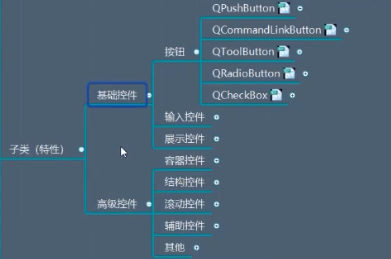
What is a QRadioButton?
A QRadioButton is a standard button that can be either checked or unchecked. It's used to present a user with a set of mutually exclusive options. This means that when you select one radio button in a group, any other previously selected radio button in the same group is automatically deselected.
This "one-of-many" behavior is the key feature that distinguishes radio buttons from regular QPushButton or QCheckBox widgets.
The Basic Example: A Single Group
Let's start with the simplest possible example: a window with three radio buttons for selecting a favorite color.
Code
import sys
from PyQt6.QtWidgets import (
    QApplication,
    QMainWindow,
    QWidget,
    QVBoxLayout,
    QRadioButton,
    QLabel,
)
class MainWindow(QMainWindow):
    def __init__(self):
        super().__init__()
        self.setWindowTitle("QRadioButton Example")
        self.setGeometry(300, 300, 350, 200)
        # --- Central Widget and Layout ---
        central_widget = QWidget()
        self.setCentralWidget(central_widget)
        layout = QVBoxLayout(central_widget)
        # --- Radio Buttons ---
        self.red_radio = QRadioButton("Red")
        self.green_radio = QRadioButton("Green")
        self.blue_radio = QRadioButton("Blue")
        # Add buttons to the layout
        layout.addWidget(self.red_radio)
        layout.addWidget(self.green_radio)
        layout.addWidget(self.blue_radio)
        # --- A label to show the selection ---
        self.result_label = QLabel("Please select a color.")
        layout.addWidget(self.result_label)
        # --- Set a default selection (optional but good practice) ---
        self.green_radio.setChecked(True)
        # --- Connect the 'toggled' signal to our custom slot ---
        # The 'toggled' signal is emitted whenever the check state changes.
        self.red_radio.toggled.connect(self.update_label)
        self.green_radio.toggled.connect(self.update_label)
        self.blue_radio.toggled.connect(self.update_label)
    def update_label(self):
        """This slot is called whenever a radio button is toggled."""
        if self.red_radio.isChecked():
            self.result_label.setText("You selected Red!")
        elif self.green_radio.isChecked():
            self.result_label.setText("You selected Green!")
        elif self.blue_radio.isChecked():
            self.result_label.setText("You selected Blue!")
        else:
            # This case is unlikely with radio buttons in a group,
            # but it's good practice.
            self.result_label.setText("Please select a color.")
if __name__ == "__main__":
    app = QApplication(sys.argv)
    window = MainWindow()
    window.show()
    sys.exit(app.exec())
How to Run
- Make sure you have PyQt6 installed:
pip install PyQt6 - Save the code as a Python file (e.g.,
radio_button_example.py). - Run it from your terminal:
python radio_button_example.py
Output
You will see a window with three radio buttons. Clicking one will highlight it and uncheck the others. The label below will update to reflect your choice.

Key Concepts in the Basic Example:
QRadioButton("Text"): Creates a radio button with the specified text.setChecked(True): Programmatically sets a radio button to be the active one in its group. This is useful for setting a default.isChecked(): ReturnsTrueif the radio button is currently selected, andFalseotherwise. This is the most common method for getting the user's choice.toggledsignal: This signal is emitted every time the button's checked state changes. This is more versatile thanclickedbecause it also fires if the state is changed programmatically (e.g., by another button in the group).- Signal/Slot Connection:
self.red_radio.toggled.connect(self.update_label)links thetoggledsignal of thered_radiobutton to theupdate_labelmethod (our "slot").
Handling Multiple Groups
What if you have two or more independent sets of options? For example, choosing a Size and a Color.
The key is to ensure that radio buttons in different groups do not interfere with each other. The easiest way to do this is to place each group inside its own QButtonGroup.
Code
import sys
from PyQt6.QtWidgets import (
    QApplication, QMainWindow, QWidget, QVBoxLayout, QRadioButton,
    QLabel, QButtonGroup
)
class MainWindow(QMainWindow):
    def __init__(self):
        super().__init__()
        self.setWindowTitle("Multiple Radio Button Groups")
        self.setGeometry(300, 300, 300, 250)
        central_widget = QWidget()
        self.setCentralWidget(central_widget)
        layout = QVBoxLayout(central_widget)
        # --- Group 1: Size ---
        size_label = QLabel("Select Size:")
        layout.addWidget(size_label)
        self.small_radio = QRadioButton("Small")
        self.medium_radio = QRadioButton("Medium")
        self.large_radio = QRadioButton("Large")
        layout.addWidget(self.small_radio)
        layout.addWidget(self.medium_radio)
        layout.addWidget(self.large_radio)
        # Create a QButtonGroup for the size options
        self.size_group = QButtonGroup(self)
        self.size_group.addButton(self.small_radio)
        self.size_group.addButton(self.medium_radio)
        self.size_group.addButton(self.large_radio)
        # Set a default for the first group
        self.medium_radio.setChecked(True)
        # --- Group 2: Color ---
        color_label = QLabel("Select Color:")
        layout.addWidget(color_label)
        self.red_radio = QRadioButton("Red")
        self.green_radio = QRadioButton("Green")
        layout.addWidget(self.red_radio)
        layout.addWidget(self.green_radio)
        # Create a QButtonGroup for the color options
        self.color_group = QButtonGroup(self)
        self.color_group.addButton(self.red_radio)
        self.color_group.addButton(self.green_radio)
        # Set a default for the second group
        self.red_radio.setChecked(True)
        # --- Result Label ---
        self.result_label = QLabel("Your selection: Medium, Red")
        layout.addWidget(self.result_label)
        # --- Connect the buttonGroup's buttonClicked signal ---
        # This signal is more efficient as it gives us the button that was clicked.
        self.size_group.buttonClicked.connect(self.update_selection)
        self.color_group.buttonClicked.connect(self.update_selection)
    def update_selection(self, button):
        """This slot is called when any button in a group is clicked."""
        # Find the ID of the checked button in each group
        size_id = self.size_group.checkedId()
        color_id = self.color_group.checkedId()
        # Map IDs to readable names
        size_map = {self.small_radio.id(): "Small", self.medium_radio.id(): "Medium", self.large_radio.id(): "Large"}
        color_map = {self.red_radio.id(): "Red", self.green_radio.id(): "Green"}
        size_text = size_map.get(size_id, "None")
        color_text = color_map.get(color_id, "None")
        self.result_label.setText(f"Your selection: {size_text}, {color_text}")
if __name__ == "__main__":
    app = QApplication(sys.argv)
    window = MainWindow()
    window.show()
    sys.exit(app.exec())
Output
Now you have two independent sets of radio buttons. Changing the size does not affect the color selection, and vice-versa.
Key Concepts for Multiple Groups:
QButtonGroup: This class is a container that groups radio buttons together. It ensures that only one button in the group can be checked at a time.buttonClicked(button)signal: This signal fromQButtonGroupis very useful. It's emitted when a button in the group is clicked, and it passes the specificQRadioButtonobject that was clicked as an argument. This makes your slot code cleaner.buttonGroup.addButton(button): Adds a button to the group.buttonGroup.checkedId(): Returns a unique integer ID for the currently checked button in the group. You can assign your own IDs usingaddButton(button, id)or use the default ones.
Advanced: Using a QButtonGroup with a QGridLayout
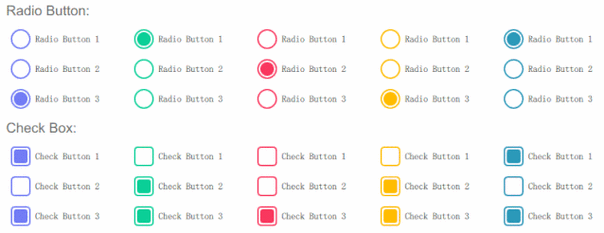
For a more organized layout, you can use a QGridLayout and still manage your radio buttons with a QButtonGroup. This is perfect for creating things like option panels or settings dialogs.
Code
import sys
from PyQt6.QtWidgets import (
    QApplication, QMainWindow, QWidget, QGridLayout, QRadioButton,
    QLabel, QButtonGroup
)
class MainWindow(QMainWindow):
    def __init__(self):
        super().__init__()
        self.setWindowTitle("QRadioButton in Grid Layout")
        self.setGeometry(300, 300, 400, 300)
        central_widget = QWidget()
        self.setCentralWidget(central_widget)
        layout = QGridLayout(central_widget) # Use QGridLayout
        # --- Radio Buttons ---
        self.option1_radio = QRadioButton("Option 1")
        self.option2_radio = QRadioButton("Option 2")
        self.option3_radio = QRadioButton("Option 3")
        self.option4_radio = QRadioButton("Option 4")
        # Add buttons to the grid
        layout.addWidget(self.option1_radio, 0, 0)
        layout.addWidget(self.option2_radio, 0, 1)
        layout.addWidget(self.option3_radio, 1, 0)
        layout.addWidget(self.option4_radio, 1, 1)
        # --- A label to show the selection ---
        self.result_label = QLabel("No option selected.")
        layout.addWidget(self.result_label, 2, 0, 1, 2) # Span 2 columns
        # --- Group the buttons ---
        self.options_group = QButtonGroup(self)
        self.options_group.addButton(self.option1_radio)
        self.options_group.addButton(self.option2_radio)
        self.options_group.addButton(self.option3_radio)
        self.options_group.addButton(self.option4_radio)
        # Set a default
        self.option2_radio.setChecked(True)
        # --- Connect the signal ---
        self.options_group.buttonClicked.connect(self.on_option_selected)
    def on_option_selected(self, button):
        """Slot called when an option is selected."""
        self.result_label.setText(f"Selected: {button.text()}")
if __name__ == "__main__":
    app = QApplication(sys.argv)
    window = MainWindow()
    window.show()
    sys.exit(app.exec())
Output
This creates a 2x2 grid of radio buttons. Clicking any one will deselect the others and update the label.
Summary of Key Methods and Signals
| Method/Signal | Description |
|---|---|
QRadioButton(text) |
Constructor for the radio button. |
setChecked(bool) |
Sets the button's checked state. True for checked, False for unchecked. |
isChecked() |
Returns True if the button is checked, False otherwise. |
toggle() |
Programmatically toggles the checked state. |
toggled |
Signal: Emitted whenever the check state changes (by user or programmatically). |
clicked |
Signal: Emitted when the button is clicked by the user. |
QButtonGroup(widget) |
Constructor for a button group. Passes the parent widget. |
buttonGroup.addButton(button) |
Adds a QRadioButton to the group. |
buttonGroup.buttonClicked(button) |
Signal: Emitted when any button in the group is clicked. The clicked button is passed as an argument. |
buttonGroup.checkedId() |
Returns the ID of the currently checked button in the group. |