Of course! Using ROS with Python and Anaconda is a very powerful and popular combination, especially for data science, machine learning, and complex simulations. It allows you to manage Python dependencies for your robotics projects in isolated environments, preventing version conflicts.
Here's a comprehensive guide covering the concepts, setup, and best practices.
Why Use Anaconda with ROS?
Before we dive into the setup, let's understand the "why":
- Dependency Management: ROS itself has many dependencies. Your robot's perception stack might need
numpyandscipy, while your machine learning pipeline might needtensorfloworpytorch. Anaconda lets you create separate environments for each project (e.g.,ros_noetic_perception,ros_foxy_ml) with their own specific package versions, keeping your system clean. - Data Science & ML Libraries: Anaconda is the de-facto standard for scientific Python. It comes pre-bundled with
numpy,pandas,matplotlib,scikit-learn, etc. Installing these viapipcan sometimes be tricky due to C/C++ extensions. Anaconda handles this gracefully. - Isolation: You can work on a project for ROS Noetic without worrying about it conflicting with a project for ROS Humble or another Python application. This is the biggest advantage.
- Package Management:
condacan often install packages thatpipcannot, especially those that have complex binary dependencies (like GDAL, PROJ, etc., common in mapping).
The Core Concept: The Bridge
The most important thing to understand is that Anaconda and ROS are two separate package managers.
- ROS: Manages C++/Python ROS packages, executables, and messages. It uses
catkin(for Noetic) orcolcon(for Foxy and newer). - Anaconda: Manages pure Python libraries and their dependencies.
The "bridge" is a simple but crucial rule: You must install the ros Python package itself using conda, but all your custom ROS Python packages should be installed using colcon (or catkin_make).
Step-by-Step Guide (Using ROS Noetic on Ubuntu 20.04 as an example)
This process is very similar for ROS 2 (Foxy, Humble, etc.).
Step 1: Install ROS
First, make sure you have a standard ROS installation. This is non-negotiable. Follow the official ROS Noetic tutorials for a full desktop installation.
# Setup your sources.list
sudo sh -c 'echo "deb http://packages.ros.org/ros/ubuntu $(lsb_release -sc) main" > /etc/apt/sources.list.d/ros-latest.list'
# Set up your keys
sudo apt install curl -y
curl -s https://raw.githubusercontent.com/ros/rosdistro/master/ros.asc | sudo apt-key add -
# Update your package lists
sudo apt update
# Install the ROS desktop-full package
sudo apt install ros-noetic-desktop-full
# Setup your environment
echo "source /opt/ros/noetic/setup.bash" >> ~/.bashrc
source ~/.bashrc
Step 2: Install Anaconda
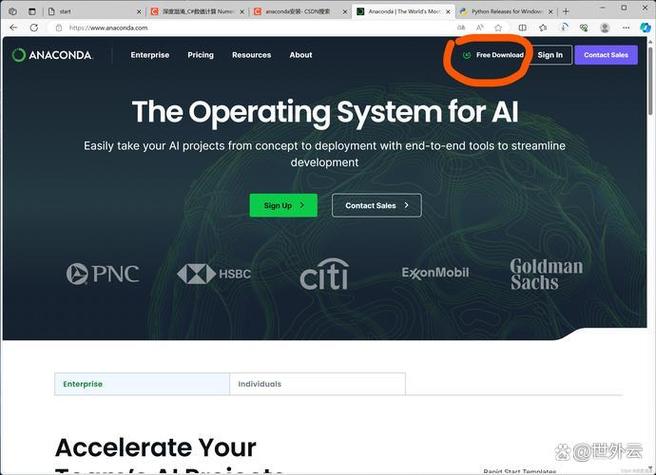
Download and install Miniconda (the minimal installer for Anaconda) from the official website. It's generally better to install it in your home directory to avoid needing sudo.
# Example for a Linux machine (check the website for the latest link)
wget https://repo.anaconda.com/miniconda/Miniconda3-latest-Linux-x86_64.sh
bash Miniconda3-latest-Linux-x86_64.sh
Follow the on-screen instructions. When it asks if you want to initialize Conda, say yes. This will add conda to your PATH.

Step 3: Create a Dedicated ROS Conda Environment
Never work in the base Conda environment. Create a new one for your ROS project.
# Create a new environment named 'ros_noetic_env' with Python 3.8
# It's best practice to match the ROS Python version.
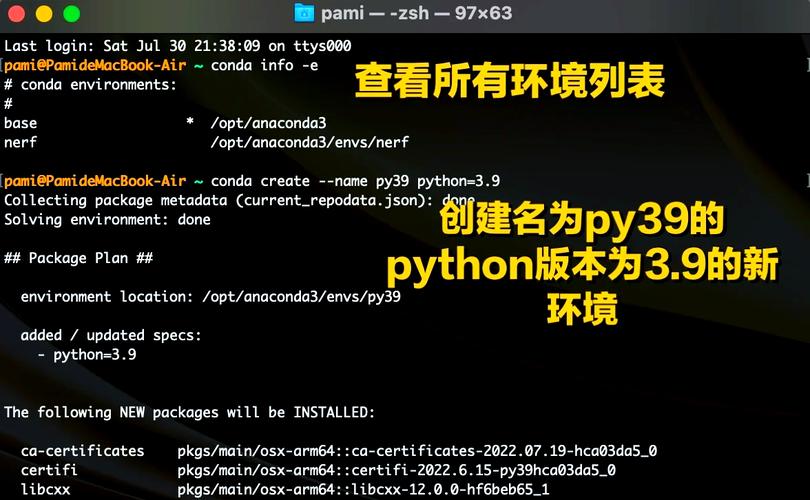
conda create -n ros_noetic_env python=3.8
# Activate the environment
conda activate ros_noetic_env
You will see (ros_noetic_env) at the beginning of your command prompt, indicating the environment is active.
Step 4: Install the ROS Python Package into the Environment
This is the "bridge" step. We use conda to install the rosdep tool and the ros metapackage, which provides the necessary Python modules for ROS.
# Install rosdep, which is essential for handling ROS dependencies
conda install -c conda-forge rosdep
# Install the core ROS python package (this is for Noetic)
# For ROS 2, you would install 'ros-humble-ros-base' or similar
conda install -c conda-forge ros-noetic
This command installs the Python client libraries (rospy, rospy_tutorials, etc.) into your current Conda environment.
Step 5: Source Your ROS Setup File
Even though the Python libraries are in Conda, the ROS workspace structure, executables, and environment variables (like ROS_PACKAGE_PATH) are still managed by the standard ROS installation.
# Source the main ROS setup file
source /opt/ros/noetic/setup.bash
# It's highly recommended to add this to your .bashrc or .zshrc
# so you don't have to source it every time you open a new terminal.
echo "source /opt/ros/noetic/setup.bash" >> ~/.bashrc
Step 6: Create and Build a ROS Workspace
Now you can create a catkin workspace and build your packages.
# Create a workspace directory
mkdir -p ~/catkin_ws/src
cd ~/catkin_ws/
# Initialize the workspace (this creates the CMakeLists.txt in the root)
catkin_init_workspace
# Build the workspace
# The --pkg option is useful for building specific packages
catkin_make
Step 7: Source Your Workspace
To use the packages you just built, you need to source the setup file generated by catkin_make.
# Source the workspace setup file
source devel/setup.bash
# Add this to your .bashrc as well
echo "source ~/catkin_ws/devel/setup.bash" >> ~/.bashrc
Step 8: Install Additional Python Dependencies
Let's say your ROS node needs pandas and matplotlib.
# Make sure your conda environment is active!
conda activate ros_noetic_env
# Install the packages using conda
conda install -c conda-forge pandas matplotlib
Now, when you run your Python ROS node, it will have access to both rospy (from the ros-noetic conda package) and pandas/matplotlib (from the conda environment).
Workflow Example: A Simple Talker Node
Let's put it all together.
-
Create a package:
# Make sure you are in your catkin_ws/src directory
cd ~/catkin_ws/src
catkin_create_pkg my_talker rospy std_msgs
-
Write the Python script: Create a file
~/catkin_ws/src/my_talker/scripts/talker.py:#!/usr/bin/env python # Import rospy and the message type import rospy from std_msgs.msg import String # Import our conda-installed library to prove it works import pandas as pd import time def talker(): # Create a publisher pub = rospy.Publisher('chatter', String, queue_size=10) # Initialize the node rospy.init_node('talker', anonymous=True) # Set a rate (in Hz) rate = rospy.Rate(10) # 10hz # Create a simple DataFrame using pandas data = {'time': [], 'message': []} df = pd.DataFrame(data) while not rospy.is_shutdown(): hello_str = "hello world %s" % rospy.get_time() # Add data to our DataFrame df.loc[len(df)] = [rospy.get_time(), hello_str] # Log the message to the console rospy.loginfo(hello_str) # Publish the message pub.publish(hello_str) # Sleep to maintain the rate rate.sleep() if __name__ == '__main__': try: talker() except rospy.ROSInterruptException: pass -
Make the script executable:
chmod +x ~/catkin_ws/src/my_talker/scripts/talker.py
-
Run the node: Open three new terminals.
-
Terminal 1 (Activate environment and source ROS):
conda activate ros_noetic_env
source /opt/ros/noetic/setup.bash
source ~/catkin_ws/devel/setup.bash
roscore
-
Terminal 2 (Activate environment and source ROS, then run the node):
conda activate ros_noetic_env
source /opt/ros/noetic/setup.bash
source ~/catkin_ws/devel/setup.bash
rosrun my_talker talker.py
You should see the "hello world" messages printing.
-
Terminal 3 (Activate environment and source ROS, then listen):
conda activate ros_noetic_env
source /opt/ros/noetic/setup.bash
source ~/catkin_ws/devel/setup.bash
rostopic echo /chatter
You will see the published messages here.
-
Important Considerations & Best Practices
- Environment Activation is Key: You must
conda activate <your_env>in every new terminal where you want to run a ROS command or a Python script that uses Conda packages. rosdep: Userosdepto handle C++/Python dependencies that are part of ROS packages.# Make sure you are in your catkin_ws/src directory rosdep install --from-paths src --ignore-src -r -y
rosdepwill try to useaptby default. For Python packages not available viaapt, you might need to manually install them withcondaorpipinside your active Conda environment.- ROS 2: The process is nearly identical. You would create a Conda environment, install
ros-humble-ros-base(or your distro's equivalent), and usecolcon buildinstead ofcatkin_make. The core principle of separating Conda-managed libraries from ROS packages remains the same. - IDEs (VS Code, PyCharm): When working in an IDE, you need to configure the Python interpreter to point to the one inside your active Conda environment. In VS Code, you can use the
Python: Select Interpretercommand to choose the correct python executable (e.g.,~/miniconda3/envs/ros_noetic_env/bin/python).