Of course! Here is a comprehensive guide to using Python for Selenium, broken down from the basics to more advanced concepts.
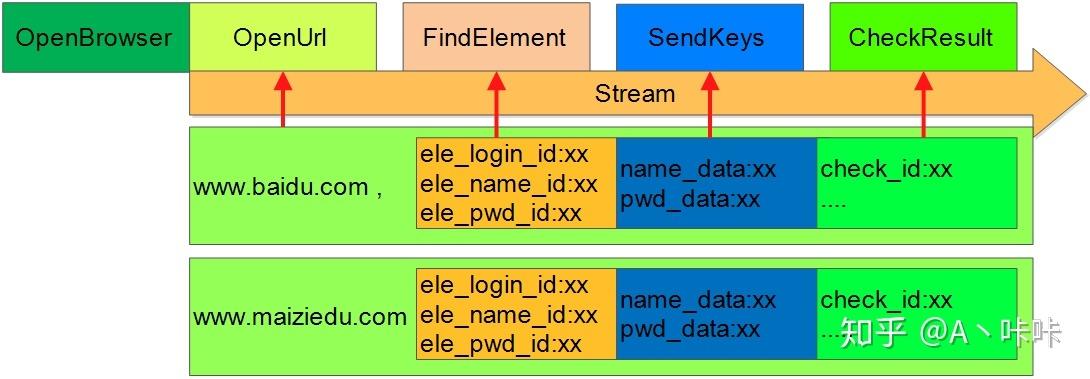
What is Selenium?
Selenium is a powerful automation framework used primarily for web browser automation. Think of it as a robot that can control your web browser for you. It can do things like:
- Click buttons
- Fill out forms
- Navigate between pages
- Scrape data from websites
- Take screenshots
- Run automated tests for web applications
When combined with Python, it becomes an incredibly versatile and popular tool for web scraping, testing, and automation.
Prerequisites
Before you start, make sure you have:
- Python installed: Download it from python.org.
- A code editor: Visual Studio Code, PyCharm, or Sublime Text are great choices.
- A web browser: Google Chrome, Firefox, etc.
Step-by-Step Setup
Step 1: Install Selenium
Open your terminal or command prompt and install the Selenium library using pip (Python's package installer):
pip install selenium
Step 2: Install WebDriver
Selenium doesn't control the browser directly. It needs a special piece of software called a WebDriver that acts as a bridge between your Python script and the browser.
You need a WebDriver for the browser you want to automate.
For Google Chrome:
-
Check your Chrome version (go to
chrome://settings/help). (图片来源网络,侵删)
 -
Go to the Chrome for Testing availability dashboard.
-
Find the version that matches your browser and download the
chromedriver-win64.zip(or the correct one for your OS:mac-x64,mac-arm64,linux64). -
Unzip the downloaded file.
-
Place the
chromedriver.exe(orchromedriveron Mac/Linux) in a memorable location, likeC:\WebDriveron Windows or/usr/local/binon Mac/Linux. -
Crucially, add this location to your system's PATH environment variable. This allows your system to find the
chromedriverexecutable from anywhere.- On Windows: Search for "Environment Variables," edit "Path," and add the directory where you saved
chromedriver.exe. - On Mac/Linux: You can move the file to
/usr/local/binand it will usually be in your PATH by default.
- On Windows: Search for "Environment Variables," edit "Path," and add the directory where you saved
Easier Alternative: selenium-manager (Recommended for Selenium 4.6.0+)
Modern versions of Selenium have a built-in tool called selenium-manager that automatically downloads and manages the correct WebDriver for you! You often don't need to do the manual setup above. This is the recommended approach.
Your First Selenium Script: "Hello, World!"
Let's write a simple script that opens a browser, navigates to a website, and prints the page title.
Create a file named first_script.py:
# 1. Import the Selenium WebDriver module
from selenium import webdriver
from selenium.webdriver.common.by import By
from selenium.webdriver.common.keys import Keys
from selenium.webdriver.chrome.service import Service as ChromeService
from webdriver_manager.chrome import ChromeDriverManager
# 2. Set up the WebDriver
# The webdriver_manager automatically handles the driver download and setup
driver = webdriver.Chrome(service=ChromeService(ChromeDriverManager().install()))
# 3. Open a website
driver.get("https://www.google.com")
# 4. Interact with the page
# Find the search box by its NAME attribute
search_box = driver.find_element(By.NAME, "q")
# Type "Selenium Python" into the search box
search_box.send_keys("Selenium Python")
# Press the "Enter" key
search_box.send_keys(Keys.RETURN)
# 5. Get some information
# Wait for the results to load (implicitly)
driver.implicitly_wait(5)
# Get the page title and print it
print(f"Page title is: {driver.title}")
# 6. Clean up
# Close the browser
driver.quit()
To run this script:
python first_script.py
You should see a Chrome window open, perform the search, and then close. The title will be printed to your console.
Core Concepts & Common Actions
Here are the fundamental building blocks of Selenium automation.
Finding Elements (Locators)
This is the most important part. You need to tell Selenium where on the page to find an element (a button, a link, a text box). You do this using find_element or find_elements (for multiple elements).
Selenium provides several strategies (locators) to find elements:
| Locator | Method in Selenium | Description | Example |
|---|---|---|---|
| ID | By.ID |
The fastest and most reliable. Unique to the page. | find_element(By.ID, "passwd-id") |
| Name | By.NAME |
The name attribute of an element. Not always unique. |
find_element(By.NAME, "username") |
| CSS Selector | By.CSS_SELECTOR |
Powerful and flexible. Uses CSS syntax to find elements. | find_element(By.CSS_SELECTOR, ".class-name #id") |
| XPath | By.XPATH |
Very powerful, can traverse the HTML document. Can be complex. | find_element(By.XPATH, "//div[@class='content']/a") |
| Link Text | By.LINK_TEXT |
Finds a link by its exact visible text. | find_element(By.LINK_TEXT, "Sign In") |
| Partial Link Text | By.PARTIAL_LINK_TEXT |
Finds a link by a partial match of its visible text. | find_element(By.PARTIAL_LINK_TEXT, "Sign") |
| Tag Name | By.TAG_NAME |
Finds elements by their HTML tag name (e.g., div, a, input). |
find_element(By.TAG_NAME, "h1") |
| Class Name | By.CLASS_NAME |
Finds elements by their class attribute. Often not unique, so use with caution. |
find_element(By.CLASS_NAME, "button") |
Common Actions on Elements
Once you've found an element, you can perform actions on it.
# Assuming 'element' is a WebElement object
element = driver.find_element(By.ID, "some-id")
# Clicking
element.click()
# Typing text
element.send_keys("Hello, world!")
# Getting text content
text = element.text
print(text)
# Getting an attribute value
href = element.get_attribute("href")
print(href)
# Checking if an element is displayed
is_visible = element.is_displayed()
print(is_visible)
# Checking if an element is enabled
is_enabled = element.is_enabled()
print(is_enabled)
Navigation
# Open a URL
driver.get("https://example.com")
# Go back
driver.back()
# Go forward
driver.forward()
# Refresh the page
driver.refresh()
# Get the current URL
current_url = driver.current_url
print(current_url)
Advanced Topics
Waits
Modern websites are dynamic. Elements load at different times. If your script tries to interact with an element that isn't loaded yet, it will fail. Waits solve this problem.
-
Implicit Wait: Tells Selenium to poll the DOM for a certain amount of time when trying to find an element. It's set once and applies to all
find_elementcalls.# Wait up to 10 seconds for an element to be found driver.implicitly_wait(10)
-
Explicit Wait: A more robust way. You wait for a specific condition to be met (e.g., element is visible, clickable). This is the recommended approach.
from selenium.webdriver.support.ui import WebDriverWait
from selenium.webdriver.support import expected_conditions as EC
try:
    # Wait up to 10 seconds until the element with ID 'myDynamicElement' is visible
    my_element = WebDriverWait(driver, 10).until(
        EC.visibility_of_element_located((By.ID, "myDynamicElement"))
    )
    my_element.click()
except TimeoutException:
    print("Element not found within the time limit.")
Handling Dropdowns
Use the Select class from selenium.webdriver.support.ui.
from selenium.webdriver.support.ui import Select
# Find the dropdown element
dropdown = driver.find_element(By.ID, "country-dropdown")
# Create a Select object
select = Select(dropdown)
# Select by visible text
select.select_by_visible_text("Canada")
# Select by value
select.select_by_value("ca")
# Select by index (0-based)
select.select_by_index(0)
Handling Alerts and Pop-ups
# Switch to the alert
alert = driver.switch_to.alert
# Get the alert text
alert_text = alert.text
print(alert_text)
# Accept the alert (clicks OK)
alert.accept()
# Dismiss the alert (clicks Cancel)
# alert.dismiss()
# Type text in a prompt alert
# alert.send_keys("My text")
# alert.accept()
Handling iFrames
An <iframe> is an HTML document embedded inside another HTML document. You must switch to the iframe before you can interact with its elements.
# Find the iframe
iframe = driver.find_element(By.ID, "my-iframe")
# Switch to the iframe
driver.switch_to.frame(iframe)
# Now you can find elements inside the iframe
button_in_iframe = driver.find_element(By.ID, "button-inside-iframe")
button_in_iframe.click()
# Switch back to the main page (important!)
driver.switch_to.default_content()
Best Practices
- Use Explicit Waits: Always prefer explicit waits over implicit waits for more reliable and maintainable tests.
- Use IDs and CSS Selectors: They are faster and more stable than XPath. Use XPath only when necessary (e.g., for complex relationships).
- Clean Up with
try...finally: Always close the browser to ensure resources are freed, even if your script fails.driver = webdriver.Chrome() try: # ... your automation code ... pass finally: driver.quit() - Use Page Object Model (POM): For complex projects, use the POM design pattern. This involves creating classes that represent each page of your application, encapsulating the locators and actions for that page. This makes your code much cleaner and easier to maintain.
- Don't Sleep (
time.sleep()): Avoid usingtime.sleep(). It makes your tests slow and unreliable. Use waits instead.