Of course! Here is a comprehensive guide to creating menus in Python's Tkinter library, from basic to advanced features.
The Core Components
A Tkinter menu system is built from three main parts:
MenuObject: This is the container for your menu items. You can have a mainMenuobject that acts as the menubar.add_command()Method: This is used to add a standard, clickable item to a menu. It executes a function when clicked.add_cascade()Method: This is used to add a submenu. It links a parentMenuto a childMenu, creating a dropdown effect.
Creating a Basic Menu Bar
Let's start with the most fundamental example: creating a simple menubar with a "File" menu containing "Open" and "Exit" options.
import tkinter as tk
from tkinter import filedialog, messagebox
# --- Functions ---
def do_open():
    """Opens a file dialog."""
    file_path = filedialog.askopenfilename(
        title="Select a file",
        filetypes=(("Text files", "*.txt"), ("All files", "*.*"))
    )
    if file_path:
        messagebox.showinfo("File Opened", f"You selected:\n{file_path}")
def do_exit():
    """Closes the application."""
    root.quit()
# --- Main Application ---
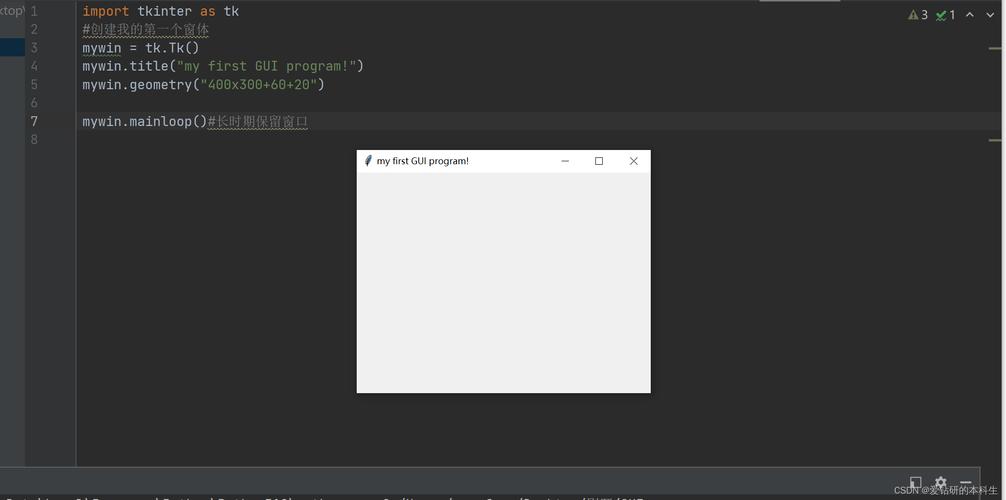
root = tk.Tk()"Basic Menu Example")
root.geometry("400x300")
# 1. Create the main menu bar object
menubar = tk.Menu(root)
# 2. Create a "File" menu and add it to the menubar
file_menu = tk.Menu(menubar, tearoff=0) # tearoff=0 removes the dashed line
menubar.add_cascade(label="File", menu=file_menu)
# 3. Add commands to the "File" menu
file_menu.add_command(label="Open...", command=do_open)
file_menu.add_separator() # Adds a separator line
file_menu.add_command(label="Exit", command=do_exit)
# 4. Display the menubar on the root window
root.config(menu=menubar)
# --- Start the GUI event loop ---
root.mainloop()
Breakdown:
menubar = tk.Menu(root): Creates the top-level menu container.file_menu = tk.Menu(menubar, tearoff=0): Creates a new menu that will be a dropdown from the main menubar. Thetearoff=0option prevents the user from "tearing off" the menu into a separate window.menubar.add_cascade(label="File", menu=file_menu): This is the key step. It adds the "File" label to the menubar and links it to thefile_menuobject, making it a dropdown menu.file_menu.add_command(...): Adds an item to the "File" dropdown. Thecommandargument specifies the function to call when the item is clicked.file_menu.add_separator(): Inserts a horizontal line to visually group related menu items.root.config(menu=menubar): This is the most important line. It tells the main window (root) to use ourmenubarobject as its official menu bar.
Adding More Menu Items and Submenus
Now, let's expand on this by adding an "Edit" menu with a "Preferences" submenu.
import tkinter as tk
from tkinter import messagebox
# --- Functions ---
def do_about():
    messagebox.showinfo("About", "Tkinter Menu Demo\nVersion 1.0")
# --- Main Application ---
root = tk.Tk()"Advanced Menu Example")
root.geometry("400x300")
# Create the main menu bar
menubar = tk.Menu(root)
# === FILE MENU ===
file_menu = tk.Menu(menubar, tearoff=0)
menubar.add_cascade(label="File", menu=file_menu)
file_menu.add_command(label="New")
file_menu.add_command(label="Open...")
file_menu.add_separator()
file_menu.add_command(label="Exit", command=root.quit)
# === EDIT MENU ===
edit_menu = tk.Menu(menubar, tearoff=0)
menubar.add_cascade(label="Edit", menu=edit_menu)
edit_menu.add_command(label="Undo")
edit_menu.add_command(label="Redo")
# --- Create a Submenu for Preferences ---
# 1. Create the parent menu item for the submenu
preferences_menu = tk.Menu(edit_menu, tearoff=0)
# 2. Add the submenu to the "Edit" menu
edit_menu.add_cascade(label="Preferences", menu=preferences_menu)
# 3. Add items to the submenu
preferences_menu.add_command(label="General")
preferences_menu.add_command(label="Advanced")
# === HELP MENU ===
help_menu = tk.Menu(menubar, tearoff=0)
menubar.add_cascade(label="Help", menu=help_menu)
help_menu.add_command(label="About...", command=do_about)
# Display the menu
root.config(menu=menubar)
root.mainloop()
Different Types of Menu Items
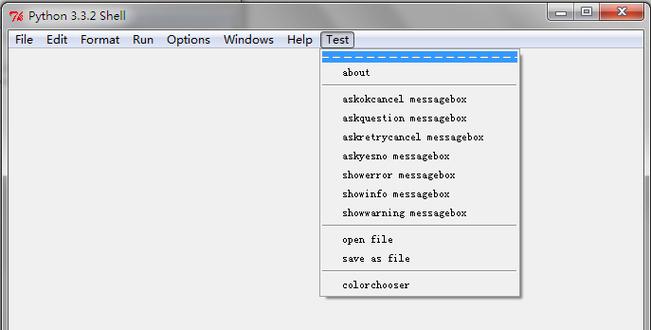
Tkinter offers more than just add_command.
a) Checkbutton Menu Item (add_checkbutton)
Adds a menu item that can be toggled on or off. It's perfect for options like "Show Grid" or "Snap to Grid".
# Inside a menu definition:
view_menu = tk.Menu(menubar, tearoff=0)
menubar.add_cascade(label="View", menu=view_menu)
# A boolean variable to track the state
show_grid_var = tk.BooleanVar()
view_menu.add_checkbutton(
    label="Show Grid",
    variable=show_grid_var,
    command=lambda: print(f"Show Grid is now: {show_grid_var.get()}")
)
b) Radiobutton Menu Item (add_radiobutton)
Adds a menu item that belongs to a group, where only one item in the group can be selected at a time.
# Inside a menu definition:
tools_menu = tk.Menu(menubar, tearoff=0)
menubar.add_cascade(label="Tools", menu=tools_menu)
# A variable to track the selected option
tool_mode_var = tk.StringVar(value="select")
tools_menu.add_radiobutton(
    label="Select Mode",
    variable=tool_mode_var,
    value="select"
)
tools_menu.add_radiobutton(
    label="Draw Mode",
    variable=tool_mode_var,
    value="draw"
)
tools_menu.add_radiobutton(
    label="Erase Mode",
    variable=tool_mode_var,
    value="erase"
)
Complete Example with All Features
Here is a final, well-commented example that puts everything together.
import tkinter as tk
from tkinter import messagebox, filedialog
class MenuApp:
    def __init__(self, root):
        self.root = root
        self.root.title("Complete Tkinter Menu Demo")
        self.root.geometry("500x400")
        # --- Menu Setup ---
        self.create_menu()
        # --- Main UI ---
        self.label = tk.Label(
            self.root,
            text="Welcome to the Menu Demo!",
            font=("Helvetica", 16)
        )
        self.label.pack(pady=50)
        self.status_var = tk.StringVar()
        self.status_var.set("Ready")
        self.status_bar = tk.Label(
            self.root,
            textvariable=self.status_var,
            bd=1,
            relief=tk.SUNKEN,
            anchor=tk.W
        )
        self.status_bar.pack(side=tk.BOTTOM, fill=tk.X)
    def create_menu(self):
        # Create the main menu bar
        menubar = tk.Menu(self.root)
        # === FILE MENU ===
        file_menu = tk.Menu(menubar, tearoff=0)
        menubar.add_cascade(label="File", menu=file_menu)
        file_menu.add_command(label="New", command=self.new_file, accelerator="Ctrl+N")
        file_menu.add_command(label="Open...", command=self.open_file, accelerator="Ctrl+O")
        file_menu.add_separator()
        file_menu.add_command(label="Save", command=self.save_file, accelerator="Ctrl+S")
        file_menu.add_command(label="Save As...", command=self.save_as_file, accelerator="Ctrl+Shift+S")
        file_menu.add_separator()
        file_menu.add_command(label="Exit", command=self.root.quit, accelerator="Alt+F4")
        # === EDIT MENU ===
        edit_menu = tk.Menu(menubar, tearoff=0)
        menubar.add_cascade(label="Edit", menu=edit_menu)
        edit_menu.add_command(label="Undo", command=self.undo, accelerator="Ctrl+Z")
        edit_menu.add_command(label="Redo", command=self.redo, accelerator="Ctrl+Y")
        edit_menu.add_separator()
        edit_menu.add_command(label="Cut", command=self.cut, accelerator="Ctrl+X")
        edit_menu.add_command(label="Copy", command=self.copy, accelerator="Ctrl+C")
        edit_menu.add_command(label="Paste", command=self.paste, accelerator="Ctrl+V")
        # === VIEW MENU (with Checkbutton) ===
        view_menu = tk.Menu(menubar, tearoff=0)
        menubar.add_cascade(label="View", menu=view_menu)
        self.show_toolbar_var = tk.BooleanVar(value=True)
        view_menu.add_checkbutton(
            label="Show Toolbar",
            variable=self.show_toolbar_var,
            command=self.toggle_toolbar
        )
        self.show_status_var = tk.BooleanVar(value=True)
        view_menu.add_checkbutton(
            label="Show Status Bar",
            variable=self.show_status_var,
            command=self.toggle_status_bar
        )
        # === TOOLS MENU (with Radiobutton) ===
        tools_menu = tk.Menu(menubar, tearoff=0)
        menubar.add_cascade(label="Tools", menu=tools_menu)
        self.tool_mode_var = tk.StringVar(value="select")
        tools_menu.add_radiobutton(
            label="Select Tool",
            variable=self.tool_mode_var,
            value="select",
            command=self.change_tool_mode
        )
        tools_menu.add_radiobutton(
            label="Brush Tool",
            variable=self.tool_mode_var,
            value="brush",
            command=self.change_tool_mode
        )
        # === HELP MENU ===
        help_menu = tk.Menu(menubar, tearoff=0)
        menubar.add_cascade(label="Help", menu=help_menu)
        help_menu.add_command(label="View Help", command=self.show_help)
        help_menu.add_command(label="About", command=self.show_about)
        # Configure the window to use the menu bar
        self.root.config(menu=menubar)
    # --- Menu Callback Functions ---
    def new_file(self):
        self.status_var.set("New file created.")
        messagebox.showinfo("New", "A new file has been created.")
    def open_file(self):
        path = filedialog.askopenfilename()
        if path:
            self.status_var.set(f"Opened: {path}")
    def save_file(self):
        self.status_var.set("File saved.")
    def save_as_file(self):
        self.status_var.set("File saved as...")
    def undo(self): self.status_var.set("Undo action.")
    def redo(self): self.status_var.set("Redo action.")
    def cut(self): self.status_var.set("Cut action.")
    def copy(self): self.status_var.set("Copy action.")
    def paste(self): self.status_var.set("Paste action.")
    def toggle_toolbar(self):
        # In a real app, you would show/hide a toolbar widget
        status = "ON" if self.show_toolbar_var.get() else "OFF"
        self.status_var.set(f"Toolbar is {status}.")
    def toggle_status_bar(self):
        if self.show_status_var.get():
            self.status_bar.pack(side=tk.BOTTOM, fill=tk.X)
        else:
            self.status_bar.pack_forget()
        self.status_var.set("Status bar toggled.")
    def change_tool_mode(self):
        mode = self.tool_mode_var.get().capitalize()
        self.status_var.set(f"Tool mode changed to: {mode}")
    def show_help(self):
        messagebox.showinfo("Help", "This is a demo application. Enjoy!")
    def show_about(self):
        messagebox.showinfo(
            "About",
            "Tkinter Menu Demo\nA comprehensive example of Tkinter menus."
        )
if __name__ == "__main__":
    root = tk.Tk()
    app = MenuApp(root)
    root.mainloop()
This final example demonstrates a professional structure, using a class to organize the code, and includes various menu item types, status bar updates, and even keyboard accelerators (like Ctrl+N).