Of course! This is a fundamental concept in Python development. Let's break down Python's site-packages directory in detail.
What is site-packages?
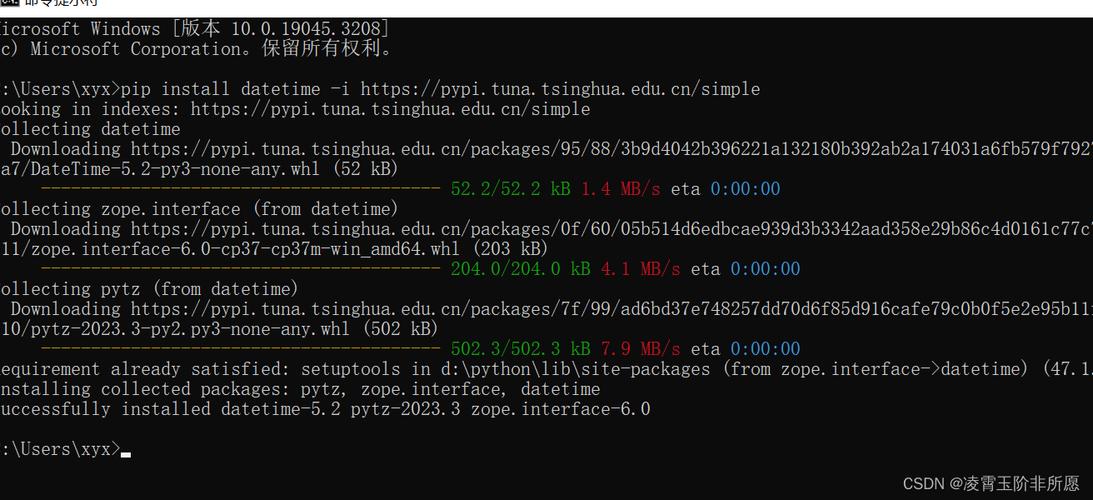
In simple terms, site-packages is the directory where Python installs third-party libraries and packages that you download using pip.
Think of it as the "Application Data" folder for your Python projects. When you run pip install requests, the requests library and all its necessary files are placed inside a requests subdirectory within site-packages.
Why Does it Exist?
- Centralized Location: It provides a single, organized place to store all your installed packages. This makes them easy for Python to find and import.
- Isolation: It keeps third-party code separate from your project's own code and from Python's built-in modules (which are in the
Libdirectory of your Python installation). - Simplicity: It abstracts away the complexity of file paths. You don't need to know where
site-packagesis to use a package. You justimportit, and Python's import system handles the rest.
Where is site-packages Located?
The location of the site-packages directory depends on:
- Your operating system (Windows, macOS, Linux).
- Whether you are using a system-wide Python installation or a virtual environment.
System-Wide Installation (Not Recommended for Projects)
This is the default location when you install Python directly from python.org or use your OS's package manager (like apt or yum).
How to find it: Run this command in your terminal:
python -m site --user-site
Or, to see the base site-packages directory:
python -c "import site; print(site.getsitepackages())"
Typical Paths:
- Windows:
C:\Users\<YourUsername>\AppData\Local\Programs\Python\Python3x\Lib\site-packages - macOS / Linux:
/usr/local/lib/python3.x/site-packages(or/usr/lib/python3.x/site-packages)
Warning: Modifying the system-wide site-packages can be risky. Upgrading your system's Python can break these installations. This is why virtual environments are the standard practice.
Virtual Environment (The Recommended Way)
A virtual environment is an isolated Python environment that has its own set of installed packages, independent of your system-wide Python. This is the best way to manage dependencies for a specific project.
When you activate a virtual environment, Python's search path is modified to point to a site-packages directory inside the virtual environment's folder.
How to find it in a virtual environment:
-
Create and activate a virtual environment:
# Create the environment (using venv)
python -m venv my-project-env
# Activate it
# On Windows:
.\my-project-env\Scripts\activate
# On macOS/Linux:
source my-project-env/bin/activate
-
Find the path: Now that the environment is active, your terminal prompt will change (e.g.,
(my-project-env) C:\Users\You>). Run the same command as before:python -c "import site; print(site.getsitepackages())"
Typical Paths inside a virtual environment:
- Windows:
C:\path\to\your\project\my-project-env\Lib\site-packages - macOS / Linux:
/path/to/your/project/my-project-env/lib/python3.x/site-packages
Key takeaway: This site-packages directory is local to your project. Installing a package here will not affect any other project on your machine.
What's Inside site-packages?
If you navigate to a site-packages directory, you'll see a mix of things:
- Directories: These correspond to packages. For example, a
djangodirectory contains all the code for the Django framework. - Files ending in
.py: These are regular Python modules. - Files ending in
.pth: These are "path" files. They contain additional directories that Python should search for packages. This is an advanced feature used by some tools. - Files ending in
.egg-info: These are metadata directories for packages installed in "egg" format (older). They contain information about the package, its dependencies, and entry points. - Files ending in
.dist-info: This is the modern standard. It contains metadata for a package, including its license, author, dependencies (requires.txt), and a list of all files installed by the package (RECORD).
Common Problems and Solutions
Problem 1: ModuleNotFoundError (or ImportError)
This means Python can't find the module you're trying to import. The most common reason is that the package isn't installed in the Python environment you're currently using.
Solution:
- Are you in a virtual environment? Make sure it's activated. Your terminal prompt should show its name.
- Is the package installed? Run
pip listto see all packages installed in the current environment. - Install the package: If it's not in the list, install it:
pip install <package_name>. - Check the Python interpreter: Make sure you are running the script with the Python interpreter from the correct environment. If your virtual environment is active,
pythonshould automatically point to the right one.
Problem 2: Conflicting Packages
You might install requests in one project and requests==2.25.0 in another. If you're using the system-wide site-packages, these will conflict. The second installation might overwrite the first, breaking the first project.
Solution:
This is the primary reason virtual environments exist. Each project gets its own clean site-packages, so there are no conflicts.
Best Practice Workflow:
- Create a project folder.
- Create and activate a virtual environment inside it.
- Install all necessary packages for that project.
- When you work on a different project, activate its own virtual environment. Its packages will be completely separate.
Useful Commands
| Command | Description |
|---|---|
pip list |
Lists all installed packages in the current environment. |
pip show <package_name> |
Shows details about a specific package (location, version, dependencies). |
pip freeze |
Outputs a list of installed packages in a format suitable for a requirements.txt file. |
python -m site --user-site |
Shows the path to the user-specific site-packages directory. |
python -c "import site; print(site.getsitepackages())" |
Shows all paths to site-packages directories for the current interpreter. |